Ascora’s multi-company support allows businesses operating under different brands or locations to manage operations efficiently within a single platform. Whether you run multiple branches, divisions, or businesses under different trading names, this feature ensures that each company maintains separate branding, financial data, and workflows while keeping everything centralized in Ascora.
With multi-company functionality, you can:
This guide provides step-by-step instructions on configuring, managing, and troubleshooting multiple companies in Ascora, helping you keep operations organized while maintaining financial and operational clarity across all business units.
- Setting Up a New Company in Ascora
- Using Multiple Companies for Quotes and Jobs
- Managing Purchase Orders by Company
- Creating Document Templates per Company
- Accounting Integration by Company
- Payroll, Supplies, and Supplier Invoicing by Company
- Configuring Rates and Charges by Company
- Enquiries, Follow-Ups, and Reporting by Company
- Managing Staff Access by Company
- Email Configuration by Company
- Checklist and Troubleshooting Tips
- Troubleshooting Tips
Setting Up a New Company in Ascora
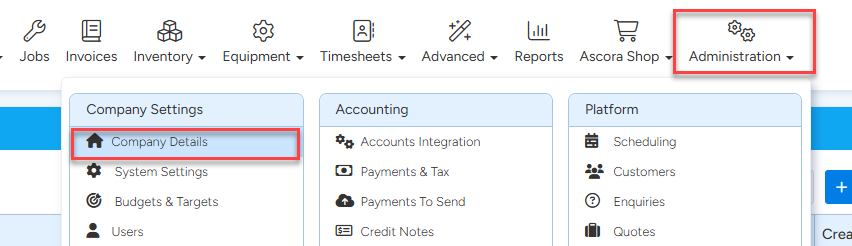
- Navigate to Administration → Company Details
- Add a New Company
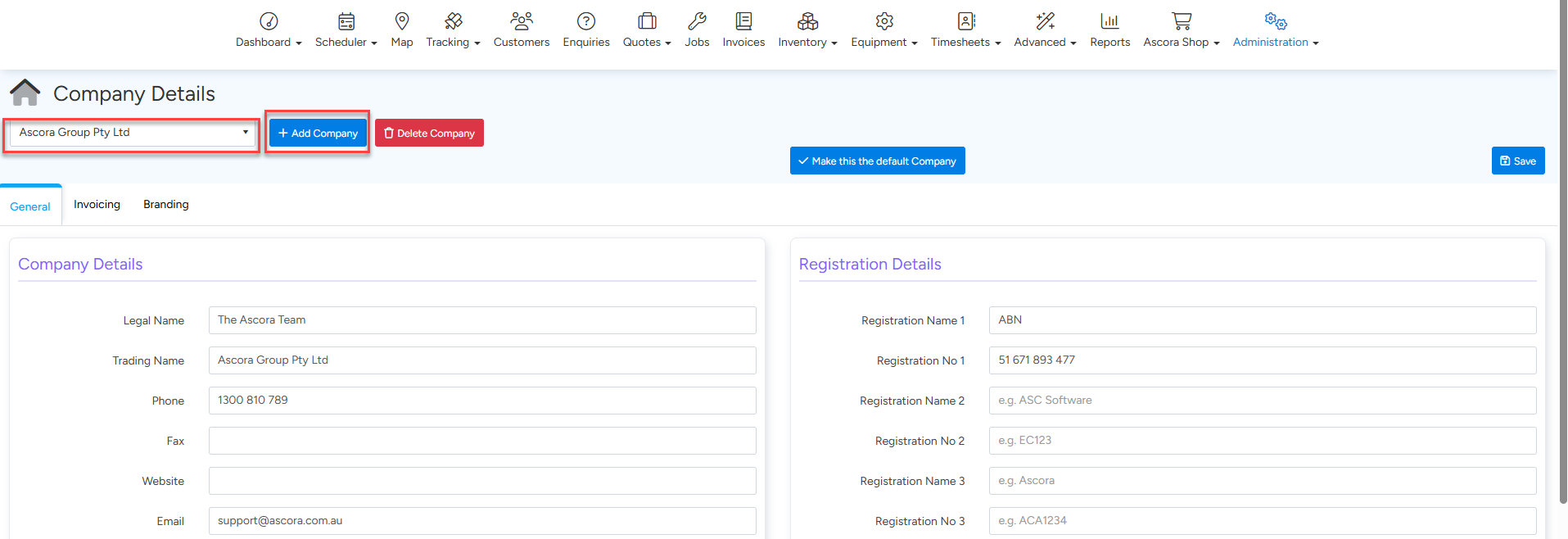
- Click “+ Add Company” and enter the required details, including the company’s legal name, phone number, email, etc.
- To simplify operations, you may want to set a company as the default so its details populate automatically in jobs, quotes, and invoices.
- Customize Your Company Profile
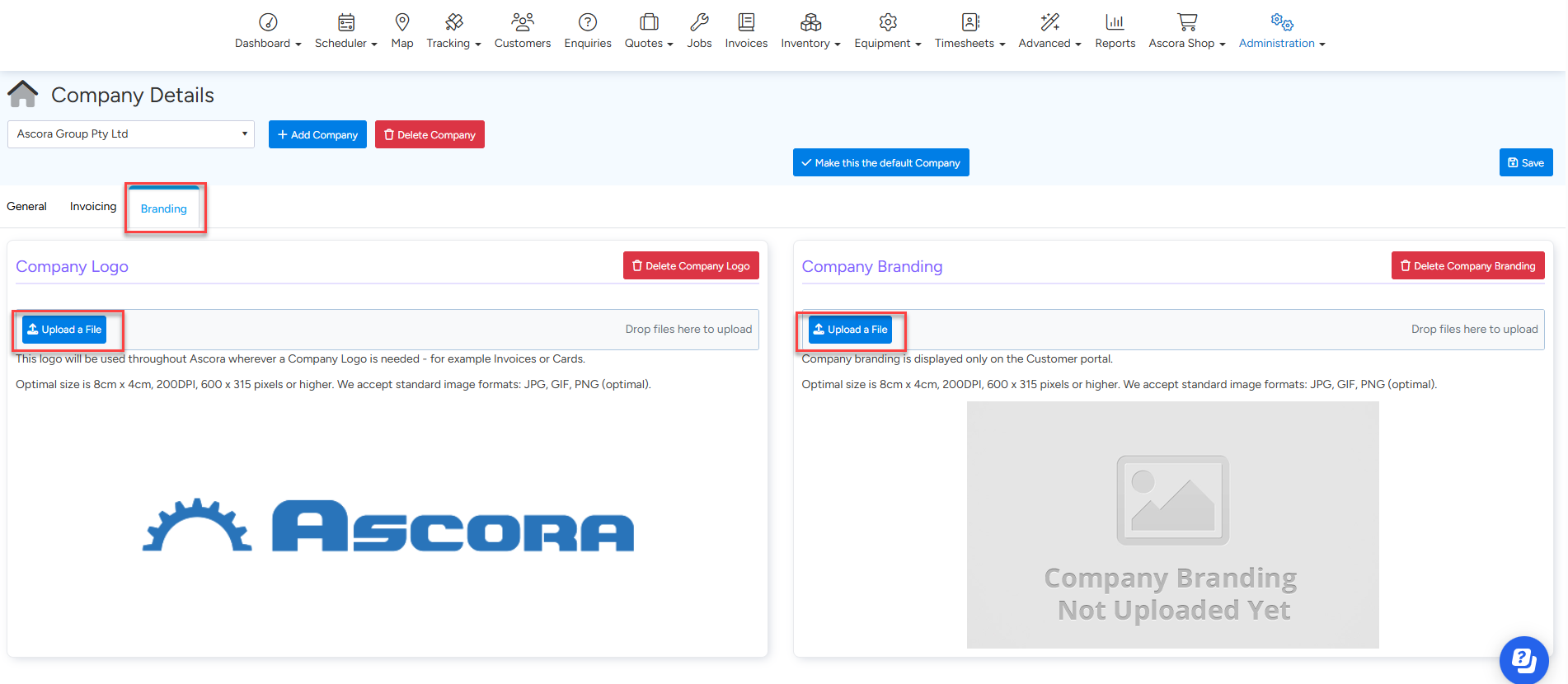
- Upload branding elements, such as your logo, Terms and Conditions, and invoice header. Having separate branding elements for each company ensures consistency with each brand’s identity by clicking on the Branding Tab.
- Save Your Setup
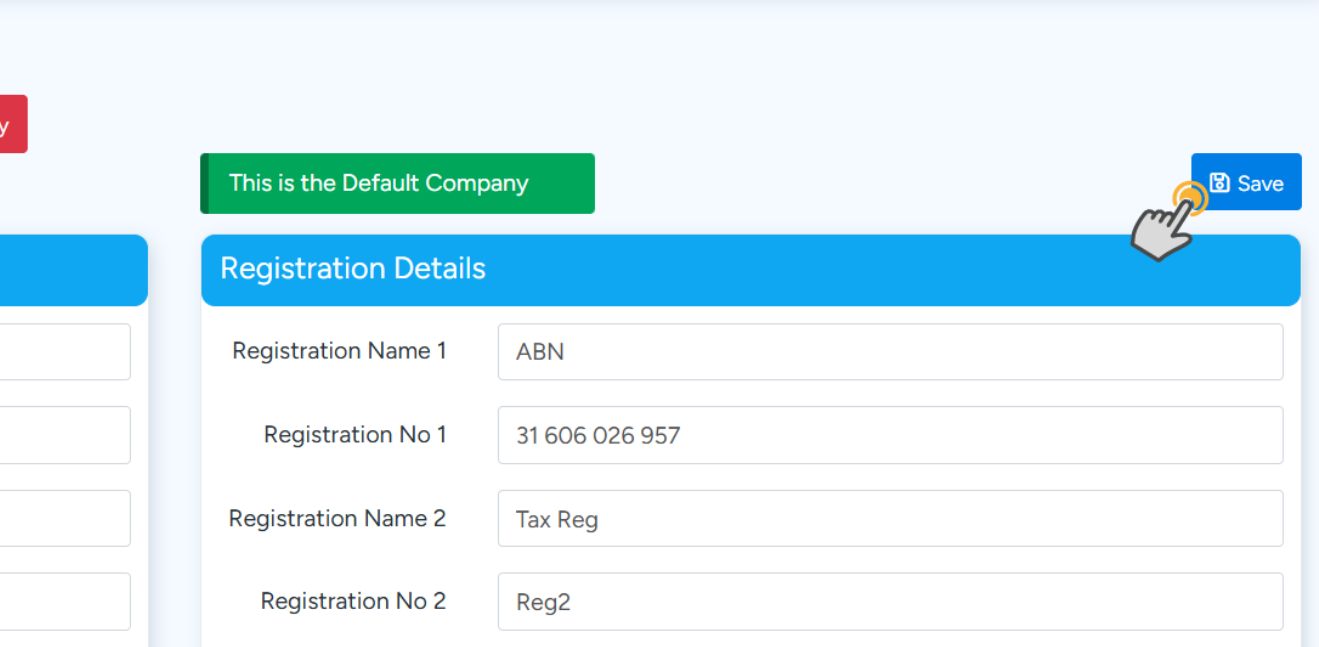
- Once all details are entered, click the “Save” button in the upper right corner.
Using Multiple Companies for Quotes and Jobs
When you create or edit a quote or job, simply select the company to which it should be associated from the Company dropdown menu within the details section. This helps keep quotes, jobs, and invoices organized and specific to each brand.
Expected Results: When viewing your Quotation, Job, and Invoice lists, these documents will be filtered according to the selected company.
Managing Purchase Orders by Company
- Set the Delivery Method to Yard
- In the Purchase Order Details, select the relevant company and set “Deliver To” as Yard. This selection will display the company’s physical address as the delivery destination.
- Destination Location Note
- The “Destination Location” refers to where inventory is stored upon receipt, distinct from the delivery address on the Purchase Order.
Creating Document Templates per Company
Document templates allow for brand consistency. Customize templates with company-specific logos and details, ensuring that quotes, invoices, and other documents reflect each brand’s identity.
- Upload Custom Templates
- Go to Administration → Document Templates and click “Add New.” Upload the template and name it based on the company.
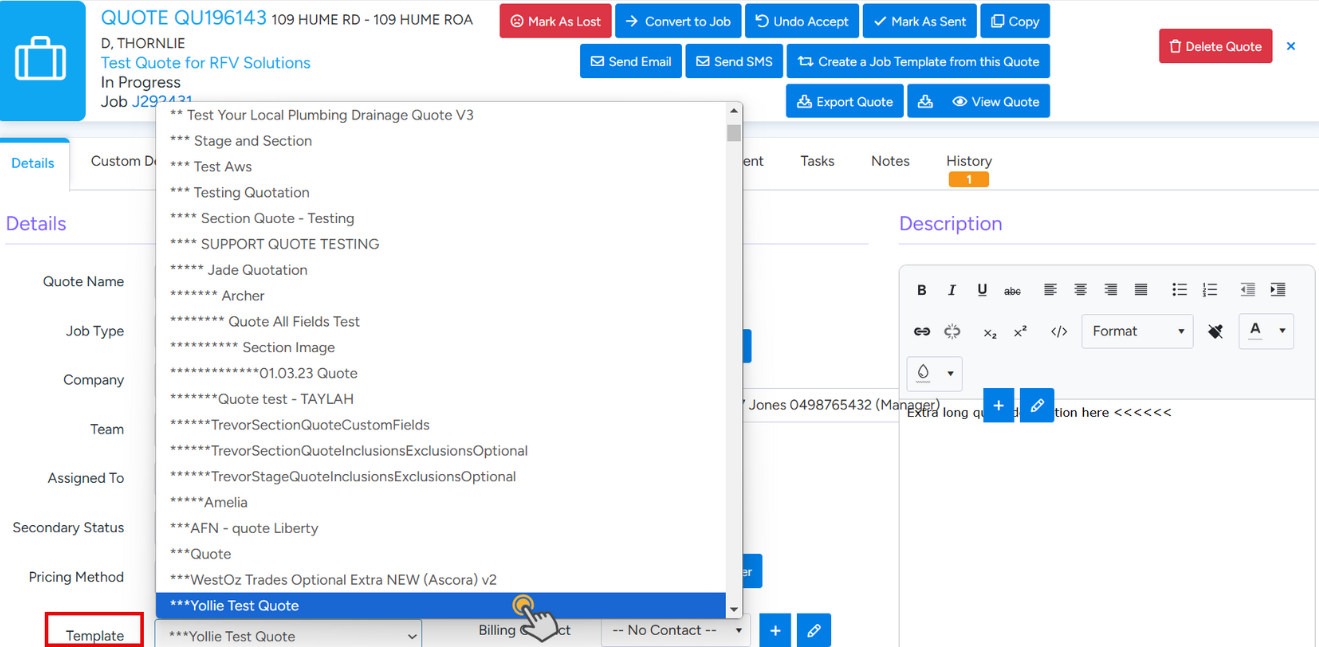
- Selecting Templates in Quotes
- When creating a quote, select the appropriate template (e.g., “Quote Template - Company B”) for brand alignment.
Accounting Integration by Company
Ascora allows each company to have separate accounting settings, facilitating accurate financial reporting and streamlined management.
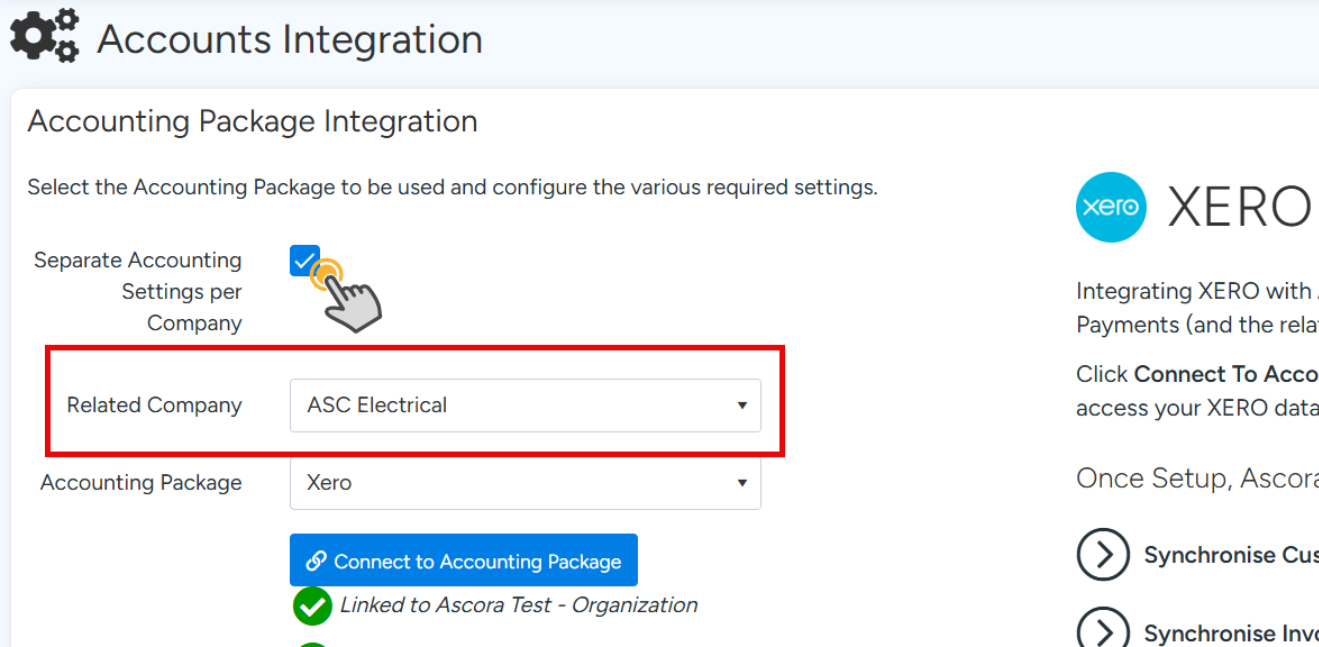
- Set Separate Accounting Information
- Go to Administration → Accounts Integration and select “Separate accounting settings per company.” Assign existing accounting information to each set-up company.
- Assign Accounting Codes
- Link each company to an accounting package and assign relevant codes.
Payroll, Supplies, and Supplier Invoicing by Company
This feature allows you to separate payroll, supplies, and supplier invoicing for each company.
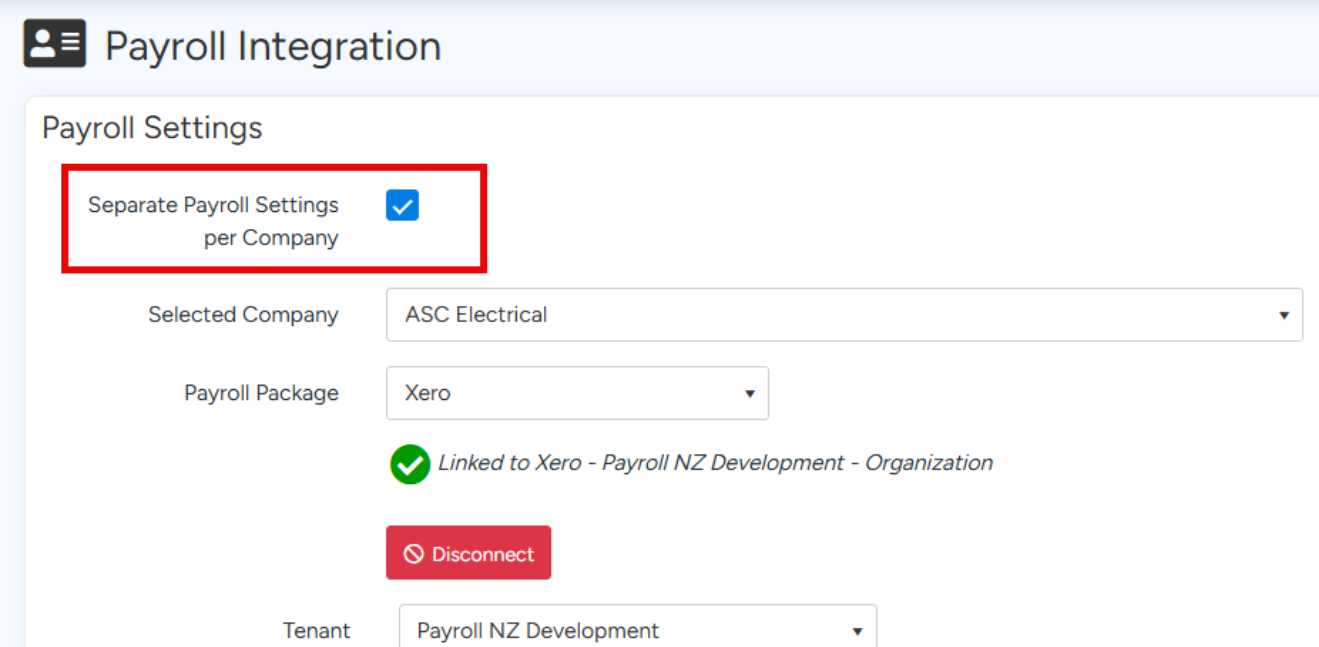
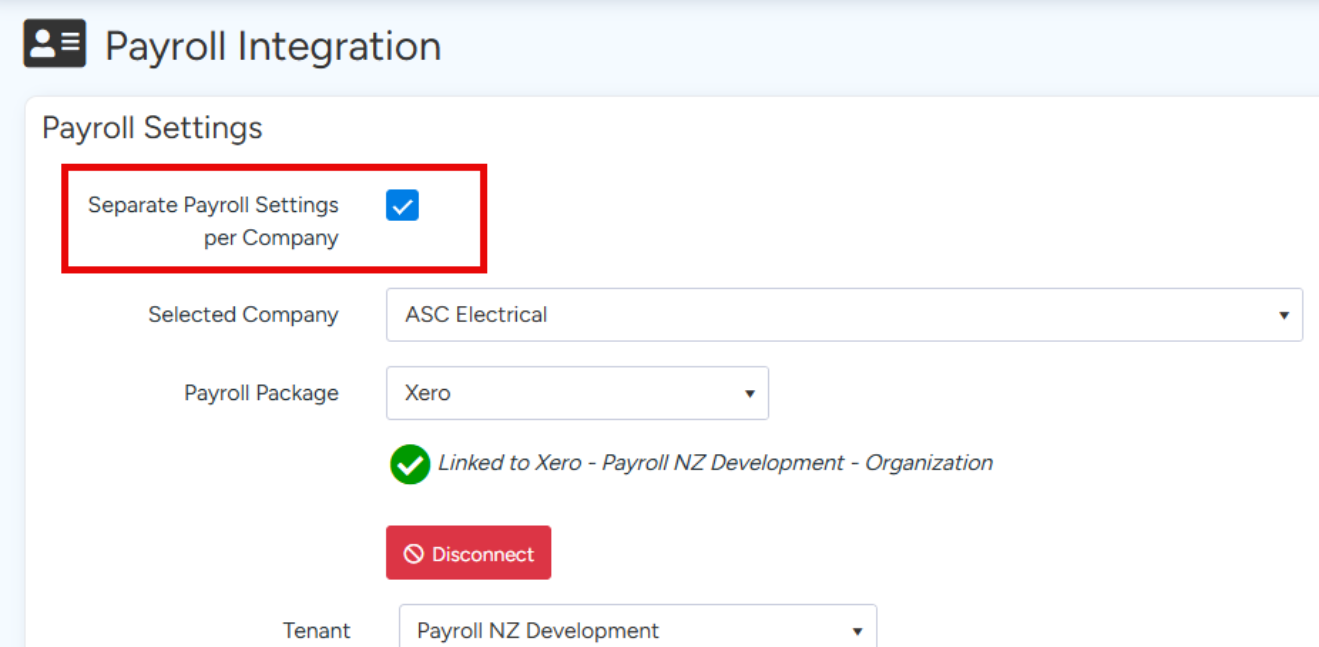
- Payroll: Go to Administration → Payroll Settings to split payroll settings per company.
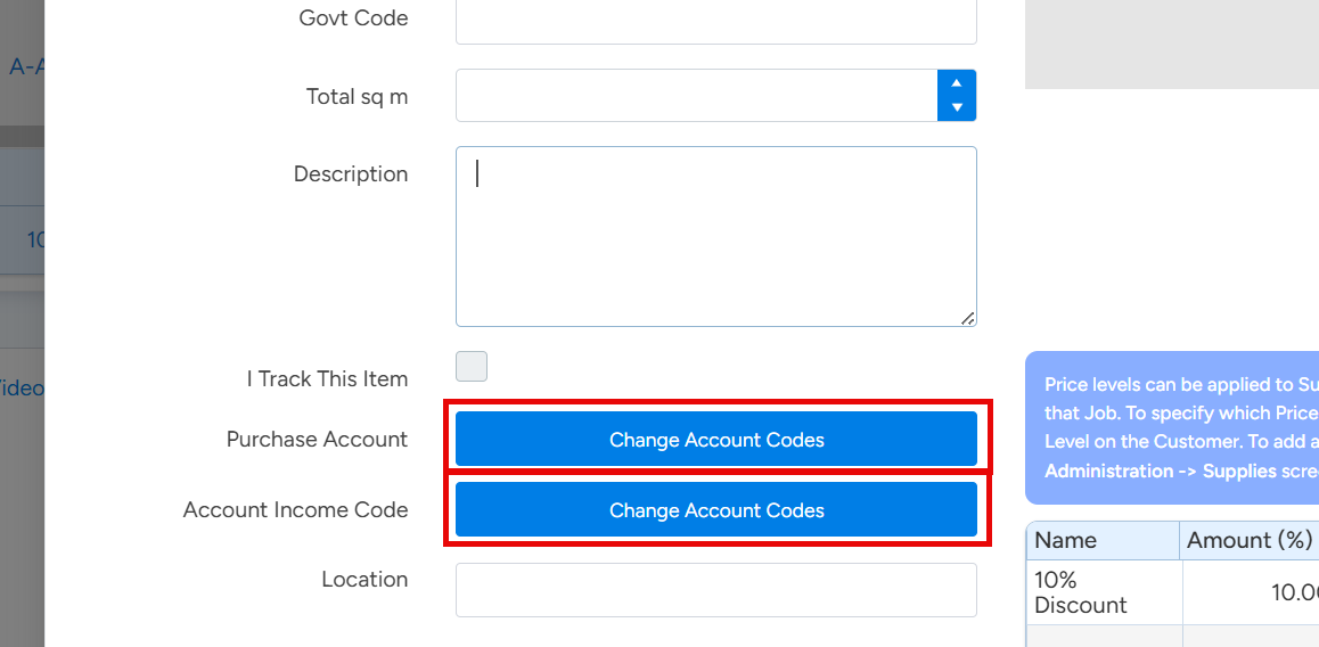
- Supplies: Adjust account codes per company in Inventory → Supplies.
- Supplier Invoices: Within a supplier invoice, select the associated company and adjust codes if needed.
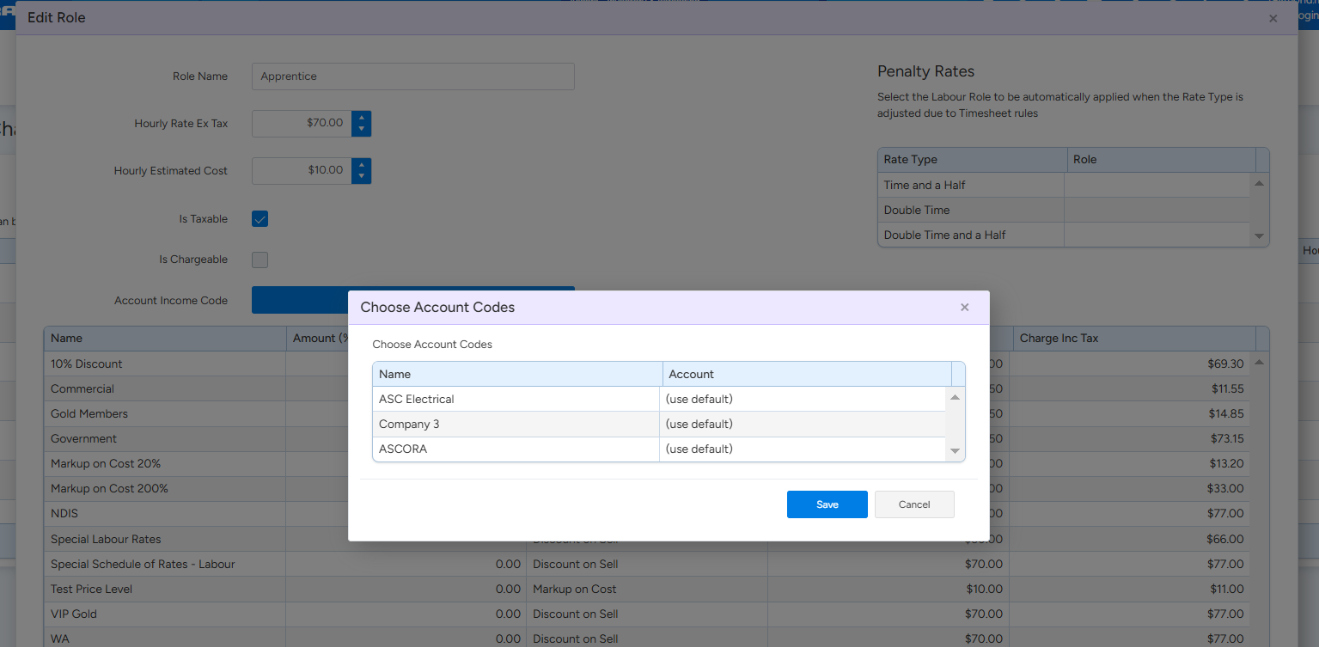
Configuring Rates and Charges by Company
Different rates and charges can be set per company for accurate financial tracking. Adjust settings under Administration → Rates and Charges.
Enquiries, Follow-Ups, and Reporting by Company
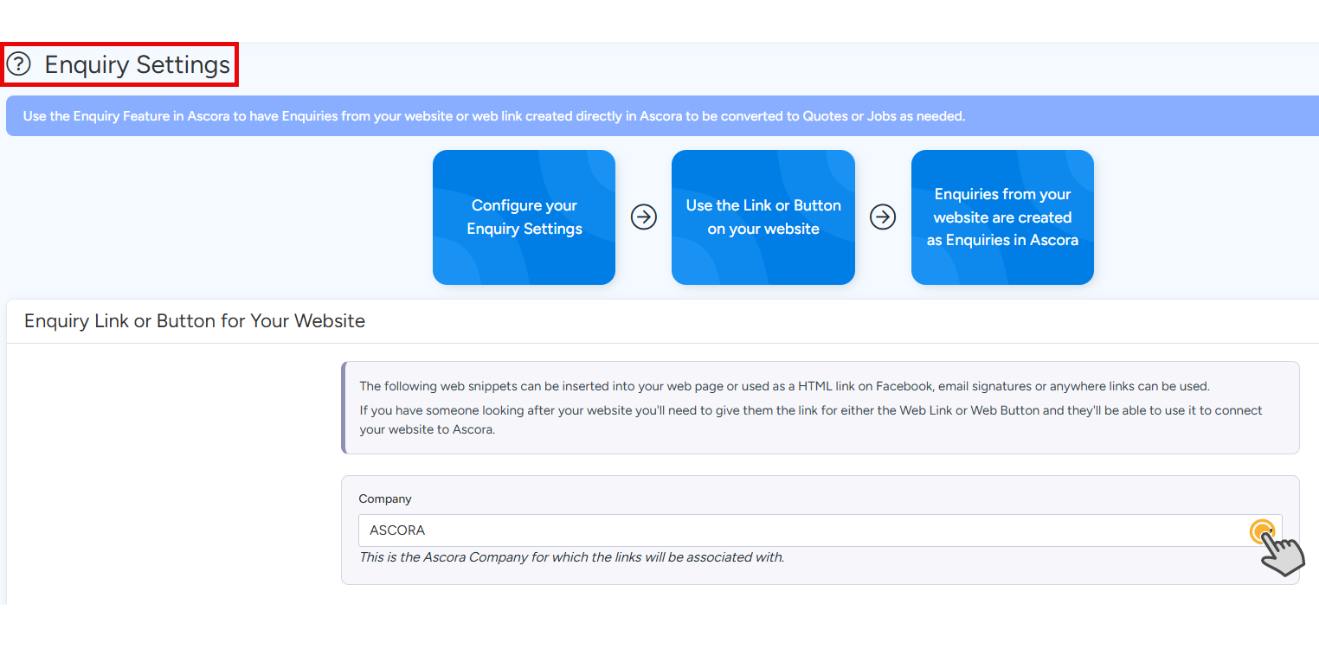
- Enquiries: Customize enquiry codes per company under Administration → Enquiries.
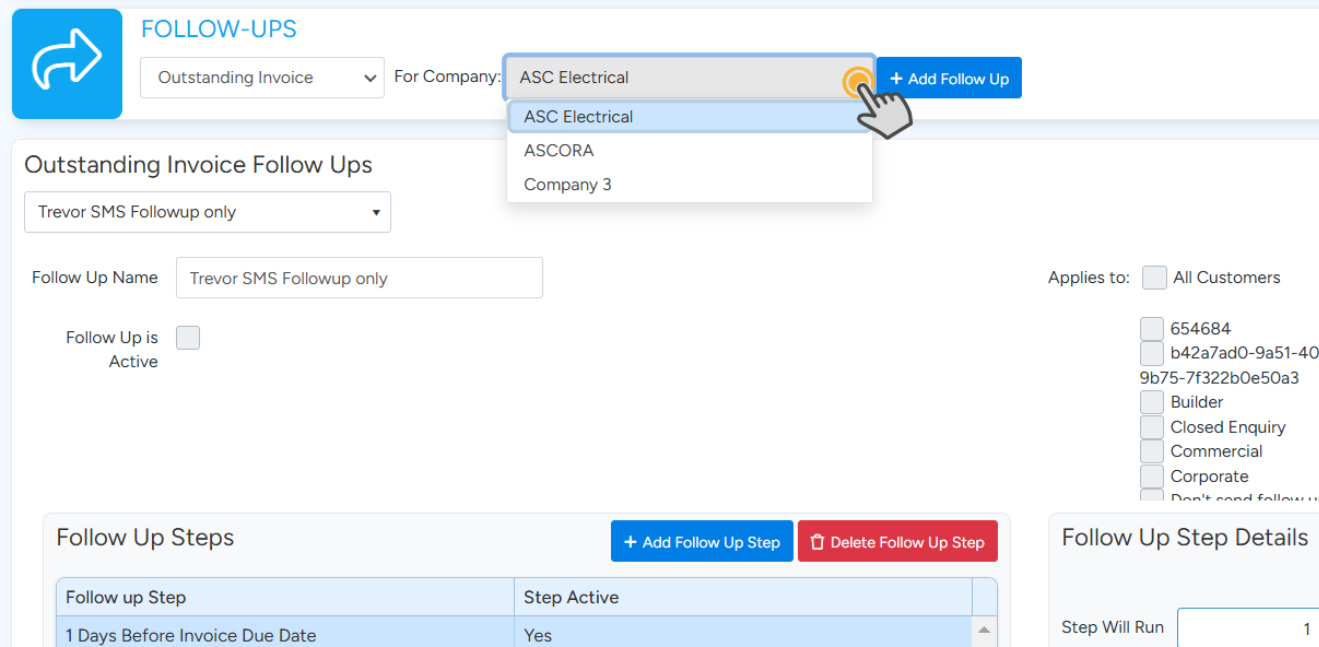
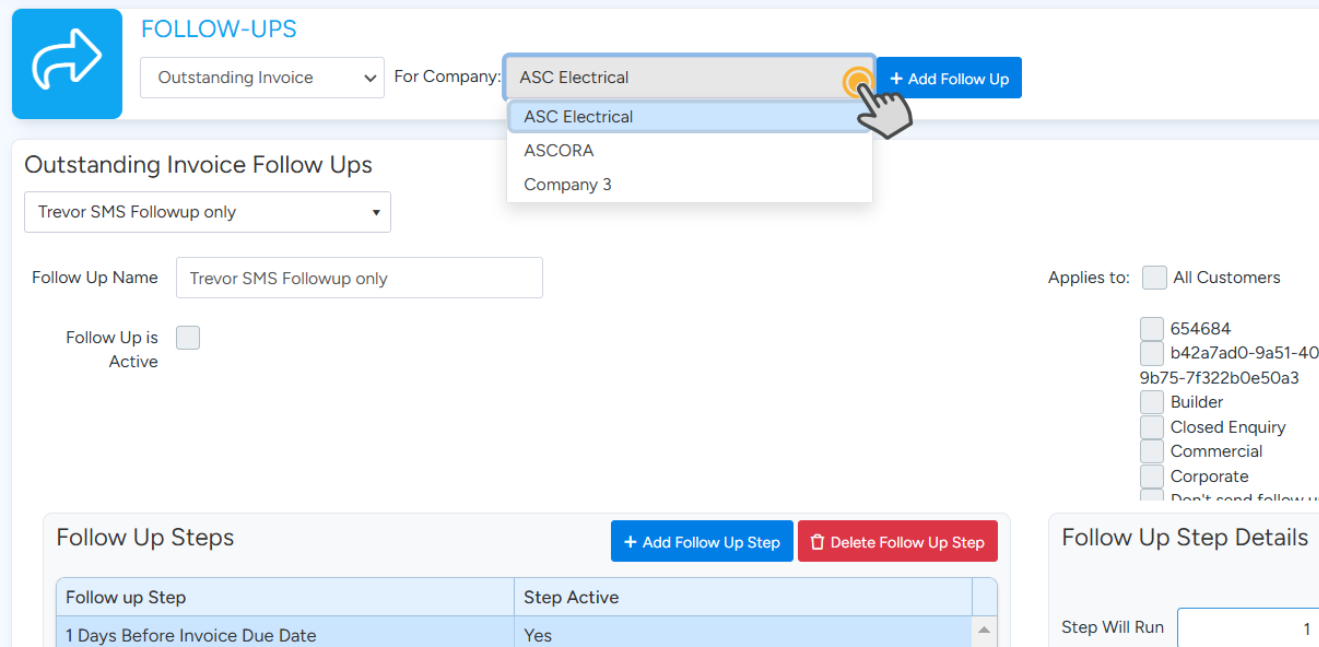
- Follow-Ups: Adjust follow-up automations based on the company under Administration → Follow-Ups.
- Reporting: Filter reports by company for detailed analysis specific to each brand.
Managing Staff Access by Company
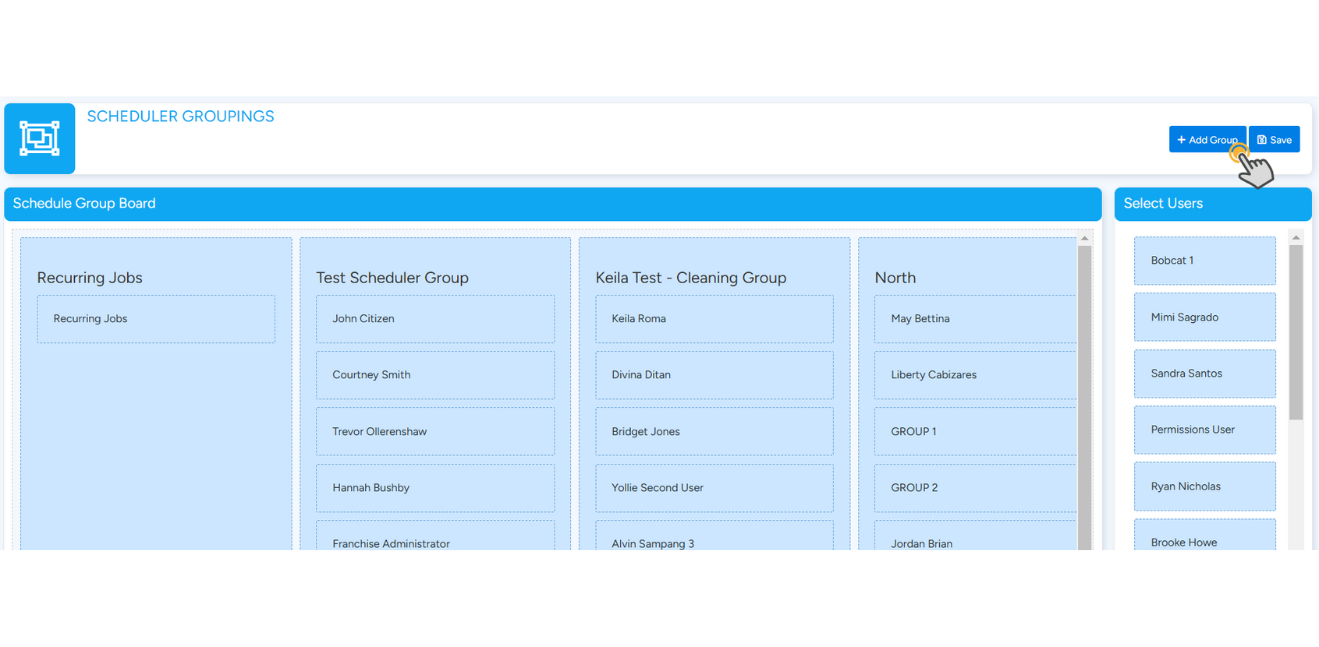
Assign users to view only the tasks related to their assigned team. Scheduler groups can further help filter tasks by team, allowing staff to focus on work specific to their assigned company.
Email Configuration by Company
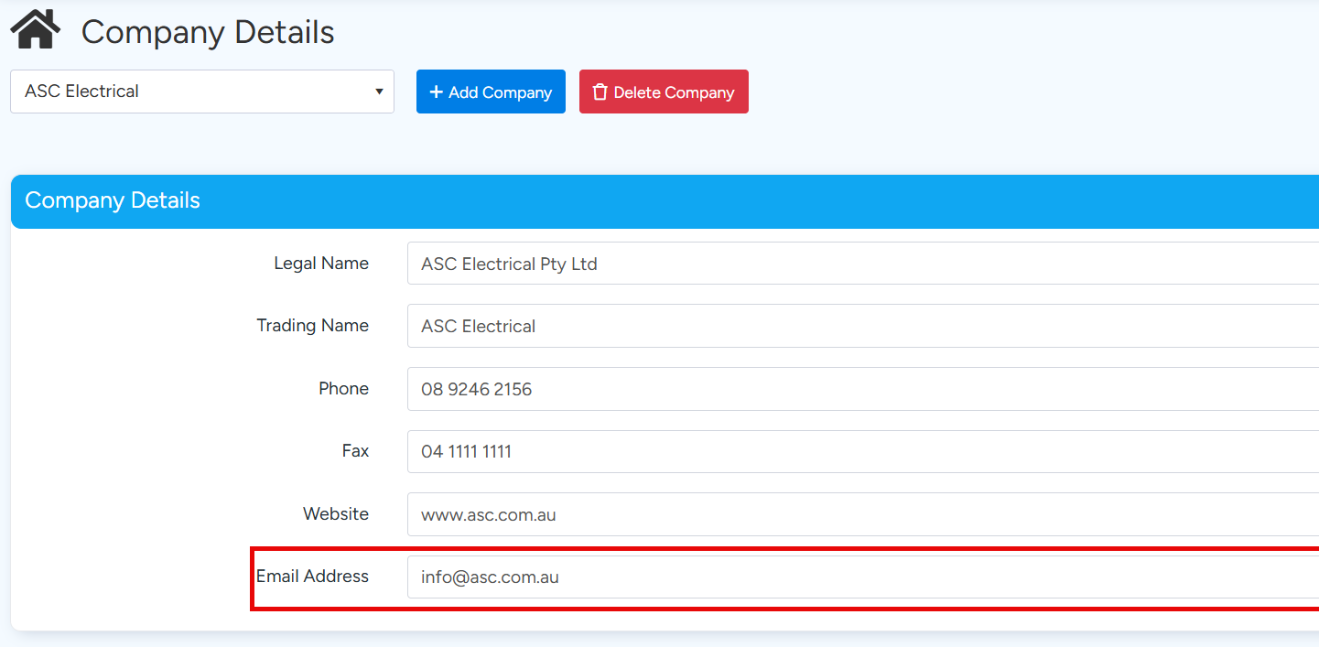
Emails sent via the Ascora Email Server will use the address linked to the selected company. Third-party email systems will use the settings configured under general system settings.
Checklist and Troubleshooting Tips
Here’s a quick checklist to ensure successful multi-company setup:
- Confirm all company-specific settings, including names, email addresses, and templates, are correctly configured.
- Verify that all accounting, payroll, and inventory codes align with the correct company.
- Test email configurations by sending test messages from each company.
Troubleshooting Tips
- Issue: Templates not displaying correct company branding.
- Solution: Recheck template selection and verify company name before generating the document.
- Issue: Incorrect company appearing on invoices.
- Solution: Verify default company settings and confirm company selection at the start of each invoice creation.
- Issue: Inconsistent payroll data.
- Solution: Ensure payroll settings are correctly split per company and codes are updated in each system.
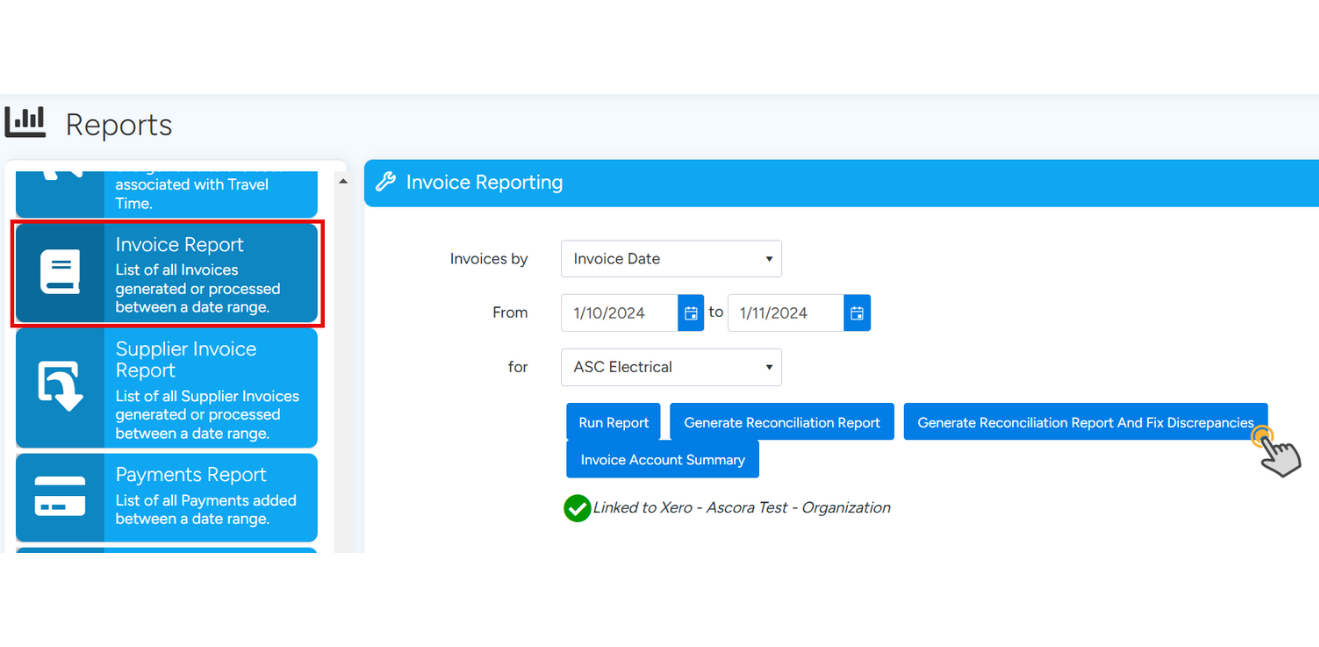
- Issue: Accounting package not matching Ascora.
- Solution: Go to Reports >> Invoice Report >> Generate Reconciliation Report And Fix Discrepancies
With these steps and best practices, managing multiple companies in Ascora should be smooth and efficient. Refer to each section and apply settings that align with your specific needs for each business entity.
Got a question?
Submit an Idea 💡 Go to Ideas Portal