Accurate and up-to-date supply pricing is essential for maintaining profitability, cost control, and efficient job quoting. Ascora allows you to import supplier price lists directly into the system, streamlining the process of updating costs and ensuring that your supply database remains current.
Why Import Supplier Price Lists?
Methods for Importing Supply Price Lists
Ascora offers two ways to import price lists, depending on whether you need a preview and mapping control or a direct import:
Follow the steps below to ensure a smooth and error-free supply price import process.
📽 Watch the video guides ⤵
Mapping Supplies Price List
Import Tips
Here are a few tips when working with a raw price file and the Ascora Import Template in Excel.
- Check for multiple description columns
Depending upon the source system and how old it is, the description for a particular part may be split across multiple columns. This can be joined together using a simple formula in Excel like =B2 & " " & C2 This will join both cells together separated by a space.
- Check for the Your Price Column Sometimes a price file can contain a retail price, base price and your price columns. You'll want to ensure that the Your Price column is used otherwise your pricing will be off (and potentially way too high).
- Check if the Your Price is per Unit or Per Box Some price files will contain a Units Per Case Price or a Your Price Per Unit column. You'll want to ensure that you either grab the Your Price Per Unit column or divide the Your Price by the Number of Units. For example the Price may be for a 100m box of cable rather than a per M cable price.
- Check the Units Per Case The Units Per Case will generally be the minimum quantity you can purchase the item. For example if cable can only be purchased in boxes of 100m there will usually be a column for Units Per Case. You'll want to import this as the Pack/Box Quantity in Ascora - when you create Purchase Orders the quantity ordered will be in multiples of the Pack/Box Quantity. As an example if 175m of cable is needed on a Job and the Pack/Box Quantity is 100, when the Purchase Order is generated the Quantity will be 200m.
- Apply Your Markup After the Cost Price has been determined you can apply your markup directly in Excel. For example the formulae can be =B2*1.40 to increase the cost price by 40%. If needed you can also add an IF statement to set different markups depending upon the cost price - for example a markup of 40% if less than $200 otherwise 30%.
- Set the Default Supplier If only importing a single Supplier or importing the item for the first time, set the Supplier Name and Is Default Supplier to "Yes". Setting Default Supplier to "Yes" causes the import to use all of the columns on that row rather than just the Supplier Name, Supplier Part Number and Cost.
As a Summary check for the following columns:
Using Standard Import Template and References
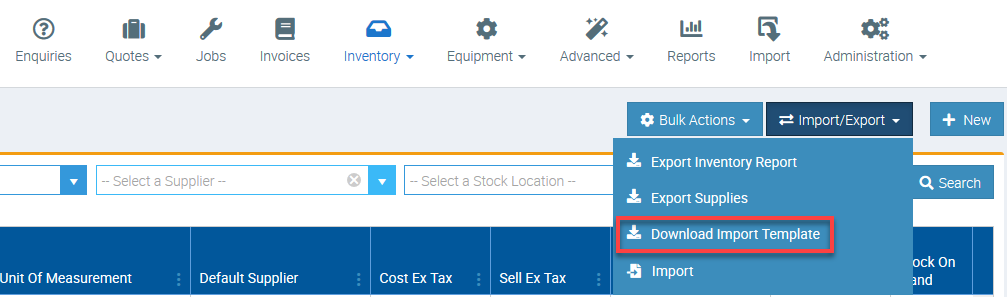
Once you have your price file sorted, it is important to transfer the data to Ascora Standard Import template which you can download from Inventory → Supplies → Export/Import → then select Download Import Template.
Important Reminders
- Make sure that your Import file does not contain formulas which means that data should be pasted as values.
- Save a back up copy of your existing price list prior to importing updates. You can download a backup by selecting Export Supplies located above the Download Import template.
- Make sure that Default Supplier (Column C ) is set to YES if you need all line items updated.
Please refer to the following details when it comes to completing the details on each column.
| Column Label | Header | Compulsory Field | Notes |
|---|---|---|---|
| A | PART NUMBER | YES | When importing updated price list, Ascora uses part number to match and update the details and if part number is not available, Ascora uses description to match and update the details. It is important to have a unique part number for each supply item. |
| B | SUPPLIER | YES | |
| C | IS DEFAULT SUPPLIER | YES | If Default Supplier is not set, only the Supplier information (Supplier Part Number and Supplier Buy Price) will be updated. |
| D | CATEGORY | YES | |
| E | SUB CATEGORY | NO | |
| F | CATEGORY TWO | NO | |
| G | SUB CATEGORY TWO | NO | |
| H | DESCRIPTION | YES | In the absence of part number, Ascora uses Description to match and update your price file and thus it's also important that each supply line item has a unique description. |
| I | COST EX TAX | YES | Cost Ex Tax is Compulsory |
| J | LAST COST PRICE CHANGE | NO | |
| K | SELL PRICE | YES | Sell Price can be inclusive or exclusive of GST and is Compulsory |
| L | SELL PRICE INCLUSIVE | YES | Is Your Sell Price on Column J inclusive or exclusive of GST? Please enter Yes or No in this column |
| M | TAX APPLIES | YES | Does Tax applies to your item? Please enter Yes or No in this column. Putting Y for Yes or N for No is also acceptable. |
| N | MUST BE ORDERED | YES | Do you need to order this item once added to a job? Please enter Yes or No in this column. For example, if I don't keep stock for this item, please enter Yes in this column (ie. item needs to be ordered in). Putting Y for Yes or N for No is also acceptable. |
| O | IS FAVOURITE | NO | Would you like to add this item into your favourite folder as it's a frequently used item? Please enter Yes or No in this column. Putting Y for Yes or N for No is also acceptable. |
| P | ACCOUNT INCOME CODE | NO | Account income code is Optional. Please enter your income code here only if you want to track income generated from this item separately in your accounting package. (For eg. This is normally for large items like rental of trucks and machinery) |
| Q | ANNOTATION | NO | Annotation is Option. Annotation is additional description you want to add to your item on top of the description in Column H |
| R | SUPPLIER PART NUMBER | NO | |
| S | UNIT OF MEASUREMENT | NO | |
| T | PACK OR BOX QUANTITY | NO | The inventory item must be ordered in multiples of this amount. E.g. if 5 units per box or if stocked in per metre and comes in 5 metres rolls. |
| U | LOCATION | NO | Location is Optional. Location defines the placement of your items (For eg. Shelf 1, Shelf 2, Stock Room 1, Stock Room 2, etc) |
| V | ARCHIVED | NO | Archived is Optional and is used ONLY if you would like to "delete" your supplies from the List. Please enter Yes if you wish to delete this supply, otherwise, please leave this column blank. Putting Y for Yes or N for No is also acceptable. |
| W | BARCODE | NO | Barcode is Optional. Please enter your Barcode here if applicable. |
| X | WEIGHTED AVERAGE COST | NO | Allow Weighted Average Cost to be imported for Supply |
| Y | I TRACK THIS ITEM | NO | You won't have to set this up if you're already tracking items per job type and that uses the default account income codes set up in Administration → Accounts Integration. |
| Z | PURCHASE OR COGS ACCOUNT INCOME CODE | NO | You'll need to set this up only if you want to track each of your supply items going to unique purchase account income code in your accounting package. |
How to Bulk Delete Supplies?
You can bulk delete supplies and this is applicable when you need to import a completely new set of supply price list.
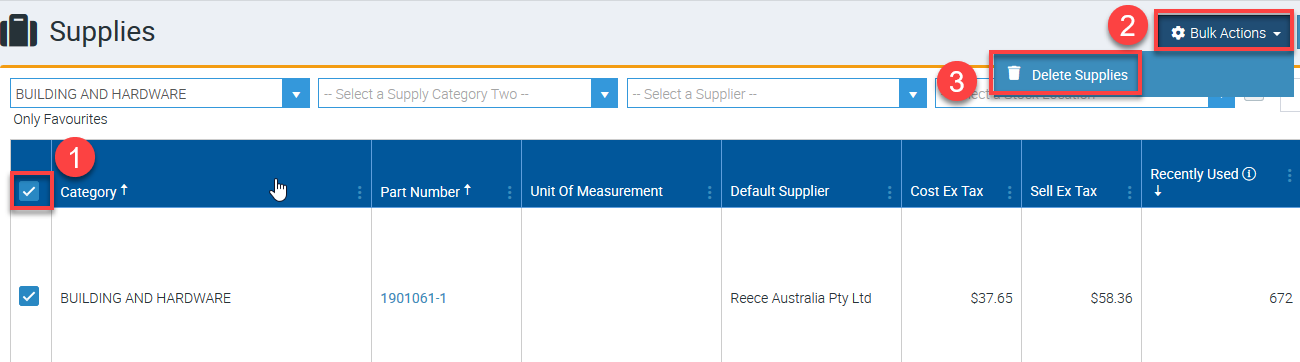
1. Tick the box beside the header called Category → Bulk Actions → Delete Supplies
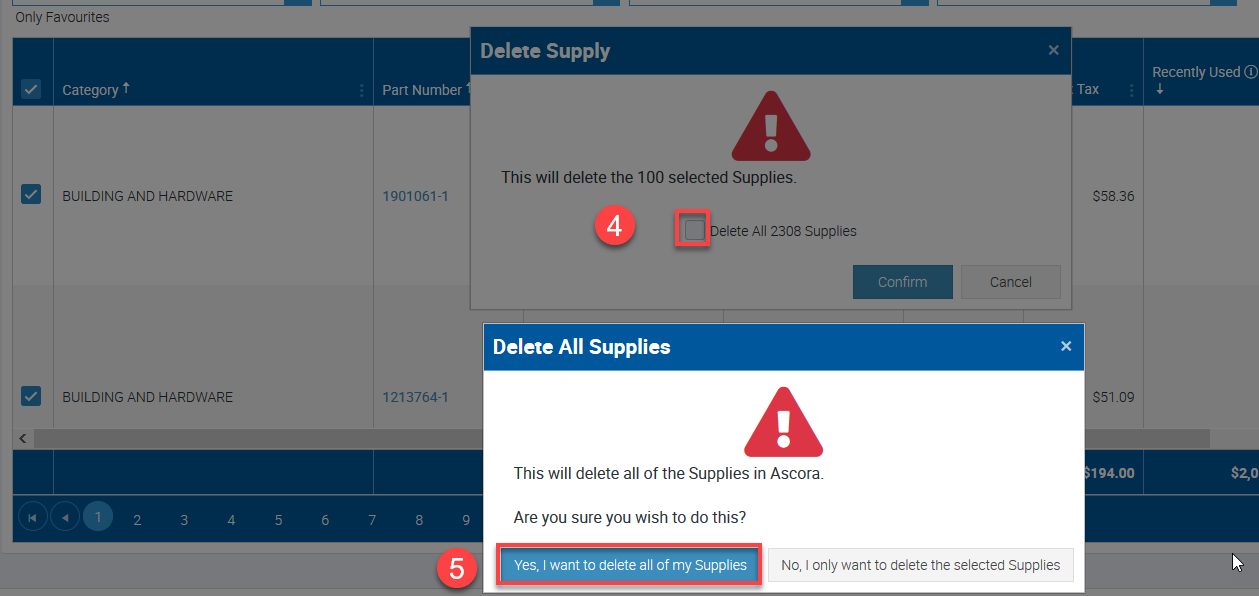
2. Tick the box beside Delete All X Number of Supplies and click Yes, I want to delete all of my Supplies.