Choose the Customers Icon in the Top Menu to display the Customer List and click the Import/Export button to display the available Customer List Import and Export options.
Efficiently managing your customer information is vital for maintaining accurate records and streamlining your business processes. Ascora offers multiple import and export options, allowing you to quickly transfer customer details into or out of the system. By choosing the method that best suits your workflow — whether it’s exporting all customer records, selectively exporting specific lists, or importing from an accounting package or Excel template — you can keep your customer database both current and organized.
Below is an overview of Ascora’s import/export tools, which let you:
- Generate complete customer lists for reporting or backup purposes.
- Export only what you need from the currently displayed list.
- Prepare and import customer data from other systems using a dedicated Excel template.
- Integrate with your accounting package to effortlessly bring in existing records.
Continue reading to learn how to use each option and ensure your customer data is always in the right place.
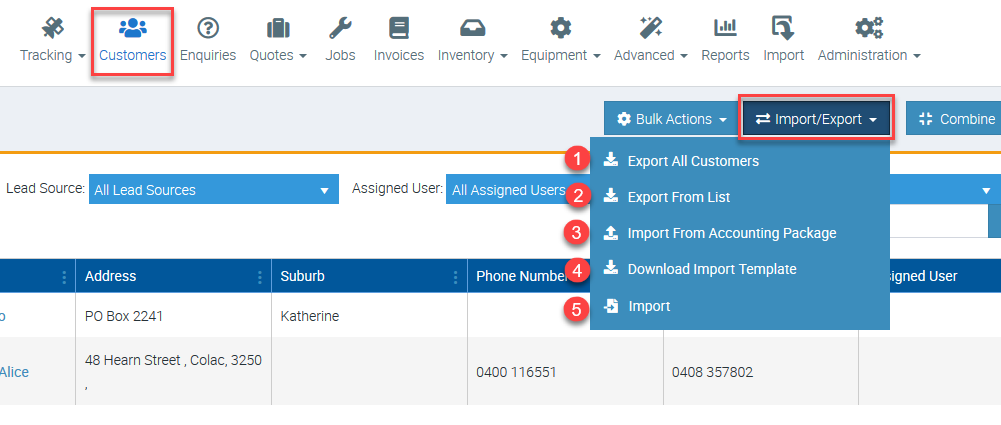
Five Export Options
Below are five powerful options for importing and exporting your customer data in Ascora. Each method is designed to fit a specific need—whether you’re migrating from another system, updating a portion of your database, or integrating with an accounting package:
| Option | What It Does | When to Use |
|---|---|---|
| 1. Export Details for All Customers | Generates a comprehensive Excel file containing every customer’s full details, along with any associated contacts and equipment. | Ideal for creating a complete backup, sharing data for external reporting, or transferring all records to another system. |
| 2. Export Details for the Displayed List | Creates an Excel file based on the currently filtered or displayed customers in your list view. | Perfect for exporting a subset of data—such as those in a specific region, status, or date range—without sifting through your entire database. |
| 3. Download Customer Details Template | Provides an Excel template formatted for Ascora’s import requirements. | Use this template to organize existing customer data (from spreadsheets, other job management software, or paper-based records) before importing, ensuring correct formatting and field matching. |
| 4. Import Customer Data from Your Accounting Package | Seamlessly pulls in customer information from integrated accounting software (e.g., Xero, MYOB). | Best if you’ve set up accounts integration in Ascora and keep up-to-date customer records in your accounting package. This method saves time and keeps both systems in sync. |
| 5. Import Customer Data from Excel | Lets you upload customer records from a spreadsheet—especially useful if you’ve prepared the Customer Details Template. | Ideal for bulk migrations from non-integrated sources. If you have a clean, well-structured spreadsheet, this is the fastest way to bring all data into Ascora. |
By choosing the right import or export method, you can efficiently manage your customer data, keep records current, and streamline your workflow in Ascora.
Got a question?
Submit an Idea 💡 Go to Ideas Portal