With the Enquiry API, data from your website forms, external booking systems, or third-party integrations can be automatically passed into Ascora, appearing in the Enquiries section. You can then manage these enquiries like any other lead—assigning them to staff, setting priorities, or converting them into jobs.
Key Features of the Ascora Enquiry API
Getting Started with API Settings
The API can be enabled or disabled under Administration → API Settings.
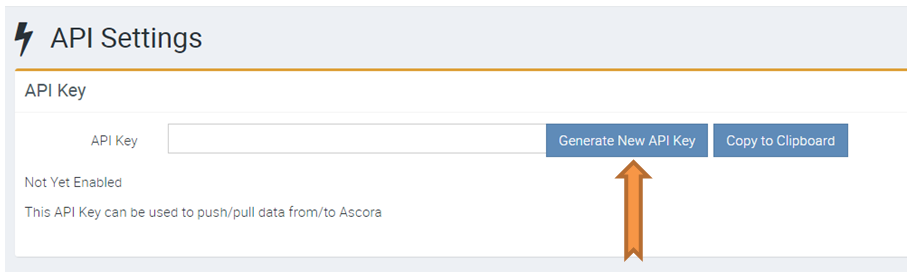
Click on the Generate New API Key and then Copy to Clipboard.
If you want to disable the API Key you can do so by clicking Disable API.
Using your API Key
When making Calls to the Ascora API you’ll need to add this value into the Header Name Auth

Connection details:
Endpoint: https://api.ascora.com.au/Enquiry
Method: POST
Body: Enquiry Details as JSON
Sample Enquiry JSON Data:
{
"companyName": "Acme",
"firstName": "Jack",
"lastName": "Johnson",
"email": "jack@test.com.au",
"mobile": "0401 000 000",
"phone": "",
"addressLine1": "119 Stirling Highway",
"addressLine2": "",
"addressSuburb": "Nedlands",
"addressState": "WA",
"addressPostcode": "6009",
"addressCountry": "",
"enquiryDescription": "Work Description goes here",
"customFields": [
{
"fieldName": "Connection Type",
"fieldValue": "ADSL 2"
},
{
"fieldName": "Approved NBN Area",
"fieldValue": "false"
}
]
}
Any number of Custom Fields these can be added to the CustomFields collection.
fieldname: Name of the Custom Field as entered in Ascora
fieldValue: Value to be recorded.
The following is an example of a Wordpress Plugin that runs with Contact Form 7. You'll need to change your API Key and any fields as needed to match your form.
Click Here to download the file.
Enquiry_Wordpress_-_Sample.txt 1.9 kB Enquiry_Wordpress_-_Sample.txt 1.9 kB
Got a question?
Submit an Idea 💡 Go to Ideas Portal