When syncing invoices between Ascora and your accounting package (Xero, QuickBooks, MYOB), errors can sometimes occur due to missing information, system limitations, or discrepancies between the two platforms. This guide outlines the step-by-step process to identify and resolve these issues efficiently.
By following these steps, you can:
✔ Ensure Ascora is correctly connected to your accounting package.
✔ Identify and troubleshoot sync errors within invoices.
✔ Resolve common issues using reconciliation reports.
✔ Push corrected invoices back to your accounting system.
Use this guide to systematically check, diagnose, and fix accounting sync errors to maintain accurate financial records and a seamless data transfer between Ascora and your accounting software.
📽 Watch the video guide ⤵
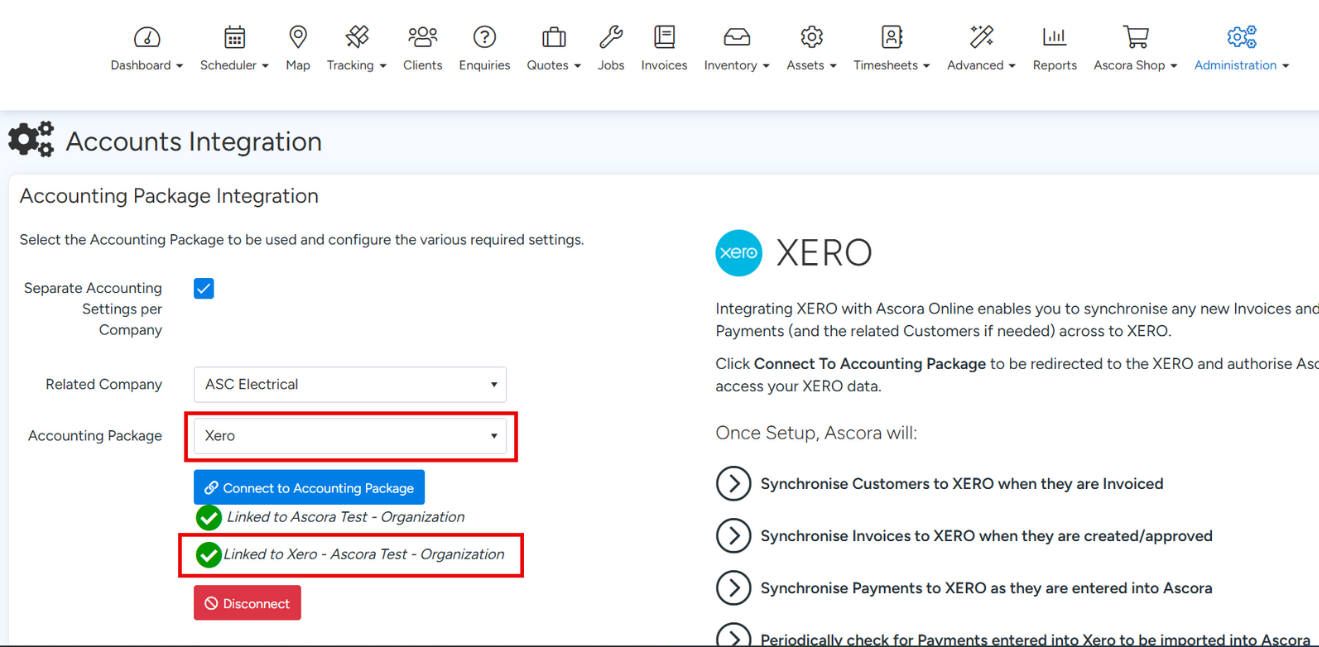
Go to Administration >> Accounts Integration

Confirm that you are connected to the accounting package and that it is the correct account.
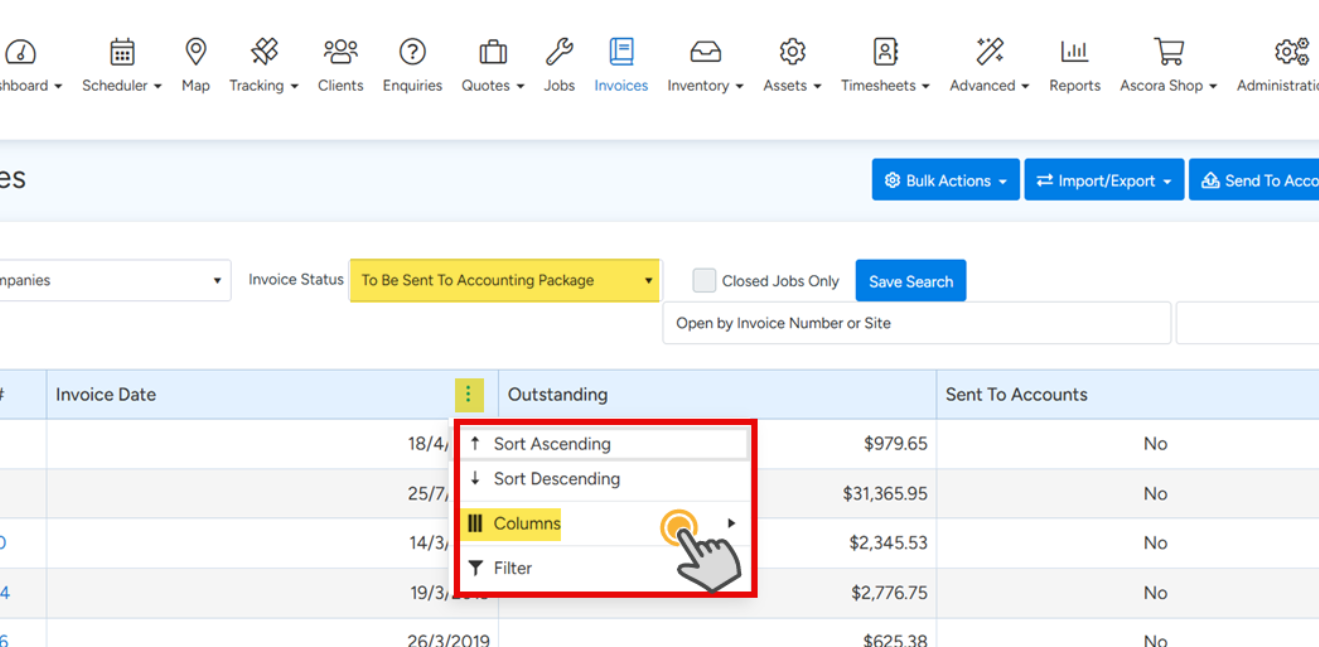
Go to Invoicing and filter by "To Be Sent To Accounting Package"

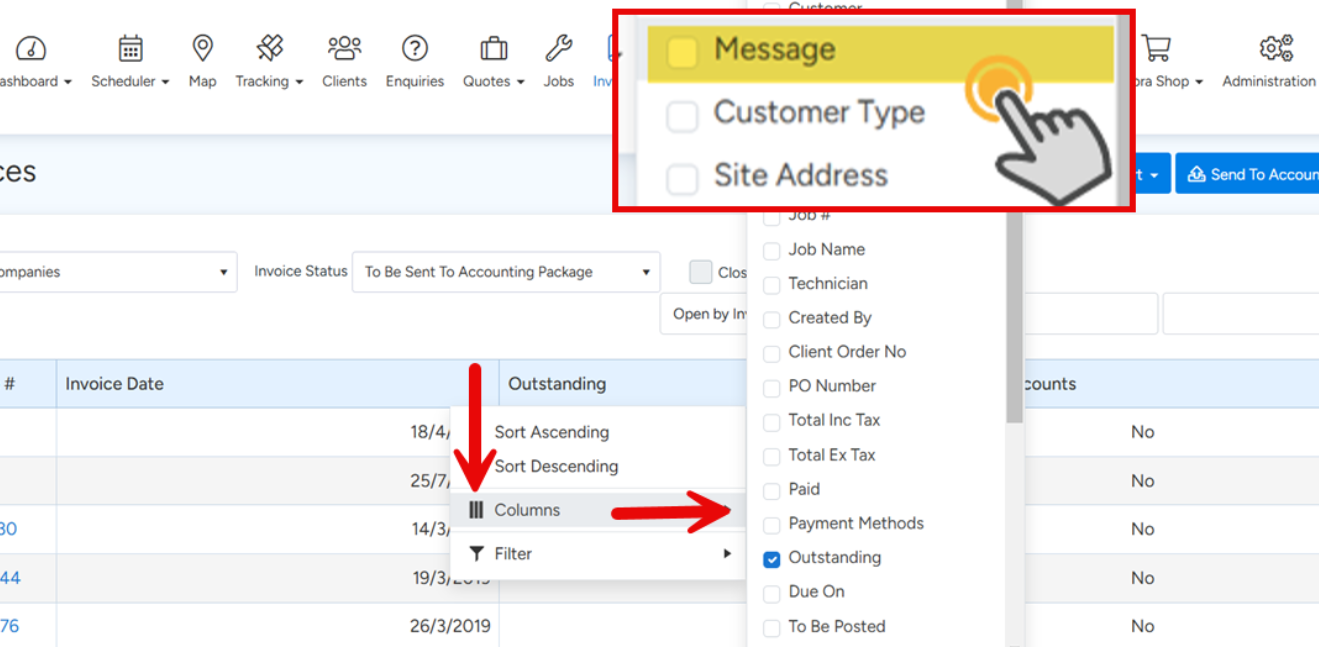
Hover your mouse over the blue bar and click the three dots >> Select Columns.
Select Message
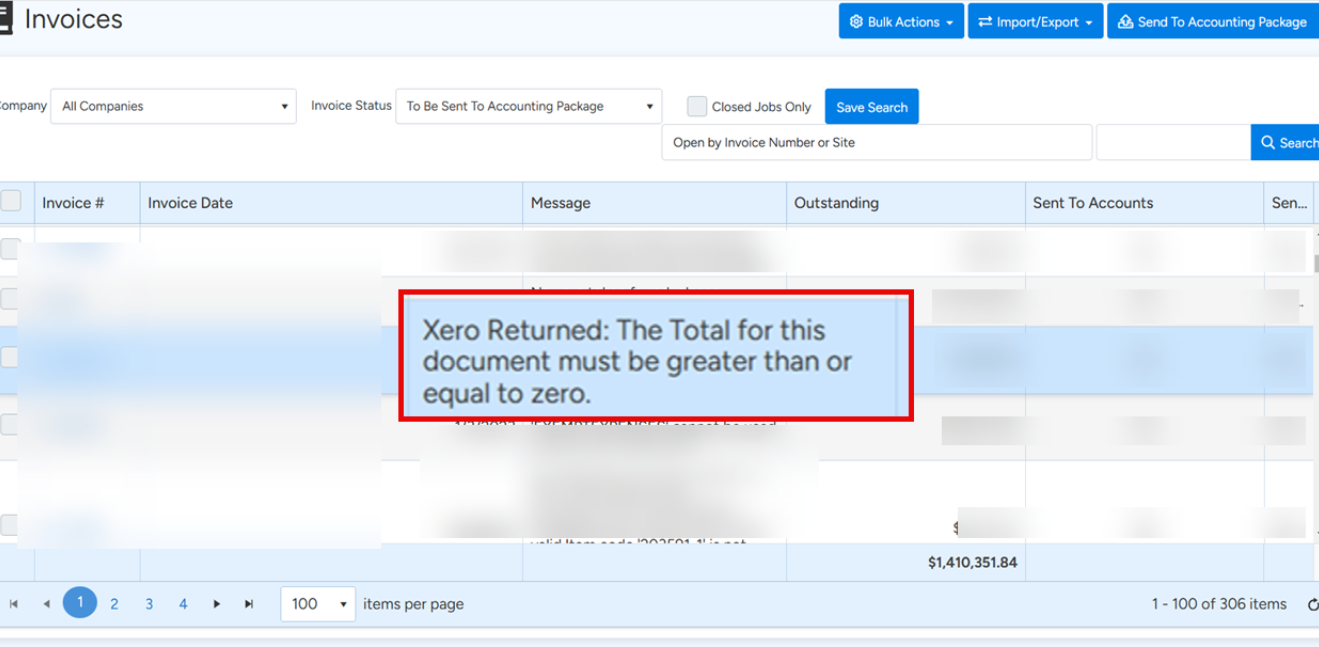
A new column opens showing the error message from the accounting package. You will need to assess what each message means and resolve the issues. If you're unsure of what the message means, copy the error and search it in Google. Since this is an error coming from the accounting system, you should find information from their website related to the error and what needs to be done to resolve it. Once you have the information, come back to Ascora and make the necessary changes as required.
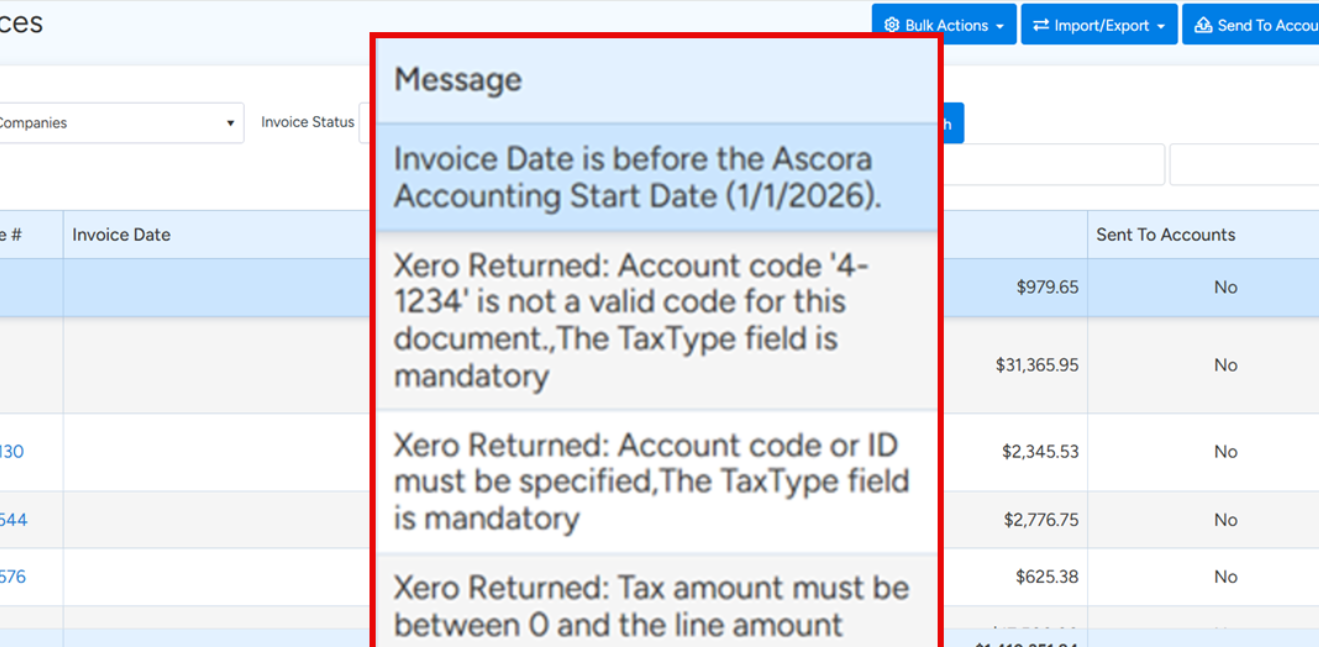
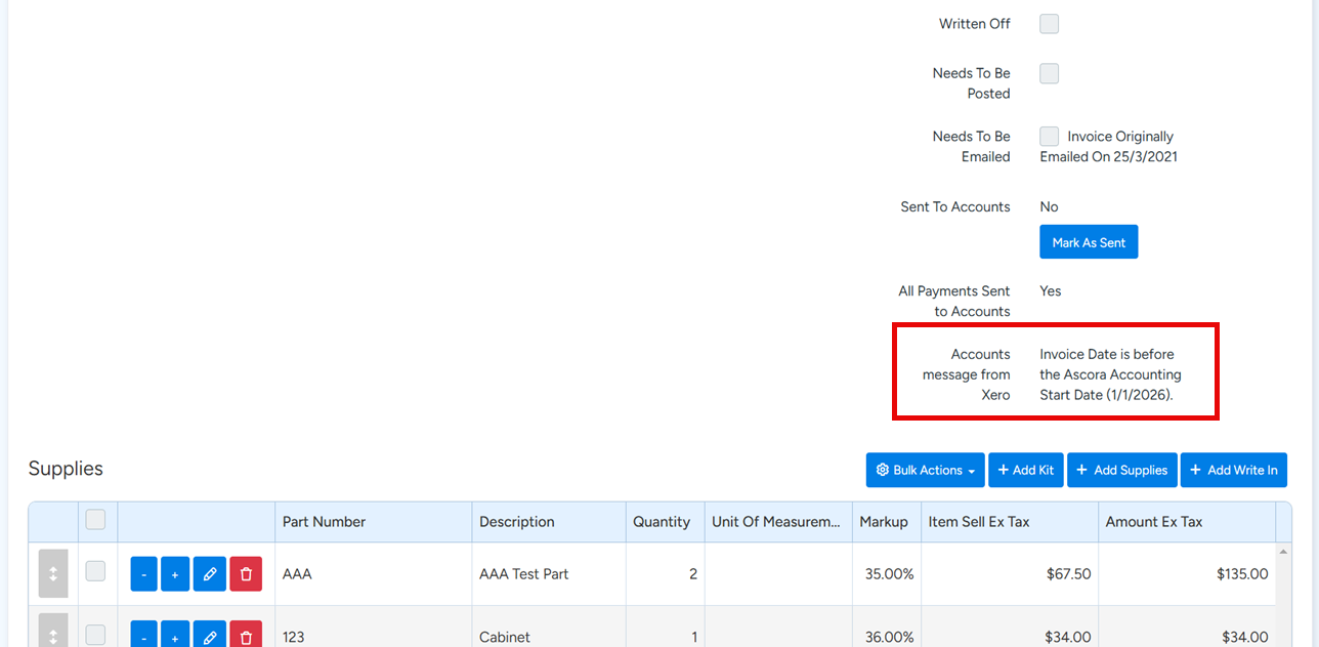
You can also see this message within the individual invoices.
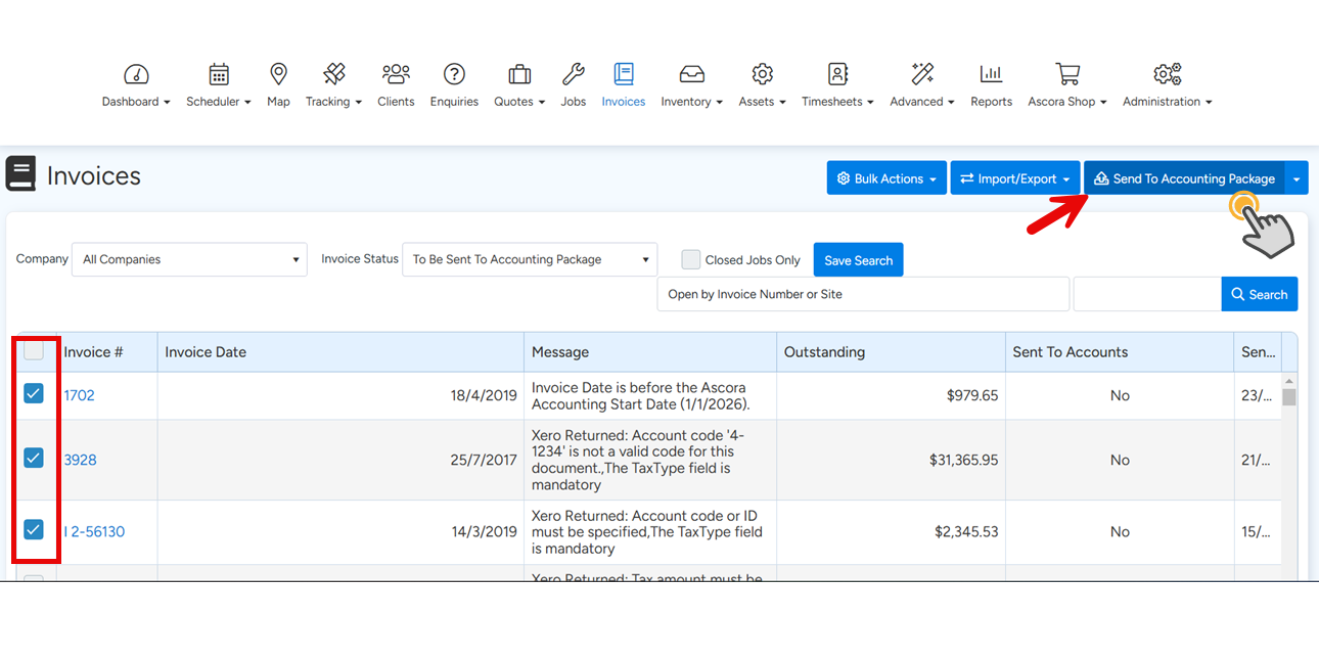
Select the invoices you want to be pushed to the accounting system after you have resolved the errors.
- Issue: Accounting package not matching Ascora.
- Solution: Go to Reports >> Invoice Report >> Generate Reconciliation Report And Fix Discrepancies
Got a question?
Submit an Idea 💡 Go to Ideas Portal