The Job Whiteboard offers a flexible and visual approach to managing job scheduling, providing a whiteboard-style view where columns represent days and rows display grouped bookings by job and assigned users. This feature is particularly useful for coordinating teams, adjusting schedules, and maintaining oversight of leave and job assignments, all within a single interface.
With the Job Whiteboard, you can:
- Visualize a week's worth of bookings and user availability.
- Drag and drop jobs to reschedule or reassign them seamlessly.
- Group multiple users under a single job for efficient team management.
- Adjust bookings and job details with a few clicks.
- Keep track of user leave to ensure accurate scheduling.
This tool empowers businesses to handle complex scheduling needs efficiently, making it easy to adapt to changing priorities or resource availability. Whether you're managing technicians for a large project or organizing daily job assignments, the Job Whiteboard gives you the flexibility and control to stay organized and on track.
Accessing the Job Whiteboard
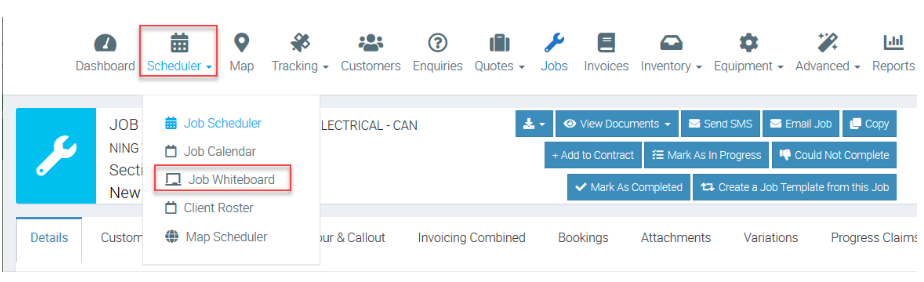
The Job Whiteboard can be accessed from the Scheduled option in the main navigation bar.
Viewing Bookings and Leave
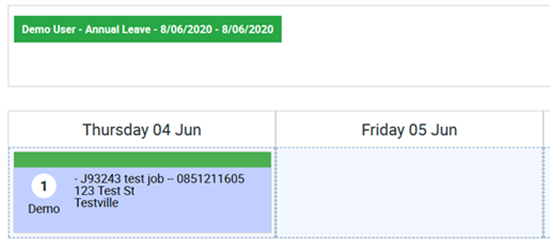
For any given date range, the Job Whiteboard displays a week’s view of both User Leave and booked Jobs.
There are six different options in order to view different date periods; from left to right these are:
- Previous Week
- Previous Day
- Next Day
- Next Week
- Jump to Today
- Displays a calendar window in order to select a specific date

Scheduling from the Job Whiteboard
The left side of the Job Whiteboard contains a view of all unscheduled Jobs as well as any Jobs marked for Reattendance or Allows Additional Bookings and Incomplete Jobs.The Jobs in these grids can be filtered based on entered search terms in the Search field or by the selected Job Type below. This section should operate almost identically to the Job Scheduler and Job Calendar areas.
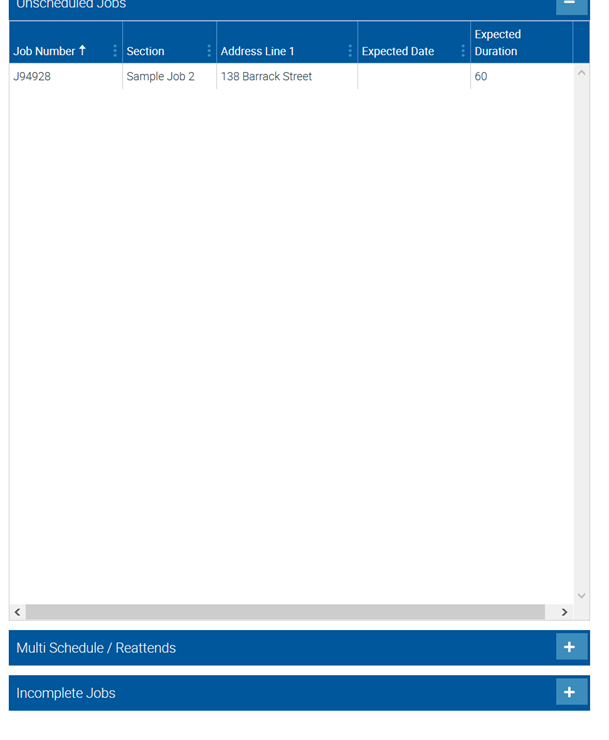
All scheduling from within the Job Whiteboard can be done by dragging a Job from a grid on the left onto the column for the respective date for the Job to be booked.
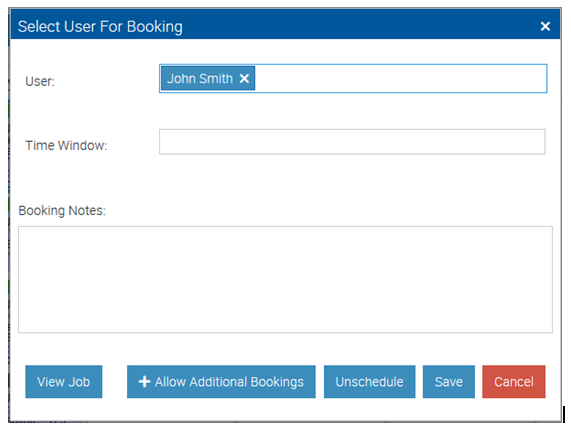
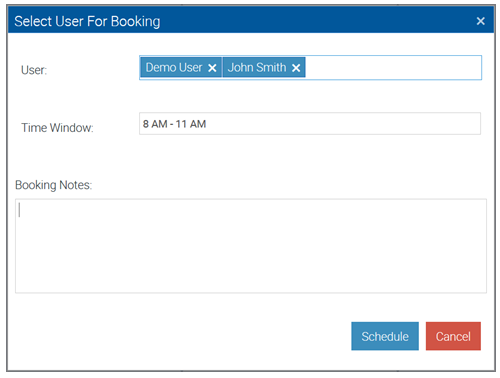
When the Job has been dragged onto the Whiteboard, a window will pop-up to assign users for the Booking, a time window, and booking notes.
Reordering Bookings
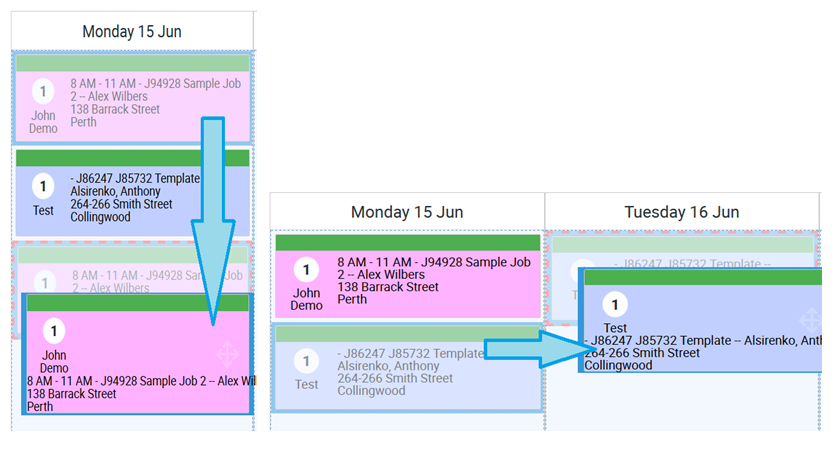
To change either the date or the time of a booking, the booking can be clicked on and dragged to either another position in the date list or to another date.
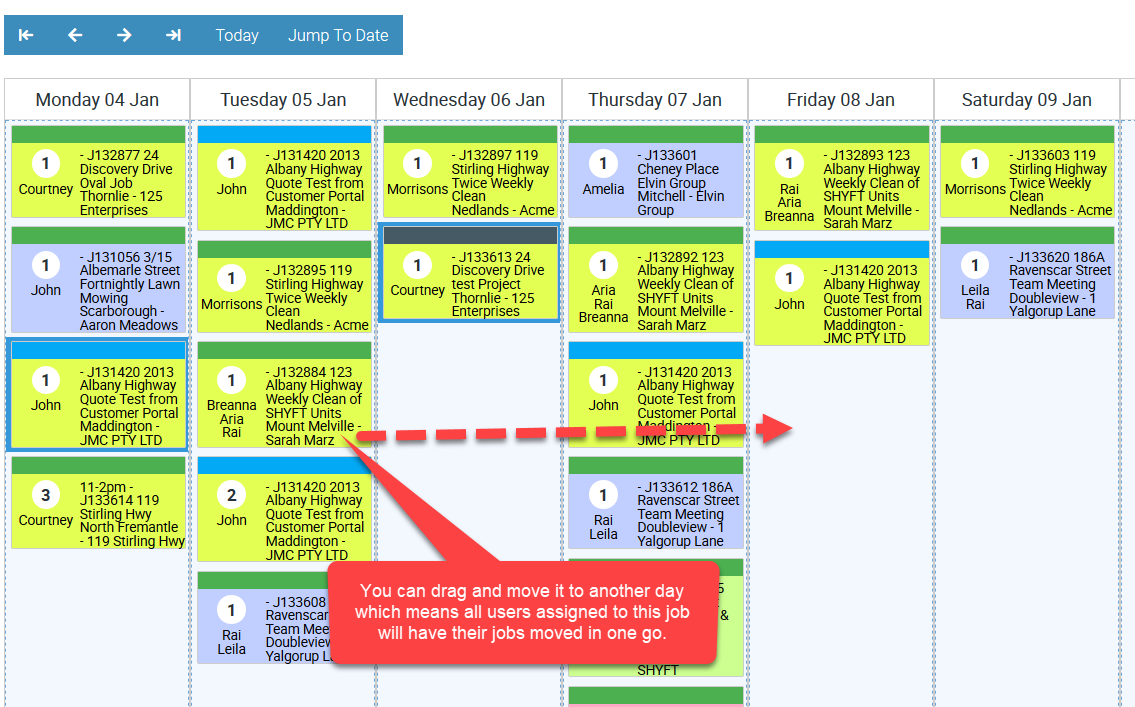
In the following example, we are moving Job J132884 from Tuesday to Friday and this one has total of 3 assigned users.
Editing Bookings
Double clicking on a booked job allows for the assigned Users, time window, and booking notes to be adjusted. It also allows the Job to be viewed, marked to allow additional bookings, or unschedule all Bookings within the group.