Ascora utilises Microsoft Word as the basis for document templates created in the system. This enables you to create the quote or invoice document with almost unlimited options for styling and layouts. You have the power to create Quotation templates that can have full cover pages and enable you to fully sell your products and services.
You can also create multiple templates in the system quickly and easily by downloading an existing template, making the desired adjustments and uploading back into Ascora as a new Document Template.
This guide outlines how to use Mail Merge fields in Word and also the various sections that can be used on your Quotes and Invoices.
📽 Watch the video guide ⤵
Inserting Fields
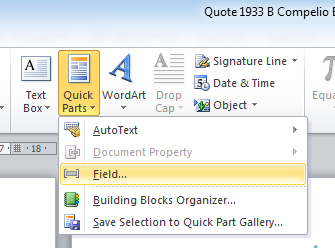
1. On the Insert Menu in Word selected Quick Parts. Then click Fields.
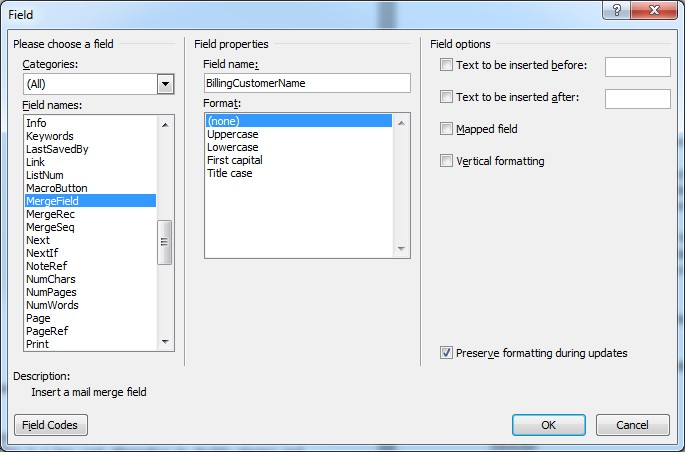
2. Select MergeField in the Fields Names area and enter the name of the field to be displayed in the Field Name, then press Ok.
3. The Merge field will be created in the document. When the Quote is generated Ascora will replace this merge field with the data from the Quote.

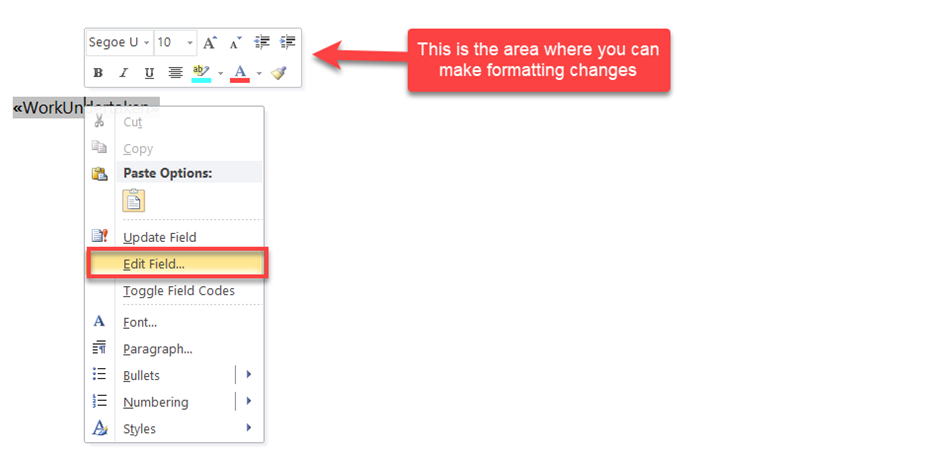
Insert a Merge Field in Word for Mac
- In the Macintosh Word, navigate to Insert → Field.
- Click the Categories arrow and select Mail Merge.
- In the Field names field, click MergeField.
- In the Field codes field, enter a space after "MERGEFIELD" then type the field name you want to insert, e.g. JobNumber.
- Click OK.
Preparing the Document
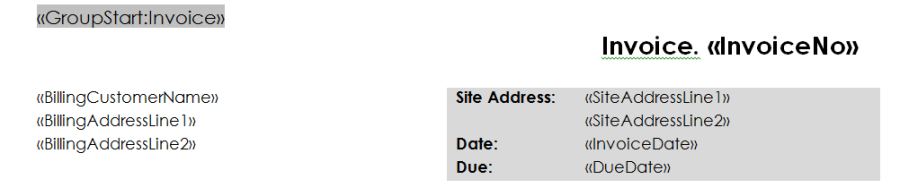
To enable the document to correctly generate Table data you need to insert a GroupStart merge field at the start of the document and a GroupEnd merge field at the end of the document.
| Quotation | Job | Invoice |
|---|---|---|
| «GroupStart:Quote» | «GroupStart:Job» | «GroupStart:Invoice» |
| .. Document Content Here | .. Document ContentHere | .. Document ContentHere |
| «GroupEnd:Quote» | «GroupEnd:Job» | «GroupEnd:Invoice» |
| Purchase Order | Scheduler | |
| «GroupStart:PurchaseOrder» | «GroupStart:Scheduler» | |
| .. Document Content Here | .. Document ContentHere | |
| «GroupEnd:PurchaseOrder» | «GroupEnd:Scheduler» |
Invoice Example
Inserting Images
To add an image against each Supply, the following merge field must be added into the Supply table:
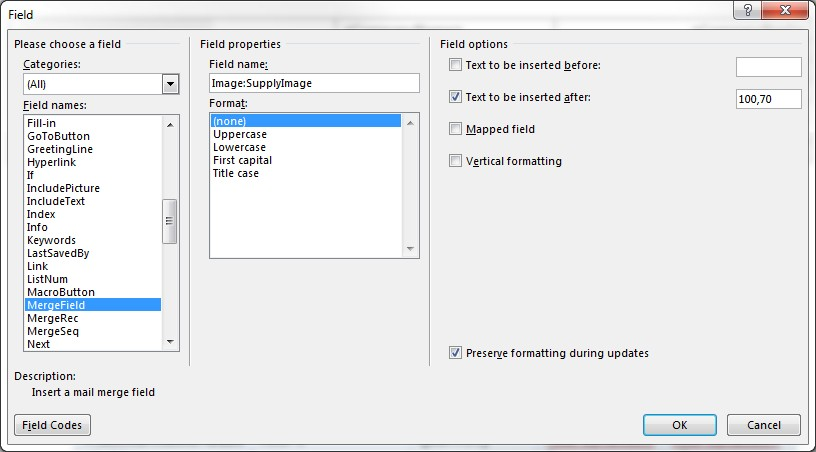
«Image:SupplyImage» The image by default comes with a standard size, to modify that size, follow this steps:
- add the merge field «Image:SupplyImage»
- after adding the merge field, click right and select the option "Edit Field"
- it will open a dialog box called "Field" on that dialog box, find the area called "Field options" above find and tick the option "Text to be inserted after"
- In from of the option "Text to be inserted after" there is a text box, in this textbox you can add the new size of the image.
- Adding only one value resize the place the image on witdh and height
- Adding two values separated by coma "100,40" it will resize the image on width and height.
- Values must be set in pixels.
General Tables
These tables apply to most of the templates in Ascora – for example Quotation, Jobs and Invoicing.
Supply
Supplies are intended to be displayed in a table, only works for Quotes, Job and Invoices. The document generator will look for the markers in a table to be used as the start and end of the Supply row.
| «TableStart:Supply» | «TableEnd:Supply» |
|---|
A description of Supply details, see: General Additional Tables - Supply
CallOutFee
Callout Fees are intended to be displayed in a table, only works for Quotes, Job and Invoices. The document generator will look for the markers in a table to be used as the start and end of the Call Out Fee row.
| «TableStart:CallOutFee» | «TableEnd:CallOutFee» |
|---|
A description of Supply details, see: General Additional Tables – CallOutFee
Labour
Labour is intended to be displayed in a table, only works for Quotes, Job and Invoices The document generator will look for the markers in a table to be used as the start and end of the Labour row.
| «TableStart:Labour» | «TableEnd:Labour» |
|---|
A description of Labour details, see: General Additional Tables - Labour
Equipment
Equipment is intended to be displayed in a table, only works for Quotes, Job and Invoices. The document generator will look for the markers in a table to be used as the start and end of the Equipment row.
| «TableStart:Equipment» | «TableEnd:Equipment» |
|---|
A description of Equipment details, see: General Additional Tables - Equipment
Annotation
Annotations associated with Supplies can be placed in a separate list outside of the Supply Table. Only works for Quotes, Jobs and Invoices, Annotation will be placed in a Annotation Table if one exists in the document.
| «TableStart:Annotation» | «TableEnd:Annotation» |
|---|
A description of Annotation details, see: General Additional Tables - Annotation
Booking
Booking is intended to be displayed in a table only on Quotes and Jobs, The document generator will look for the markers in a table to be used as the start and end of the Booking row.
| «TableStart:Booking» | «TableEnd:Booking» |
|---|
A description of Booking details, see here General Additional Tables - Booking
Note
Note is intended to be displayed in a table only on Quotes, The document generator will look for the markers in a table to be used as the start and end of the Note row.
| «TableStart:Note» | «TableEnd:Note» |
|---|
A description of Note details, see General Additional Tables - Note
Attachment
Attachment is intended to be displayed in a table only on Quotes, The document generator will look for the markers in a table to be used as the start and end of the Attachment row.
| «TableStart:Attachment» | «TableEnd:Attachment» |
|---|
A description of Attachment details, see General Additional Tables - Attachment
«TableStart:Attachment»
Quotation Tables
Inclusion Listing
Inclusion is intended to be displayed in a table. The document generator will look for the markers in a table to be used as the start and end of the Inclusion row.
«TableStart:Inclusion»«Text»«TableEnd:Inclusion»
A description of inclusion listing details, see: Quotation Additional Tables - Inclusion
Exclusion Listing
Exclusion is intended to be displayed in a table. The document generator will look for the markers in a table to be used as the start and end of the Exclusion row.
«TableStart:Exclusion»«Text»«TableEnd:Exclusion»
A description of inclusion listing details, see: Quotation Additional Tables - Exclusion
Assumption Listing
Assumption is intended to be displayed in a table. The document generator will look for the markers in a table to be used as the start and end of the Assumption row.
| «TableStart:Assumption» | «TableEnd:Assumption» |
|---|
A description of assumption listing details, see: Quotation Additional Tables - Assumption
Progress Payment
Progress Payment is intended to be displayed in a table only on Quotes. The document generator will look for the markers in a table to be used as the start and end of the Progress Payment row.
| «TableStart:ProgressPayment» | «TableEnd:ProgressPayment» |
|---|
A description of Progress Payment details, see here: Quotation Additional Tables – Progress Payment
Optional Supply
Optional Supply is intended to be displayed in a table only on Quotes, The document generator will look for the markers in a table to be used as the start and end of the Optional Supply row.
| «TableStart:OptionalSupply» | «TableEnd:OptionalSupply» |
|---|
A description of Optional Supply details, see here Quotation Additional Tables – Optional Supply
Quotation Section Tables
As Section Summary and Section Details are a complete portion of the document that is duplicated per Section that exists on the Quote it must be entered within a Group field in Word.
Section
«GroupStart:Section»Section Summary Goes Here – Will Be Repeated Per Quote Section«GroupEnd:Section» A description of Section Summary details, see: Quotation Section Additional Tables, Section.
Section Details
For each quote section this group will display the quote section details plus quote areas like supplies, labours, etc... «GroupStart:SectionDetails»Section Content Goes Here - Will Be Repeated Per Quote Section«GroupEnd:SectionDetails» A description of Section Summary details, see: Quotation Section Additional Tables, Section Detail
Section Note
Note is intended to be displayed in a table only on Quotes, The document generator will look for the markers in a table to be used as the start and end of the Note row.
| «TableStart:SectionNote» | «TableEnd:SectionNote» |
|---|
A description of Section Note details, see: Quotation Section Additional Tables, Section Note Section Note only apply inside of Section Detail, see Section Details
Section Attachment
Attachment is intended to be displayed in a table only on Quotes, The document generator will look for the markers in a table to be used as the start and end of the Attachment row.
| «TableStart:SectionAttachment» | «TableEnd:SectionAttachment» |
|---|
A description of Section Attachment details, see Quotation Section Additional Tables, Section Attachment Section Attachments only exist inside of Section Detail, see Section Details
Section Inclusion
Inclusions are intended to be displayed in a table. The document generator will look for the markers in a table to be used as the start and end of the Inclusion row.
| «TableStart:SectionInclusion» | «TableEnd:SectionInclusion» |
|---|
A description of Section Inclusion details, see: Quotation Section Additional Tables, Section[ Inclusion Section Note only apply inside of Section Detail, see Section Details
Section Exclusion
Exclusions are intended to be displayed in a table. The document generator will look for the markers in a table to be used as the start and end of the Exclusion row.
| «TableStart:SectionExclusion» | «TableEnd:SectionExclusion» |
|---|
A description of Section Exclusion details, see: Quotation Section Additional Tables, Section Exclusion Section Note only apply inside of Section Detail, see Section Details
Quotation Stage Tables
The following section is only required when the Parent Quote of a Stage is a Section. If the Parent Quote does not have a parent itself, the standard Section tables can be used.
Stage Details
For each quote stage this group will display the quote stage details plus quote areas like supplies, labours, etc... «GroupStart:StageDetails»Stage Content Goes Here - Will Be Repeated Per Quote Stage«GroupEnd:StageDetails» A description of Stage Summary details, see: Quotation Stage Additional Tables, Section Detail.
Job Tables
Check Ins
Check Ins is intended to be displayed in a table only on Jobs. The document generator will look for the markers in a table to be used as the start and end of the Check Ins row.
| «TableStart:CheckIn» | «TableEnd:CheckIn» |
|---|
A description of Purchase Order Line details, see: Job Additional Tables – Check Ins.
Notes
Notes is intended to be displayed in a table only on Jobs. The document generator will look for the markers in a table to be used as the start and end of the Notes row.
| «TableStart:Note» | «TableEnd:Note» |
|---|
A description of Purchase Order Line details, see: Job Additional Tables – Notes.
Attachments
Attachment is intended to be displayed in a table only on Jobs. The document generator will look for the markers in a table to be used as the start and end of the Attachment row.
| «TableStart:Attachment» | «TableEnd:Attachment» |
|---|
A description of Attachment details, see: Job Additional Tables – Attachments.Note: The TableStart fields will not be visible in the generated document.
Timesheet
Timesheet is intended to be displayed in a table only on Jobs. The document generator will look for the markers in a table to be used as the start and end of the Timesheet row.
| «TableStart:Timesheet» | «TableEnd:Timesheet» |
|---|
A description of Attachment details, see: Job Additional Tables – Timesheet Fields.Note: The TableStart /TableEnd fields will not be visible in the generated document.
Invoice Tables
Current Claim Listing
Current Claim is intended to be displayed in a table. The document generator will look for the markers in a table to be used as the start and end of the Current Claim row.
| «TableStart:CurrentClaim» | «TableEnd:CurrentClaim» |
|---|
A description of Current Claim details, see: Invoice Additional Tables – Current Claim
Previous Claim Listing
Current Claim is intended to be displayed in a table. The document generator will look for the markers in a table to be used as the start and end of the Current Claim row.
| «TableStart:PreviousClaim» | «TableEnd:PreviousClaim» |
|---|
A description of Previous Claim details, see here: Invoice Additional Tables – Previous Claim Note: The TableStart fields will not be visible in the generated document.
Current Variation Claim Listing
Current Variation Claim is intended to be displayed in a table. The document generator will look for the markers in a table to be used as the start and end of the Current Variation Claim row.
| «TableStart:CurrentVariationClaim» | «TableEnd: CurrentVariationClaim » |
|---|
A description of Current Variation Claim details, see: Invoice Additional Tables – Current VariationClaim
Purchase Order Tables
Purchase Order Line Listing
Purchase Order Lines are intended to be displayed in a table only on Purchase Order. The document generator will look for the markers in a table to be used as the start and end of the Purchase Order Line row.
| «TableStart:PurchaseOrderLine»«PartNumber» | «LineTotal»«TableEnd:PurchaseOrderLine» |
|---|
A description of Purchase Order Line details, see: Purchase Order Additional Tables – Purchase Order Lines .Note: The TableStart / TableEnd fields will not be visible in the generated document.
Schedule Tables
Schedule Details
Schedule details is intended to be displayed in a table only on Schedule. The document generator will look for the markers in a table to be used as the start and end of the schedule details row.
| «TableStart:SchedulerDetails» | «TableEnd:SchedulerDetails» |
|---|
A description of Attachment details, see: Scheduler Additional Table – Scheduler Details
Company Detail Fields
Company Header Fields*
| Company Information | |
|---|---|
| CompanyName | Trading Name of the Company |
| CompanyLegalName | Legal Name of the Company |
| CompanyPhone | Phone for the Company |
| CompanyFax | Fax of the Company |
| CompanyEmail | Email address for the Company |
| CompanyWebsite | Website for the Company |
| CompanyStreetLine1 | Address Line 1 of the Physical Company Address |
| CompanyStreetLine2 | Physical Suburb, State and Postcode of the Company |
| CompanyPostalLine1 | Address Line 1 of the Postal Company Address |
| CompanyPostalLine2 | Postal Suburb, State and Postcode of the Company |
| CompanyReg1 | Registration 1 for the Company |
| CompanyReg2 | Registration 2 for the Company |
| CompanyReg3 | Registration 3 for the Company |
| BankAccountName | Bank Account Name for the Company |
| BankAccountBSB | Bank Account BSB for the Company |
| BankAccountNumber | Bank Account Number for the Company |
| ExtraInvoiceText | Additional text to be displayed on the Invoice |
| TaxName | Tax Name |
You can include those field at:
Quotation, Job, Invoice, Purchase Order and Scheduler.
- Site Customer Info, see: Site Customer Fields.
- Billing Customer Info, see: Billing Customer Fields.
Assigned User Detail Fields
Assigned User Header Fields*
| Company Information | |
|---|---|
| AssignedUserName | Assigned User Full Name |
| AssignedUserFirstName | Assigned User First Name |
| AssignedUserLastName | Assigned User Last Name |
| AssignedUserJobTitle | Assigned User Job Title |
| AssignedUserTeam | Assigned User Team |
| AssignedUserMobile | Assigned User Mobile |
| AssignedUserEmail | Assigned User Email |
You can also those fields at:
Quotation, Job, Invoice, Purchase Order, Scheduler and Scheduler Details.
There are some exceptions on how we get Assigned User info at:
- Purchase Order will come from the Job associated to the Purchase Order.
- Invoice will come from the Job associated to the Invoice.
- Scheduler comes from the user is scheduled to the Job or Quote.
- Scheduler Details comes from the user assigned to the Job or Quote.
Quotation Detail Fields
Quote Header Fields need to be covered between the merge fields «GroupStart:Quote» to«GroupEnd:Quote» to be displayed, more info see: Preparing the Document
Quote Header Fields*
| Quote Information | |
|---|---|
| QuoteNo | Number assigned to the Quotation |
| QuoteName | Quotation Name |
| ClientOrderNumber | Entered Client Order Number on the Quote |
| PurchaseOrderNumber | Entered Purchase Order Number on the Quote |
| CareOfBillingName | Care of Name from the Quote Billing Customer |
| QuoteDescription | Quotation Description |
| QuoteDate | Date associated with the Quotation |
| QuoteSignedDate | Quote Signed Date |
| ValidUntilDate | Date to which the Quotation is valid |
| DueDate | Due Date of the Quotation |
| QuoteAddressLine1 | Address Line 1 of the Quote Details |
| QuoteAddressLine2 | Address Line 2 of the Quote Details |
| QuoteAddressLine3 | Suburb, state and postcode of the Quote Details |
| QuoteAddressPostcode | Postcode of the Quote Details |
| QuoteAddressState | State of the Quote Details |
| QuoteAddressSuburb | Suburb of the Quote Details |
| QuoteTotalExTax | Total value of the Quotation excluding Tax |
| QuoteTax | Total value of Tax on the Quotation |
| QuoteTotalIncTax | Total value of the Quotation including Tax |
| QuoteCreatedDate | Date When was created the Quote |
| DiscountExTax | Discount Giving to the Quote |
| DiscountIncTax | Discount Include Tax Giving to the Quote |
| TotalLabourValueExTax | Total Labour Values excluding tax |
| TotalLabourCost | Total Labour Cost |
| TotalSuppliesValueExTax | Total Supply Value Excluding Tax |
| TotalSuppliesCost | Total Supplies Cost |
| TotalLabourSupplyValueExTax | Total Labour and Supply Value Excluding Tax |
| TotalLabourSupplyCost | Total Labour and Supply Cost |
| TotalExTaxOptionalSupply | Total Exclude Tax of optional supply items |
| TotalTaxOptionalSupply | Total Tax of optional supply items |
| TotalIncTaxOptionalSupply | Total Include tax of optional supply items |
| TotalCallOutFeeExTax | Total Callout Fees excluding Tax |
| QuoteSignedDate | Date on which the Quotation was signed |
| SignedOffBy | Name of the party who signed off on the Quotation. |
| JobNumber | Associate Job Number |
| JobName | Associate JobName |
| JobCompleted | Associated Job Completed Date |
| AssociatedJobType | Associate Job Type |
| JobDescription | Associate Job Description |
| JobCreatedOn | Associate Job Created Date |
| JobAddressLine1 | Associate Job Address Line1 |
| JobAddressLine2 | Associate Job Address Line2 |
| JobSuburb | Associate Job Suburb |
| JobState | Associate Job State |
| JobPostcode | Associate Job Postcode |
| JobCountry | Associate Job Country |
| JobLatitude | Associate Job Latitude |
| JobLongitude | Associate Job Longitude |
You can also include
- Company details, see: Company Detail Fields.
Job Detail Fields
Job Header Fields need to be covered between the merge fields «GroupStart:Job» to«GroupEnd:Job» to be displayed, more info see: Preparing the Document
Job Header Fields*
| Job Information | |
|---|---|
| JobNumber | Number Assigned to the Job |
| JobName | Name assigned to the Job |
| JobDescription | A description of the Job |
| Priority | A Priority of the Job |
| ParentJobName | Parent Job Name if one exists |
| ClientOrderNumber | A job Client Order Number |
| PurchaseOrderNumber | A job Purchase Order Number |
| WorkUndertaken | A work undertaken in a job |
| JobType | A Job Type Description |
| PaymentTerm | Payment Term Associate to Billing Customer |
| SignedOffBy | A job signed off by |
| CreatedOn | Date on created a job |
| JobCompleted | Date on which the job was completed |
| TotalAmountExTax | A total amount job value excluding tax |
| TotalTax | A total tax value of a job |
| TotalAmountIncTax | A total amount of job value include tax |
| TotalSuppliesCharge | A total amount of job supplies include tax |
| TotalLabourCharge | A total amount of job labour include tax |
| TotalHours | A total amount of job labour hours |
| TotalTimesCost | A total amount of cost on job labour |
| TotalCallOutFeeExTax | Total Callout Fees excluding Tax |
| TimeLogged | Date on which the job was logged |
| TimeResponded | Date on which the job was responded |
| ExpectedTime | Expected time of the job booking details |
| EstimatedDuration | Estimate duration of the job booking details |
| ReattendanceRequired | Reattendance Required of the job booking details |
| ExpectedDate | Expected time of the job booking details |
| JobNumberTitleTranslation | A translation of a single job title |
| ClientOrderNumberTitleTranslation | A translation of a client order number title |
| PurchaseOrderNumberTitleTranslation | A translation of a purchase order number title |
| JobSingleTranslation | A translation of a single job title |
| SiteCustomerTitleTranslation | A translation of a site customer title |
| BillingCustomerTitleTranslation | A translation of a billing customer title |
| WorkUndertakenTranslation | A translation of a work undertaken title |
| SupplyPluralTranslation | A translation of a plural supply tittle |
| EquipmentSingleTranslation | A translation of a single equipment title |
| EquipmentPluralTranslation | A translation of a plural equipment title |
| JobAddressLine1 | Job Address |
| JobAddressLine2 | Secondary Job Address |
| JobAddressLine3 | Job Address plus suburb, state and postcode |
| JobSuburb | Job Suburb |
| JobState | Job State |
| JobPostcode | Job Postcode |
| JobCountry | Job Country |
| JobLatitude | Job Latitude |
| JobLongitude | Job Longitude |
You can also include
- Company details, see: Company Detail Fields.
Invoice Detail Fields
Invoice Header Fields need to be covered between the merge fields «GroupStart:Invoice» to«GroupEnd:Invoice» to be displayed, more info see: Preparing the Document
Invoice Header Fields*
| Invoice Information | |
|---|---|
| InvoiceNo | Invoice Number assigned |
| InvoiceDate | Invoice Date associated |
| DueDate | Invoice Date on which is due |
| ClientOrderNumber | Invoice Client Order Number |
| PurchaseOrderNumber | Invoice Purchase Order Number |
| WorkUndertaken | Invoice Work Undertaken |
| CareOfBillingName | Care of Name from the Invoice Billing Customer |
| AccountNumber | The Account Number of the Invoice Site Customer |
| TotalLabourCharge | Invoice Total value of Labour ex Tax |
| TotalLabourHours | Invoice Total Labour Hours |
| TotalSuppliesCharge | Invoice Total value of Supplies ex Tax |
| Discount | Invoice Value of level discount given |
| TotalAmountExTax | Invoice Total value of the excluding Tax |
| TotalTax | Invoice Total value of Tax |
| TotalIncTax | Invoice Total value including Tax |
| TotalCallOutFeeExTax | Total Callout Fees excluding Tax |
| TotalPayments | Invoice Total payments received to date |
| TotalCreditCardSurcharge | Value of credit card surcharge applied from payments |
| TotalDue | Invoice Current balance due on |
| SignedOffStatement | Configured Sign-off Statement |
| SignedOffBy | Name of the Signed Off |
| Signature | Placement for the Signature Image (Must be placed into the Title of the inserted image) |
| EquipmentName | Translation given to "Equipment" |
| SuppliesName | Translation given to "Supply" |
| ClientOrderNumberName | Translation given to "Client Order Number" |
| PaymentTerm | Name of the Payment Terms |
| PurchaseOrderNumberName | Translation given to "Purchase Order Number" |
| QuoteNumber | Quote Number of the related Quotation |
| QuoteName | Quote Name of the related Quotation |
| JobNumber | Job Number related to the Invoice |
| JobName | Job Name related to the Invoice |
| JobNumberName | Translation given to Job Number |
| JobCompleted | Date on which the Job was completed |
| JobType | Job Type related to the Invoice |
| JobDescription | Job Description related to the Invoice |
| JobCreatedOn | Job created date related to the Invoice |
| TimeLogged | Job Time Logged related to the Invoice |
| TimeResponded | Job Time Responded related to the Invoice |
| LastCheckOutDate | Last check out date of when the job was completed |
| LastCheckOutTime | Last check out time of when the job was completed |
| JobAddressLine1 | Job Address Line 1 related to the Invoice |
| JobAddressLine2 | Job Address Line 2 related to the Invoice |
| JobAddressLine3 | Job Address Line 3 related to the Invoice |
| JobSuburb | Job Suburb related to the Invoice |
| JobState | Job State related to the Invoice |
| JobPostcode | Job Postcode related to the Invoice |
| JobCountry | Job Country related to the Invoice |
| ClaimName | Invoice Claim Name |
| ClaimNumber | Claim Number |
| ClaimPurchaseOrderNumber | Claim Purchase Order Number |
| ClaimTotalValueContractIncTax | Claim total contract value including tax |
| ClaimTotalValueContractExTax | Claim total contract value excluding tax |
| ClaimTotalValueExTax | Claim total value excluding tax |
| ClaimTotalValueIncTax | Claim total value including tax |
| ClaimTotalValueToDateExTax | Claim total value to date excluding tax |
| ClaimTotalValueToDateIncTax | Claim total value to date including tax |
| ClaimTotalPercentIncTax | Claim total percentage including tax |
| ClaimTotalPercentToDateExTax | Claim total percentage to date excluding tax |
| ClaimTotalBalanceRemainingIncTax | Claim total balance remaining including tax |
| ClaimTotalBalanceRemainingExTax | Claim total balance remaining excluding tax |
| ClaimTotalRetentionIncTaxValue | Claim Total Retention Inc Tax Value |
| ClaimTotalRetentionAmountExTaxValue | Claim Total Retention Amount Ex Tax Value |
| PreviousClaimTotalExTax | Previous claims total including tax |
| PreviousClaimTotalIncTax | Previous claims total including tax |
| PreviousClaimTotalPaid | Previous claim total paid |
| PreviousClaimTotalBalance | Previous claim total balance including tax |
| PreviousClaimTotalRetentionIncTaxValue | Previous claims total rentention inc tax value |
| PreviousClaimTotalRetentionAmountExTaxValue | Previous claims total retention amount ex tax value |
| RetentionAmountExTax | Retention total value excluding tax |
| RetentionIncTax | Retention total value including tax |
| RetentionRemaining | Retention Remaining |
| TotalLessRetentionExTax | Total Less Retention Remaining Ex Tax |
| TotalLessRetentionIncTax | Total Less Retention Remaining Inc Tax |
| ClaimTotalVariationExTax | Claim Total Variation Ex Tax |
| ClaimTotalVariationIncTax | Claim Total Variation Inc Tax |
| ClaimTotalVariationToDateExTax | Claim Total Variation to Date Ex Tax |
| ClaimTotalVariationToDateIncTax | Claim Total Variation to Date Inc Tax |
| VariationTotalBalanceRemainingExTax | Variation Total Balance Remaining Ex Tax |
| VariationTotalBalanceRemainingIncTax | Variation Total Balance Remaining Inc Tax |
| ClaimTotalVariationValueExTax | Claim Total Variation Value Ex Tax |
| ClaimTotalVariationValueIncTax | Claim Total Variation Value Inc Tax |
| ClaimTotalWithoutVariationExTax | Claim Total Without Variation Ex Tax |
| ClaimTotalWithoutVariationIncTax | Claim Total Without Variation Inc Tax |
| TotalValueWithoutVariationExTax | Total Value Without Variation Ex Tax (for the current claim) |
| TotalValueWithoutVariationIncTax | Total Value Without Variation Inc Tax |
| TotalValueClaimedToDateWithoutVariationExTax | Total Value Claimed to Date Without Variation Ex Tax |
| TotalValueClaimedToDateWithoutVariationIncTax | Total Value Claimed to Date Without Variation Inc Tax |
| BalanceRemainingExTaxWithoutVariation | Balance Remaining Ex Tax Without Variation |
| BalanceRemainingIncTaxWithoutVariation | Balance Remaining Inc Tax Without Variation |
| TotalDueExclusiveTax | Total Due Exclusive Tax |
| TotalTaxOnPayment | Total Tax on Payment |
You can also include
- Company details, see: Company Detail Fields.
Purchase Order Detail Fields
Purchase Order Header Fields need to be covered between the merge fields «GroupStart:PurchaseOrder» to «GroupEnd:PurchaseOrder» to be displayed, more info see:
Purchase Order Header Fields*
| Purchase Order Information | |
|---|---|
| PurchaseOrderNumber | Number assigned to the Purchase Order |
| PurchaseOrderDateSent | Date on which the Purchase Order was sent |
| PurchaseOrderDateRequired | Date on which the Purchase Order is required |
| TimeRequired | Time on which the Purchase Order is required |
| PurchaseOrderReference | A purchase Order Reference |
| PurchaseOrderOrderedBy | Person who order the Purchase Order |
| PurchaseOrderDeliverTo | Type of Purchase Order, Yard, Site, or Pickup |
| PurchaseOrderNotes | Purchase Order Notes |
| PurchaseOrderInstructions | Purchase Order Instructions |
| PurchaseOrderInstructions | Purchase Order Instructions |
| TotalAmountExTax | Purchase Order Subtotal |
| TotalTax | Purchase Order Tax |
| TotalAmountIncTax | Purchase Order Total Amount |
| TotalClaimedExTax | Total Claimed on Supplier Invoices Excluding Tax |
| TotalClaimedIncTax | Total Claimed on Supplier Invoices Including Tax |
| DeliveryAddressLine1 | Job address if the Purchase Order delivery is to Site, Trading name of the company if is Yard Otherwise "Will Pickup" |
| DeliveryAddressLine2 | Job Suburb, Postcode and State if PO is Site, Company Address if is Yard, blank if is Pickup |
| DeliveryAddressLine3 | Company Suburb, Postcode and State if Purchase Order Delivery is Yard |
| JobNumber | Job number associate to purchase order |
| JobName | Job name associate to purchase order |
| JobCompleted | Job completed date associate to purchase order |
| JobType | Job type associate to purchase order |
| JobDescription | Job description associate to purchase order |
| JobCreatedOn | Job created on associate to purchase order |
| SupplierName | Supplier Full Name associate to Purchase Order |
| SupplierPhone | Phone number of the Supplier of the Purchase Order |
| SupplierFax | Fax of the Supplier of the Purchase Order |
| SupplierBN | Supplier Business Number |
| SupplierFirstName | Supplier First Name |
| SupplierLastName | Supplier Last Name |
| SupplierMobile | Supplier Mobile |
| SupplierEmail | Supplier Email |
| SupplierWebsite | Supplier Website |
| SupplierNotes | Supplier Notes |
| SupplierStreetLine1 | Supplier Street Address Line 1 |
| SupplierStreetLine2 | Supplier Street Address Line 2 |
| SupplierStreetLine3 | Supplier Street Suburb, Postcode and State |
| SupplierPostalLine1 | Supplier Post Address Line 1 |
| SupplierPostalLine2 | Supplier Post Address Line 2 |
| SupplierPostalLine3 | Suppler Post Suburb, Postcode and State |
You can also include
- Company details, see: Company Detail Fields.
- Purchase Order Details, see Purchase Oder Additional Tables
Scheduler Detail Fields
Scheduler Header Fields need to be covered between the merge fields «GroupStart: Scheduler» to «GroupEnd: Scheduler» to be displayed, more info see: Preparing the Document
Scheduler Header Fields*
| Scheduler Information | |
|---|---|
| SchedulerStartDate | Start Date selected on the scheduler |
| SchedulerStartMonth | Start Date selected on the scheduler formatted with month date as name. |
| SchedulerEndDate | End Date selected on the scheduler |
| SchedulerEndMonth | End Date selected on the scheduler formatted with month date as name. |
| ClientOrderNumber | Scheduler Client Order Number |
| PurchaseOrderNumber | Scheduler Purchase Order Number |
You can also include
- Quotation Details, see Quotation Details Fields
- Job Details, see Job Details Fields
- Purchase Order Details, see Purchase Order Details
- Schedular Details, see Scheduler Detail Fields
Customer Detail Fields
Site Customer Fields*
| Site Customer | |
|---|---|
| SiteCustomerNo | Site Customer Number |
| SiteCustomerFirstName | Site Customer First Name |
| SiteCustomerLastName | Site Customer Last Name |
| SiteCustomerName | Site Customer Company Name if one is entered, otherwise Site Customer First and Last Name |
| SiteCustomerNotes | Site Customer Notes |
| SiteCustomerSiteNotes | Site Customer Site Notes |
| SiteCustomerBN | Site Customer Business number |
| SiteCustomerPhone | Site Customer **Phone or Partner's Phone |
| SiteCustomerMobile | Site Customer **Mobile Number |
| SiteCustomerFax | Site Customer **Fax Number |
| SiteCustomerEmail | Site Customer **Email Address |
| SiteAddressLine1 | Site Customer Address Line 1 |
| SiteAddressLine2 | Site Customer **Address Line 2 |
| SitePlainAddressLine2 | Site Customer Address Line 2 |
| SiteAddressLine3 | Site Customer **Suburb, State and Postcode |
| SiteAddressSuburb | Site Customer Suburb |
| SiteAddressPostcode | Site Customer Postcode |
| SiteAddressState | Site Customer Address |
| SiteAddressCountry | Site Customer Country |
| SiteContactFirstName | First Name of the Site Contact on the Job / Quotation if one is selected, otherwise the Contact First Name of the Site Customer |
| SiteContactFullName | Full name of the Site Contact on the Job / Quotation if one is selected, otherwise the Contact First and Last Name of the Billing Customer |
| SiteContactMobile | Site Contact Mobile Number |
| SiteContactPhone | Site Contact Phone Number |
| SiteContactEmail | Site Contact Email |
| SiteContactFax | Site Contact Fax |
| SiteContactRole | Site Contact Role |
You can also include
- Company details, see: Company Detail Fields.
Billing Customer Fields*
| Billing Customer | |
|---|---|
| BillingCustomerNo | Billing Customer Number. |
| BillingCustomerName | Billing Customer Company Name if one is entered, otherwise Billing Customer First and Last Name. |
| BillingCustomerFirstName | Billing Customer FirstName |
| BillingCustomerLastName | Billing Customer Last Name |
| BillingCustomerNotes | Billing Customer Notes. |
| BillingCustomerSiteNotes | Billing Customer Site Notes. |
| BillingCustomerBN | Billing Customer Business number. |
| BillingCustomerPhone | Billing Customer Phone or Partner's Phone. |
| BillingCustomerMobile | Billing Customer **Mobile Number. |
| BillingCustomerFax | Billing Customer **Fax Number. |
| BillingCustomerEmail | Billing Customer **Email Address. |
| BillingAddressLine1 | Billing Customer Address Line 1. |
| BillingAddressLine2 | Billing Customer ***Address Line 2. |
| BillingPlainAddressLine2 | Billing Customer Address Line 2. |
| BillingAddressLine3 | Billing Customer ***Suburb, State and Postcode. |
| BillingAddressSuburb | Billing Customer Suburb. |
| BillingAddressPostcode | Billing Customer Postcode. |
| BillingAddressState | Billing Customer Address. |
| BillingAddressCountry | Billing Customer Country. |
| BillingContactFirstName | First Name of the Billing Contact on the Job / Quotation if one is selected, otherwise the Contact First Name of the Billing Customer. |
| BillingContactFullName | Full name of the Billing Contact on the Job / Quotation if one is selected, otherwise the Contact First and Last Name of the Billing Customer. |
| BillingContactMobile | Billing Contact Mobile Number. |
| BillingContactPhone | Billing Contact Phone Number. |
| BillingContactEmail | Billing Contact Email. |
| BillingContactFax | Billing Contact Fax. |
| BillingContactRole | Billing Contact Role. |
You can also include
- Company details, see: Company Detail Fields.
General Additional Tables
The following General Tables works with Quotes, Jobs and Invoice header covered them, more info see: Preparing the Document
Labour Fields*
| Labour | |
|---|---|
| Description | Labour Role Description |
| Hours | Hours charged |
| HourlyRateExTax | Hourly Rate for the Labour excluding tax |
| HourlyRateIncTax | Hourly Rate for the Labour inclusive of tax |
| AccountIncomeCode | Income Account Code |
| Notes | Labour Description |
| RoleName | Labour Role |
| FirstName** | First Name of the User associated with the Labour charge |
| LastName** | Last Name of the User associated with the Labour charge |
| FullName** | First and Last Name associated with the Labour charge |
| Date** | Date when was added Labour |
| TotalAmountExTax | Line Total for the Labour excluding tax |
| Tax | Line Total tax for the labour |
| TotalAmountIncTax | Line Total for the Labour inclusive of tax |
| Activity*** | Displays the Activity name for the Labour |
Only applies to Quotes, Jobs, and Invoice, more info see: General TablesThose fields only apply to Jobs and InvoicesOnly applies to Stages
Supply Fields*
| Supply | |
|---|---|
| PartNumber | Part Number field |
| Description | Description field |
| Annotation | Entered Annotation against the Supply |
| Quantity | Quantity of the Supply on the Quotation |
| UOM | Unit of measurement |
| Category | Supply category |
| AccountIncomeCode | Income Account Code |
| SupplyImage | Image associated with the Supply. |
| DisplayOrder | Order in which the item will be displayed. |
| SupplierName | Supplier Name |
| UnitPriceExTax | Unit Price of the Supply excluding tax |
| UnitPriceIncTax | Unit Price of the Supply inclusive of tax |
| TotalAmountExTax | Line Total for the Supply excluding tax |
| Tax | Line Total Tax for the Supply |
| TotalAmountIncTax | Line Total for the Supply inclusive of tax |
Only applies to Quotes, Jobs, and Invoice, more info see: General Tables
CallOutFee Fields*
| CallOutFee | |
|---|---|
| Name | Name of the Callout Fee |
| AmountExTax | Line Total of the Callout Fee excluding tax |
| Tax | Line Total Tax of the Callout Fee |
| AmountIncTax | Line Total of the Callout Fee including tax |
Only applies to Quotes, Jobs, and Invoice, more info see: General Tables
Equipment Fields*
| Equipment | |
|---|---|
| Number | Number field from the Equipment |
| Name | Name field from the Equipment |
| Make | Make field from the Equipment |
| Model | Model field from the Equipment |
| SerialNumber | Serial Number field from the Equipment |
| Supplier | Supplier field from the Equipment |
| InstallationDate | Installation Date field from the Equipment |
| CommissionDate | Commission Date field from the Equipment |
| WarrantyExpiry | Warranty Expiry field from the Equipment |
| ServicePeriodStart | Service Period Start field from the Equipment |
| ServicePeriodEnd | Service Period End field from the Equipment |
| Location | Place set the Equipment |
| TestComments | Test Comments |
| TestResult ** | Test Status "Pass" "Fail" or empty. |
| TestedBy ** | User who test the Equipment |
| TestedOn ** | Tested Date Field |
| ServiceInterval ** | Service Interval from the Equipment. |
| EquipmentType ** | Equipment Type. |
| EquipmentTypeId ** | Auto numeric Equipment Type. |
| LastServiceDate | Equipment Last Service Date |
| NextServiceDate | Equipment Next Service Date |
| Barcode | Equipment Barcode |
| Notes | Equipment Notes |
| EquipmentCustomFields | Copy all custom fields for Equipment Custom fields (Custom Field Name: Custom Field Value). |
| QuoteJobEquipmentCustomFields | Copy all custom fields for Job / Quote Equipment Custom fields (Custom Field Name: Custom Field Value). |
Only applies to Quotes, Jobs, and Invoice, more info see: General Tables only apply for Jobs
Annotation Fields*
| Annotation | |
|---|---|
| Annotation | Supply Annotation Field |
Only applies to Quotes, Jobs, and Invoice, more info see: General Tables
Booking Fields*
| Bookings | |
|---|---|
| BookingDate | Date of booking |
| StartTime | Time booking start |
| EndTime | Time booking end |
| BookingNotes | Notes for this Booking |
| AssignedUserName | Full name user assigned to this booking |
| AssignedUserFirstName | First name user assigned to this booking |
| AssignedUserLastName | Last name user assigned to this booking |
| AssignedUserTeam | Team user assigned to this booking |
| AssignedUserJobTitle | Job Title user assigned to this booking |
| AssignedUserMobile | Mobile user assigned to this booking |
| AssignedUserEmail | Email user assigned to this booking |
Only applies to Quotes, Jobs, and Invoice, more info see: General Tables
Note Fields*
| Note | |
|---|---|
| CreateOn | Date note was created |
| CreatedByName | User who create the note |
| Note | Note description |
Only applies to Quotes, Jobs,, more info see: General Tables
Attachment Fields*
| Attachment | |
|---|---|
| AttachmentImage | Date attachment was added |
| CreatedOn | Attachment image |
| Name | Filename of the Attachment |
Only applies to Quotes, Jobs, more info see: General Tables
Quotation Additional Tables
The following tables only work with Quotes header covered them, more info see: Preparing the Document
Progress Claim Fields*
| Progress Payments | |
|---|---|
| PaymentNumber | Number of the Progress Payment |
| Name | Name of the Progress Payment |
| WhenDue | When the Progress Payment has been marked as Due |
| Notes | Notes against the Progress Payment |
| Amount | Total Value of the Progress Payment |
to see how inclusion fields are integrate on quotes, see: Quotation tables.
Inclusion Fields*
| Inclusion | |
|---|---|
| Text | Inclusion description. |
to see how inclusion fields are integrate on quotes, see: Quotation tables.
Exclusion Fields*
| Exclusion | |
|---|---|
| Text | Exclusion description. |
to see how exclusion fields are integrate on quotes, see: Quotation tables.
Assumption Fields*
| Exclusion | |
|---|---|
| Text | Assumption description. |
Optional Supply Fields*
| Optional Supply | |
|---|---|
| PartNumber | Part Number field |
| Description | Description field |
| Annotation | Entered Annotation against the Supply |
| Quantity | Quantity of the Supply on the Quotation |
| UOM | Unit of measurement |
| Category | Supply category |
| AccountIncomeCode | Income Account Code |
| SupplyImage | Image associated with the Supply. |
| UnitPriceExTax | Unit Price of the Supply excluding tax |
| UnitPriceIncTax | Unit Price of the Supply inclusive of tax |
| TotalAmountExTax | Line Total for the Supply excluding tax |
| TotalAmountIncTax | Line Total for the Supply inclusive of tax |
| DisplayOrder | Order in which the item will be displayed. |
To see how optional supplies fields are integrate on quotes, see: Quotation tables.
Quotation Section Additional Tables
The following tables only work with Quotes header covered them, more info see: Preparing the Document
Quote Section Fields*
| Section | |
|---|---|
| SectionName | Name of the Quotation Section |
| SectionDescription | Full Description of the Quotation Section |
| SectionJobType | Job Type of the Quotation Section |
| SectionSubTotal | Total Value of the Quotation Section excluding Tax |
| SectionTax | Section Tax |
| SectionSubTotalIncTax | Total Value of the Quotation Section including Tax |
to see how inclusion fields are integrate on quotes, see: Quotation Section tables – Section.
Section Details Fields*
| Section Details | |
|---|---|
| SectionNo | Section Number |
| SectionName | Section Name |
| SectionDescription | Section Quote Description |
| SectionJobType | Section Job Type |
| SectionSubTotal | Section Amount Excluding Tax |
| SectionSubTotalIncTax | Section Amount Including Tax |
| SectionTax | Section Tax |
To see how inclusion fields are integrate on quote section, see: Quotation Section tables – Section Details.
Section Inclusion Fields*
| Inclusion | |
|---|---|
| Text | Inclusion description. |
to see how inclusion fields are integrate on quote section, see: see: Quotation Section tables – Section Details.
Section Exclusion Fields*
| Exclusion | |
|---|---|
| Text | Exclusion description. |
To see how exclusion fields are integrate on quotes, see: see: Quotation Section tables – Section Details.
Section Note Fields*
| Note | |
|---|---|
| CreateOn | Date note was created |
| CreatedByName | User who create the note |
| Note | Note description |
To see how note fields are integrate on quotes, see: see: Quotation Section tables – Section Details.
Section Attachment Fields*
| Attachment | |
|---|---|
| AttachmentImage | Date attachment was added |
| CreatedOn | Attachment image |
| Name | Filename of the Attachment |
To see how attachment fields are integrate on quotes, see: Quotation Section tables – Section Details.
Quotation Stage Additional Tables
The following tables only work with Section Details header covered them, more info see: Preparing the Document
Stage Details Fields
| Stage Details | |
|---|---|
| StageNo | Stage Number |
| StageName | Stage Name |
| StageSubTotal | Stage Amount Excluding Tax |
| StageSubTotalIncTax | Stage Amount Including Tax |
| StageTax | Stage Tax |
Job Additional Tables
The following tables only work with Job header covered them, more info see: Preparing the Document
Check Ins Fields*
| Check Ins | |
|---|---|
| CheckInDate | Check in date |
| UserFullName | Full name of the user |
| UserFirstName | First name of the user |
| StartTime | Time check in start |
| EndTime | Time check out or end |
| TotalHours | Total hours |
To see how Check In fields are integrated Jobs, see: Job tables.
Note Fields*
| Notes | |
|---|---|
| CreateOn | Date note was created |
| CreatedByName | User who create the note |
| Note | Note description |
To see how Note fields are integrated to Jobs,see: Job tables.
Attachment Fields*
| Attachments | |
|---|---|
| CreatedOn | Date attachment was added |
| AttachmentImage | Attachment image |
| Name | Filename of the Attachment |
To see how Attachment fields are integrated to Jobs, see: Job tables.
Timesheet Fields*
| Timesheet | |
|---|---|
| UserFullName | Full name of the user |
| UserFirstName | First name of the user |
| StartDateTime | Timesheet date time starts |
| StartTime | Timesheet time starts |
| EndDateTime | Timesheet date time ends |
| EndTime | Timesheet time ends |
| RateType | Timesheet Rate Type |
| EntryType | Timesheet Entry Type |
| TotalCost | Timesheet Total Cost |
| Hours | Timesheet Hours |
| MealBreakHours | Timesheet meal break hours |
| IncludesMealBreak | Timesheet includes meal break |
| Activity | Displays the Activity name for the Timesheet |
To see how Timesheet fields are integrated Jobs, see: Job tables. Only applies to Stages.
Invoice Additional Tables
The following tables only work with Invoice header surrounding them, for more info please see: Preparing the Document
Current Claim Fields*
| Current Claim | |
|---|---|
| ClaimSectionName | Claim section name |
| DisplayOrder | Display Order of the claims |
| ClaimPurchaseOrderNumber | Claim Purchase Order Number |
| ClaimValueContractIncTax | Contract value including tax |
| ClaimValueContractExTax | Contract value excluding tax |
| ClaimPercentIncTax | Claim percentage including tax (will be the same for ex tax also!) |
| ClaimValueIncTax | Claim value including tax |
| ClaimValueExTax | Claim value excluding tax |
| ClaimPercentToDateExTax | Claim percentage to date excluding tax |
| ClaimValueToDateExTax | Claim value to date excluding tax |
| ClaimValueToDateIncTax | Claim value to date including tax |
| ClaimRetentionAmountExTax | Claim Retention Amount Ex Tax |
| ClaimRetentionIncTax | Claim Retention Inc Tax |
| ClaimNumber | Claim Number |
| ClaimSectionBalanceRemainingExTax | Claim Section Balance Remaining Ex Tax |
| ClaimSectionBalanceRemainingIncTax | Claim Section Balance Remaining Inc Tax |
| ClaimBalanceRemainingExTax | Claim Balance Remaining Ex Tax |
| ClaimBalanceRemainingIncTax | Claim Balance Remaining Inc Tax |
| PriorClaimRetentionAmountExTax | Prior Claim Retention Amount Ex Tax |
| PriorClaimRetentionIncTax | Prior Claim Retention Inc Tax |
To see how current claim fields are integrate to invoices, see Invoice tables.
Previous Claim Fields*
| Previous Claim | |
|---|---|
| ClaimNumber | Claim number |
| InvoiceDate | Invoice date |
| InvoiceNumber | Invoice number |
| TotalClaimedExTax | Total claimed excluding tax |
| TotalClaimedIncTax | Total claimed including tax |
| TotalPaid | Total paid |
| BalanceOutstandingExTax | Balance outstanding excluding tax |
| BalanceOutstandingIncTax | Balance outstanding including tax |
| ClaimName | Claim Name |
| PriorClaimTotalBalanceRemainingExTax | Prior Claim Total Balance Remaining Ex Tax |
| PriorClaimTotalBalanceRemainingIncTax | Prior Claim Total Balance Remaining Inc Tax |
| PriorClaimRetentionAmountExTax | Prior Claim Retention Amount Ex Tax |
| PriorClaimRetentionIncTax | Prior Claim Retention Inc Tax |
To see how previous claim fields are integrate to invoices, see Invoice tables.
Current Variation Claim Fields*
| Current Variation Claim | |
|---|---|
| ClaimSectionName | Claim section name |
| DisplayOrder | Display Order of the variation claims |
| ClaimPurchaseOrderNumber | Claim Purchase Order Number |
| ClaimValueContractIncTax | Contract value including tax |
| ClaimValueContractExTax | Contract value excluding tax |
| ClaimPercentIncTax | Claim percentage including tax (will be the same for ex tax also!) |
| ClaimValueIncTax | Claim value including tax |
| ClaimValueExTax | Claim value excluding tax |
| ClaimPercentToDateExTax | Claim percentage to date excluding tax |
| ClaimValueToDateExTax | Claim value to date excluding tax |
| ClaimValueToDateIncTax | Claim value to date including tax |
| ClaimRetentionAmountExTax | Claim Retention Amount Ex Tax |
| ClaimRetentionIncTax | Claim Retention Inc Tax |
| ClaimNumber | Claim Number |
| ClaimSectionBalanceRemainingExTax | Claim Section Balance Remaining Ex Tax |
| ClaimSectionBalanceRemainingIncTax | Claim Section Balance Remaining Inc Tax |
| ClaimBalanceRemainingExTax | Claim Balance Remaining Ex Tax |
| ClaimBalanceRemainingIncTax | Claim Balance Remaining Inc Tax |
| PriorTotalClaimedExTax | Prior / Previous Total Claim Ex Tax |
| PriorTotalClaimedIncTax | Prior / Previous Total Claim Inc Tax |
to see how current variation claim fields are integrate to invoices, see Invoice tables.
Purchase Order Additional Tables
The following tables only work with Purchase Order covered them, more info see: Preparing the Document
Purchase Order Line*
| Purchase Order Line | |
|---|---|
| PartNumber | Supply part number |
| Description | Supply description |
| Quantity | Supply quantity ordered |
| Annotation | Supply annotation |
| UnitPrice | Supply Unit Price |
| IsTaxable | Supply taxable |
| LineTotal | Total price |
| UOM | Unit of Measurement |
| ReceivedLineExTax | Total received excluding tax |
| ReceivedLineIncTax | Total received including tax |
to see how purchase order line fields are integrate to purchase orders, see Purchase Order Tables.
Scheduler Additional Tables
The following tables only work with Scheduler header covered them; more info see: Preparing the Document
Scheduler Detail Fields*
| Scheduler Details | |
|---|---|
| BookingStartDate | Date when start a booking |
| BookingStartTime | Time when start a booking |
| BookingStartMonth | Month name when start a booking |
| BookingEndDate | Date when ends a booking |
| BookingEndTime | Time when ends a booking |
| BookingEndMonth | Month name when ends a booking |
| BookingTimeWindow | Time window of a booking |
| BookingTotalHours | Total Hours of the booking |
| BookingNotes | A note of booking |
| Number | A job / quote number |
| Name | A job / quote name |
| Description | A job / quote description |
| Status | A job / quote status |
| JobType | A job type of the job / quote |
| TotalAmountExTax | A job / quote total amount excluded tax |
| TotalTax | A job / quote total tax |
| TotalAmountIncTax | A job / quote total amount included tax |
| BookingAddressLine1 | A job / quote address line 1 |
| BookingAddressLine2 | A job / quote address line 2 |
| BookingAddressLine3 | A job / quote address line 3 |
| BookingSuburb | A job / quote suburb |
| BookingState | A job / quote state |
| BookingPostcode | A job / quote postcode |
| BookingCountry | A job / quote country |
To see how scheduler detail fields are integrated into the scheduler, see scheduler tables. you can also include: Site customer info, see: Site Customer Fields. Billing customer info, see: Billing Customer Fields.
- Assigned user info, see Assigned User Fields.
Custom Field Tables
Custom Fields can be setup for many areas such as Quote, Job, Equipment, etc. and can be displayed on generated documents. The process will be the same for all areas.
Parent Details
To display the value of a Custom Field in a parent detail area (QuoteDetails, JobDetails, etc), create a MergeField with the same name as the Custom Field. Ensure the spelling, including any punctuation and spaces, is correct.
| Custom Field | |
|---|---|
| CustomField | Will display the value for the Custom Field named CustomField |
| Custom Field | Will display the value for the Custom Field named Custom Field |
Section Details
To display the value of a Custom Field in a parent detail area (QuoteDetails, JobDetails, etc), create a MergeField with the same name as the Custom Field prefixed with the word "Section". Ensure the spelling, including any punctuation and spaces, is correct.
| Custom Field | |
|---|---|
| Section CustomField | Will display the value for the Custom Field named Section CustomField |
| Section Custom Field | Will display the value for the Custom Field named Custom Field |
Got a question?
Submit an Idea 💡 Go to Ideas Portal