Checklists in Ascora give you a high-level workflow that team members can follow before finalizing a quote. By organizing essential tasks or considerations into a simple, step-by-step list, you ensure consistency across multiple quotes, reduce errors, and keep everyone on the same page. Whether you’re adding a pre-existing checklist to a quote or creating new checklist items on the fly, Ascora makes it easy to standardize your quoting process.
Follow the steps below to add and manage a quote-specific checklist, and learn how to set up a default checklist for any job type—saving you time and improving overall accuracy.
On the Quote Card, choose the Details Tab.

Scroll down to the Quote Checklist section. You can choose to add an existing Checklist or you can create a New Checklist Item.
Add an Existing Checklist to a Quote
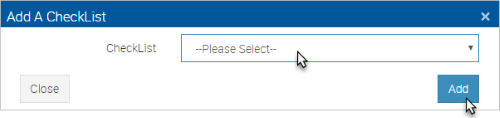
1. Click the Add Check List button. The Add A Checklist pop-up window will display.

2. Choose the existing Checklist you require from the dropdown menu then click the Add button. The Checklist will now display and be added to the Quote.
Create a New Checklist Item for a Quote
Click the New Item button and then click in the Name field and type the Checklist Item’s name. Click the New Item button again to add another Checklist item – repeat to add as many Checklist Items as you require. When ready, click the Save Quote Checklist button.

Edit a Quote Checklist
1. To edit an Item on the Checklist, click the Edit button for that Item. The Edit CheckList Item pop-up window will display. Make the required edits and click the Save button.

2. To change the order of the Items in the Checklist, click and hold on the Arrows Icon for the Item you wish to move - and drag the Item to the correct position in the Checklist. Alternatively, click on the Item to highlight it and then click either the Move Up or Move Down buttons as required.

When ready, click the Save Quote Checklist button.


Set up a Default Checklist
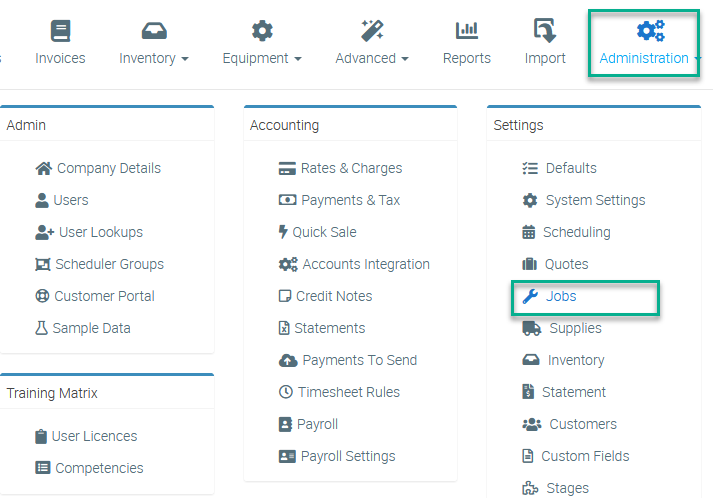
1. Go to Administration → Jobs.
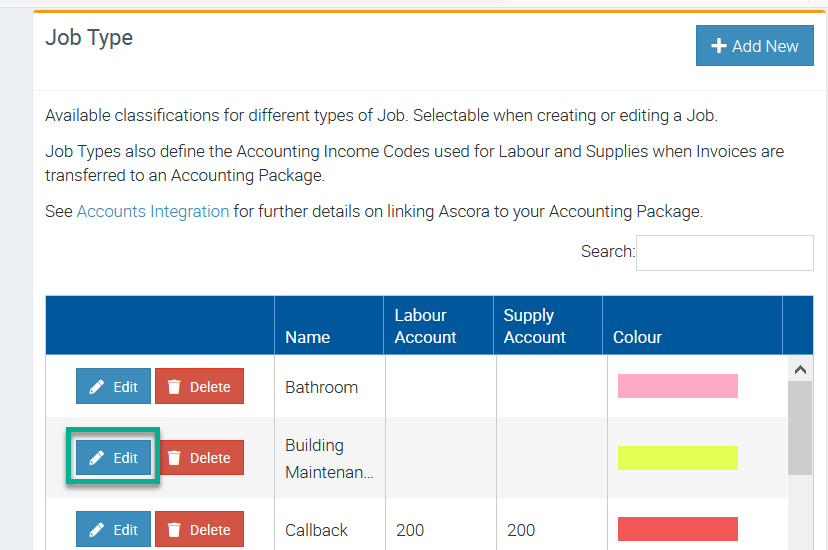
2. Click Edit beside the Job name where you want to set up a default checklist.
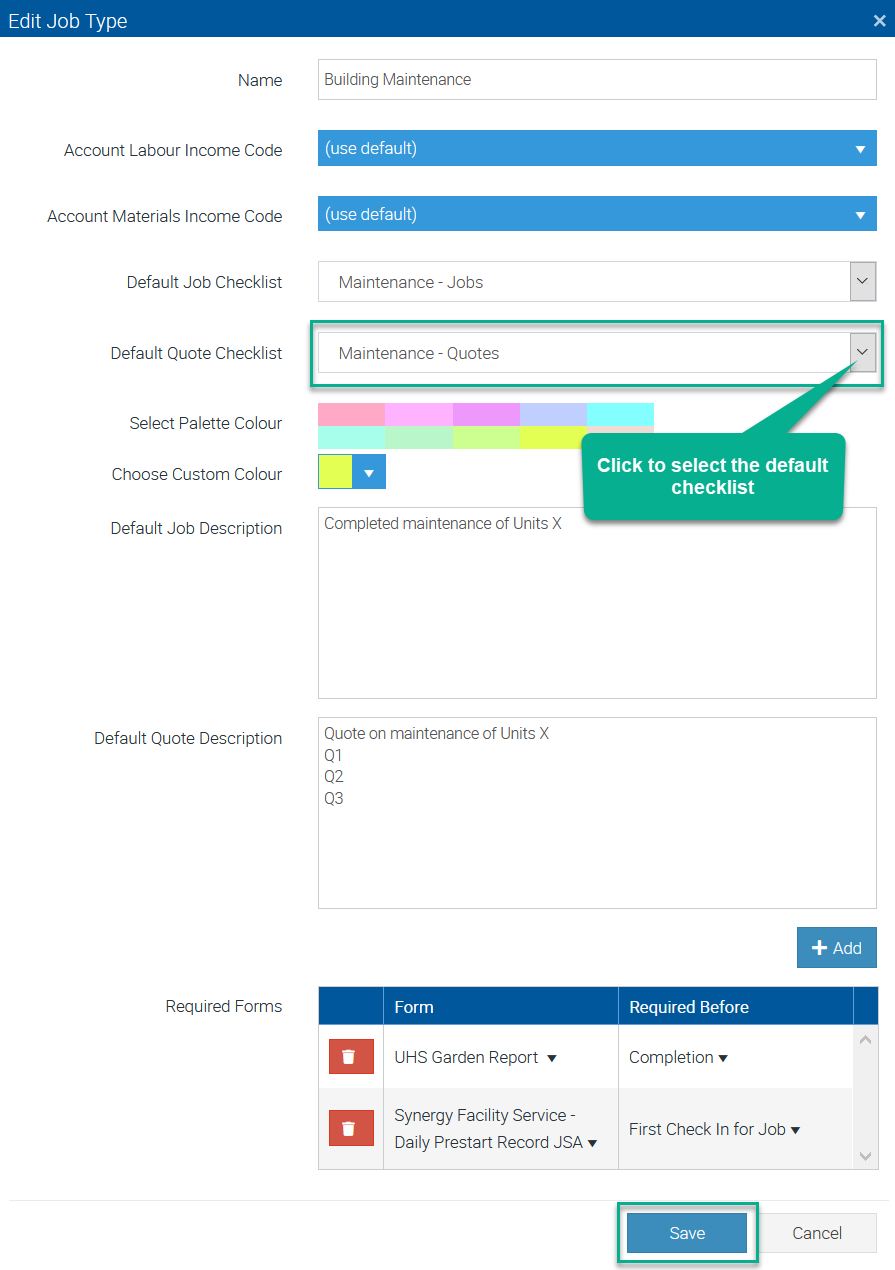
In this example, we are setting up a default checklist for job type called Building Maintenance.
3. In the field Default Quote Checklist, click the arrow to select the default checklist.
Once ready to proceed, click the Save button located on the lower right part of the box.