If your document template (such as an invoice, quote, or job card) is not displaying information correctly, the issue is often related to incorrect formatting or improper merge field insertion. This guide will help you identify and fix merge field errors to ensure your templates pull the right data.
Common Reasons Merge Fields Fail
🔹 Incorrect Merge Field Format – The field name does not match the system’s expected format. (e.g., WorkUndertaken should not include spaces.)
🔹 Manually Edited Merge Fields – Copying and pasting merge fields or renaming them manually can break functionality.
🔹 Incorrect Field Selection – The merge field might be linked to the wrong data field in Ascora.
How to Fix Merge Field Issues
This guide walks you through:
✅ Identifying problematic merge fields
✅ Editing them correctly in Microsoft Word
✅ Uploading and testing the updated template
By following these steps, you can ensure all fields auto-populate correctly, keeping your documents professional and accurate.
If your document template such as invoice template, quote template, and job card are not displaying the information despite adding the merge fields and tables, you can check or edit the merge fields if they've been added correctly.
Oftentimes, the reason why it's not working is either the merge field format is incorrect or it was not added in incorrect way.
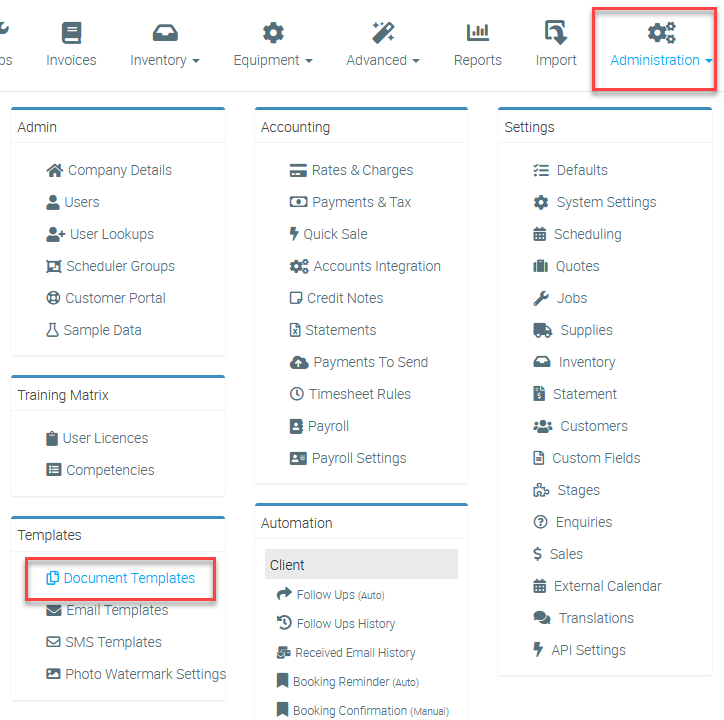
1. Go to Administration → Document Templates.
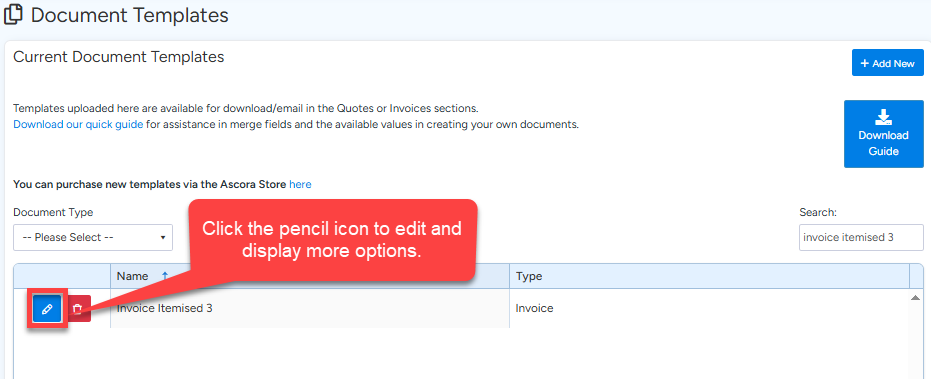
2. Select the template where you'd like a merge fields added to by clicking the Pencil icon.
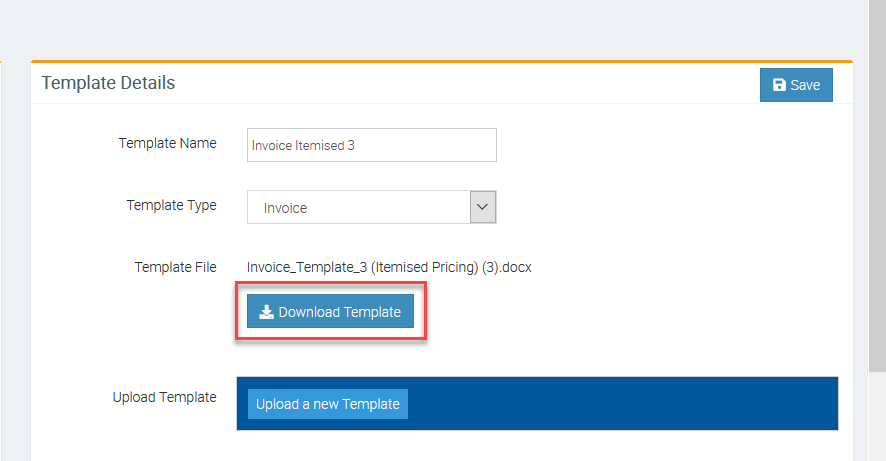
3. Click Download Template.
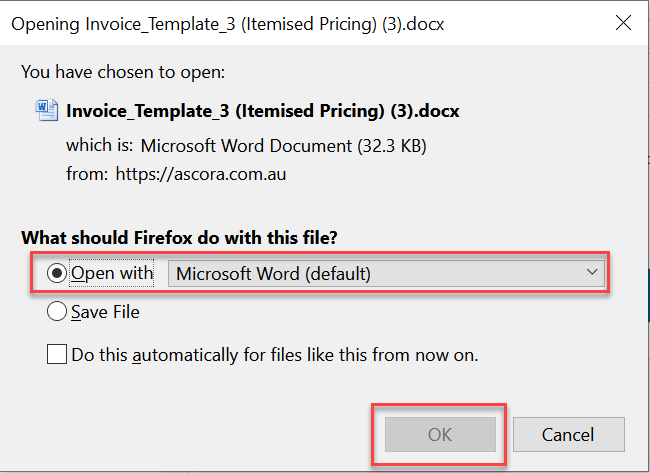
3.1 Depending on your computer settings, it will either download automatically which you will need to open from your Downloads Folder or it might ask you to save the file manually.
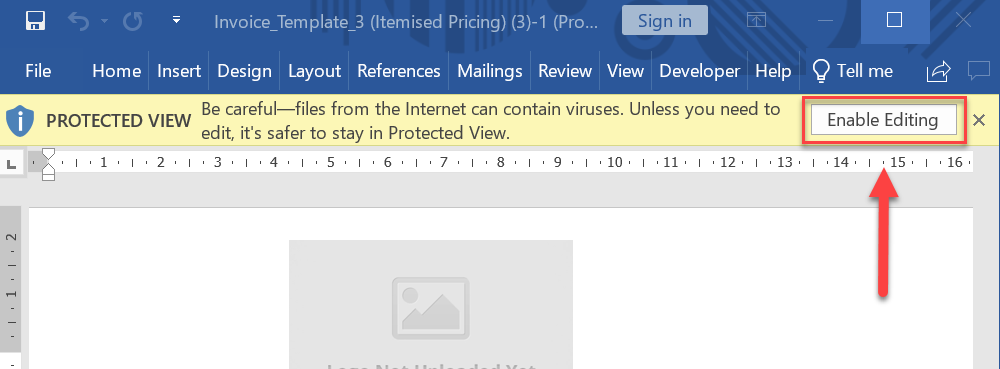
4. Open the downloaded template and click Enable Editing if prompted.
5. Find the merge field that fails to display the information when you generate the document.
Right click on the merge field and select Edit Field and another box appears where the hidden component is shown.
In this example, our Work Undertaken is not working because the hidden component is JobDescription instead or WorkUndertaken.
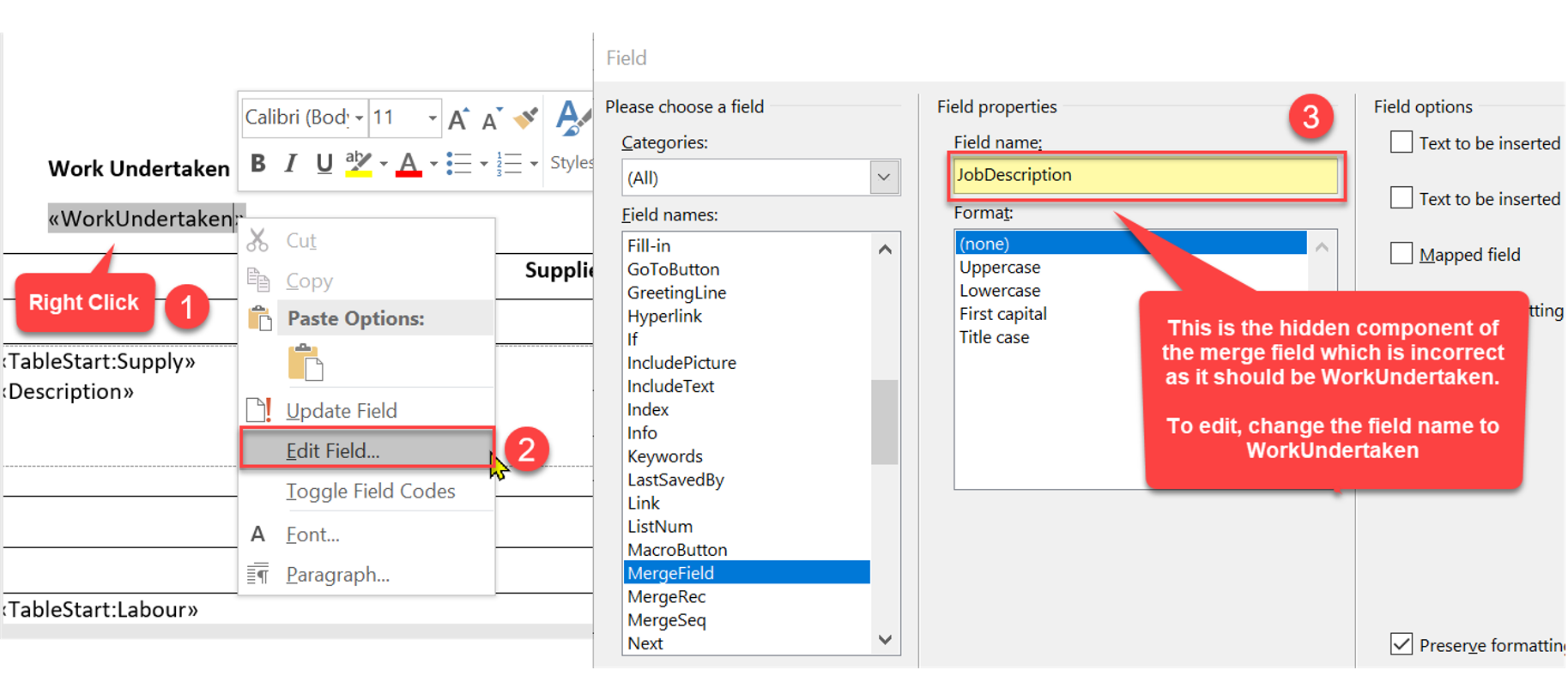
The field name needs to be in exactly the same format as listed in the table of available fields. For example, Work Undertaken is written as WorkUndertaken which is without space.
See 📃 Document Template User Guide for a list of available field names.
Copying and pasting the merge field and changing it to a different name does not work as it only changes the physical component of the merge field but not the actual command associated with it.
Repeat step 5 if you have more merge fields not displaying the correct information or not working at all.
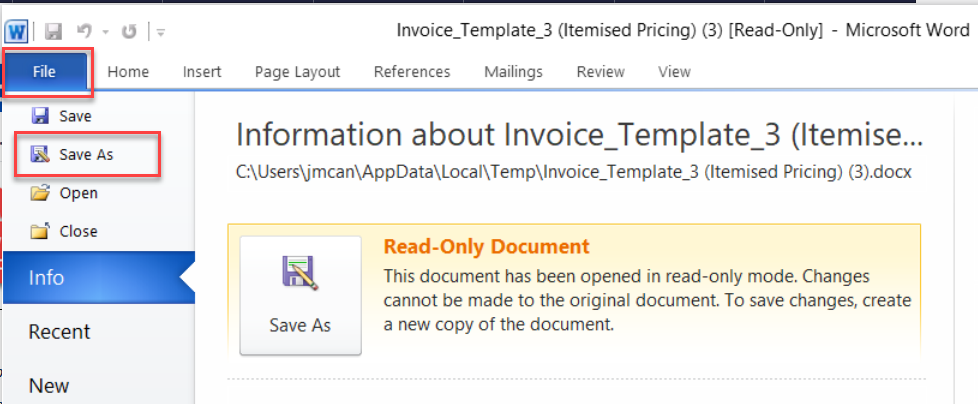
6. Once you've finalised the changes, save the template in your computer by clicking File → Save As and you might edit the file name to indicate it's an updated copy.
7. Go back to Ascora page in Administration → Document Templates → and click Upload a New Template and select the updated version that you just saved.
Make sure to click Save button to finalise the updates.

Got a question?
Submit an Idea 💡 Go to Ideas Portal