Checklists in Ascora are a powerful tool designed to ensure consistency, quality, and efficiency in your workflows. By creating structured, step-by-step guides, you can help your team stay on track, reduce errors, and meet compliance requirements before finalizing a Quote or Job.
With customizable checklists, you can:
✔ Standardize processes across different job types
✔ Ensure critical steps are never missed
✔ Improve accountability by tracking completed tasks
✔ Reduce rework and maintain quality control
Whether it’s a safety inspection, job completion checklist, or routine maintenance process, Ascora makes it easy to create, manage, and apply checklists across your business operations.
📽 Watch the video guide ⤵
1. Hover the mouse pointer over the Advanced Icon in the Top Menu and choose Checklists from the dropdown list. The Checklist list will display.

2. To create a new Checklist, click the +Add New button.
3. The Add New Check List pop-up window will display. Enter a name for the new Checklist and click the Save button.

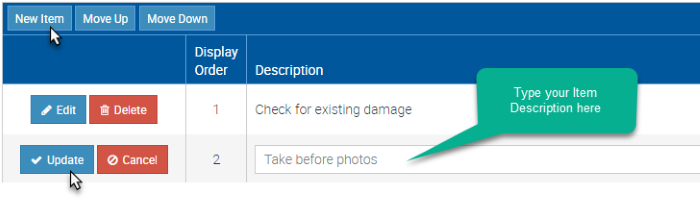
4. The Checklist Details screen will display. Add an Item to the Checklist by clicking the New Item button. Type the Item Description into the text-box then click the Update button to save the Item. Repeat this process to add all the Items you require to be included in the Checklist.
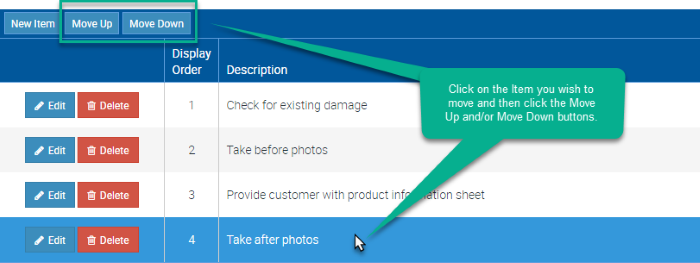
5. To change the order of Items in the Checklist, click on the Item you wish to move and then click either the Move Up or Move Down buttons until the Item is in the correct location in the Checklist.
6. When ready, click the Save button. Your Checklist is now available to add to a Quote or a Job.

How to Set up a Default Checklist per Job Type
You can set up a default checklist per job type and can also do the same for quotes.
1. Go to Administration → Jobs.
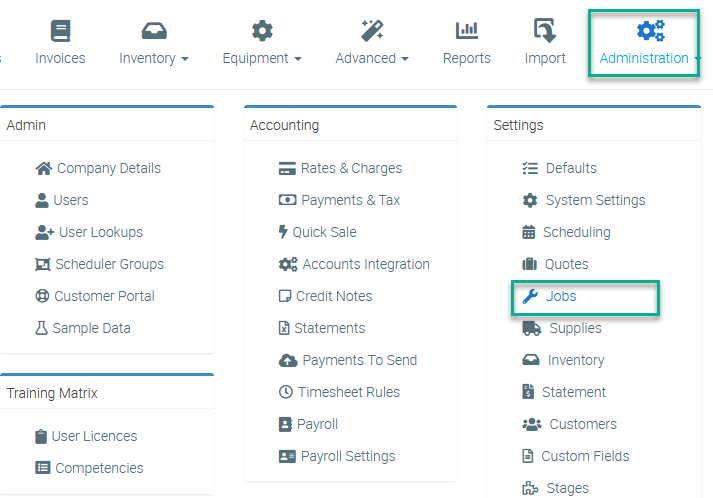
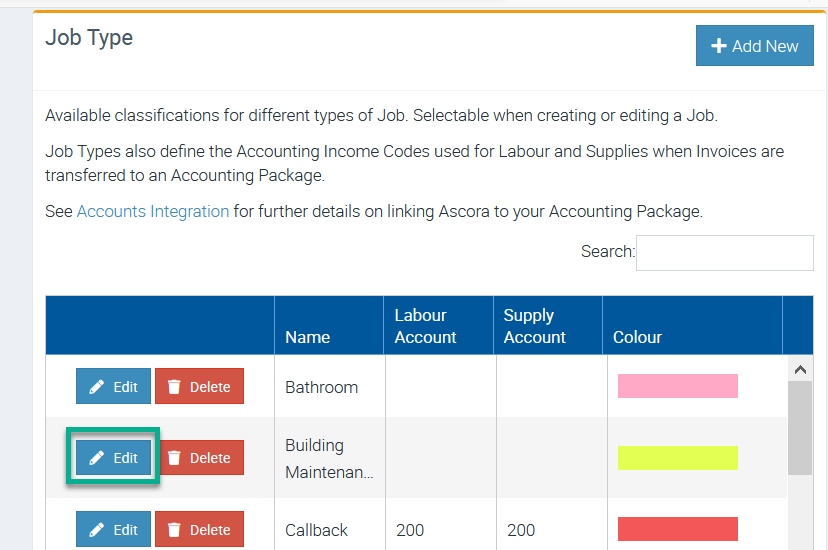
2. Click Edit beside the Job name where you want to set up a default checklist.
In this example, we are setting up a default checklist for job type called Building Maintenance.
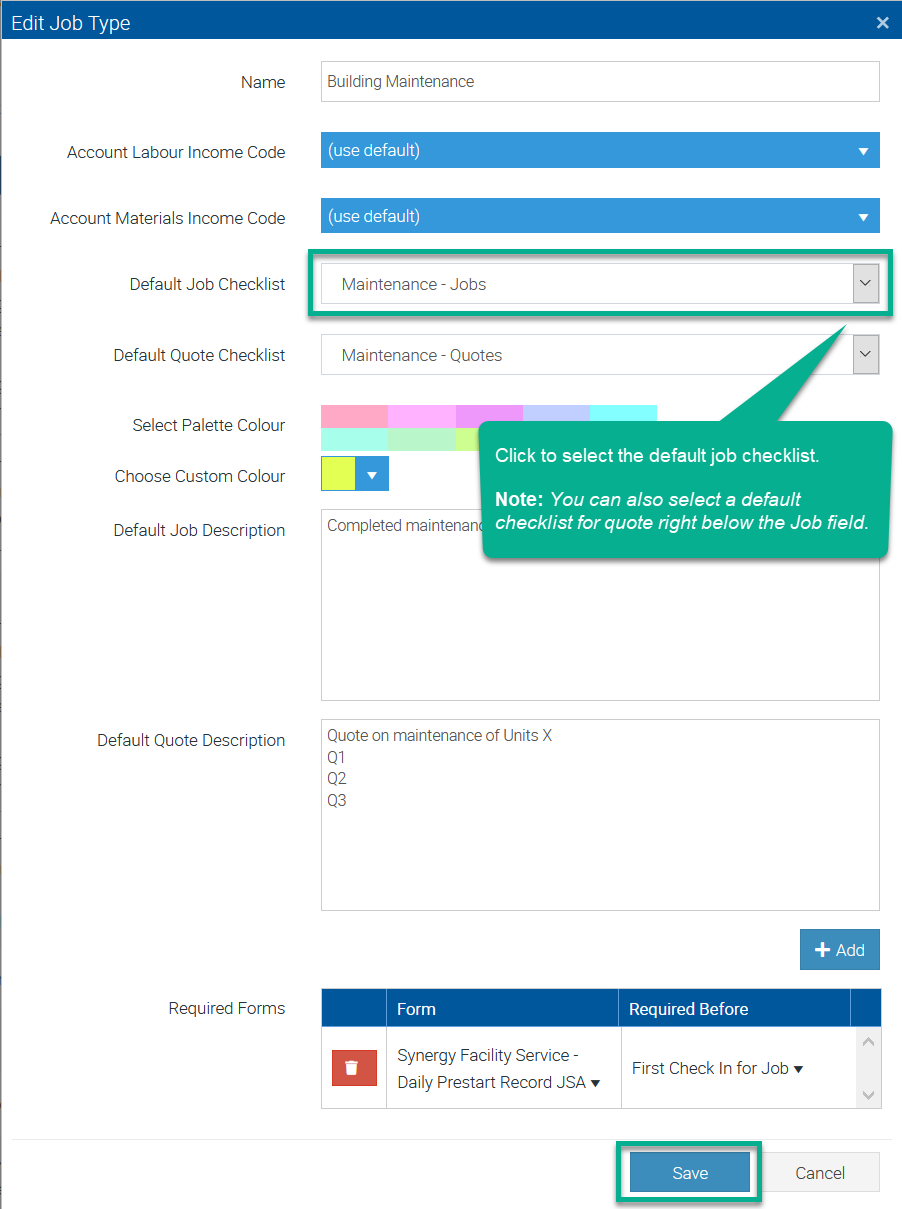
3. In the field Default Job Checklist, click the arrow and in this example, we select the checklist called Maintenance - Jobs.
Once ready to proceed, click the Save button located on the lower right part of the box.
Got a question?
Submit an Idea 💡 Go to Ideas Portal