Transitioning to Ascora or updating your system with bulk job data doesn't have to be complicated. The Job Import Template ensures a smooth and efficient transfer of job details, keeping your records structured and aligned with Ascora’s workflow.
By following this guide, you can:
✔ Seamlessly migrate historical job data from another software or spreadsheet-based system.
✔ Maintain data accuracy and consistency by adhering to Ascora’s structured import format.
✔ Link job details with associated supplies and labor costs, ensuring your financial records remain intact.
✔ Customize job attributes, including pricing methods, job statuses, booking dates, and assigned teams.
✔ Reduce manual data entry, saving valuable time and minimizing the risk of errors.
Whether you’re importing a handful of jobs or thousands, this structured approach allows you to set up Ascora efficiently, ensuring you have all the necessary details at your fingertips to manage jobs with confidence.
Import Process
1. Go to Jobs → Import/export → Download Import Template.
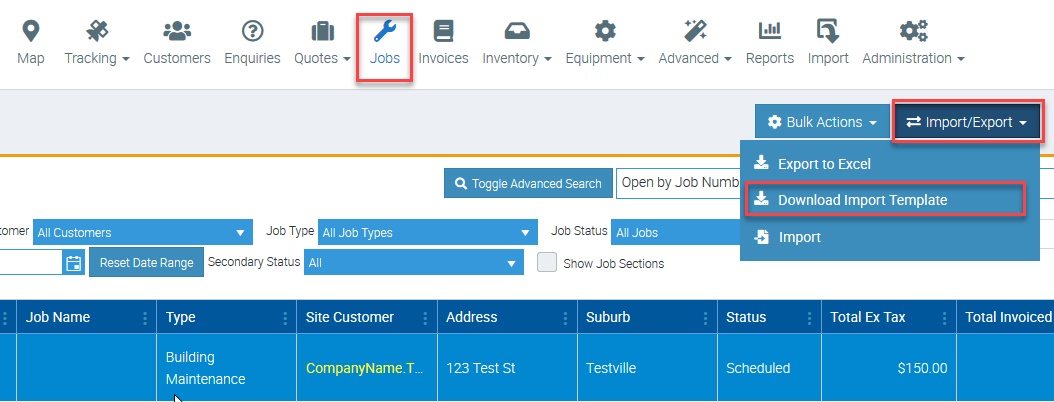
2. Enter the information in the Excel template.
If you have supply information associated to jobs, go to Supply tab and enter the information from there. Do the same for labour details by entering them in the Labour tab.

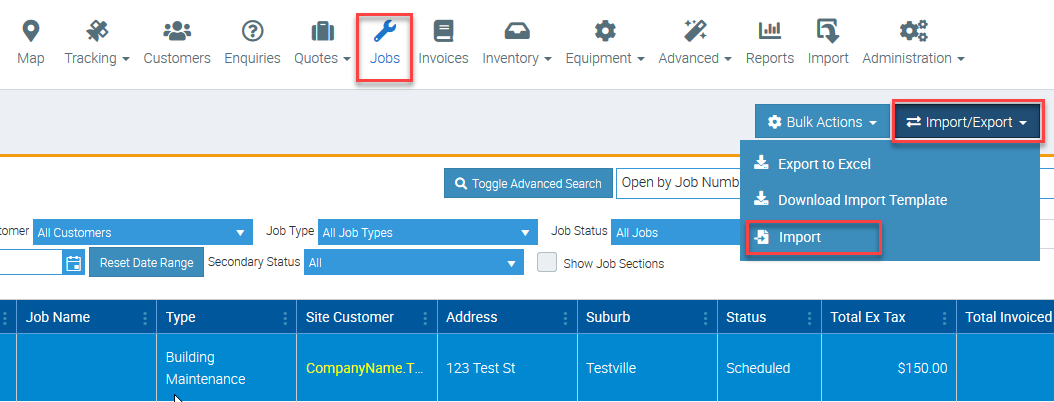
3. After completing the necessary details, go back to Jobs → Import/Export but this time, click Import.
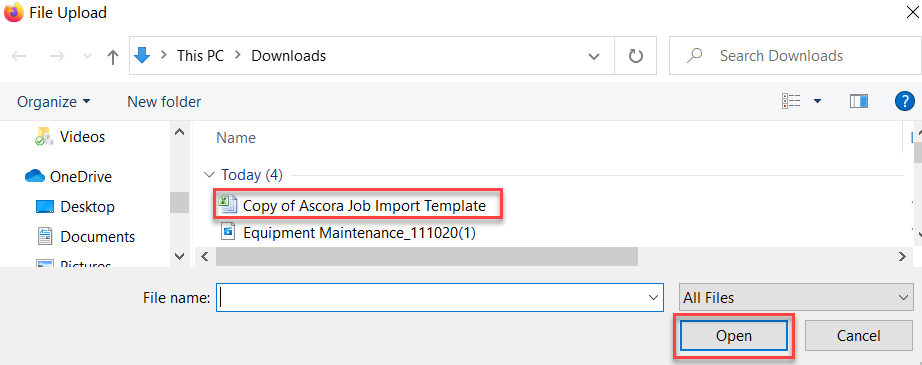
4. Select your Import file and click Open.
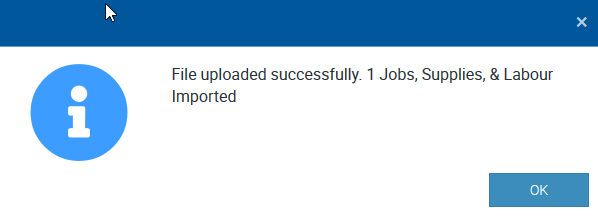
5. Once the data is already imported, you would see a notification similar to the below.
Template Guide
| Compulsory Field | Default Value If Not Specified | Possible Values (If Applicable) | Create If Not In Ascora | Notes | ||
|---|---|---|---|---|---|---|
| A | JOB NUMBER | Next Available Job Number | ||||
| B | JOB NAME | |||||
| C | IS SECTION/STAGE | False | Yes/No | Set to Yes/True for any Job that is a child of another. E.g. a section or stage of another Job. The parent job should always be set to No. | ||
| D | JOB STATUS | In Progress | See Table Below | |||
| E | DATE CREATED | Current Date | ||||
| F | QUOTE NUMBER | If populated, the Job will be linked to the given Quote. The Quote must already exist in Ascora and not already be linked to another Job. | ||||
| G | SITE CUSTOMER | For Section/Stage - No Otherwise - Yes | For Section/Stage - Parent Quote Site Customer | Yes | If Billing Customer has been provided but not Site Customer, the Billing Customer will be used for both. | |
| H | SITE CONTACT | Yes | ||||
| I | BILLING CUSTOMER | Site Customer | Yes | |||
| J | BILLING CONTACT | Yes | ||||
| K | ADDRESS LINE 1 | |||||
| L | ADDRESS LINE 2 | |||||
| M | SUBURB | |||||
| N | STATE | |||||
| O | POSTCODE | |||||
| P | PRICING METHOD | Default Setting | See Table Below | |||
| Q | TOTAL AMOUNT EX TAX | $0 | If Pricing Method is Time & Materials, the Total values will be recalculated based on Supplies and Labour values after import process has completed | |||
| R | TOTAL TAX | $0 | As Above. | |||
| S | JOB DESCRIPTION | |||||
| T | WORK UNDERTAKEN | |||||
| U | PURCHASE ORDER | |||||
| V | CLIENT ORDER NUMBER | |||||
| W | JOB TYPE | Default Setting | Yes | |||
| X | ASSIGNED TO | |||||
| Y | BOOKING DATE | If a Assigned To and a Booking Date has been imported, a new Booking will be created with these details. If either are missing, no Booking will be created. | ||||
| Z | EXPECTED DATE | |||||
| AA | EXPECTED DURATION | |||||
| AB | INVOICE NUMBER | |||||
| AC | TEAM | |||||
| AD | ESTIMATED DURATION |
Job Status
When importing Job data, the mapping table below can be used to ensure the Job is imported as the expected Status.
Job statuses are either automatically updated depending on which event or activity occurred or manually updated by selecting the corresponding status box from the Job Screen.The following table shows a list of job statuses and their status colours as well as trigger events.
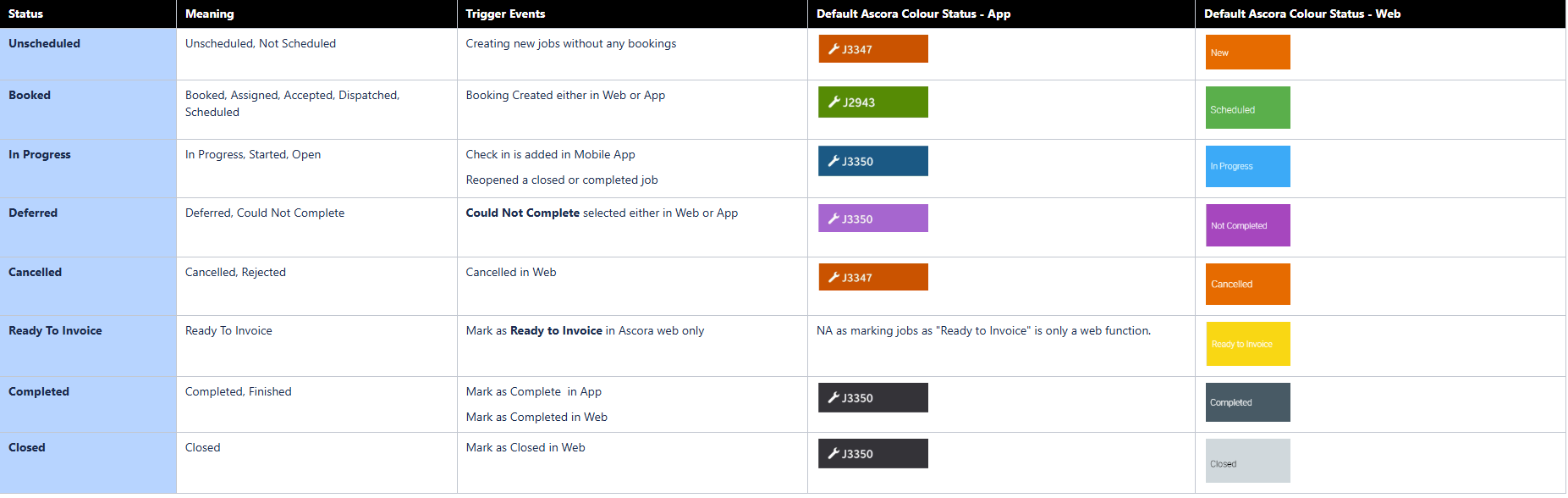
If you disable this setting, you can colour code your jobs and you can do it in Administration → Jobs → Edit → Choose Custom Colour.
The below image shows the default Ascora colours for quote and job statuses in the Scheduler area.

Pricing Method
| Time and Materials | Time and Materials, Time and Material, Time, T&M |
|---|---|
| Fixed Price | Fixed Price, Fixed, FP |
| Sections | Sections, Section |
| Stages | Stages, Stage |
Got a question?
Submit an Idea 💡 Go to Ideas Portal