You can insert photos or images into your quote templates to visually enhance your documents. This can be useful for displaying product images, project references, or any relevant attachments. To ensure images display correctly, you must add the appropriate merge fields and adjust the resolution to fit your layout.
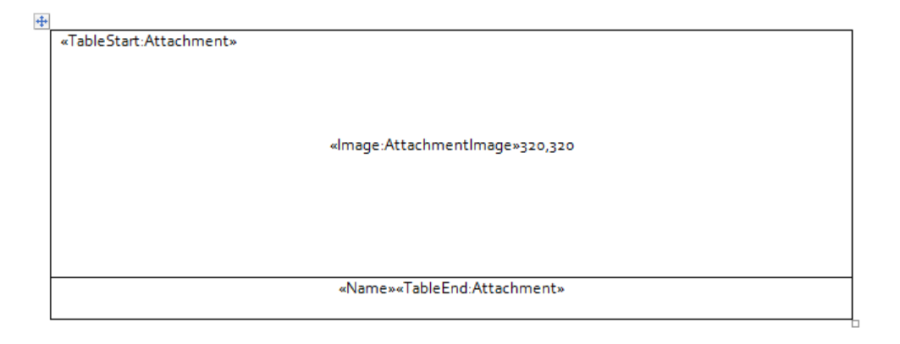
1. Start by accessing your Quote template and add a table containing the following merge fields.
A. «TableStart:Attachment» -
B. «Image:AttachmentImage»320,320 – add in the middle of the table
C. «Name»«TableEnd:Attachment»
A table similar to the following print screen is the expected result and you can just place it in your desired area or section in your quote. You can also hide the borders to make it look neat. Continue with step 2 and 3 to complete the process.
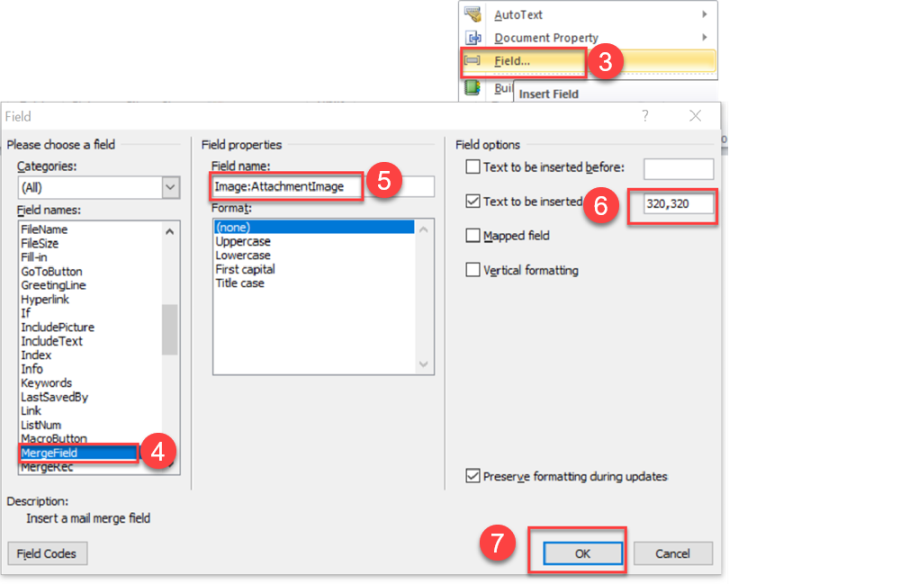
2. To properly add a merge field in a Word document template, click the area where you want the details to be shown, and then click on Insert, Quick Parts then select Field.


- Select MergeField from the categories and type Image:AttachmentImage as field Name.
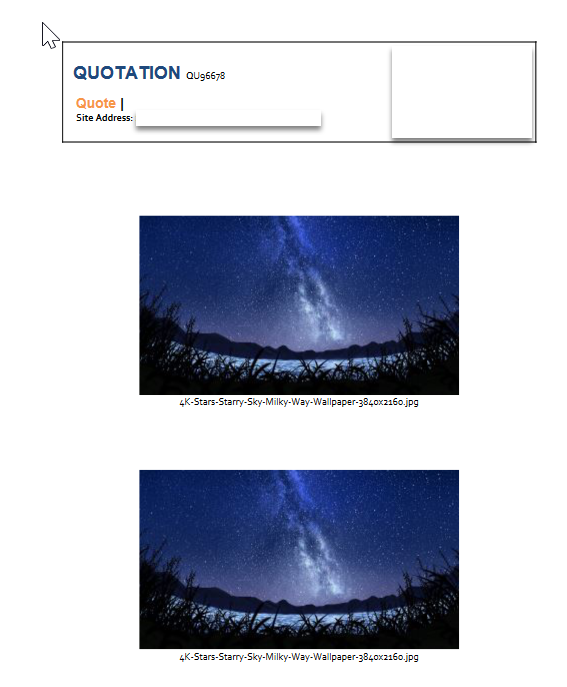
4. Save the changes and re-upload your template into Ascora. When you generate a new quote with photo attachments, it should already show photos similar to the following.
Got a question?
Submit an Idea 💡 Go to Ideas Portal