Manually processing supplier invoices can be time-consuming and prone to errors. Ascora's Automatic Supplier Invoice Import feature allows businesses to automate the process, ensuring that supplier invoices are accurately recorded and seamlessly linked to purchase orders, job cards, and your accounting package.
By setting up automatic email import for supplier invoices, you can:
✔ Eliminate manual data entry and reduce administrative workload.
✔ Ensure invoice accuracy by directly importing and matching them with purchase orders.
✔ Improve efficiency by automating invoice processing across multiple suppliers.
✔ Integrate supplier invoices into accounting software for real-time financial tracking.
✔ Save time by removing the need for repetitive data uploads.
This guide will walk you through setting up email integration, configuring supplier records, and ensuring error-free imports so that your supplier invoices flow seamlessly into Ascora—allowing you to focus on running your business.
Many Suppliers can provide you with copies of your Invoices in CSV or PDF format. You can configure Ascora to accept CSV or PDF Invoices and have these invoices automatically process against a Purchase Order, then update the Job Card (as required) and push the Supplier Invoice details across to your accounting package.
Connecting your Email Account - Office 365
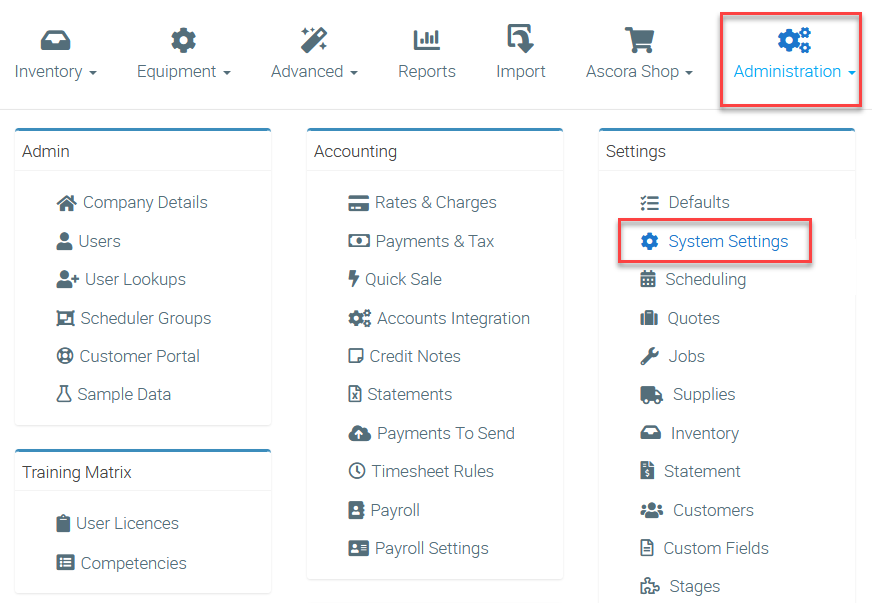
Go to Administration → System Settings.
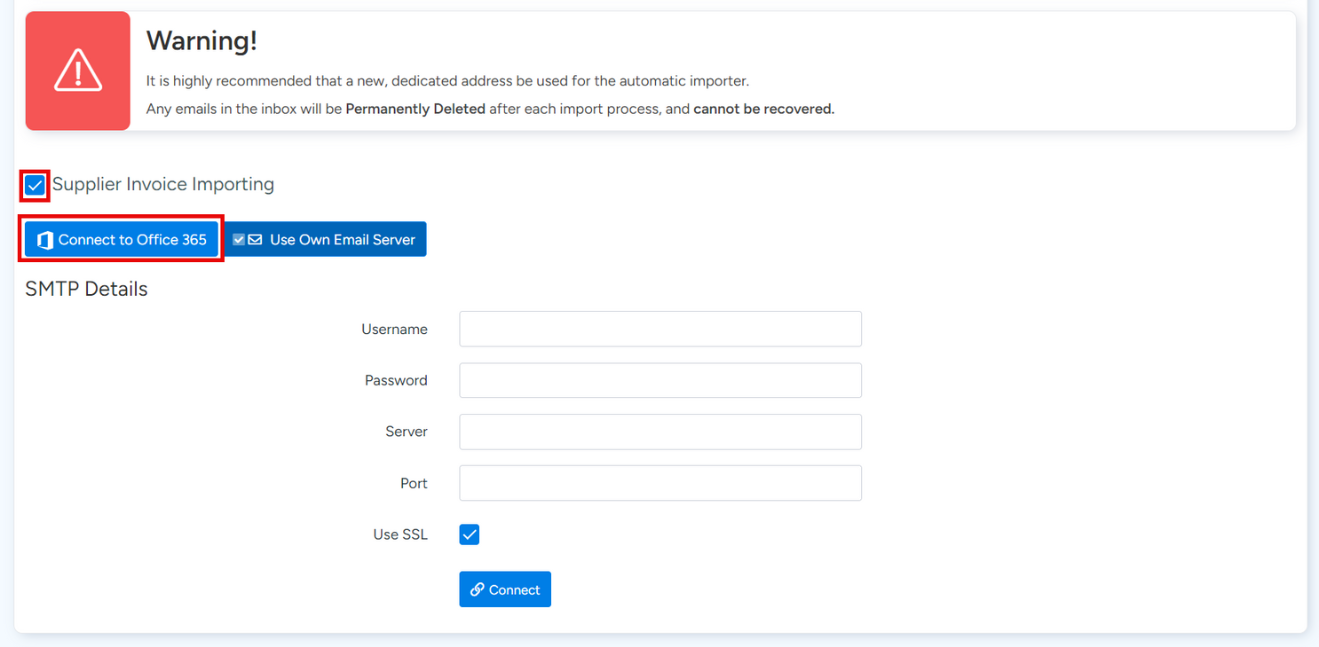
2. Under the Automatic Import Email Settings area, do steps A, B, and C with some references below.
A. Tick the Supplier Invoice Importing checkbox
B. Click Connect to Office 365 and sign in using the popup.
C. Click the Connect button when you're ready to proceed.
If you are using "Use Own Email Server" with Gmail, please read the dedicated article for Gmail here.
3. Connection between your Ascora account and your email account will be established and you'll see the following pop up box indicating it's testing your email settings.

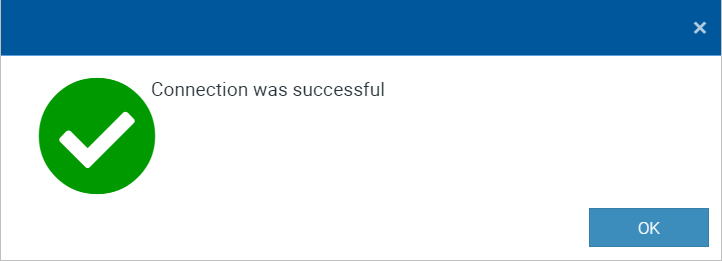
4. Another pop up box appears confirming that connection is successful.
Configuring the Supplier Record
After successfully connecting your email account for supplier invoice automatic import, you will need to configure your supplier record to ensure that emails will be imported correctly.
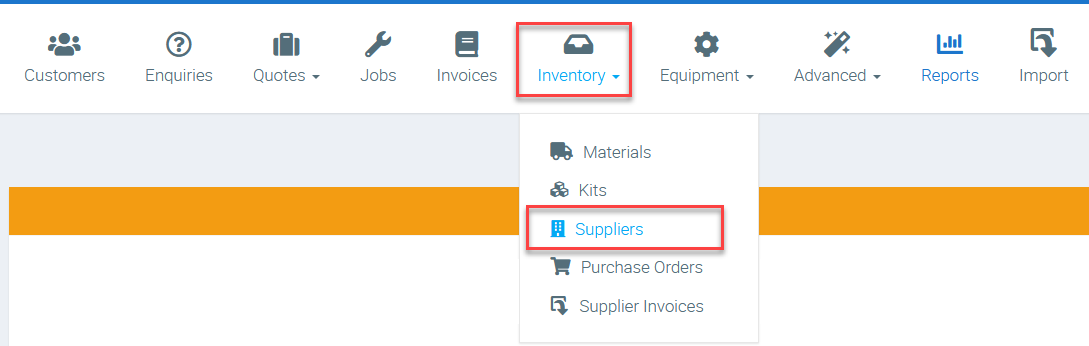
1. Choose the Inventory Icon on the Top Menu and select the Suppliers option.
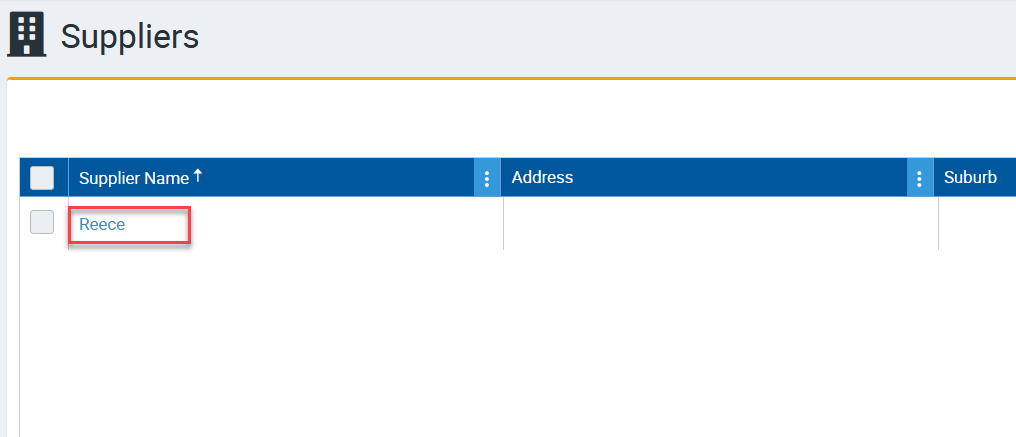
2. Locate the applicable Supplier in the list then click to display the details. In this example we select Reece which is one of the supported formats.
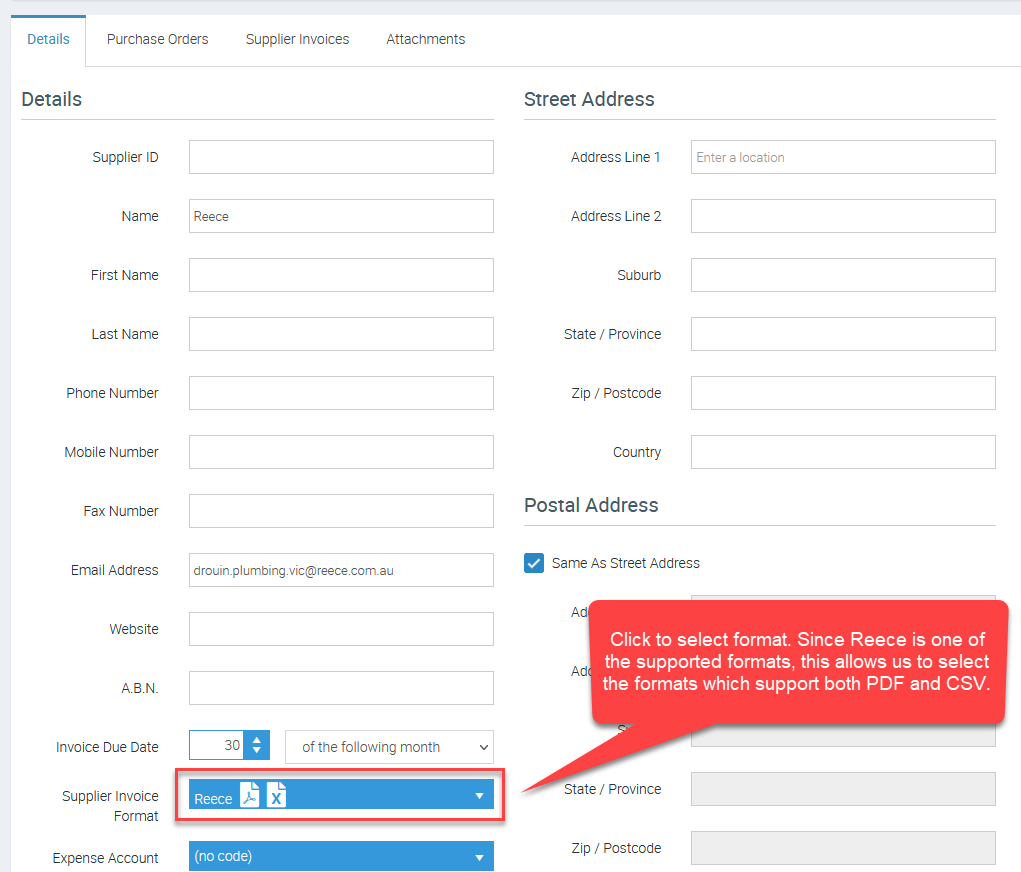
3. The Supplier’s Details Screen will display. Scroll down to the Supplier Invoice Format option and select the applicable format from the list.
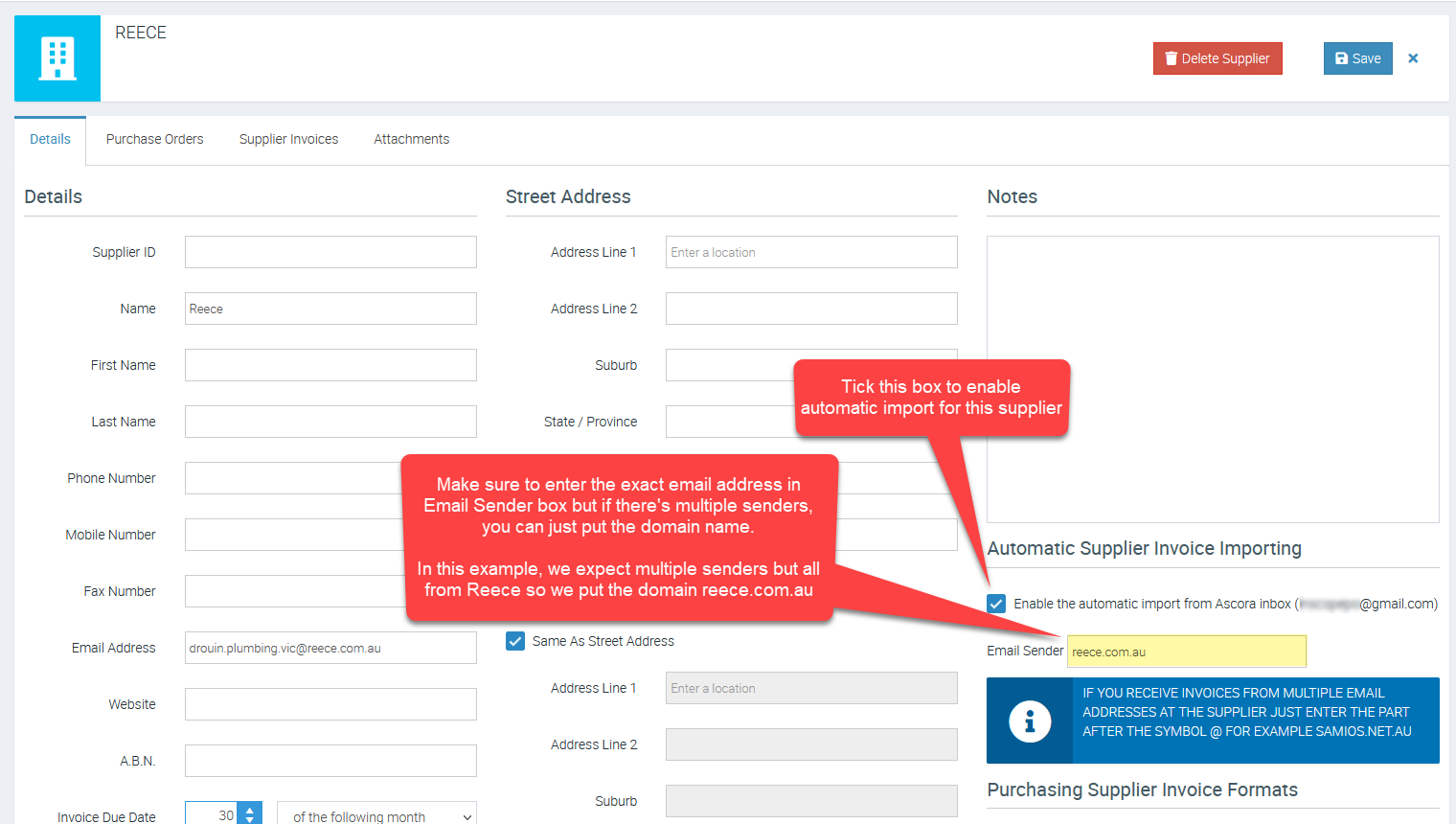
4. Under the Automatic Supplier Invoice Importing section in the Supplier screen, tick the checkbox beside Enable the automatic import from Ascora inbox. The inbox you configured in Step 2 will be displayed in brackets and the Email Sender textbox will appear. Enter the email address used by the Supplier to send your Invoices in the Email Sender textbox. Ascora is now configured to automatically import and process Supplier Invoices for the particular Supplier. Repeat these steps for any other Suppliers for which you wish to enable Automatic Supplier Invoice Importing.
As a summary, the requirements for setting up automatic import for supplier invoices are:
- Supplier must have a supported format available.
- You account is successfully connected to a dedicated mailbox that receives supplier invoices type of emails.
- You have configured the necessary settings in the supplier details screen.
Congratulations! You have now successfully configured automatic import for your supplier invoices which helps save a huge amount of time compared to manually creating/importing your supplier invoices.
Got a question?
Submit an Idea 💡 Go to Ideas Portal