Keeping your supply pricing and markup rates updated ensures that your business maintains healthy profit margins while staying competitive. In Ascora, you can easily adjust the markup for specific supply categories without manually updating each item. Whether you need to increase markup due to rising costs or standardize pricing across a category, this process helps streamline bulk updates efficiently.
This guide will walk you through:
- Exporting and filtering your supply list to identify the category you need to update.
- Applying new markup percentages using Excel formulas for quick calculations.
- Ensuring accurate data formatting before re-importing the updated pricing into Ascora.
- Avoiding common mistakes such as formula errors or header name changes that could disrupt the import.
By following these steps, you can quickly adjust markups for specific supply categories, ensuring consistent pricing and profitability across your inventory.
You can update markup for a certain supply category let's say from 40% markup you need to change it to 50% markup.
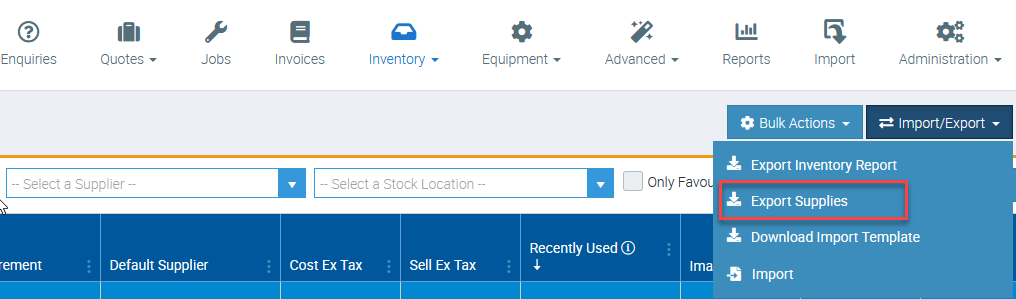
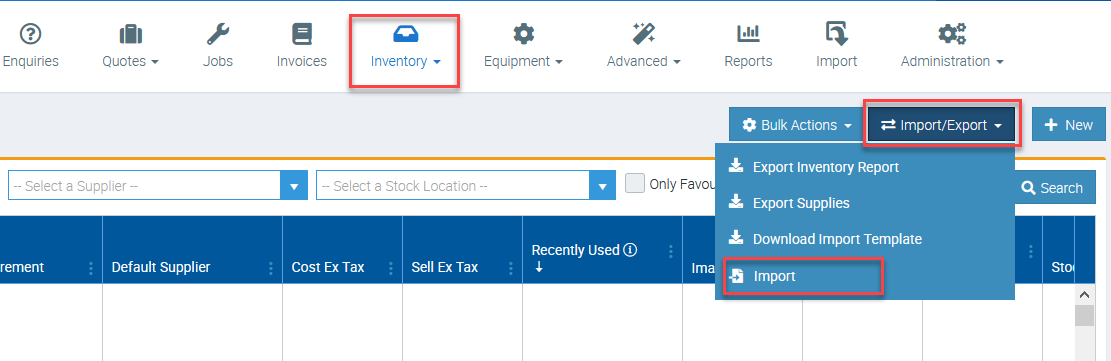
1. Go to Inventory → Supplies → Import/Export then select Export Supplies.
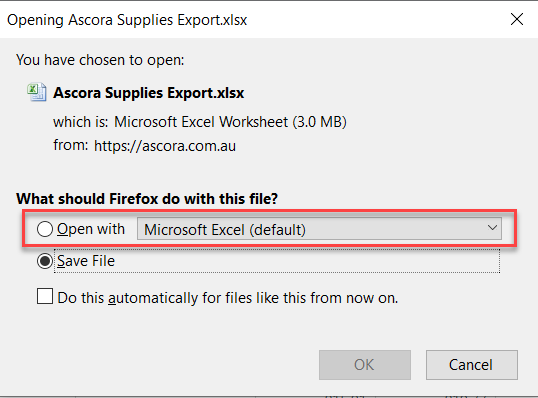
2. Depending on your computer settings, the file will either open automatically or you need to manually open it.
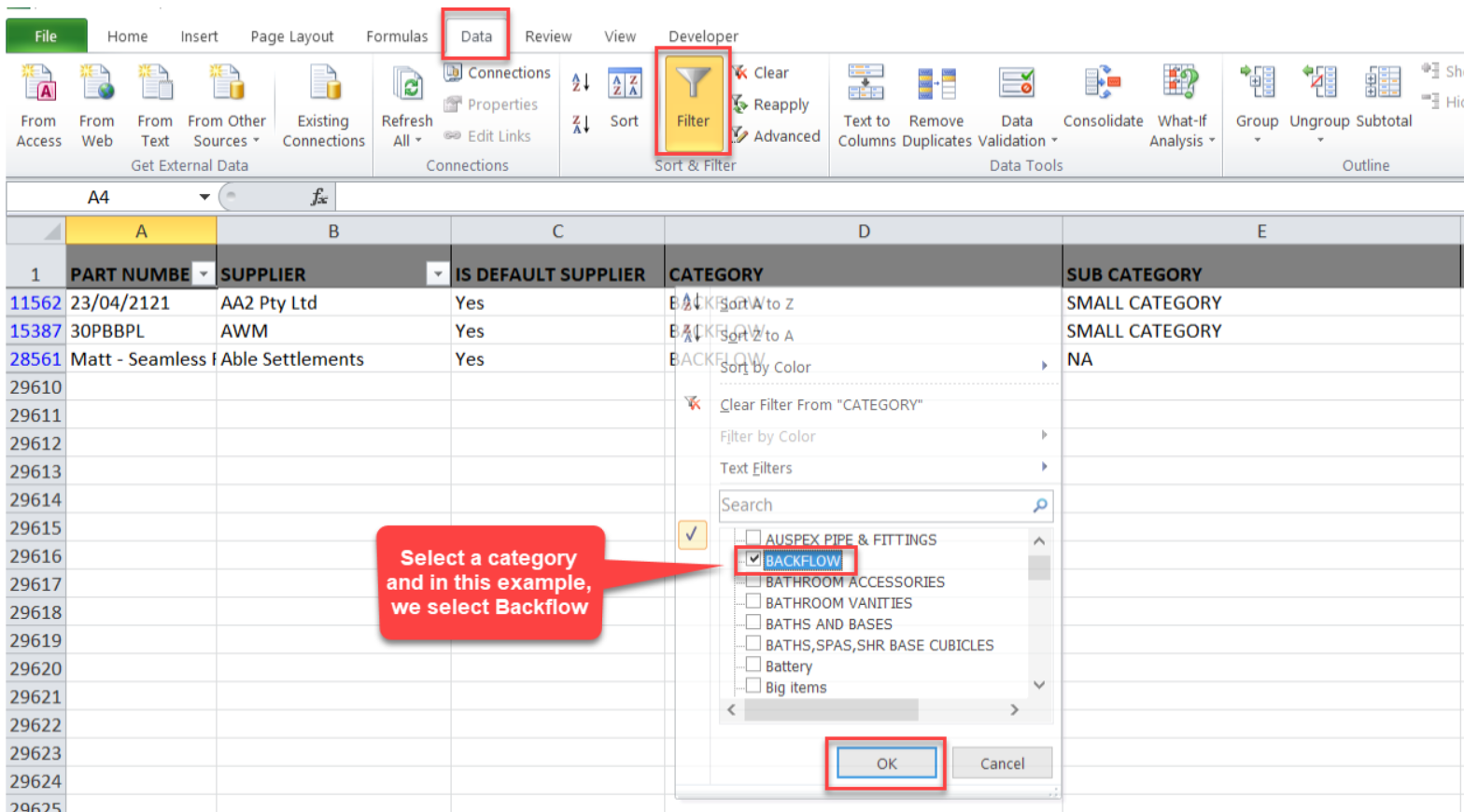
3. With the Excel file opened, click on Data → Filter → and select the category of supplies with markup you need to update.
In this example, we are selecting the category "backflow."
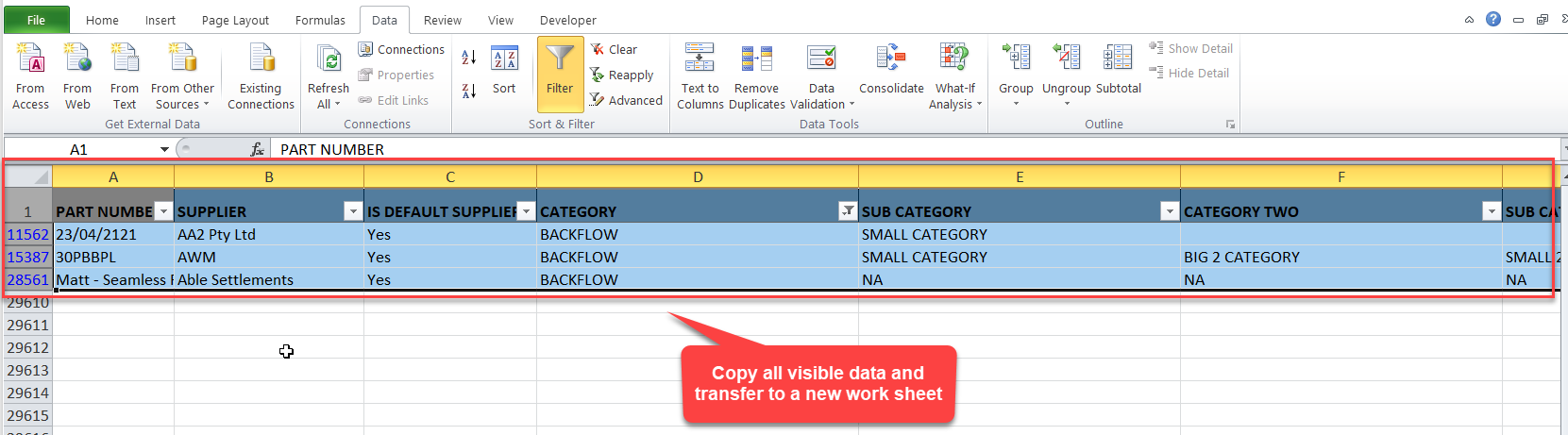
4. Copy the data to a new Excel file and name the worksheet "Supplies".
5. With the data pasted in a new Excel sheet, edit the Sell Price in column J.
For example, if you want to change the markup from 40% to 50% then you need to calculate and input the new price in column J.
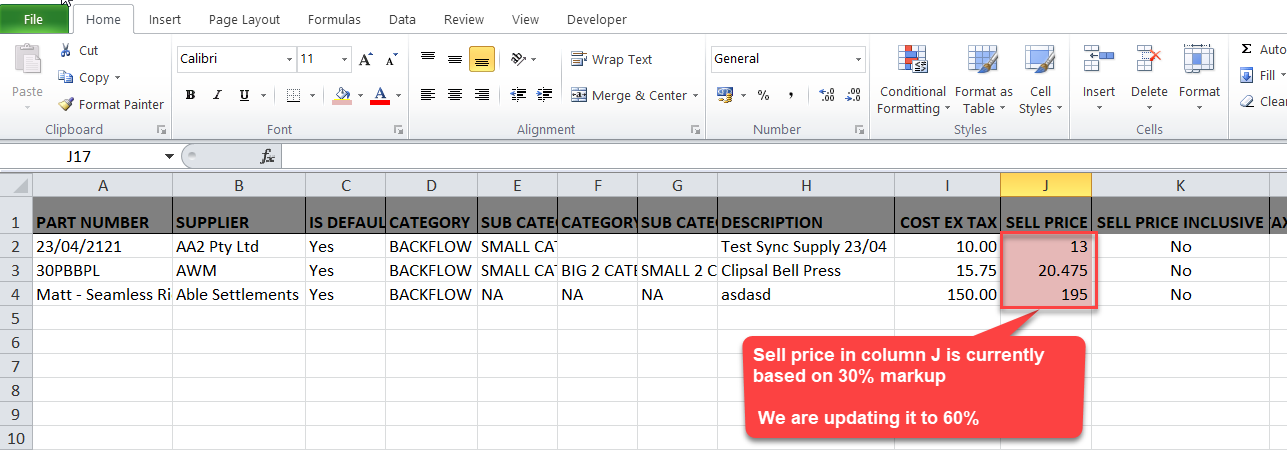
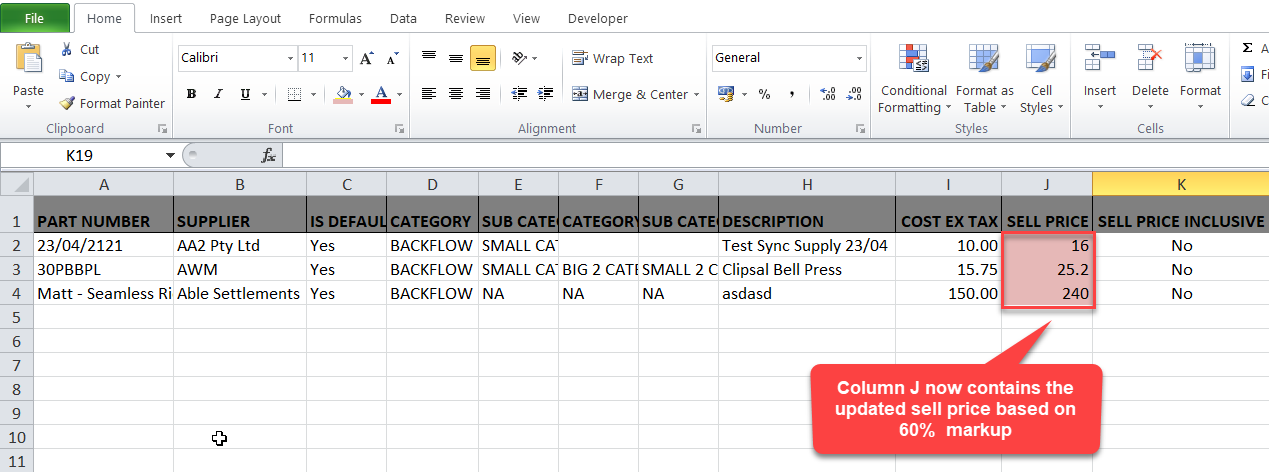
In this example, our fist item has a sell price of $10.2 which is 50% markup. To update it to 60% markup, we can calculate by $10.00 X 60% + Cost Ex tax = $16.00. If you're using formulas to calcuate the new markup, make sure to paste the data as values prior to importing.
Prior to the change
After updating column J Sell Price based on 60% markup
6. Save the updated file and go back to Inventory → Supplies → but this time, select Import and markup for the selected supply category should update accordingly.
ℹ Process complete. You can repeat the above steps if you're updating markup for other supply categories.
Got a question?
Submit an Idea 💡 Go to Ideas Portal