Efficiently managing user access and roles is a key part of optimizing your workflow in Ascora.
This guide provides a step-by-step process for creating new users, assigning web access, and setting up permissions.
Whether you're adding office users with limited permissions or mobile users with full access, Ascora offers flexible options to tailor roles and permissions to meet your business needs. Follow these steps to ensure your team members have the appropriate access and tools to contribute effectively.
📽 Watch the video guide ⤵
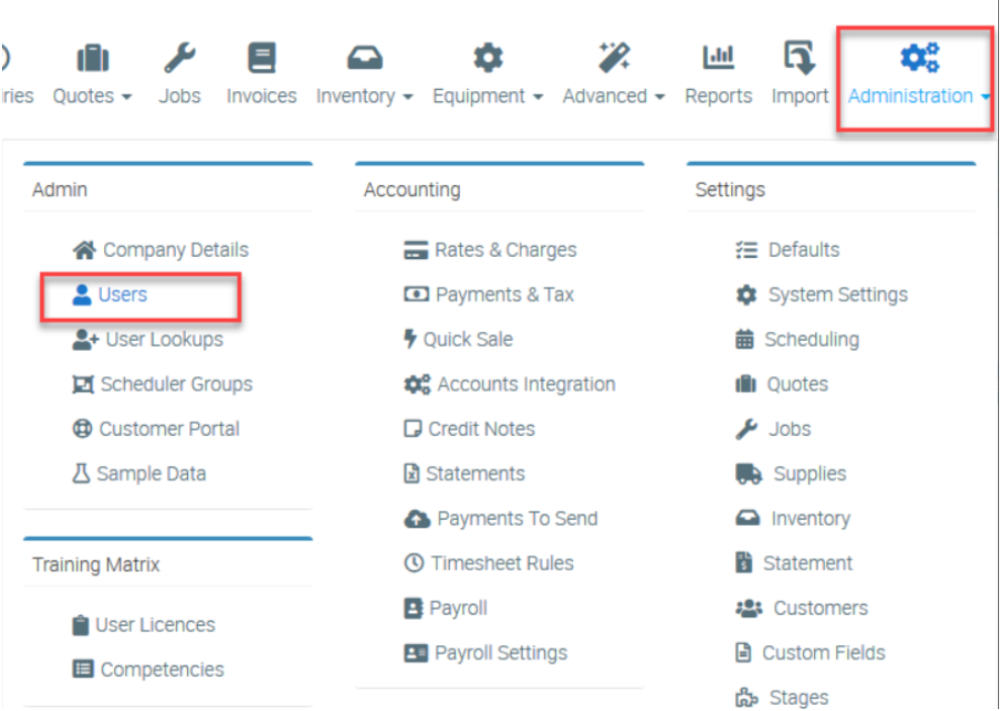
1. To create a user, go to Administration → Users.
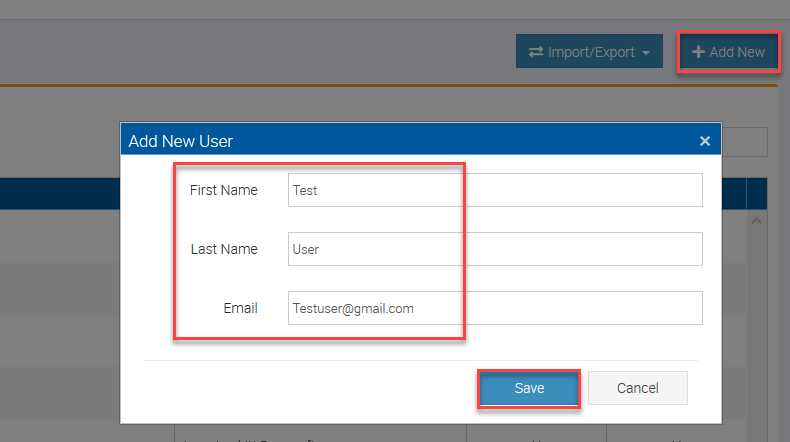
2. Click New and enter the name and email address and click Save.
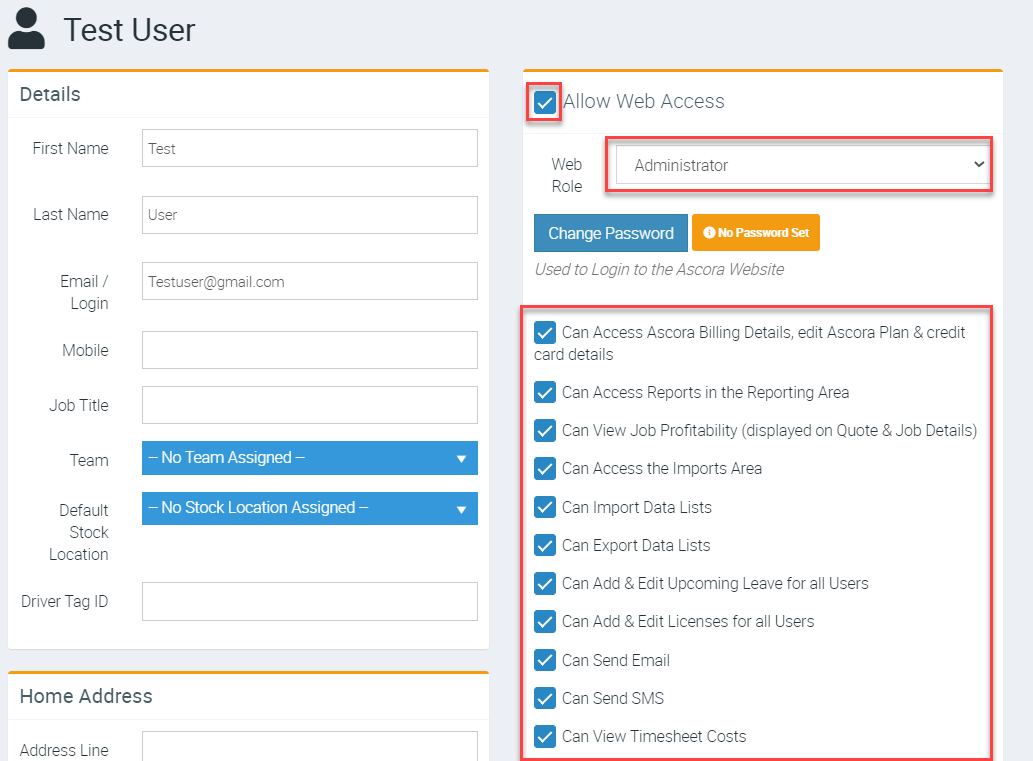
3. Allow web access by ticking the box beside Allow Web Access and assign a role whether Administrator, Scheduler, or Supervisor.
Next step is to add permissions by ticking the corresponding boxes. In this example, we are setting up Administrator role who has access to all areas.
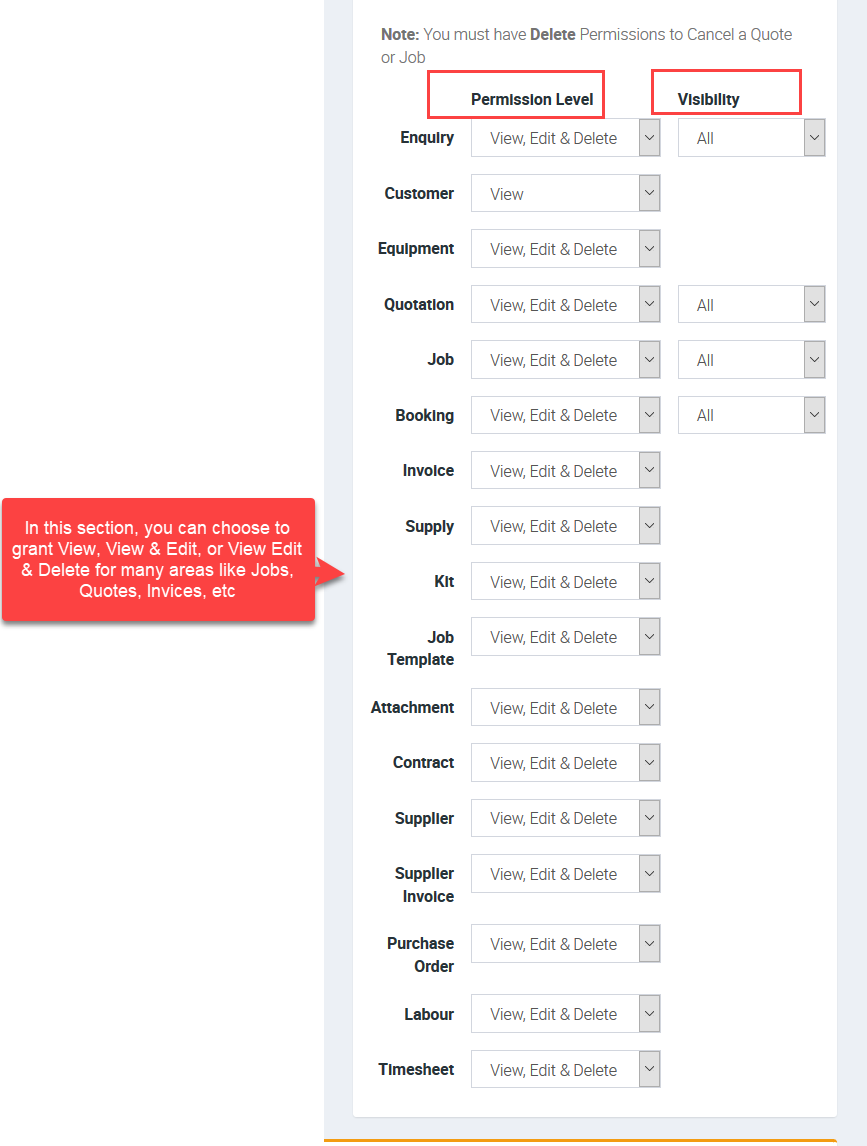
4. In the following section, you can adjust permission levels such as user having the ability to view invoices but unable to delete or a user with access to view jobs but unable to edit and delete.
3. To create a password, click Change Password and enter the details in Password Field and Confirm Password field. Once done, click Save.
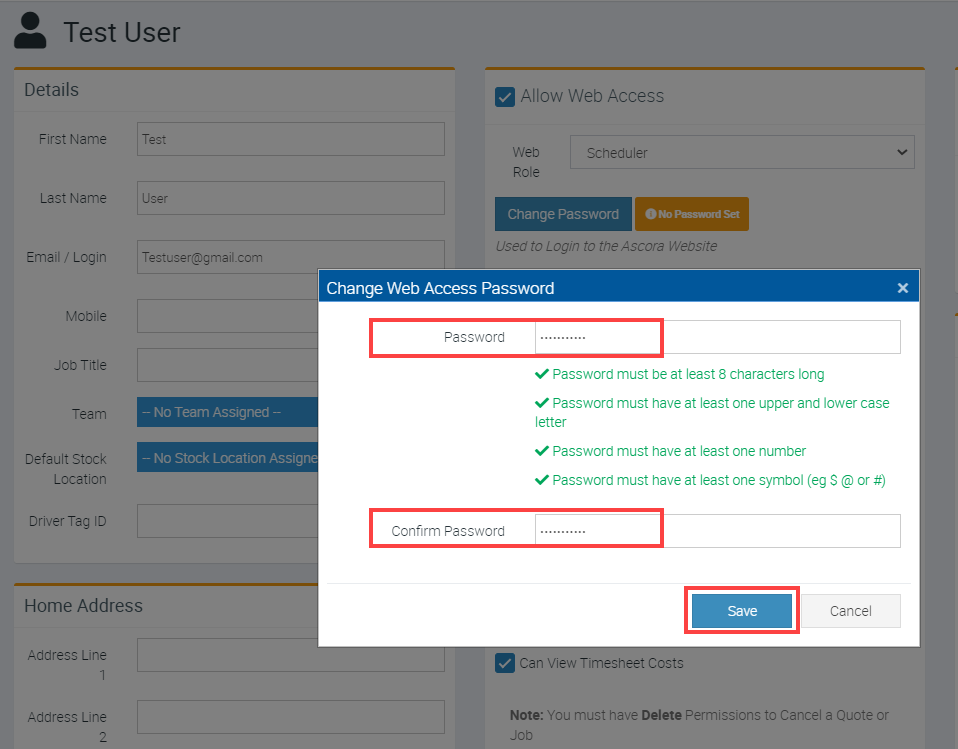
4. After updating permissions and permission levels as well as creating a password, click Save.
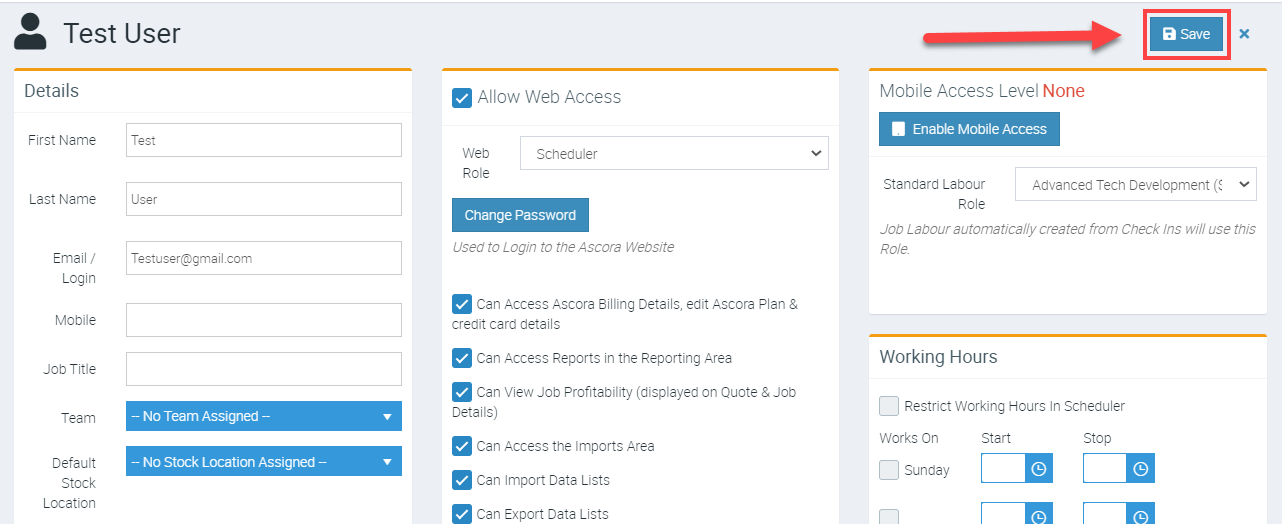
5. Provide the username and password to the user and depending on role assigned and permissions, password can be changed once logged in.
We've now completed the steps in Creating a New User.
Got a question?
Submit an Idea 💡 Go to Ideas Portal