Scheduling and managing quotes in Ascora is a straightforward process designed to keep your workflow organized and efficient. Once a quote is created from the Quotes Screen or a Customer Card, it is added to the Unscheduled Quotes list in the Scheduler. From there, you can easily assign it to a time, date, and user using a simple drag-and-drop method.
This guide will walk you through the steps to schedule, edit, or unschedule a quote, ensuring you have complete control over your bookings and resource allocation.
Whether you’re adjusting durations, reassigning users, or managing unscheduled quotes, Ascora provides the tools to keep your operations running smoothly.
➡ Edit the Booking Duration for a Quote
➡ Edit the Booking Time or Assigned User for a Quote
View the Scheduler
Choose the Scheduler Icon from the Top Menu to display the Scheduler then select the date for which you Schedule the Quote.

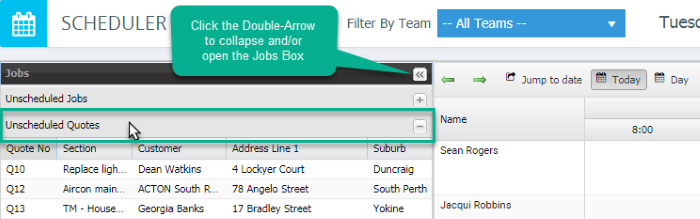
1. View the list of Unscheduled Quotes by clicking the Unscheduled Quotes List header which is located in the Jobs Box at the left of the screen. If the Jobs Box is not visible, click the double arrow to expand the box. You can re-click the double arrow to collapse the box if required.
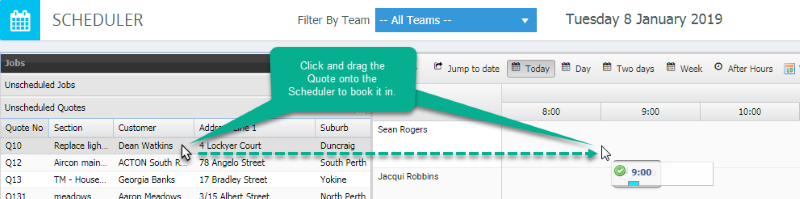
2. In the list of Unscheduled Quotes, click on the Quote you wish to book and drag it onto the Scheduler. Release the mouse button once you have placed the Quote against the correct User and Time. The Quote is now booked in.
Edit the Booking Duration for a Quote
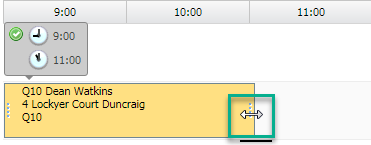
To edit the duration of a Quote booking, hover the mouse over the edge of the Quote until the mouse pointer changes shape then click-and-drag to extend or shorten the duration.
Edit the Booking Time or Assigned User for a Quote
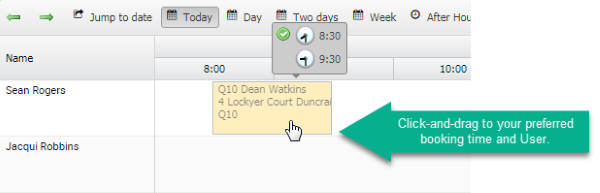
To edit the time a Quote is booked for, or the User for which the Quote is assigned to, click-and-drag the Quote booking to the desired time and User on the Scheduler.
Unschedule a Quote
To unschedule a Quote, double-click the Quote booking on the Scheduler to display the Quote Details. Click the Unschedule Booking button.

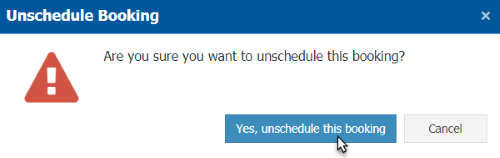
Click the Yes, unschedule this booking button in the pop-up window. The Quote will return to the Unscheduled Quotes List.