Mobile App filter is important as it helps to either limit or increase the number of information that a mobile user can view whether it is related to jobs, quotes, invoices, or other information depending on the permission levels granted.
Quick Filter, Date, and Status
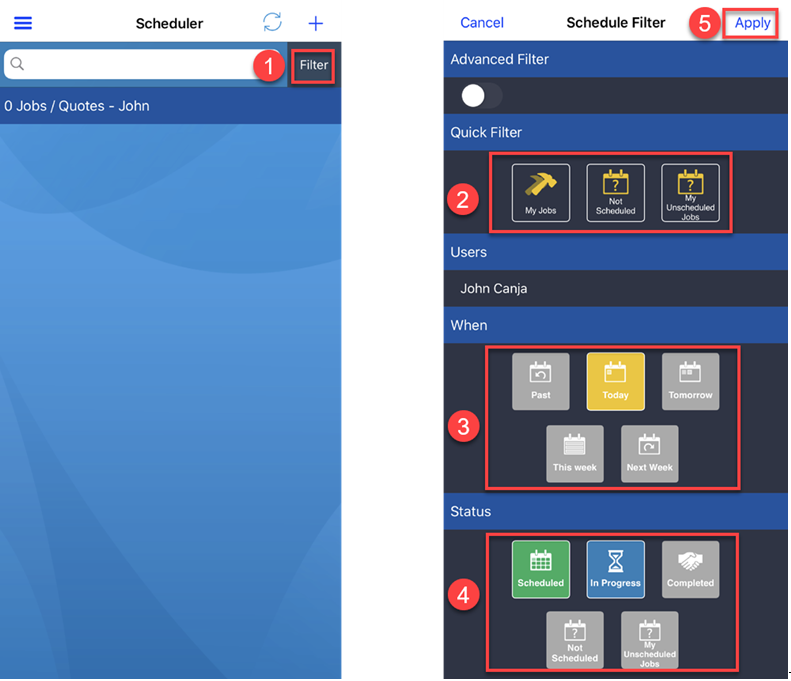
To apply Quick Filter, tap Filter and choose one from the three options either My Jobs, Not Scheduled, and My Unscheduled Jobs and tap
You have the option to also show jobs according to timeline whether past or future ones as well as show jobs according to status whether in progress, completed, and others. Just tap the corresponding tabs and tap Apply.
Filter by User
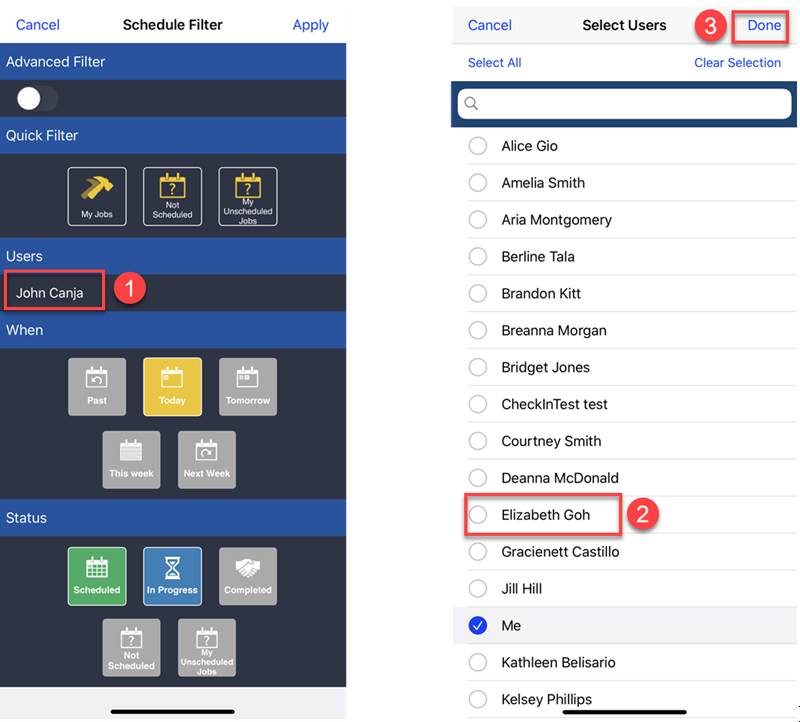
If you have the permission to view quotes or jobs assigned to other users, you can use Filter by User. To do it, tap your name and tick the white circle beside the user name with information you want to view and then tap Done.
You have the option to untick your name if you only want to show the information that belongs to that user that you choose. To put it back to displaying your own information, simply repeat the steps but this time, selectyour name and tap Done.
Advanced Filter
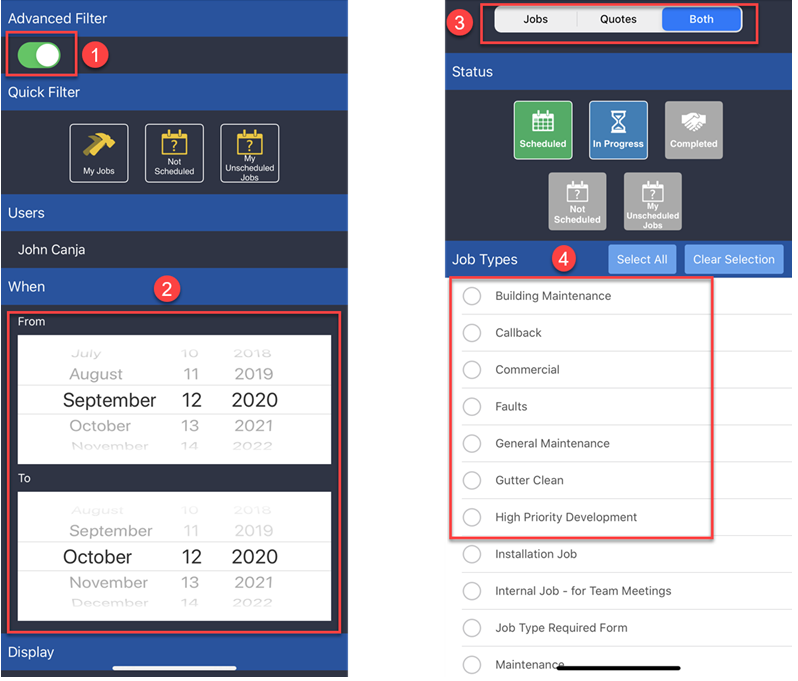
Advanced Filter can let you view a wider range of information whether jobs or quotes for a specific period, as well as job types.
In Advanced Filter, you can tap Quotes to display quotes or tap Both to display both Jobs and Quotes. You can also swipe up to see job types and add such filter. To enable Advanced Filter, simply slide the button to the right.
For Admin Clients, go to Administration → Users → click View beside the user name and grant or adjust Permissions and Permission Level.
Got a question?
Submit an Idea 💡 Go to Ideas Portal