Ascora’s SMS functionality allows businesses to communicate efficiently with customers and team members by sending job-related updates directly from the system. Since Ascora operates with multiple mobile numbers for outbound messages, you may notice that SMS messages come from different numbers. This is due to Ascora automatically selecting the next available sender number from its pool.
To streamline communication and ensure you receive replies, you can configure a designated email address or mobile number to capture incoming SMS responses. This ensures that important details such as customer name, contact number, and job/quote reference are included, allowing for quick follow-ups.
This guide will walk you through setting up SMS in Ascora, managing replies, and ensuring the correct permissions are in place for team members to send SMS via both the web portal and mobile app.
1. Go to Administration → System Settings → SMS Settings and enter an email address or mobile number.


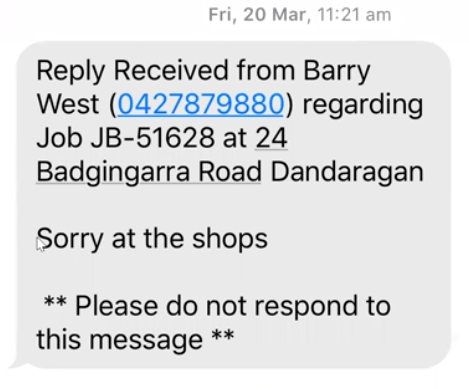
2. When you receive a reply, important information are included such as name, contact number, and job or quote details so that you can contact the person directly if necessary.
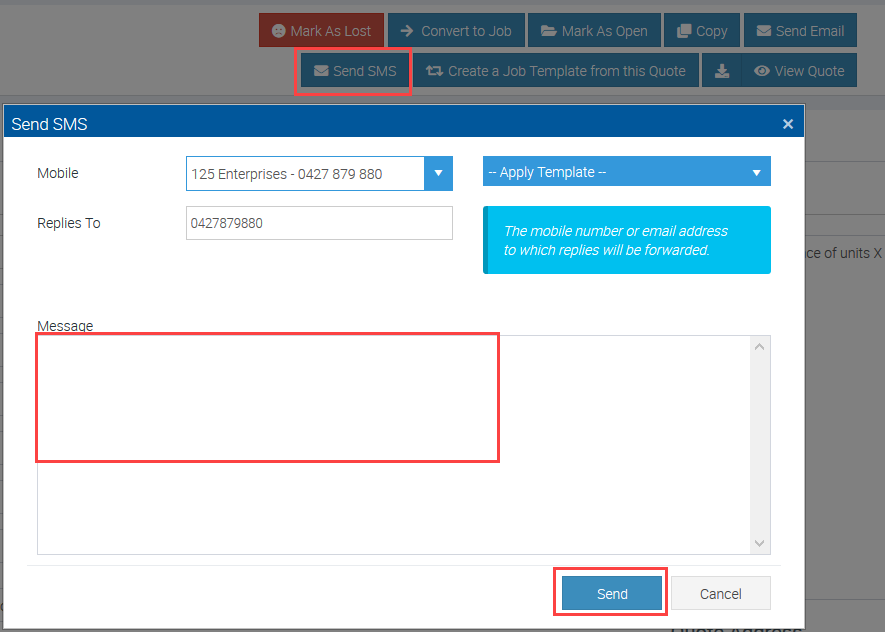
1. From Ascora web, go to job or quote screen and click Send SMS.
2. From your Android Mobile App, tap on the 3 dots located on the upper right area, select SMS, and tap Add Mobile Number.
Complete the other details such as Message if you need to edit or input manually, and once done, tap Process.

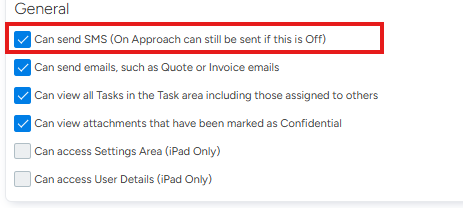
- Can Send SMS
- Can send SMS (On Approach can still be send if this is Off)

Got a question?
Submit an Idea 💡 Go to Ideas Portal