Effective communication with your mobile team is essential for smooth daily operations. This guide explains how to set up and send automated SMS notifications from the Scheduler to alert your team about the day's activities. By configuring a custom SMS template, you can include dynamic fields—such as BookingDate—that will automatically populate when messages are sent. Follow the steps below to build, save, and use your SMS template for team alerts.
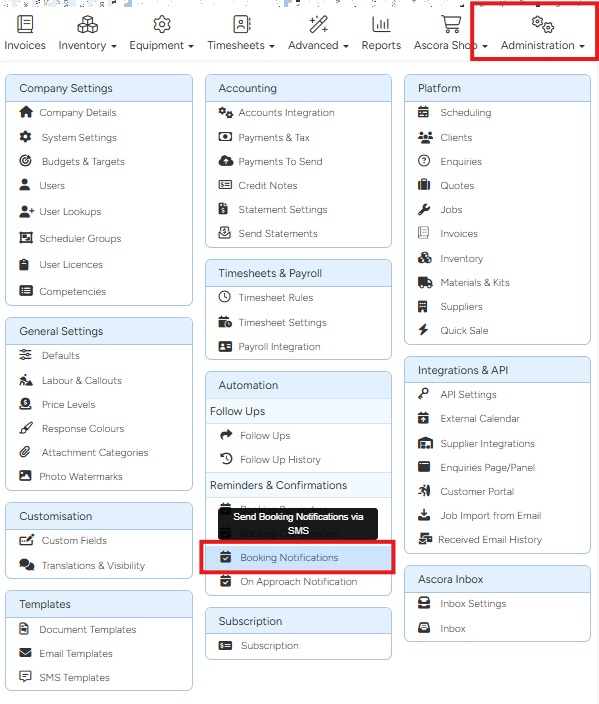
1. Go to Administration → Booking Notification
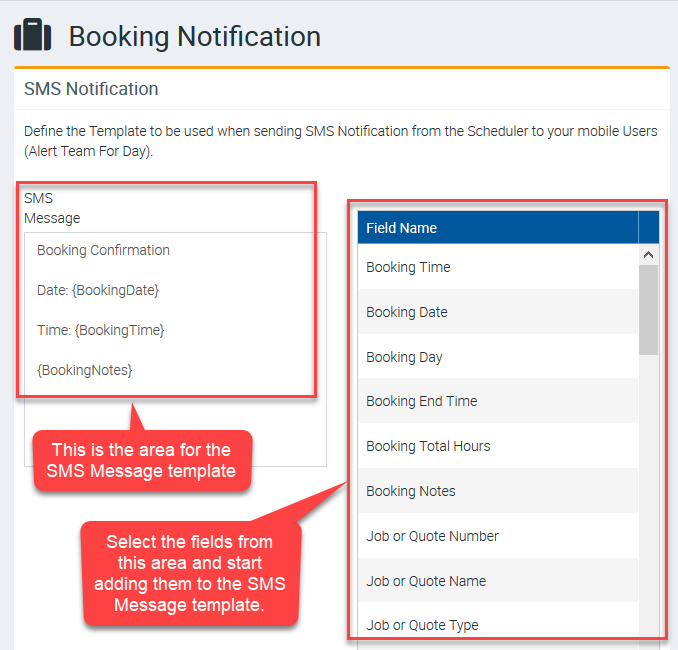
2. Build your SMS template by adding the fields from the right panel. These fields will automatically populate the information once SMS is sent.
In this example, one of the fields is BookingDate which means that this information will be auto populated once SMS is being sent from the Scheduler.
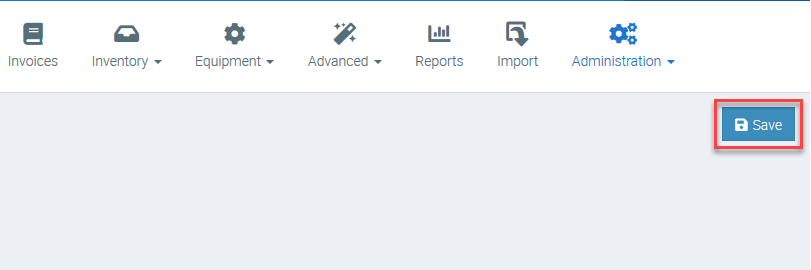
3. Once you're done building your SMS template, click Save button located on the upper right part of the screen.
Sending SMS Booking Confirmation
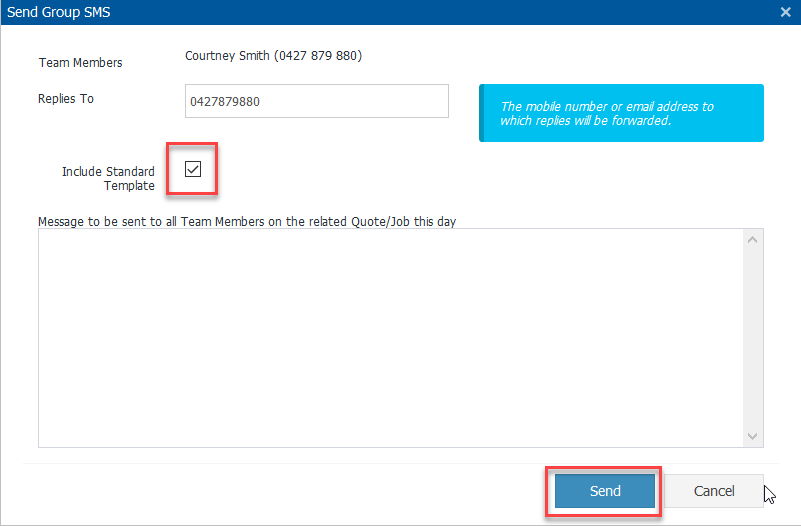
1. Go to Scheduler and right click on a job then select Alert Team For Day - SMS.

2. Ensure the box beside Include Standard Template is ticked then click Send.
Got a question?
Submit an Idea 💡 Go to Ideas Portal