Ascora simplifies communication by allowing you to send SMS messages from various areas of the system—whether it's Scheduler, Jobs, Quotes, Customers, Invoices, or Enquiries. Mobile users with full access can also send SMS directly from the Ascora mobile app. To streamline this process, you can create and customize SMS templates that automatically include dynamic fields (such as customer names and job details) to ensure your messages are consistent and accurate. The following guide outlines the steps to set up, customize, and use SMS templates effectively within Ascora.
📽 Watch the video guide ⤵
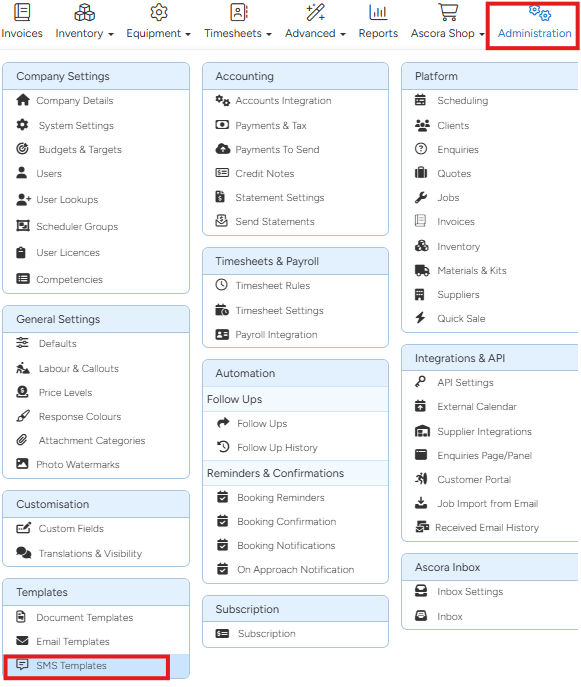
1. To send SMS more quickly, you can set up your SMS templates by going to Administration → SMS Templates.
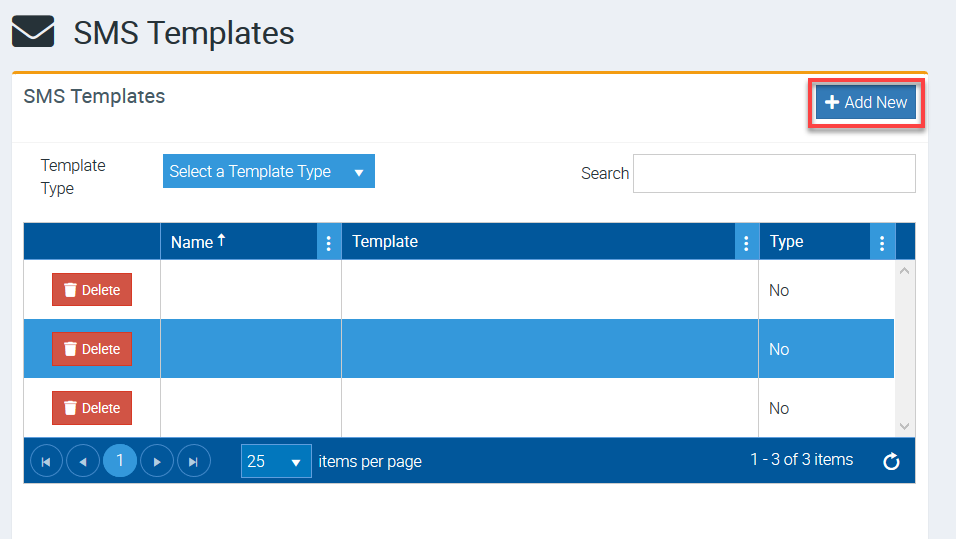
2. Click Add New to start creating your SMS template.
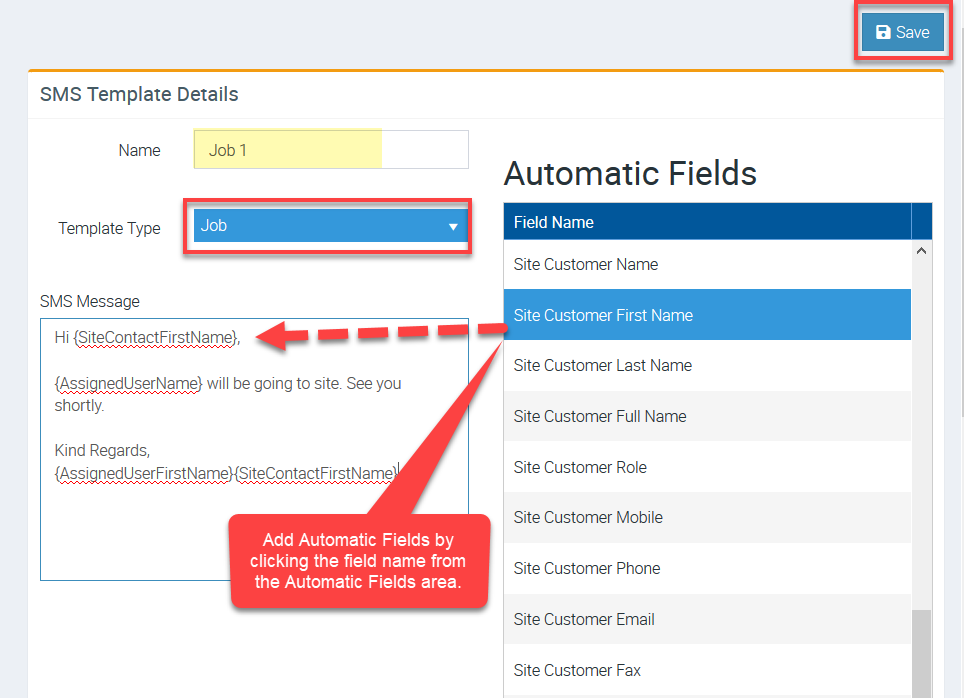
3. Select your Template Type and enter a template name. In this example, we call it Job 1.
Start adding Automatic Fields by pointing the mouse cursor in the SMS Message area and clicking the field name.
In this example, we added the automatic field called Site Customer First Name and the rest of the needed fields.
Click Save to proceed.
4. After building your SMS template, you can start using it when you need to send a notification via SMS.
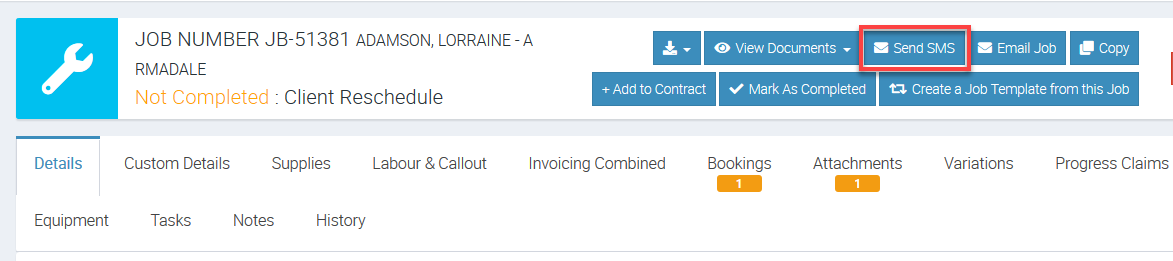
You can go to the Job screen and click Send SMS.
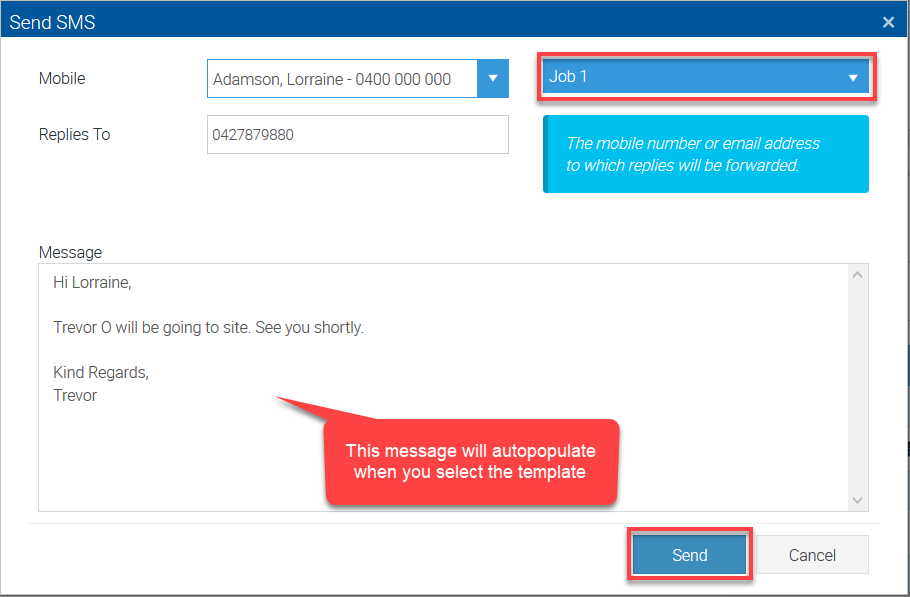
5. Select the template (in this example Job 1) and the message should autopopulate based on the template. Once ready, click Send.
Got a question?
Submit an Idea 💡 Go to Ideas Portal