Ascora’s On Approach Notification feature helps keep your field teams informed by prompting them to send an SMS alert when they start traveling to a job. This guide explains how to enable and configure this setting in the Administration area, set up the corresponding SMS template, and ensure accurate travel time calculations by granting proper location permissions. Follow the steps to enable the feature, test it on your mobile app, and troubleshoot common issues related to location access.
📽 Watch the video guide ⤵
There is a setting that you can turn on so that a user who taps on Start Travel to Job from a mobile app will get a prompt to send On Approach Notification via SMS.
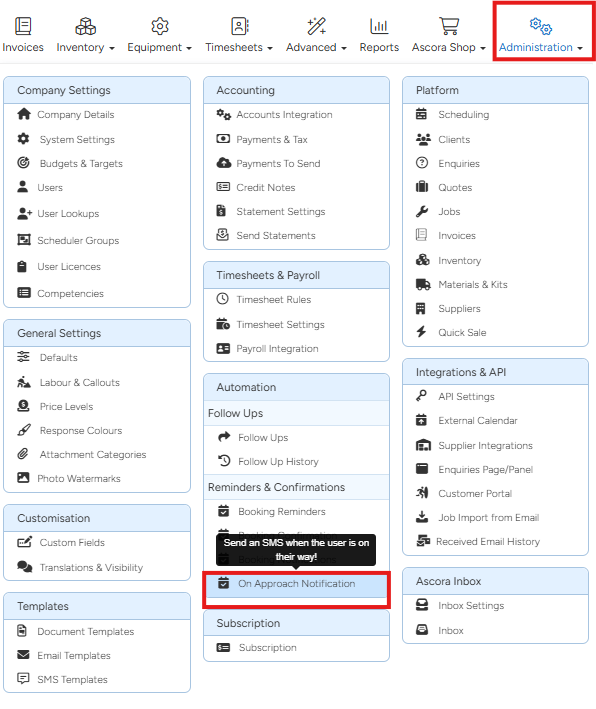
1. To enable such setting and to create your SMS Template, go to Administration → On Approach Notification
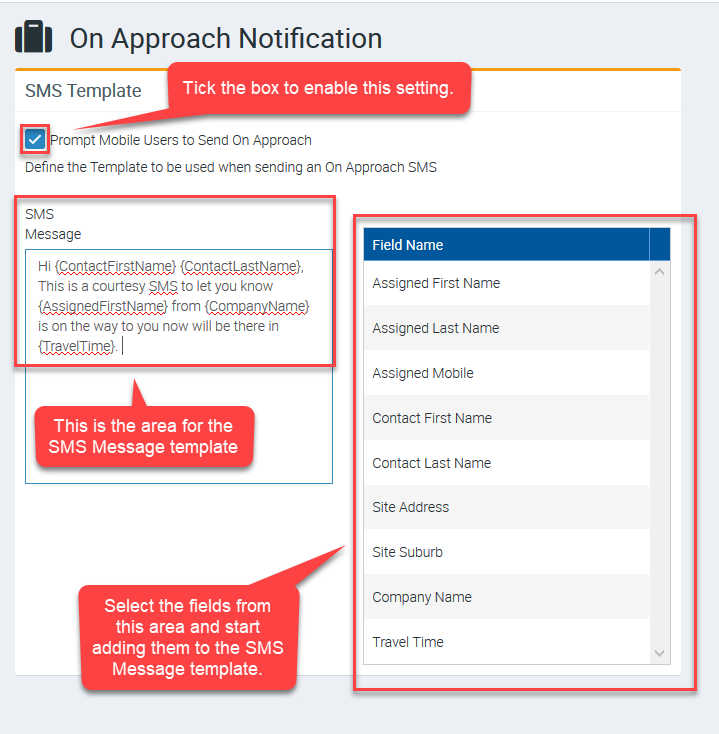
2. Tick the box to enable this setting and you can define the Template to be used when sending an On Approach SMS.
Sending On Approach Notification from the Android Mobile App
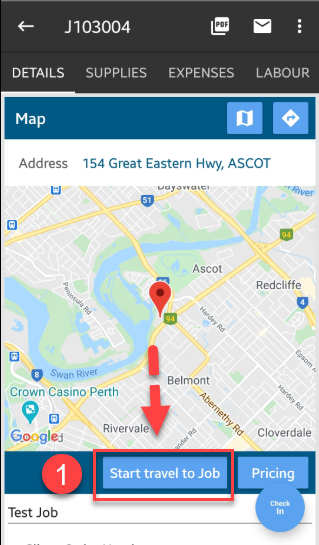
1. Access your job and tap Start travel to Job and tap YES when the prompt appears.

On Approach Notification Not Showing Travel Time
Make sure that Ascora app is granted access to Location Services so that On Approach Notification will have estimate time or travel time showing as part of the background calculation. If the app doesn't have access to location, it's not possible to calculate distance and time.
To learn more about granting access to Location Services, click the following user guide 📍 How to check Location Settings in Android or 📍 How to check Location Settings on iOS
Got a question?
Submit an Idea 💡 Go to Ideas Portal