Efficiently managing invoice payments ensures smooth cash flow and accurate financial records. Ascora allows you to apply payments to invoices using various methods, including cash, direct deposit, EFTPOS, and credit card payments. Whether processing a full payment or a partial one, this guide will walk you through the steps to add, track, and confirm payments.
Additionally, if your customer has available credit notes, you can apply them as payments. For more details on using credit notes, refer to the Credit Notes guide.
This guide also covers:
- How to manually add payments to invoices
- Processing credit card payments directly in Ascora
- Sending payment receipts to customers
By following these steps, you can keep your records updated and ensure a seamless payment experience for both your team and your customers.
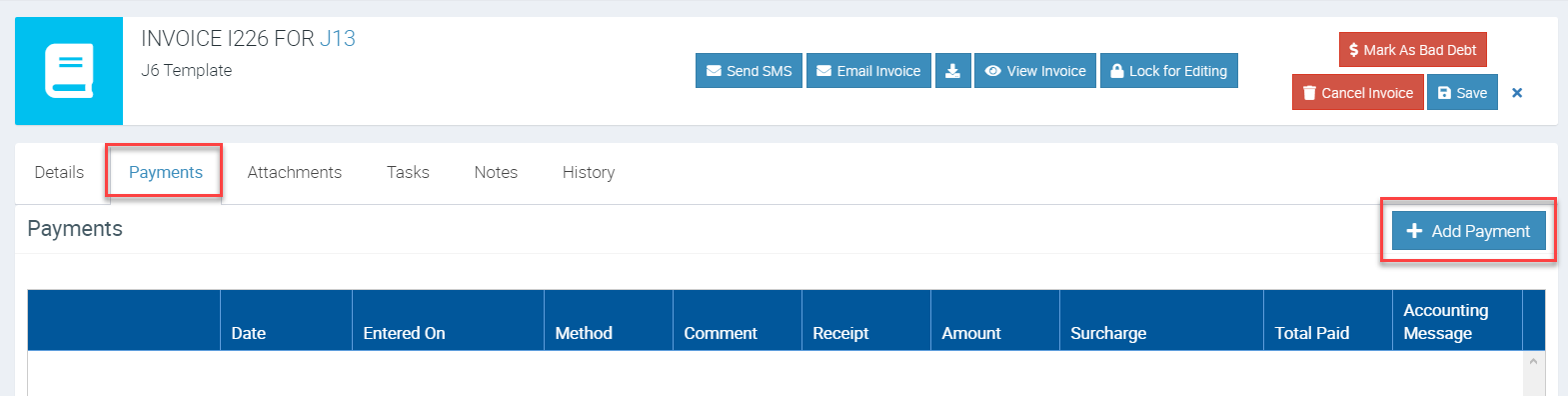
1. Access your customer invoice from the Invoice tab or from the Customer tab and click on Payments tab and + Add Payment.
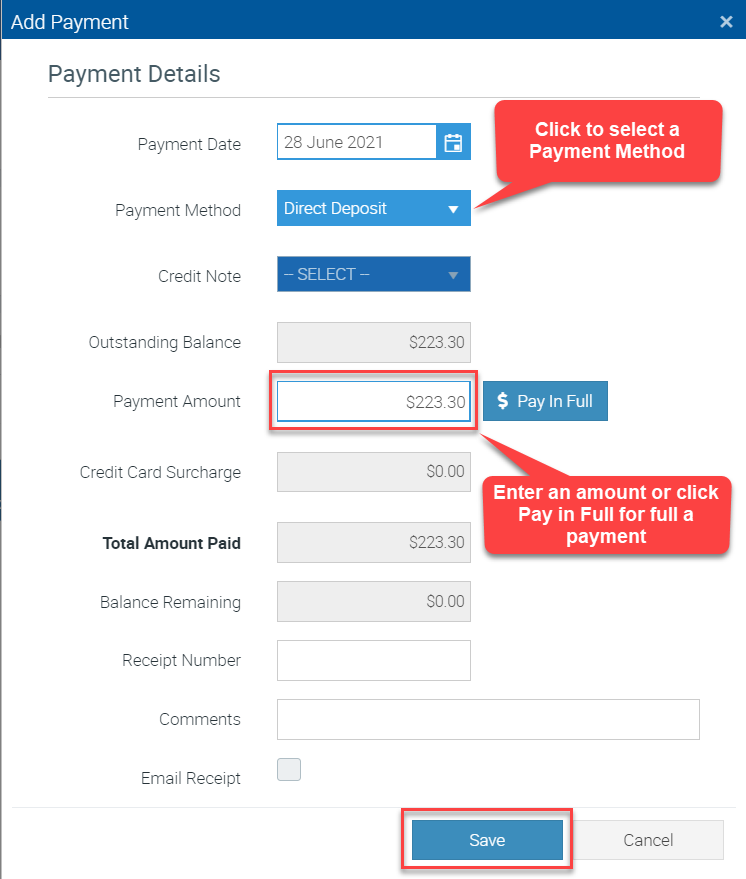
2. Select a Payment Date and select a Payment Method. In this example, we are adding a payment using Direct Deposit as payment method but you can also select cash, EFTOS, and credit note.
Enter a Payment Amount if processing a partial payment or click Pay in Full if processing a full payment and click Save to proceed.
How to Process Credit Card Payment
You can process Credit Card payments and to activate this feature, you must first set up some settings in Administration → Payments & Tax. Please access Untitled user guide to complete the configurations if you're wanting to process credit card payments.
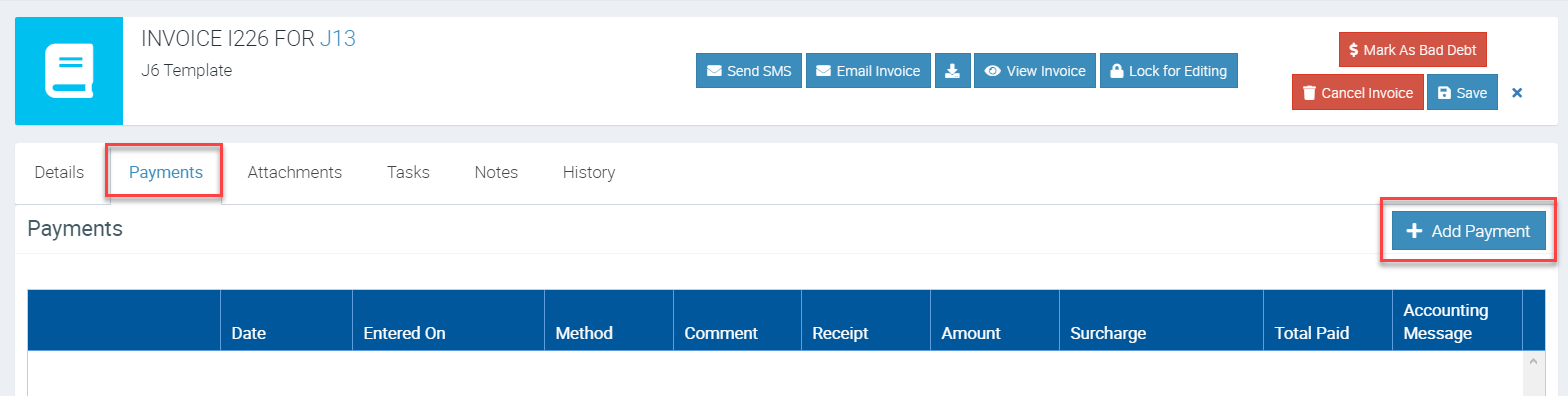
1. Once you've completed the configurations and ready to process credit card payments, access your customer invoice from the Invoice tab or from the Customer tab and click on Payments tab and then + Add Payment.
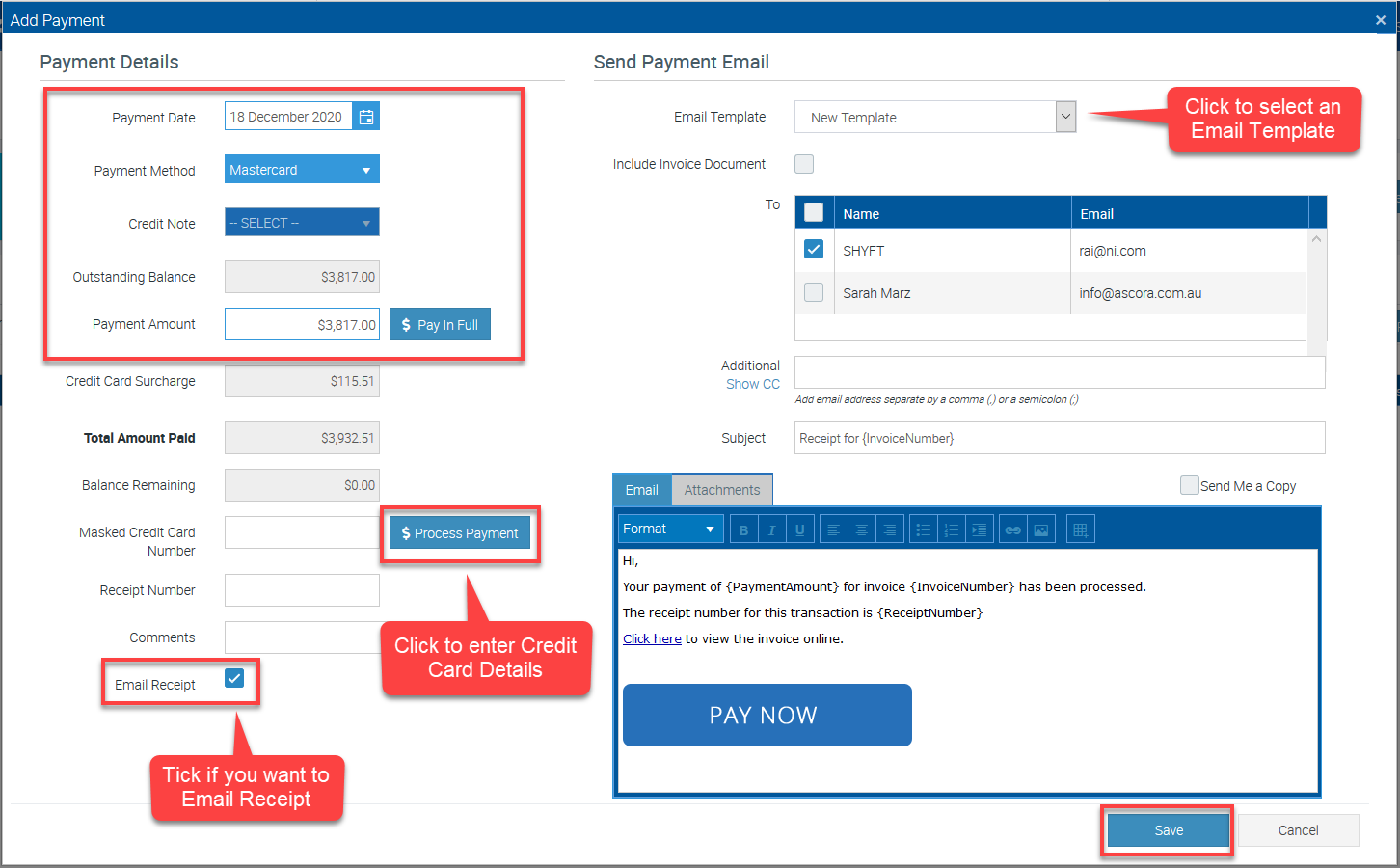
2. Enter the required information such as Payment Date, and select either MasterCard or Visa as payment method, and enter a certain amount or click Pay in Full if customer is paying the full outstanding balance.
- Click Process Payment and some fields will appear for you to enter the Credit Card Details such as Name, card number, CVC, and Expiry Date.
- You also have the option to email a receipt as well email payment confirmation using one of your templates which are set up in Administration → Email Templates.
Once ready to proceed with payment, click on Save.
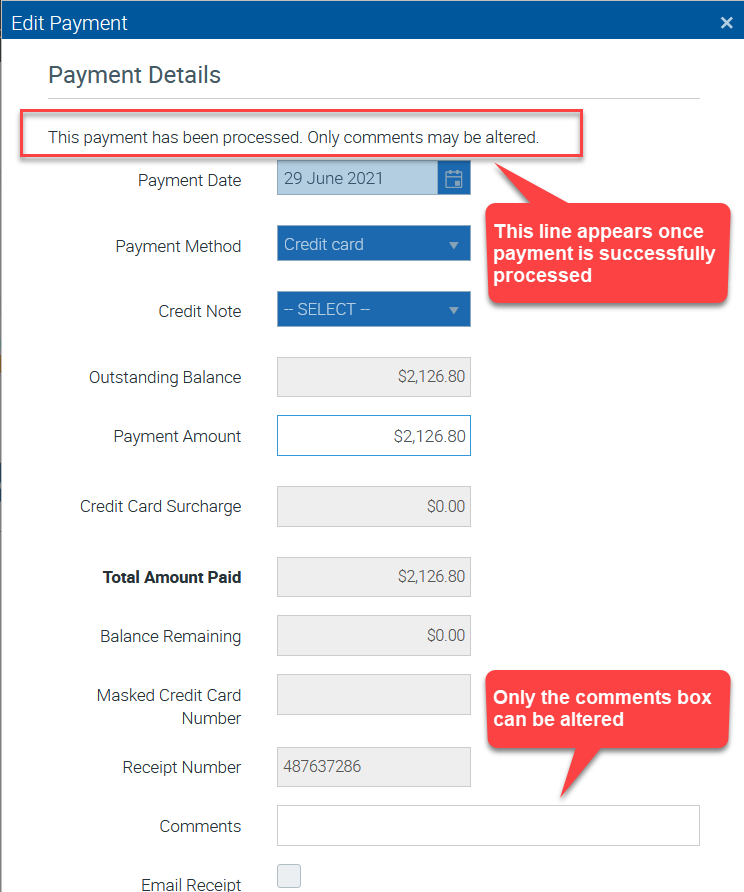
In the following example, a credit card payment of $2,126.80 has been successfully processed.