Managing payments efficiently is crucial for any business, and with Ascora’s integrated credit card payment options, you can securely process transactions both in the office and on the go. Whether you’re handling payments via the web, mobile app (Android/iOS), or online customer invoices, Ascora ensures a seamless and secure experience for both your team and your clients.
What You’ll Learn in This Guide:
- Setting Up Payment Methods & Surcharges – Configure credit card surcharges and payment methods in Ascora.
- Integrating Payment Gateways – Connect with Eway, Virtual Payment Client (MIGS), or Stripe for seamless transactions.
- Processing Credit Card Payments – Learn how to accept payments via the Ascora web platform and mobile app.
- Online Customer Payments – Enable clients to pay their invoices online with an integrated "Pay Now" button or payment link.
With this guide, you’ll be able to streamline payment processing, enhance customer convenience, and maintain accurate financial records in Ascora.
Setting up Payment Method
1. Go to Administration → Payments & Tax.
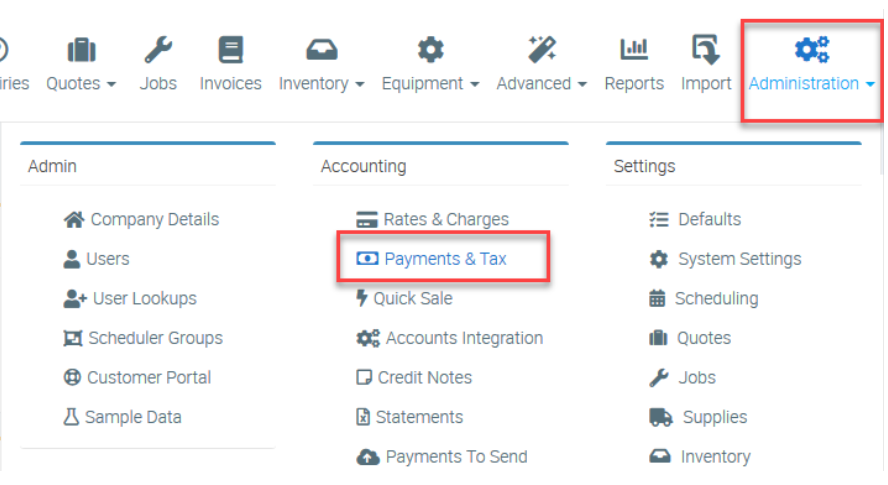
2. Under Payment Methods, you can adjust credit card surcharges and set up your surcharge income account code.
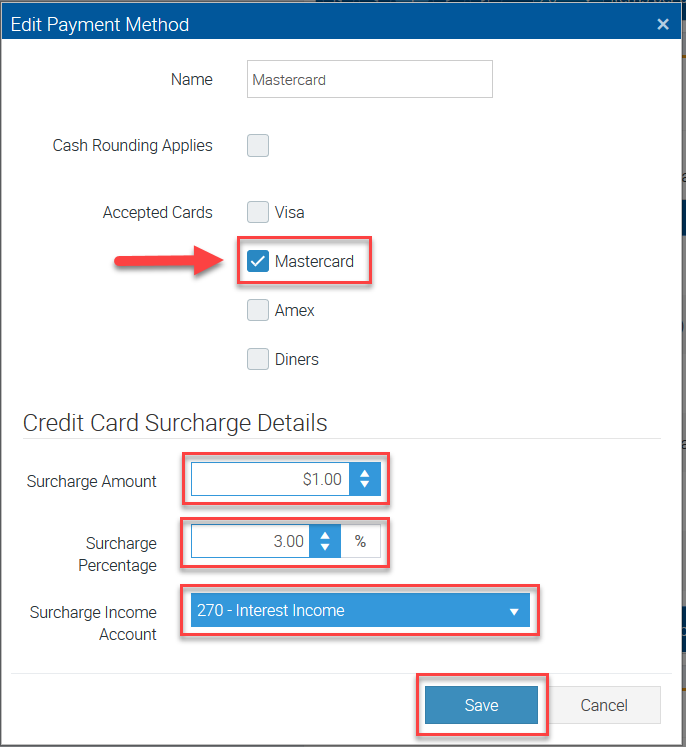
In this example, we edit Mastercard as one of our payment methods by clicking Edit.

3. Another screen appears for us to set up some details. Tick the box beside Mastercard, enter your surcharge amount, surcharge percentage, and select your surcharge income account code.
- Income code for the surcharge will be needed when pushing across to your accounting package.
Once done entering the details, click Save.
Setting up Payment Gateway
We support three payment gateways namely; Eway, Virtual Payment Client (MIGS), and Stripe.
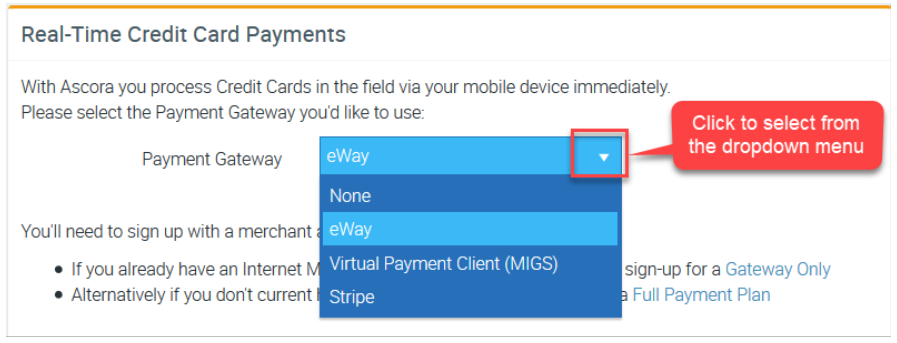
Eway
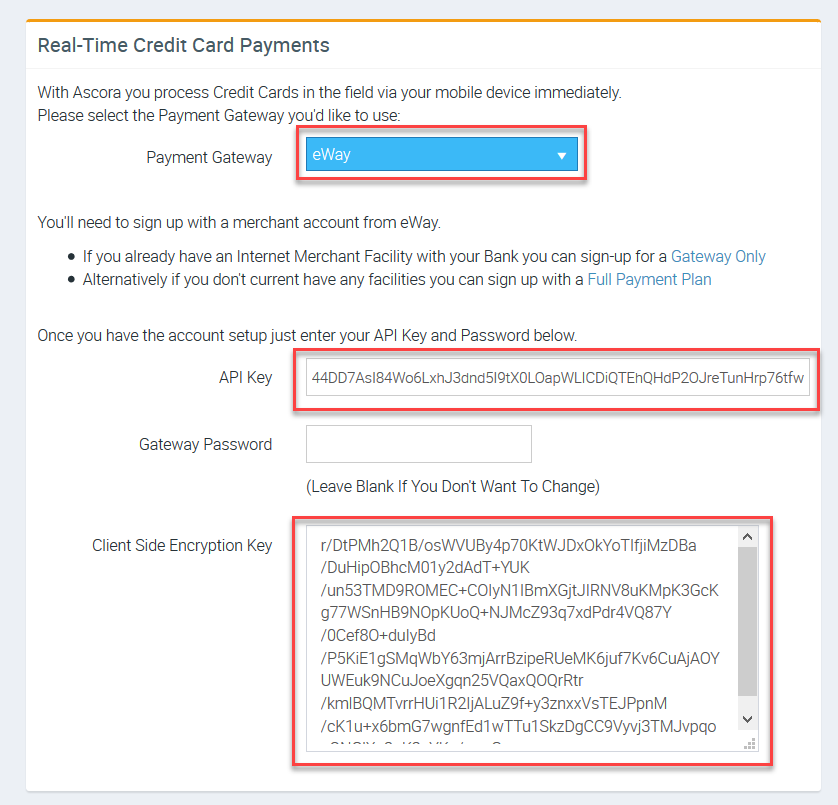
You'll need to sign up with a merchant account from Eway.
- If you already have an Internet Merchant Facility with your Bank you can sign-up for a Gateway Only
- Alternatively if you don't current have any facilities you can sign up with a Full Payment Plan
Once you already have your account set up, enter your API key, Password, and Client Side Encryption Key as shown in the example below.
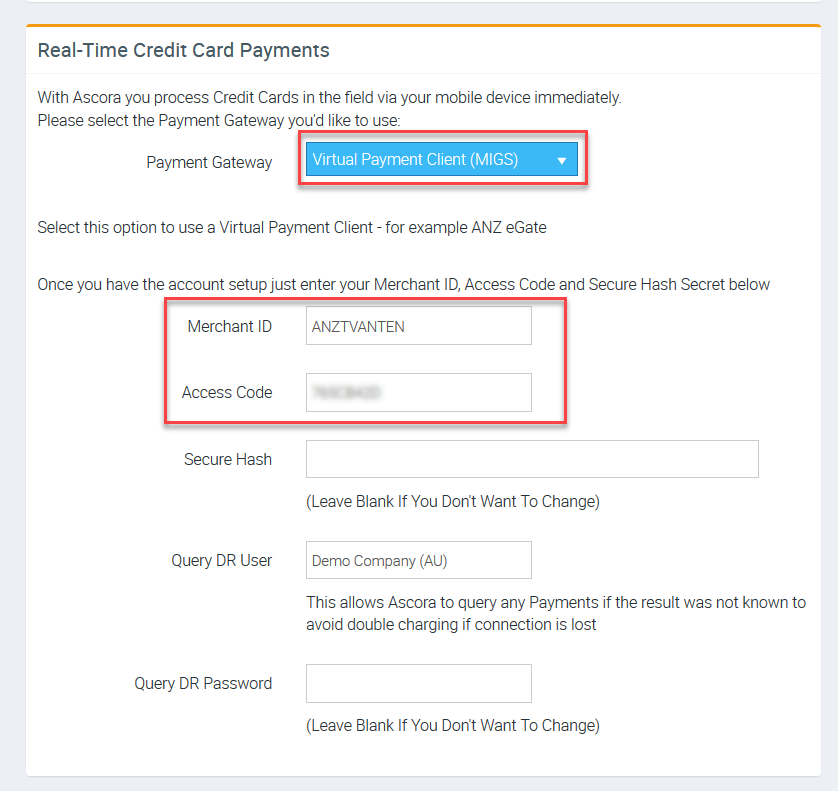
Virtual Payment Client (MIGS)
Once you already have your account set up, enter your Merchant ID, Access Code, and Secure Hash Secret.
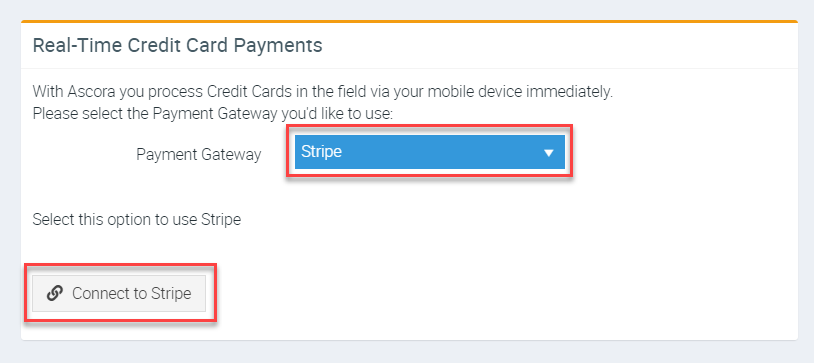
Stripe
With Stripe, you need to complete the integration by clicking Connect to Stripe.
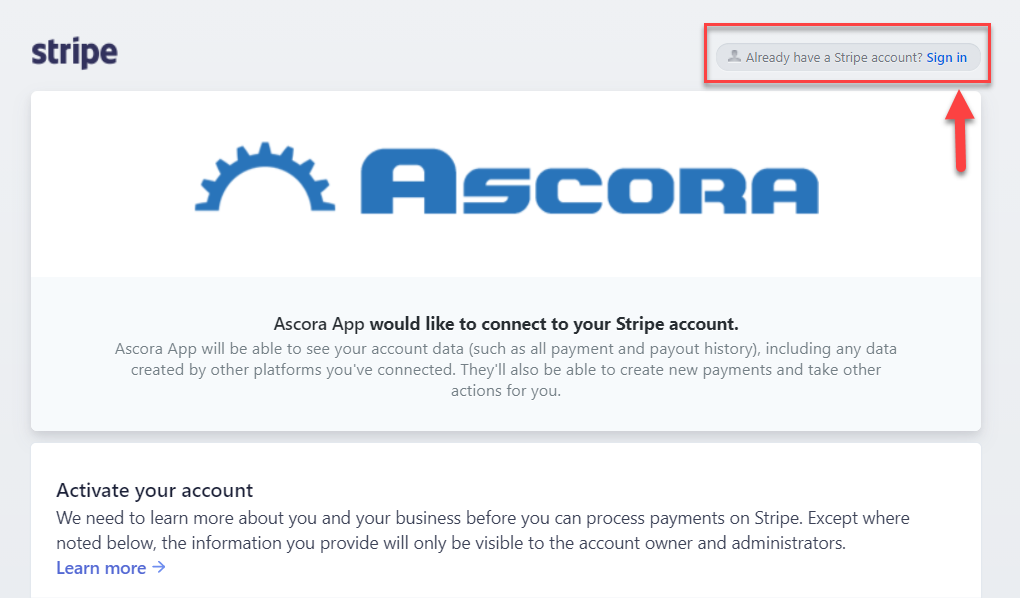
Sign in into your Stripe account and complete the set up.
We've now completed the steps in setting up Payment Gateway and mobile app users can already start accepting Credit Card payments on site.
Taking Credit Card Payments from the Mobile App (Android)
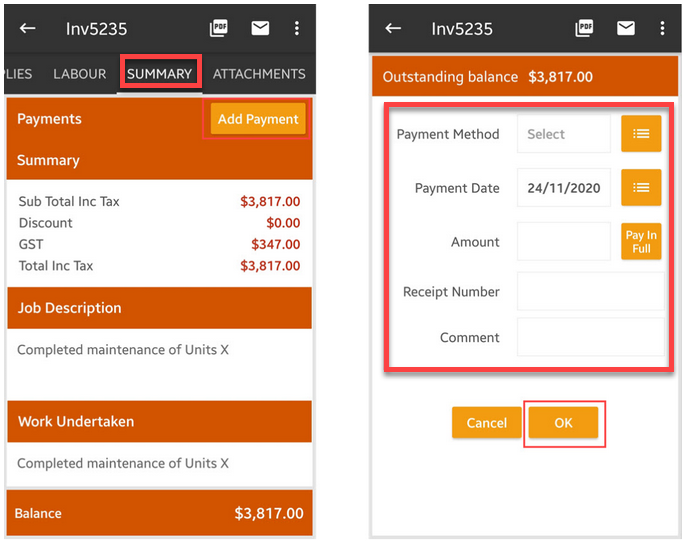
1. On your mobile app, Go to Invoices and look for outstanding invoice with payment that you need to process.
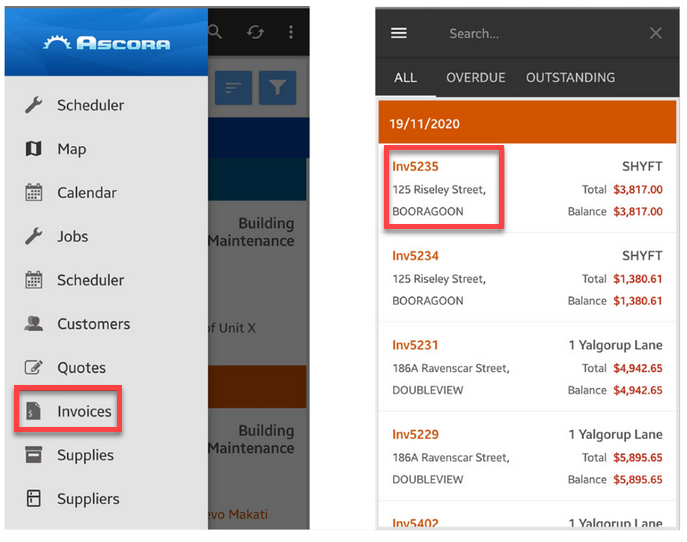
2. Tap Summary and then Add Payment. On the next screen, enter the payment details such as payment method, payment date and amount. Once done, tap OK.
Taking Credit Card Payments from the Mobile App (iPad)
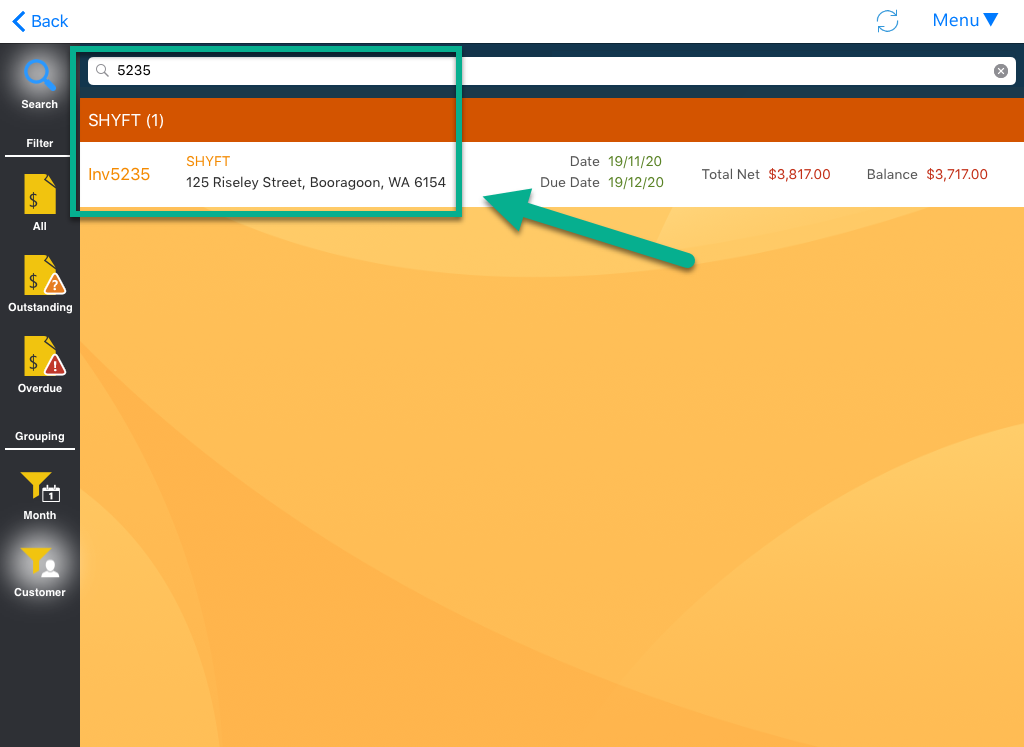
1. Tap Menu and then Invoices.

2. Search for the invoice and tap it to open the Invoice Details screen.
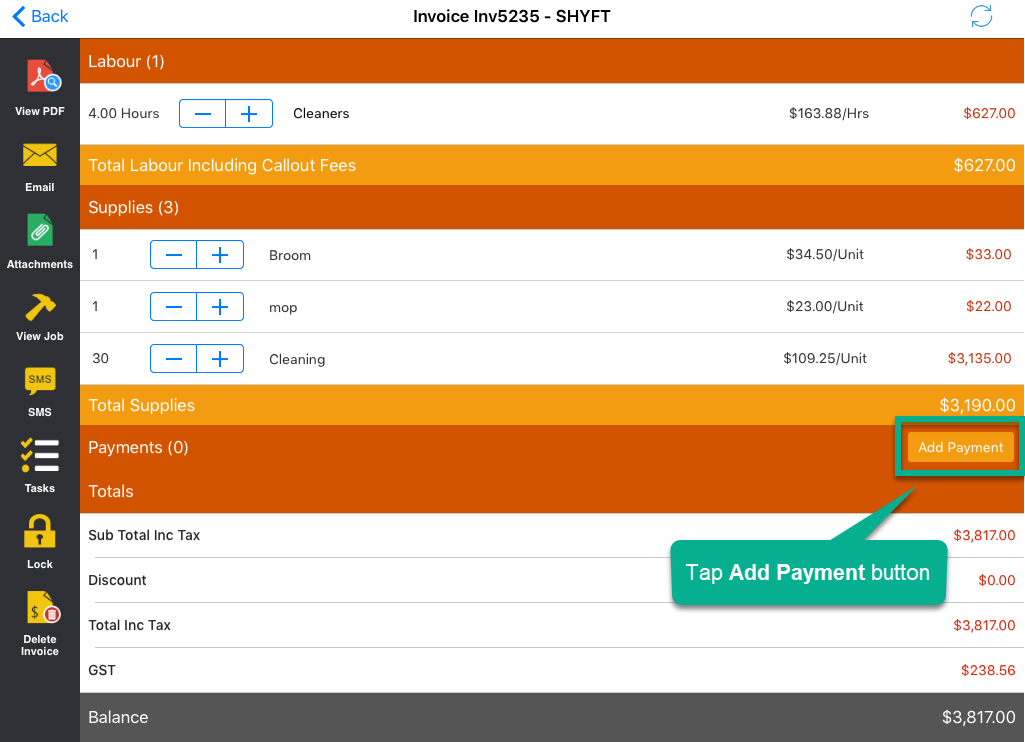
3. From the Invoice Details screen, scroll down to reveal the Add Payment button and tap it.
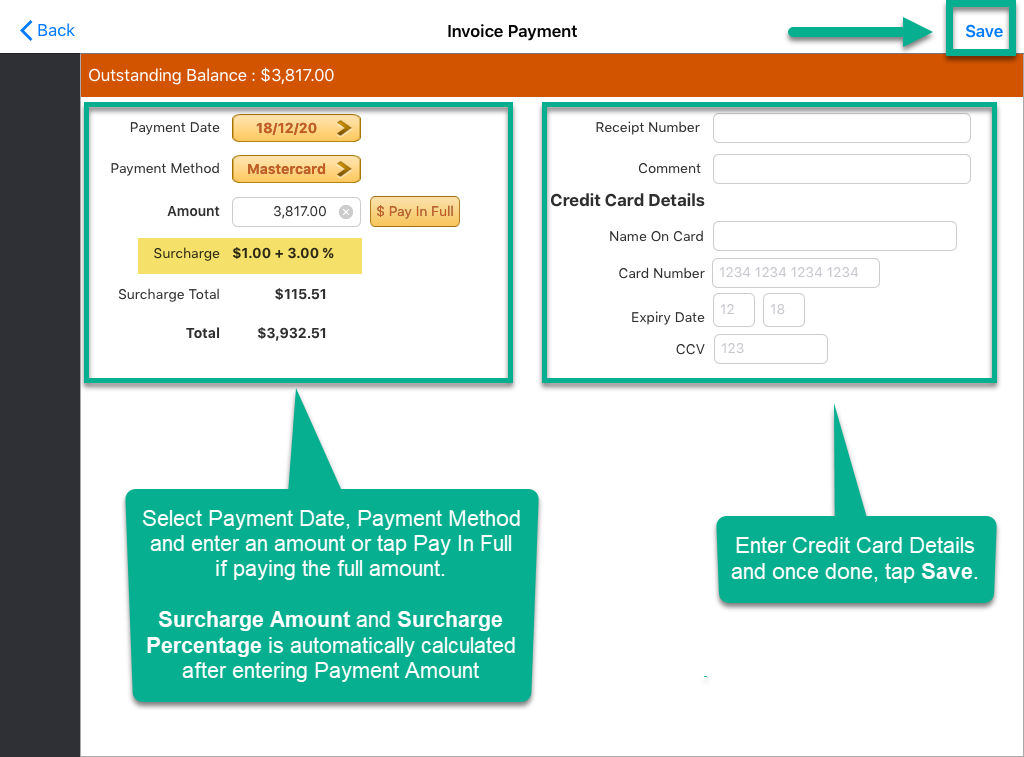
4. Enter the necessary details such as Payment Date, Payment Method, and amount. On the right part the screen, enter the Credit Card Details and once done, tap Save.
Taking Credit Card Payments from Ascora Web.
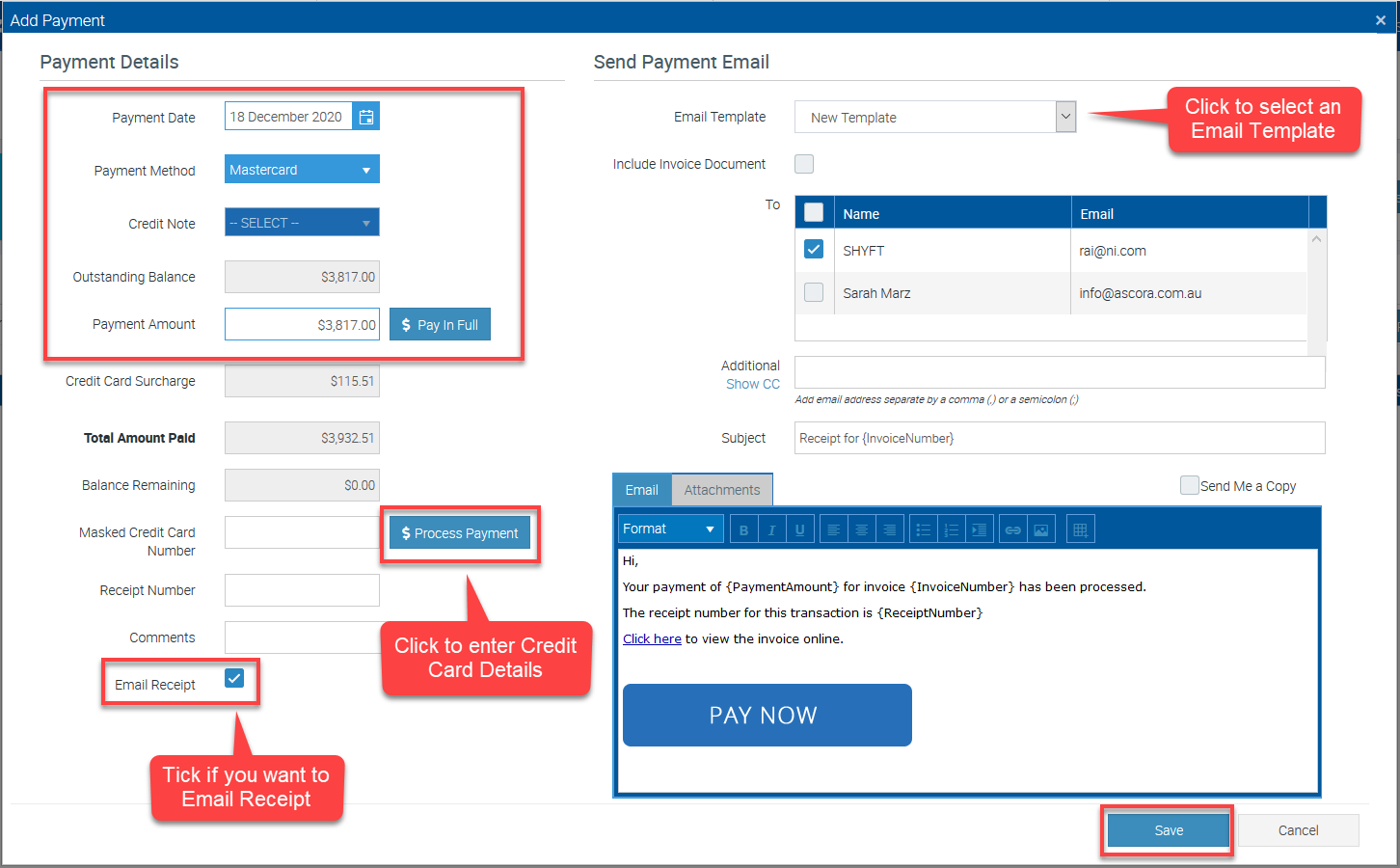
1. Access your customer invoice from the Invoice tab or from the Customer tab and click on Payments tab and + Add Payment.

2. Enter the required information such as Payment Date, Payment Method, and enter a certain amount or click Pay in Full if customer is paying the full outstanding balance.
- Click Process Payment and some fields will appear for you to enter the Credit Card Details such as Name, card number, CVC, and Expiry Date.
- You also have the option to email a receipt as well email payment confirmation using one of your templates which are set up in Administration → Email Templates.
Once ready to proceed with payment, click on Save.
You can also include a link in the Invoice email which would allow your customers to pay online directly.
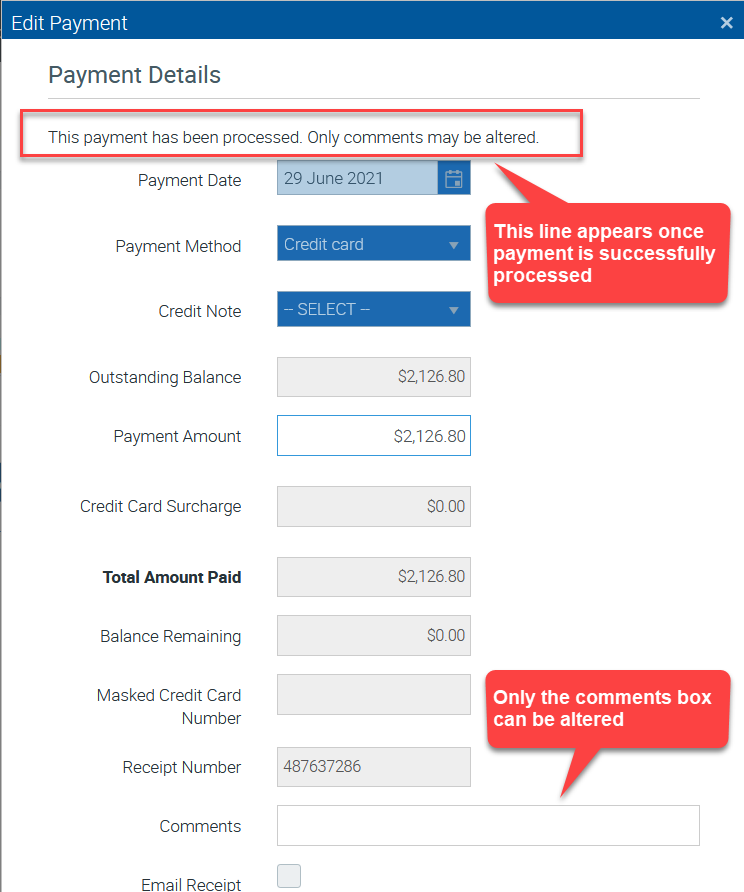
In the following example, a credit card payment of $2,126.80 has been successfully processed.
Setting up Email Template and Adding Invoice Link for Customers to Pay Online
To set up Email Templates go to Administration → Email Templates.
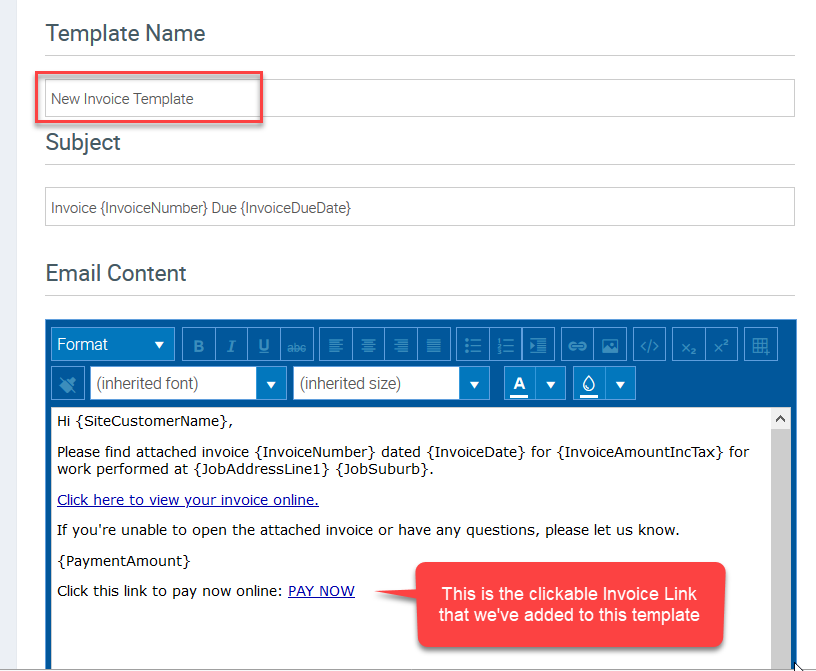
1. Select Invoice from the drop down menu and select the invoice template that you need to edit and in this example, we select the template called New Invoice Template.

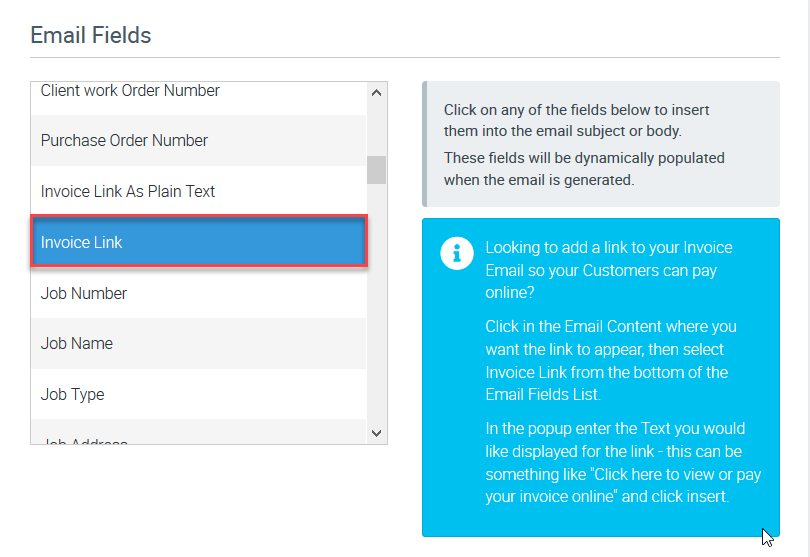
2. Under Email Fields, scroll down and look for Invoice Link and click it.
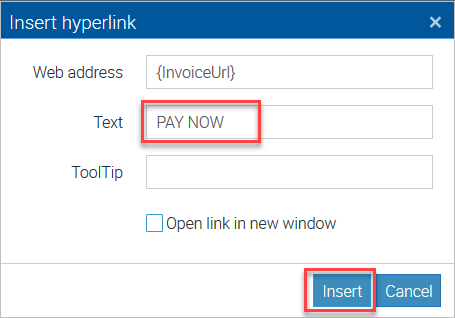
3. The following screen appears for you to enter a Text and in this example, we enter the text PAY NOW.
Click Insert to proceed.
4. We've now added an invoice link to our invoice email template which the customer can click to make an online payment.
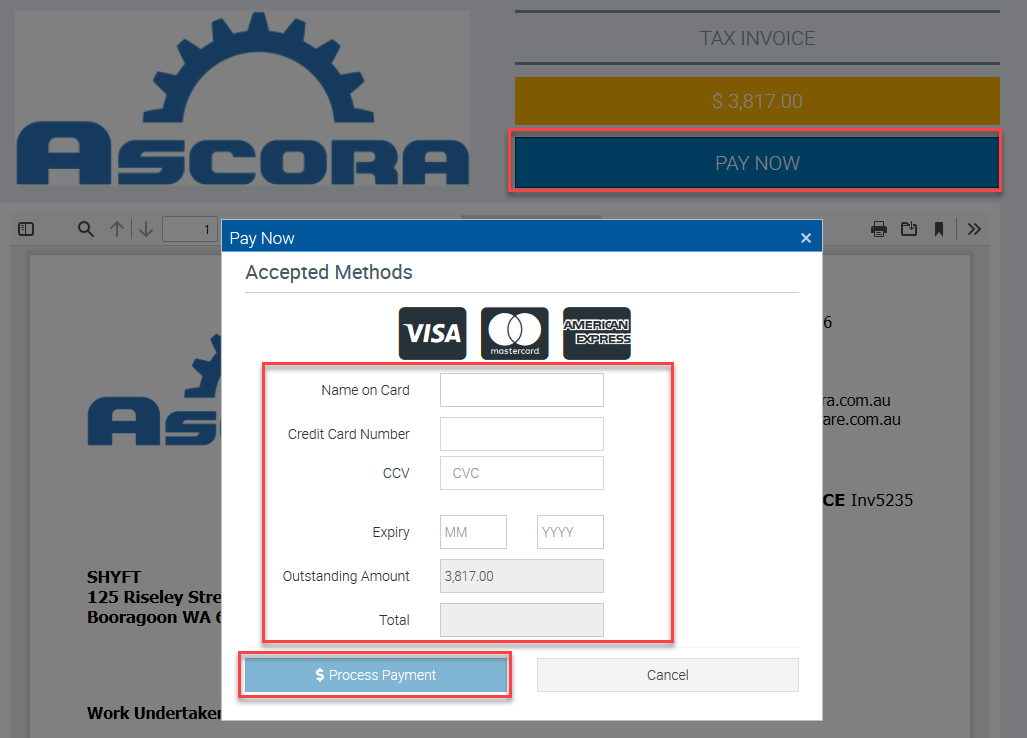
5. Once invoice is sent via email, your customer can click on invoice link and be able to enter their Credit Card details online.
Below image is what the customer sees after clicking invoice link and then PAY NOW button.
You can access a quick tutorial video to learn more about the settings in Administration → Payments & Tax
https://www.ascora.com.au/Portal/TrainingVideos/VideoViewer/Admin-Accounting-PaymentsandTax