The System Settings feature in Ascora gives you the flexibility to configure key system-wide settings that will help optimize your workflow.
📽 Watch the video guide ⤵
Contents
- 📽 Watch the video guide ⤵
- Auto Numbering
- Audit Log
- Email Settings
- Email Options
- SMS Settings
- Automatic Import Email Settings
Auto Numbering
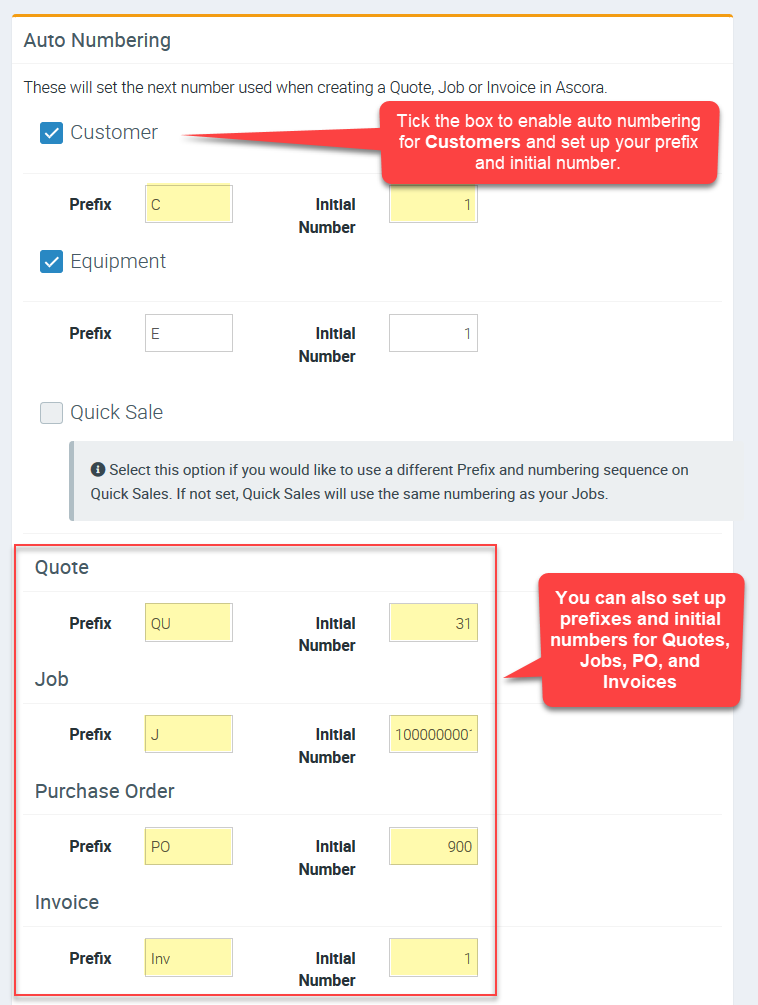
You can choose to set prefixes and initial numbers in areas like Invoices so that you can easily track your invoices once you start using Ascora.
For example, you may set an invoice prefix ASC and initial number 500 which means that invoices with number series ASC500 up are the ones created in Ascora.
Note: You can also set prefixes and initial numbers for other areas such as Quotes, Jobs, and Purchase Orders.
Audit Log
Audit Log shows a record of changes made around numbering areas.
In the following example highlighted in yellow, a record shows that Invoice prefix and initial number was last changed by user Courtney Smith on 2 October 2020.
It is important to track any changes made as this impacts reporting and tracking of quotes, jobs, invoices, and Purchase Orders.

Email Settings
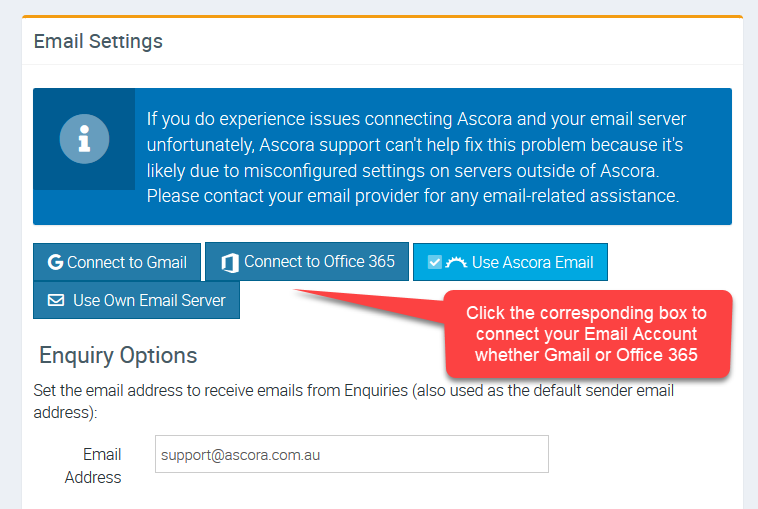
This is where you can connect your Email account such as Gmail or Office 365 or your Own Email Server.
It is important to note that you must first gather your email settings which you will need during the initial set up and if you need assistance in obtaining such information, please contact your Email provider.
Email Options
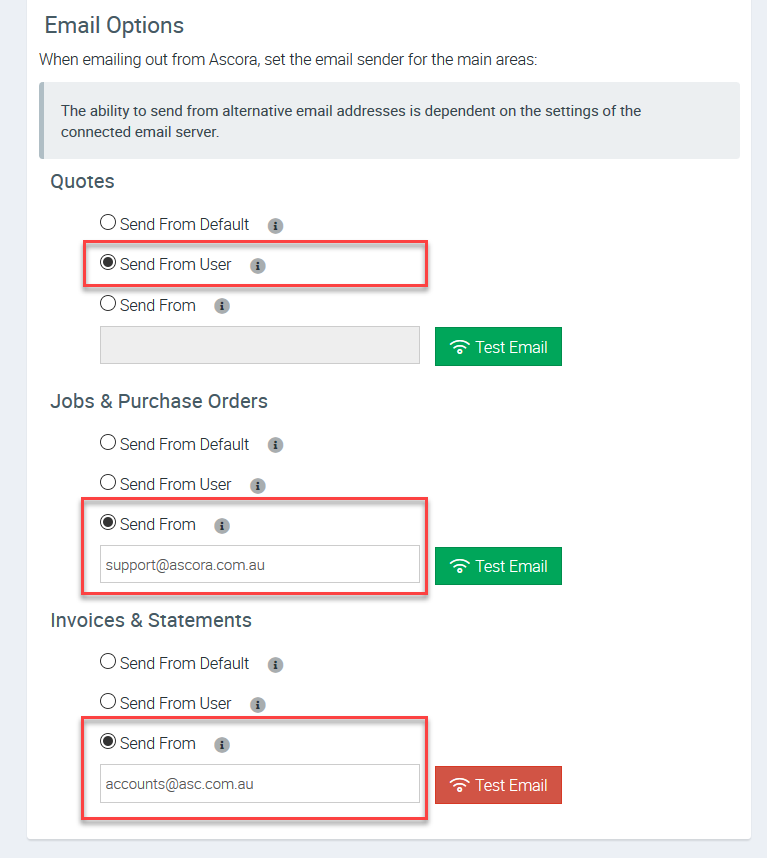
Depending on which email account you connected to Ascora, you have the ability to send from alternative email addresses for the main areas like quotes, jobs, and invoices. For example, you may want your quotes sent from a unique email address while all of your invoices and statements are sent from a different email address.
In the image below as an example, the setting is to have quotes sent from the user who is logged in while jobs while purchase orders are sent from a unique email support@ascora.com.au and invoices are sent from accounts@asc.com.au.
SMS Settings
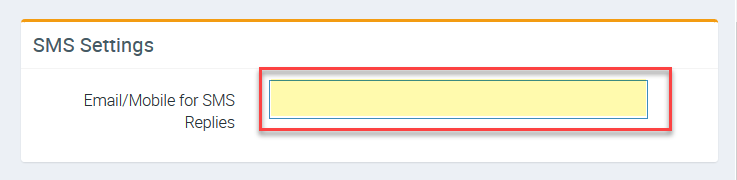
This is where you can add a mobile number or email address to receive SMS replies.
To learn more about SMS feature, please see Untitled FAQ.
Automatic Import Email Settings
This is where you can connect your dedicated inbox for supplier invoice automatic import.
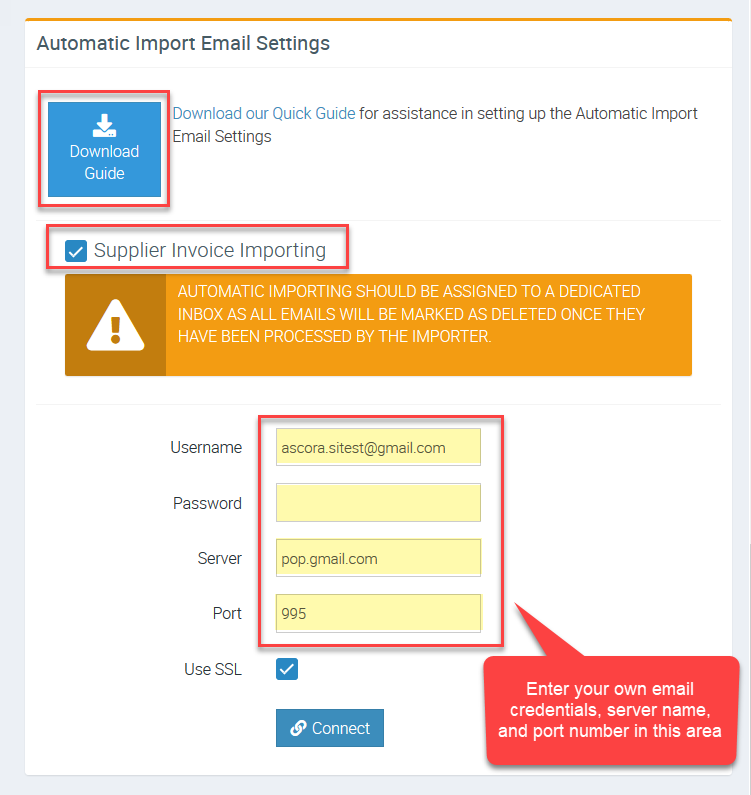
To learn more about automatic supplier invoice import, please access Untitled user guide.