Variations in Ascora allow you to manage additional work requests from customers without creating separate Job Cards. This functionality ensures all related information, including Supplies, Labour, and Contracts, remains organized and tied to the original Job, providing a seamless workflow for expanding project scopes.
Here’s how Variations help streamline your operations:
- Capture additional requests: Manage customer-initiated changes without disrupting the original Job record.
- Streamline tracking: Keep all related information under one Job for better organization and reporting.
- Flexibility in management: Decide whether to link Variations to the existing Job or create new Job records for specific requirements.
By following the steps outlined below, you’ll learn how to create, approve, and convert Variation Quotes into Jobs, and how to integrate Variations into the original Job’s scope efficiently. This feature is an essential tool for handling changes or additions without losing track of the original project goals.
📽 Watch the video guide ⤵
1. Choose the Variations Tab on the Job Card.

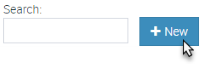
- Click the +New button to create a new Variation.
3. A new Quote card will display. This Quote card allows you to define the additional work requested by the customer. Add the following details:
- Quote Name and Description: Clearly label and describe the additional work to avoid confusion.
- Supplies, Attachments, and Notes: Ensure all necessary information related to the Variation is included to provide an accurate representation of costs and scope.
For detailed instructions, refer to the Create a New Quote guide.
- Approve and Convert the Variation Quote to a Job. Once the customer approves the Variation Quote, click the Convert to Job button on the Quote Card.

5. Choose how the Variation is linked to the Job. Upon converting the Variation Quote to a Job, Ascora provides two options:
- Update the existing Job with the Quote: This keeps the Variation linked to the original Job. The Variation will remain accessible under the Variations Tab of the Job Card.
- Create a new Job: This creates a standalone Job that is not linked to the original. Use this option for Variations that require separate tracking or billing.
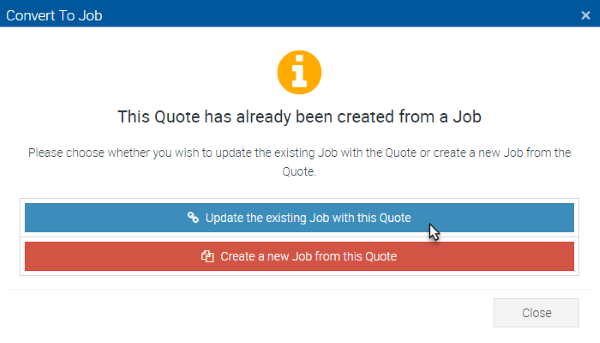
➡ Selecting Update the existing Job with this Quote leaves the quote linked to the job and accessible in Variations tab.
➡ Selecting Create a new Job will create a separate or new job which means this is not linked to the original job.
6. Manage and Edit the Variation as needed.
Variations appear under the Variations Tab on the Job Card. Click the View button beside a Variation to make edits or updates as required.
- Any additional Supplies included in the Variation Quote will automatically populate in the Supplies Tab of the original Job Card once the Variation is converted.
- Use the Variation view to ensure accurate tracking and billing for the additional work.

By following these updated steps, you can efficiently manage Variations, ensuring seamless integration with your Jobs and better project control.
Got a question?
Submit an Idea 💡 Go to Ideas Portal