A custom form such as SWMS, JSA, Take 5, etc. can be setup to automatically pops up as a compulsory form to be filled in by the technicians on the Ascora App:
- At First Check in For Job;
- At First Check in For Day;
- At First Check in For Week;
- At Completion of Job
This is setup based on Job Type.
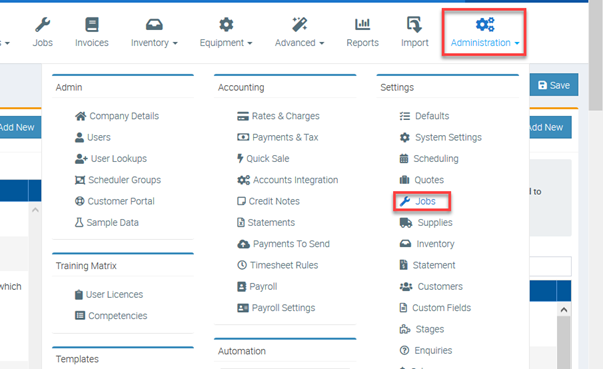
1. To set this up, you will first need to create a Job Type via go to Administration → Jobs → Add New in the Job Type section
2. Once a job type is created, click Edit beside the job name.

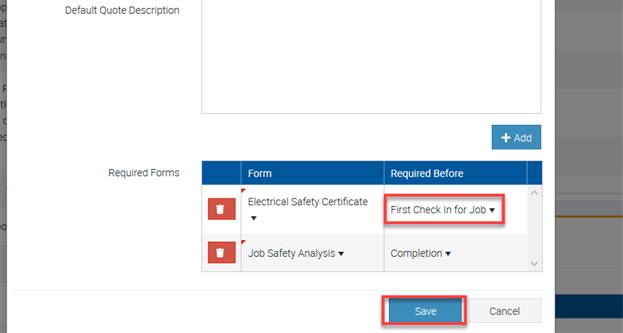
3. On the Edit Job Type popup screen, scroll down and find the area called “Required Forms.”
4. Click on Add
5. Select your custom form and when they are required accordingly and save.
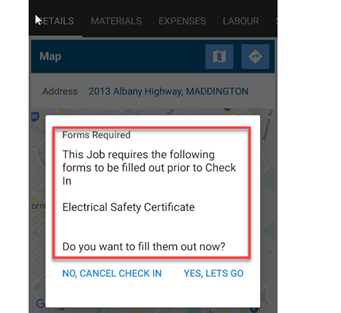
6. After the above are setup, when a technician checks into a job that belongs to that job type on the mobile app, the following screen will appear prompting to complete the required form. This effectively makes the form a compulsory form to be filled in prior to checks in or at job completion based on the settings done.
Got a question?
Submit an Idea 💡 Go to Ideas Portal