Custom forms in the Ascora iOS app allow you to standardize data collection, ensuring that important job details, safety procedures, and compliance requirements are properly recorded. Whether you're filling out a form for a specific job or testing updates made to a custom form, accessing and completing forms in the mobile app is quick and straightforward. Follow the steps below to create and generate a PDF version of your custom form, which will automatically be stored in Ascora for future reference.
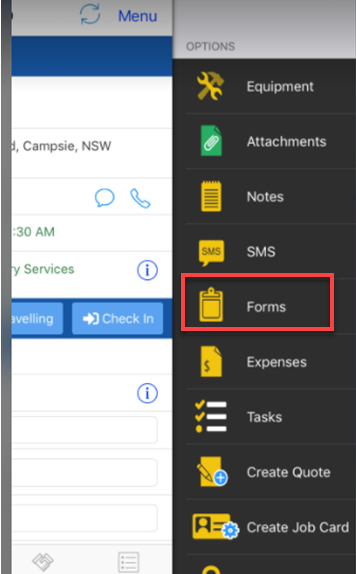
1. Access your job from the mobile and tap on Forms.
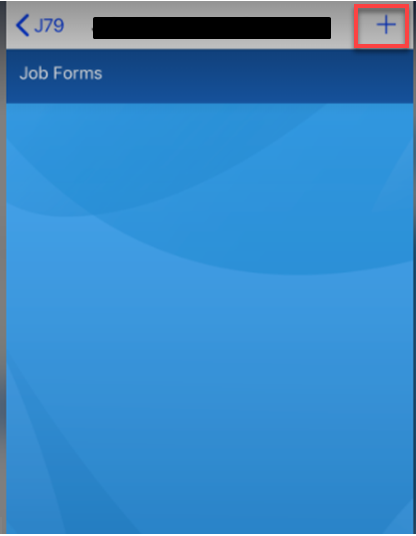
2. Tap on the + icon.
Note: Do not use a draft or previously saved custom form to do the testing. Always tap the + button to test a new one since previous drafts won't be able to pick up the updates that you've made on the custom form.
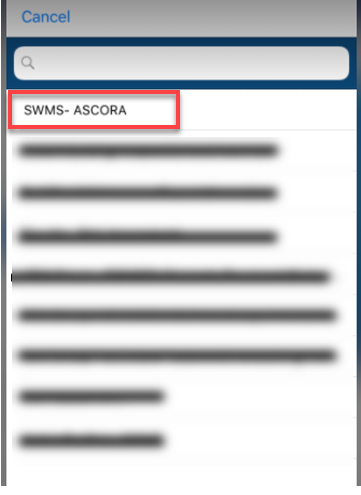
3. Search and select the custom form that you need to test and in this example, it's called SWMS - ASCORA.
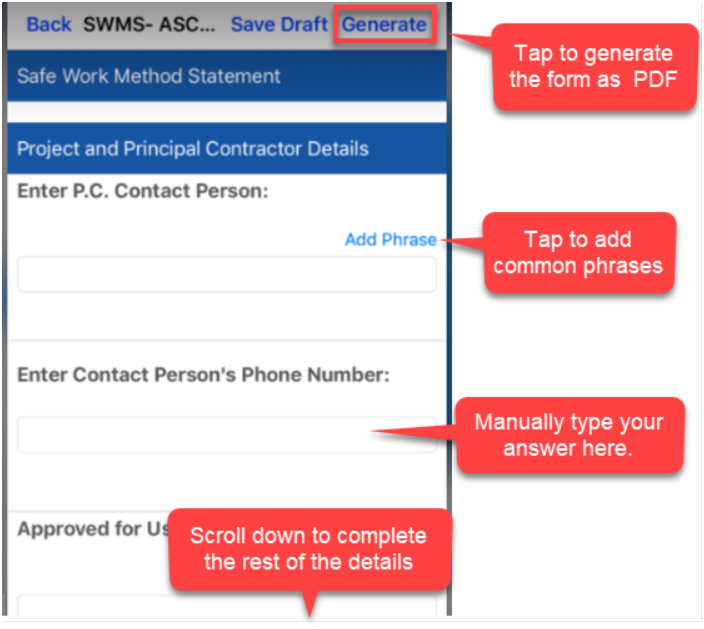
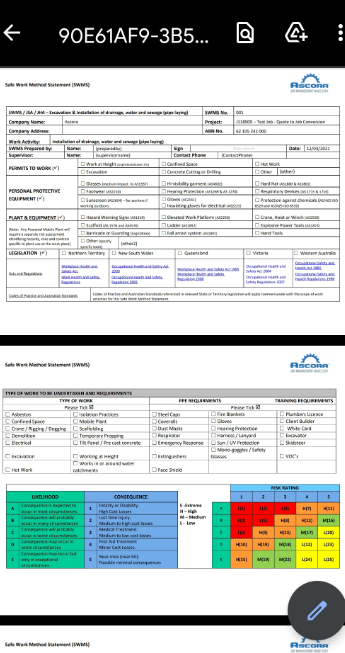
4. Once the custom form is displayed, enter the necessary details and once done, tap GENERATE and it will create the form as PDF.
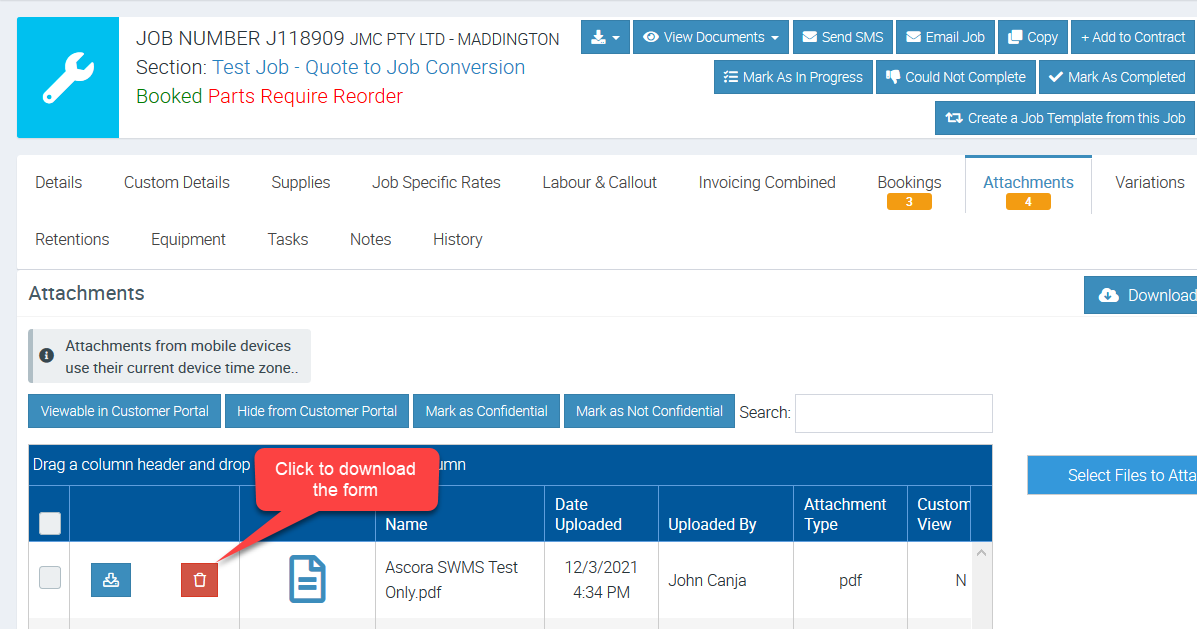
5. A PDF file is generated containing the information we've entered.
Got a question?
Submit an Idea 💡 Go to Ideas Portal