Managing purchase orders efficiently ensures that required materials and supplies are available when needed, preventing job delays. In the Ascora iOS app, you can quickly create, adjust, and track purchase orders directly from your job screen. Whether you need to generate a PO for items marked as "Must Be Ordered" or create a blank PO for custom orders, this guide will walk you through the process.
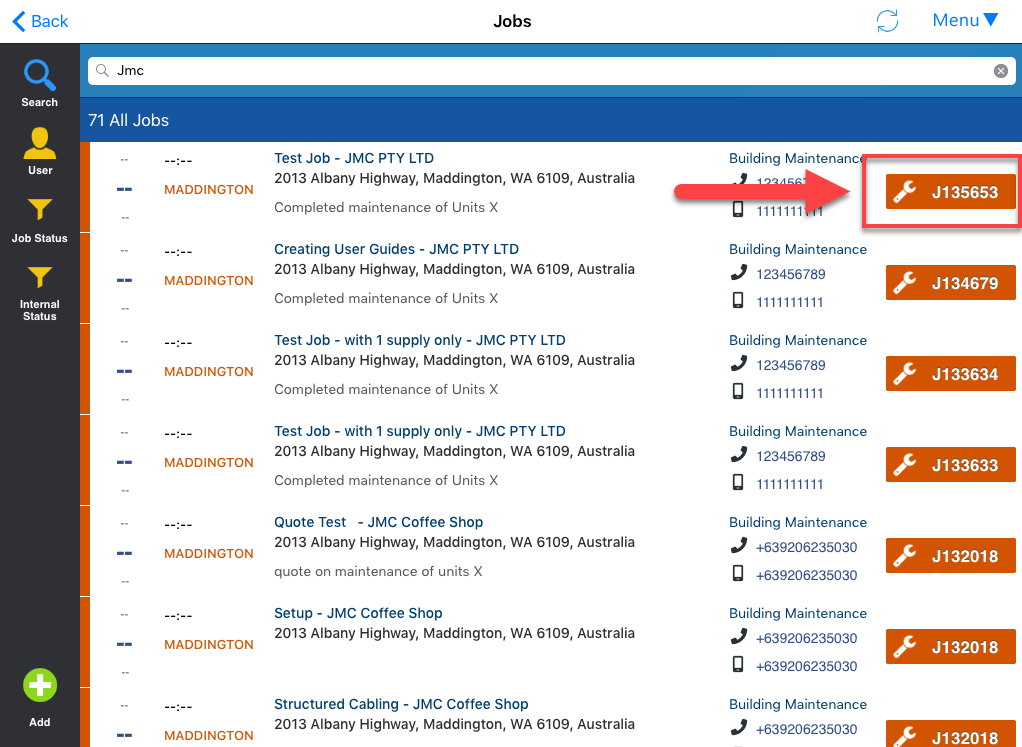
1. Tap on one of your jobs to display more details or menus. This should be the job where you need to create a purchase order.
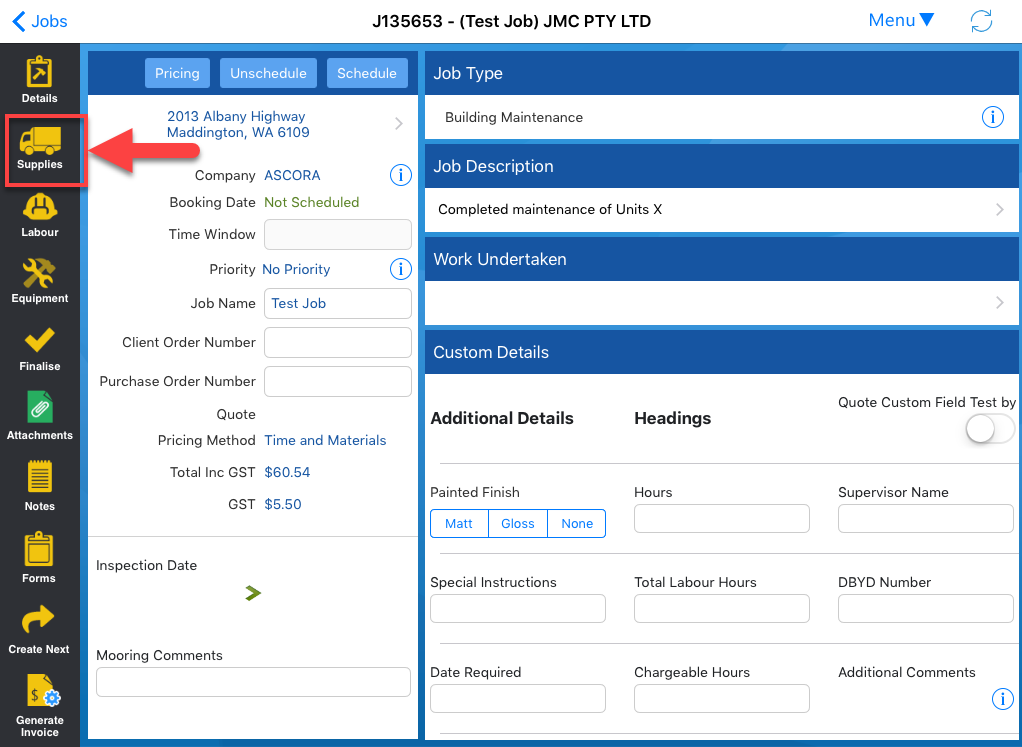
2. Tap on Supplies tab located on the left side of the screen.
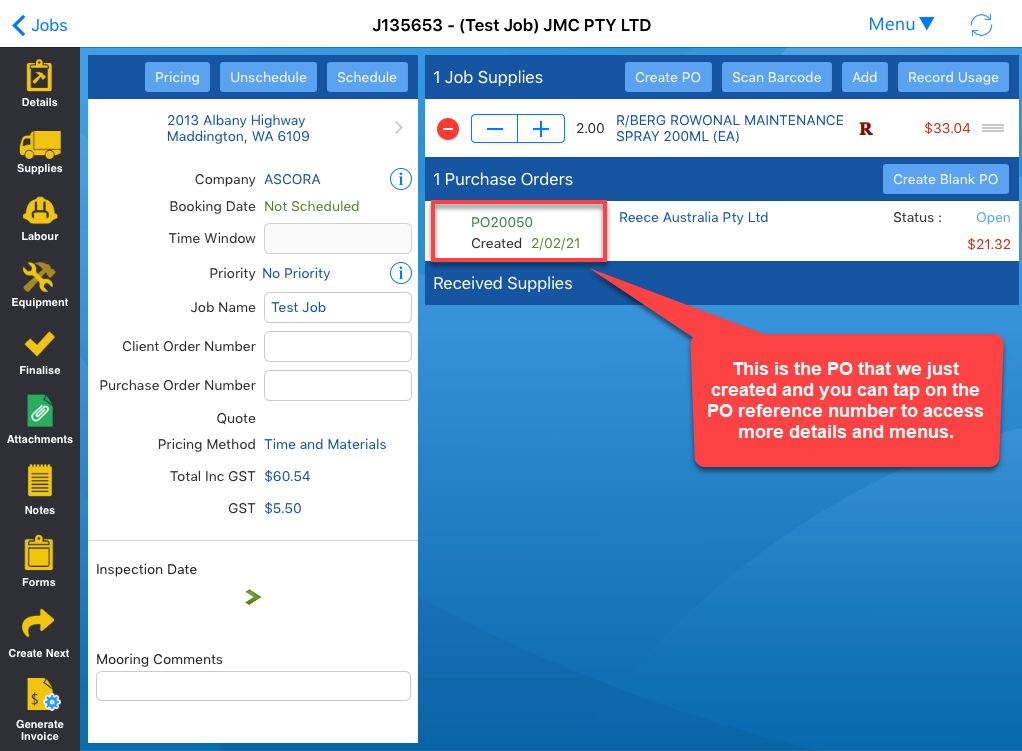
3. Tap on Create PO to generate a purchase order for supply items marked as "Must Be Ordered."
To create a blank purchase order, tap on Create Blank PO.

4. Select a supplier and in this example, we select Reece.

5. A Purchase Order will be created and you can tap on the reference number to see more details.
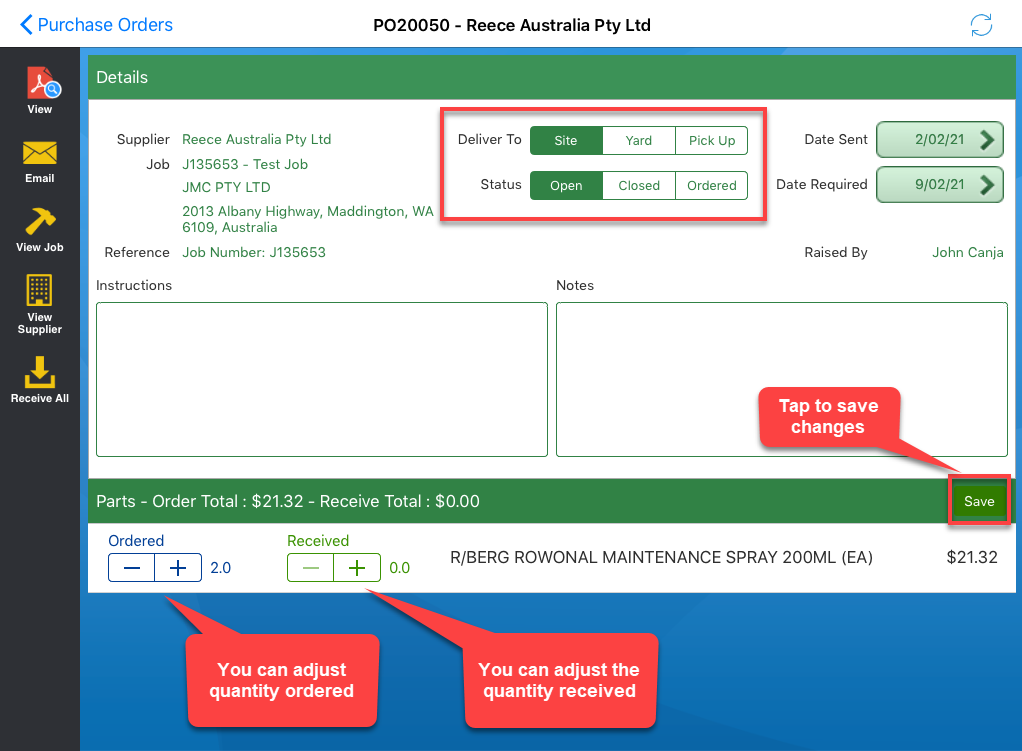
5. From the following screen, you can make adjustments such as changing the delivery option and status, putting instructions and notes, and adjusting quantity ordered and quantity received.
Got a question?
Submit an Idea 💡 Go to Ideas Portal