For businesses that require financial oversight, Purchase Order (PO) approvals ensure that spending remains within set limits. By enabling Purchase Order Approval in Ascora, you can restrict users from sending POs beyond a certain value, requiring managerial approval before processing.
Why Use Purchase Order Approval?
✅ Prevent Overspending – Restrict purchase limits for specific users.
✅ Automated Approvals – Approve or reject POs with a single click.
✅ Email Notifications – Get alerts when a PO exceeds the approval limit.
✅ Centralized Review – View all pending approvals in the Purchase Order List for faster processing.
Once enabled, you can set approval limits per user, enable notifications for exceeded limits, and approve or decline POs directly within Ascora. This feature ensures financial accountability while maintaining efficiency in procurement.
Enabling Purchase Order Approval
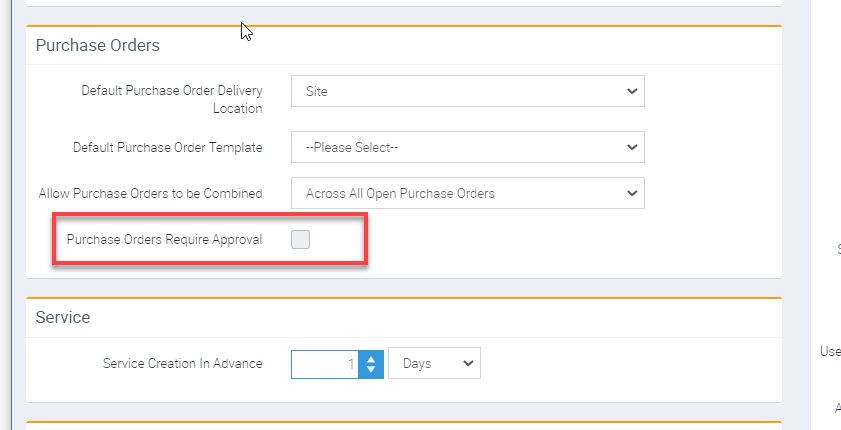
Browse to Administration → Defaults
- In the Purchase Order section tick the Option for Purchase Orders Require Approval.
Enabling Email Notification
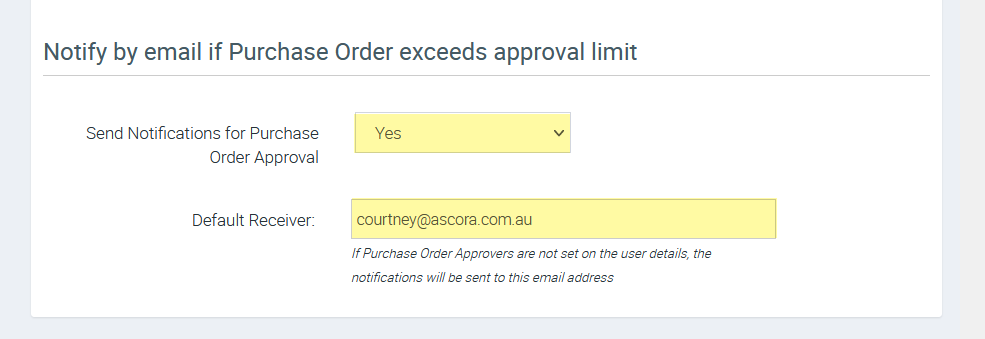
You can also enable the setting to receive automated email notifications when a Purchase Order exceeds the approval limit.
Still in Administration → Defaults, look for the setting "Notify by email if Purchase Order exceeds approval limit" and select Yes and enter the corresponding email address.
Setting Up Approval Limit per user
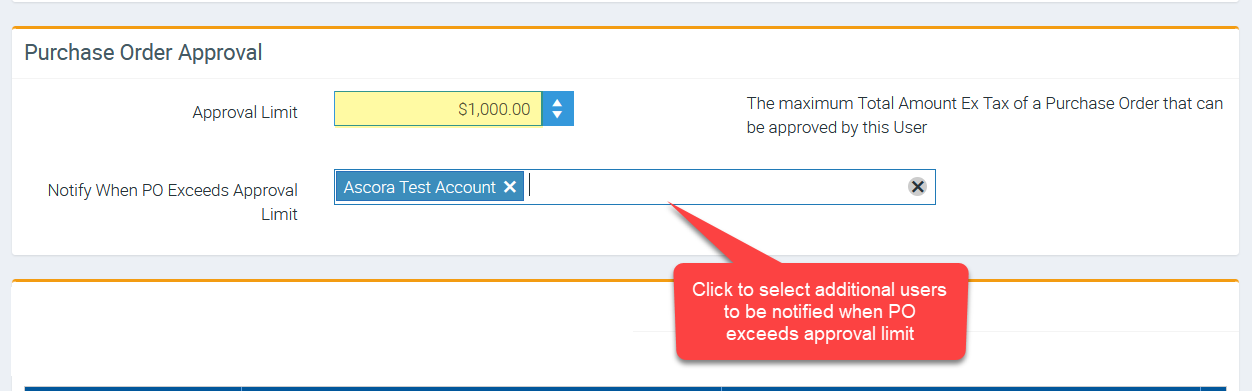
- For each User under Administration → Users you can set the maximum value of Purchase Orders they can send.
Approving Purchase Orders
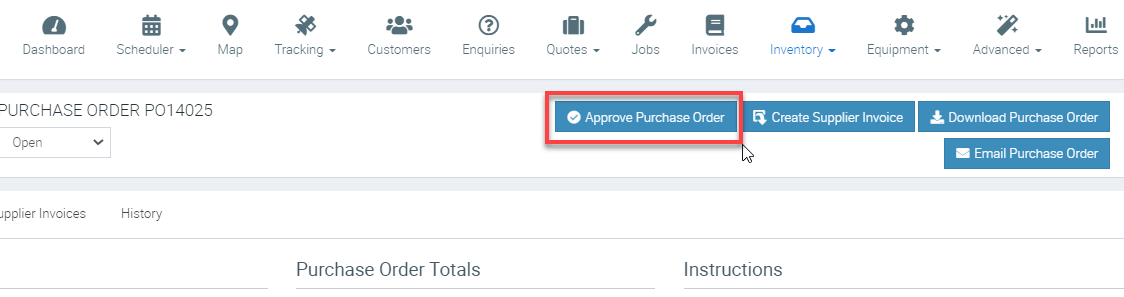
Open the Purchase Order Details
Click Approve Purchase Order
Got a question?
Submit an Idea 💡 Go to Ideas Portal