When job supplies are added in Ascora, you can generate a Purchase Order directly from the Job Details screen. This ensures that materials are ordered efficiently and linked to the correct job, reducing manual tracking and procurement errors. If multiple suppliers are involved, Ascora will automatically create separate Purchase Orders for each one, streamlining the purchasing process. You can also modify, remove, or adjust ordered quantities before finalizing the order.
📽 Watch the video guide ⤵
Once you have added Supplies to a Job, you can generate a Purchase Order for those Supplies directly from the Job Details.
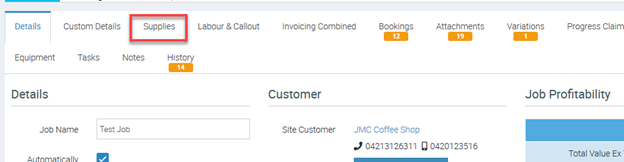
1. On the Job Details, choose the Supplies Tab.
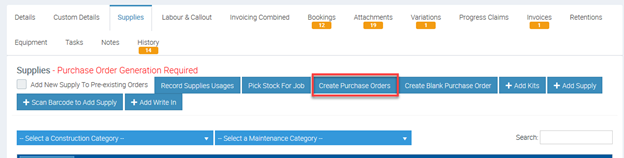
2. Supplies that have been added to the Job will display in the Supplies List. Create a Purchase Order for these Supplies by clicking the Create Purchase Orders button.
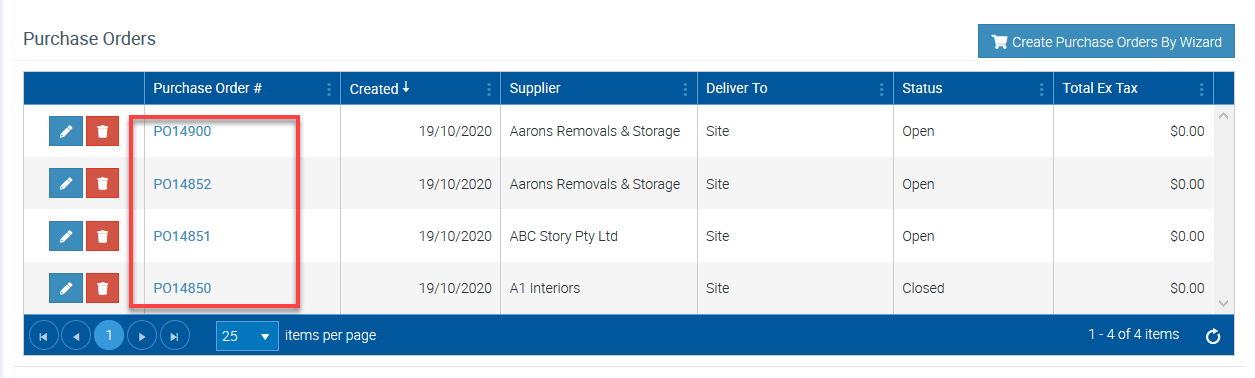
If the Supplies for your Job are from multiple Suppliers, Ascora will generate a separate Purchase Order for each Supplier.
The relevant Purchase Order(s) is now displayed in the Purchase Orders List.
How to Edit the Details of a Purchase Order
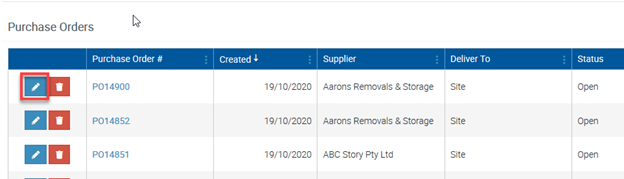
To view a Purchase Order’s details, or to edit the Purchase Order, click the Pencil icon located next to the Purchase Order Number.
Here you can include additional information such as Date and Time Required, as well as select a Deliver To location from the drop down menu.
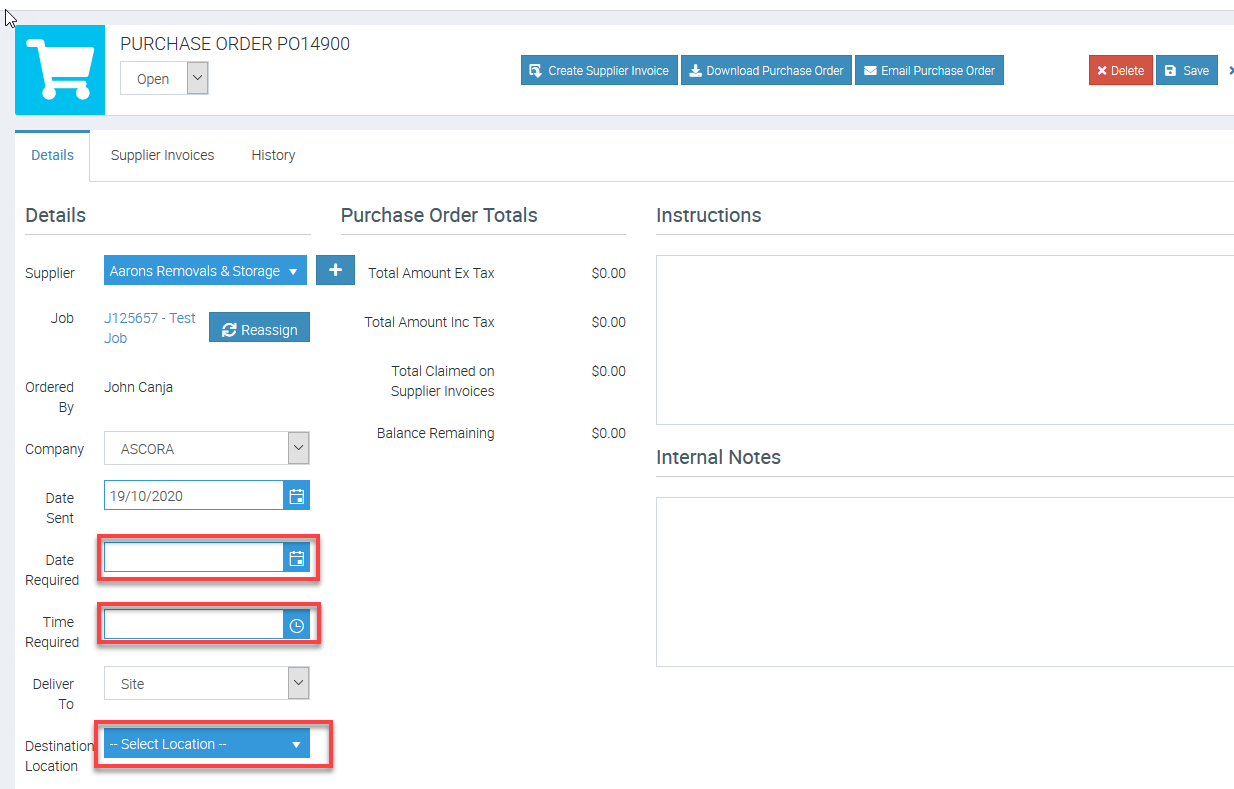
Scroll down to the Purchase Order Lines section to:
Add additional Supplies on to the Purchase Order by clicking the +New button. When you receive the new Item(s) as part of the Supplier Invoice you can choose to allocate the Item(s) to the same Job (default) or select a different Job to allocate the new Item(s) to. Remove Supplies from the Purchase Order by selecting the Item in the list and then clicking the Delete button. These Items will remain in the Supplies List for the Job and you can create a Purchase Order for them at any time by repeating the Create a Purchase Order for Supplies Added to a Job process. Adjust the Quantity Ordered for any given Item by clicking in the Qty Ordered field for that item and either typing the required quantity or adjusting the quantity using the up and down arrows. If you order less of a particular item than you have added to the Job, Ascora will include the balance the next time you generate a Purchase Order for that Job.
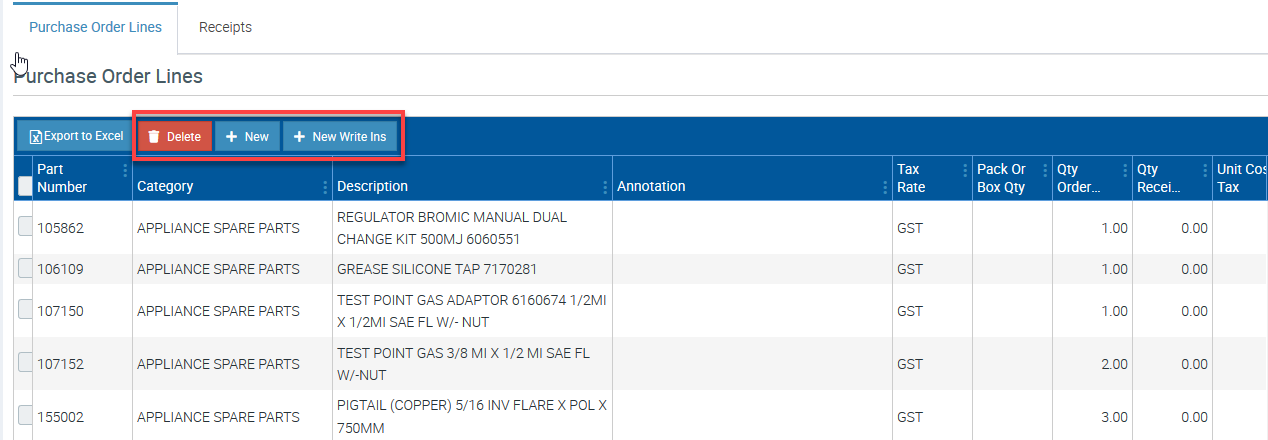
When you are ready, click the Save button near the top of the screen.

Got a question?
Submit an Idea 💡 Go to Ideas Portal