The Ascora iOS app allows you to quickly scan and add barcodes for supplies, making inventory management more efficient. Whether you're adding materials to a job or updating supply records, barcode scanning helps minimize errors and speeds up data entry. This guide will walk you through how to scan barcodes directly from a job or the supplies menu, ensuring a seamless workflow for tracking and managing materials.
From your iOS Mobile App, access the job details screen and tap Supplies → Action → Scan Barcode.

Adding Barcode from the iOS Mobile App
1. Tap Menu and select Supplies and then select the supply item with a barcode you need to add to.
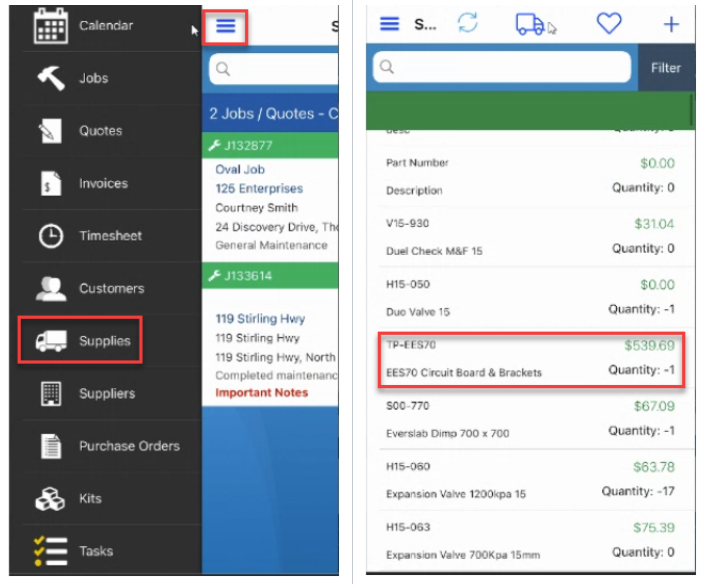
2. Tap Barcode located at the bottom right part of the screen then tap Add.
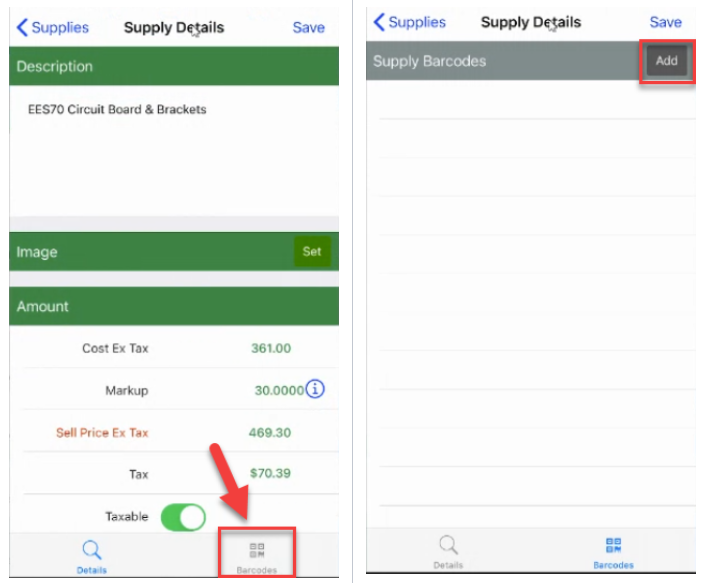
Complete the rest of the steps and when you try to add the same supply item again, it should let you do it by scanning the barcode.
Got a question?
Submit an Idea 💡 Go to Ideas Portal