Ascora allows you to enhance your Custom Forms by incorporating photos, either taken directly from a mobile device or uploaded from the photo library. This feature is especially useful for capturing job site conditions, proof of work, or other essential visual documentation.
This guide will walk you through:
- How to insert a photo placeholder into a Custom Form
- How to configure photo fields in Ascora
- How to test and use the photo upload feature in the Ascora mobile app (Android & iOS)
By following these steps, you can ensure your forms are structured to capture and display images correctly, improving record-keeping and job documentation.
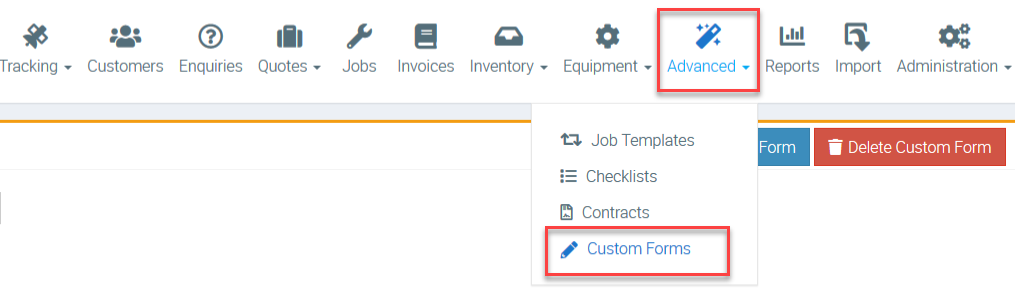
1. Go to Advanced → Custom Forms.
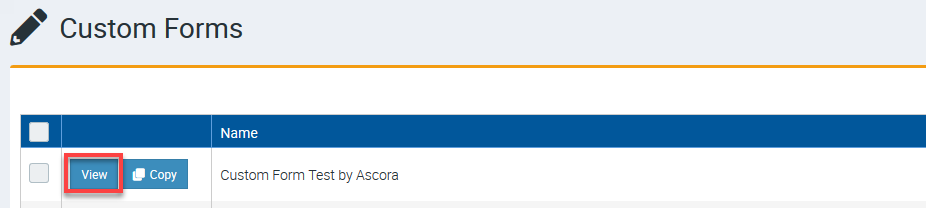
2. Look for the Custom Form that you want to edit and click View.
In this example, we are accessing the form called Custom Form Test by Ascora.
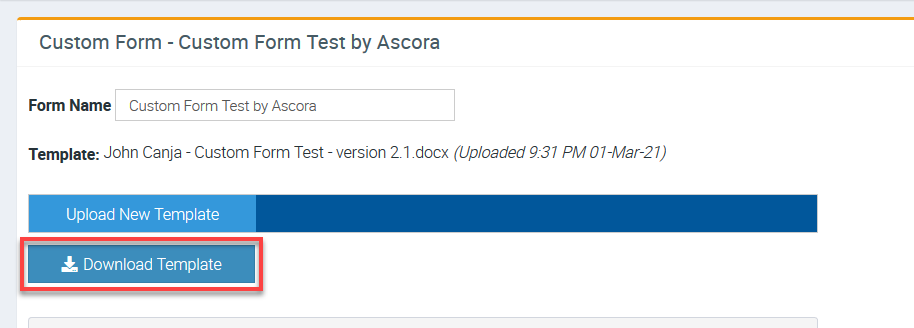
3. Download the custom form by clicking Download Template.
4. Depending on your computer settings, the template will open automatically otherwise, go to your download folder and open it manually.

5. Once you've opened the template, place the cursor in the field where you want to add the photo and click Insert → Picture → select an image or a photo placeholder→ Insert.
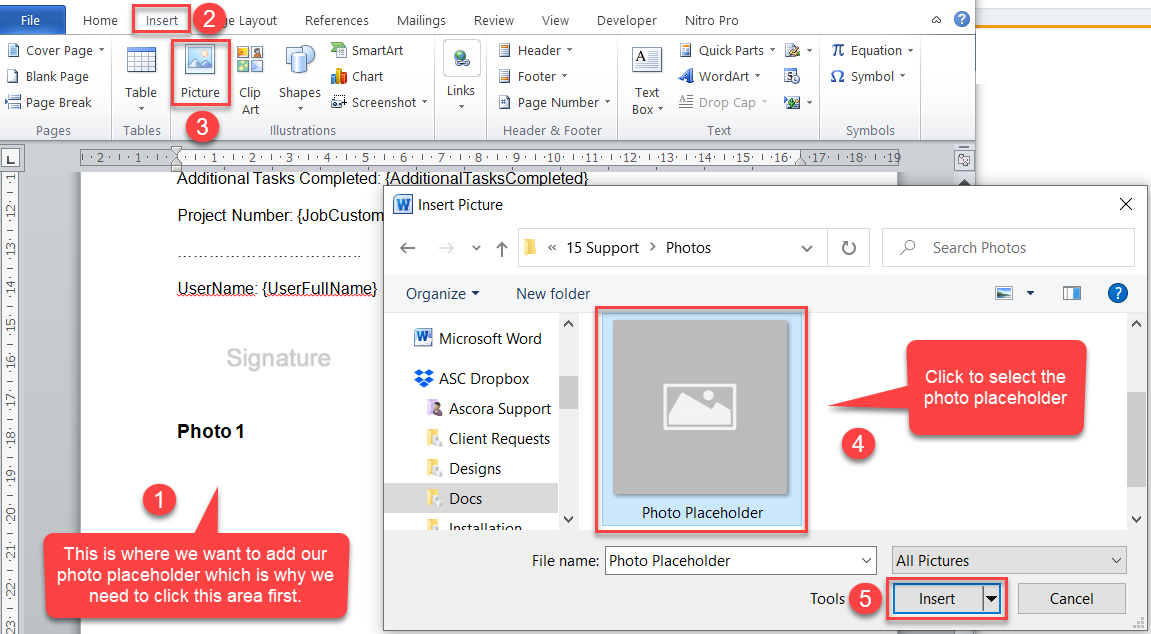
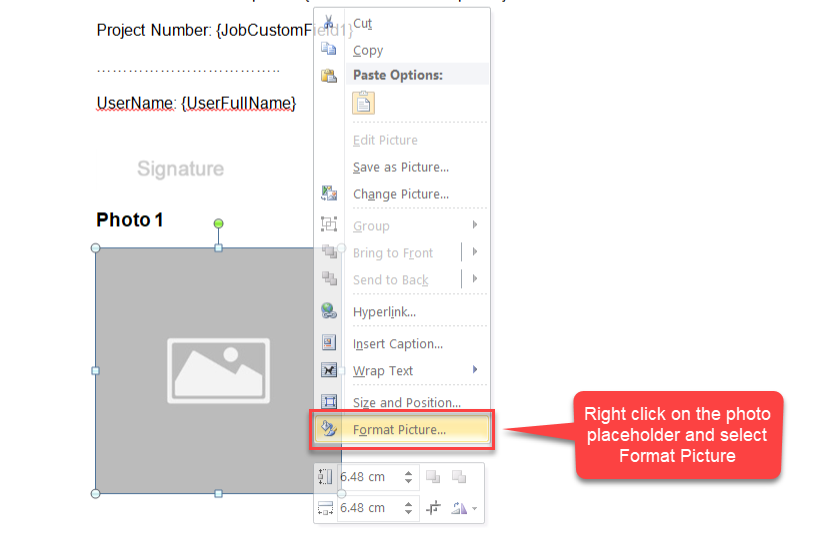
6. After inserting the image, right click on it and select Format Picture.
For example, you may choose to increase or decrease the photo placeholder, or enclose it in a table, or align centre the photo.
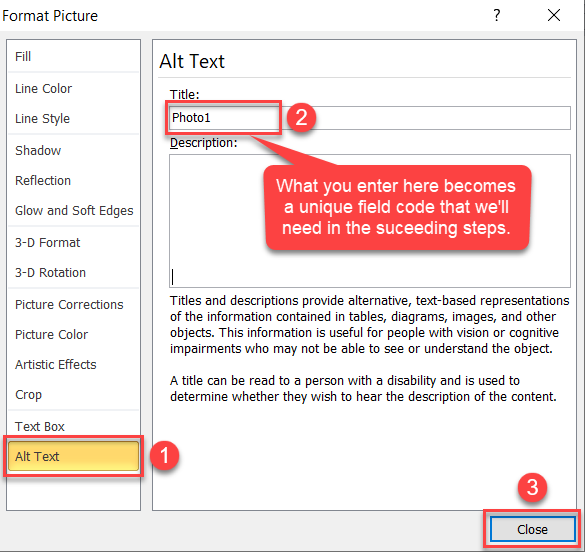
7. Select Alt Text and under Title, enter a name which basically becomes a unique field code and click Close.
In this example, our field code is Photo1 and it must be exactly the same format when we enter this in Ascora Form Question later.
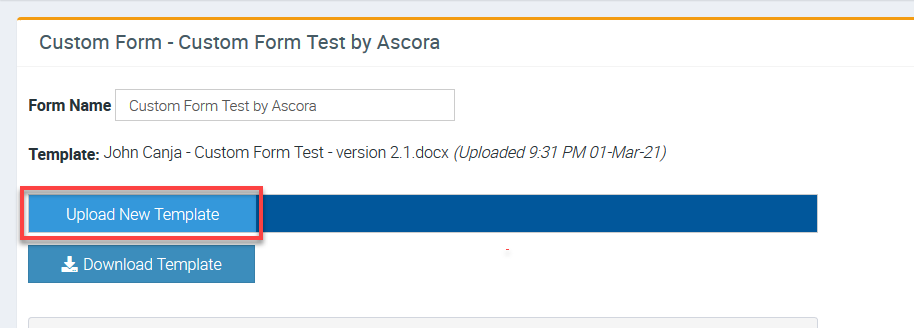
8. Save the updated custom form and upload it into Ascora by clicking Upload New Template.
9. Go back to Ascora Custom Form page and Click New Question.
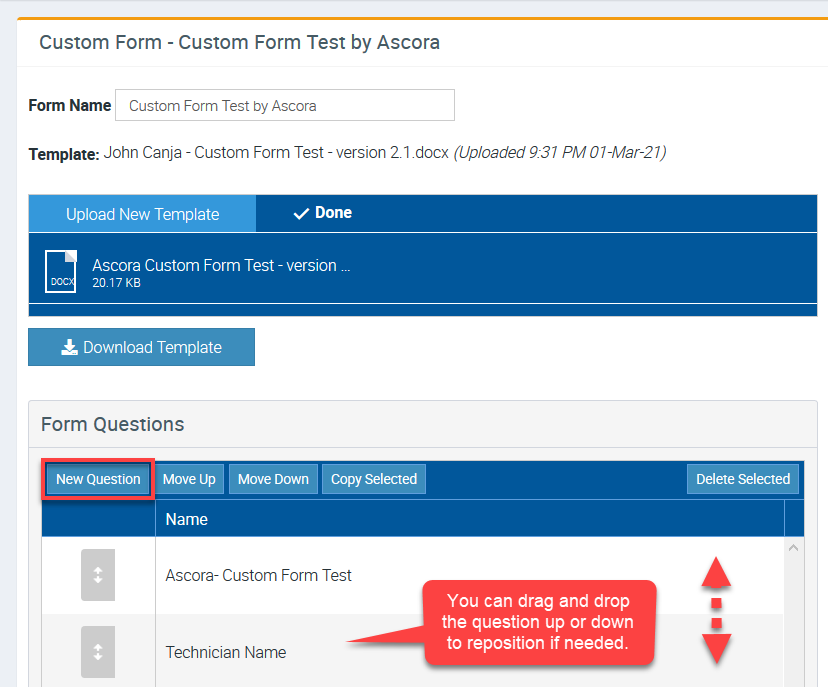
10. Enter the Field Name, Field Code, and select Photo as your Answer Type and click Save.
For the field code, we enter Photo1 since that's the exact field code that we entered in the image placeholder in step 7 which should be exactly the same format.

You can repeat the above steps if you need to add more photos on the custom form but be mindful in adding a unique field code for each photo placeholder.
For example, if we'll add another photo placeholder, we can assign a field code Photo2, then Photo3 if we add a third one. If field codes are repeated, the custom form will either fail to generate the corresponding details or fail to auto populate the corresponding information.
Testing your Custom Form on your Android Mobile App
Make sure to synchronise your mobile app first before running the test.
1. Access your job from the mobile app.

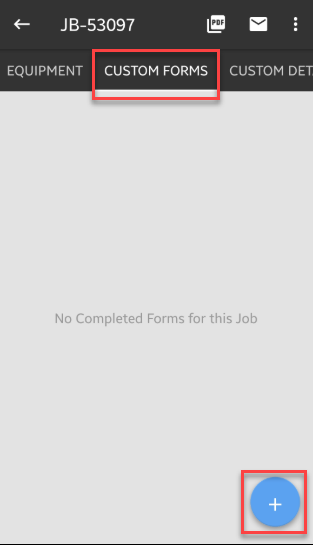
2. Navigate to Custom Forms tab and tap the + button.
The form that appears should already be the updated version.
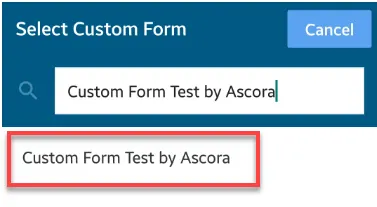
3. Select the custom form that you need to test and in this example, it's called Custom Form test by Ascora.
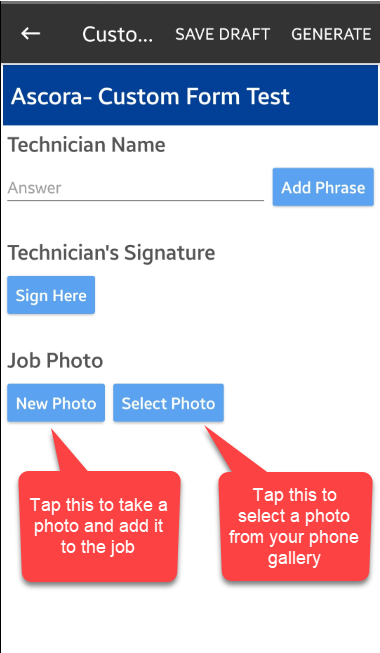
4. Once the custom form is displayed, you're able to add a photo by tapping either of the two options.
New Photo - allows you to take a photo from your phone camera and add it to the job.
Select Photo - allows you to select a photo that you may have previously saved in your phone library.
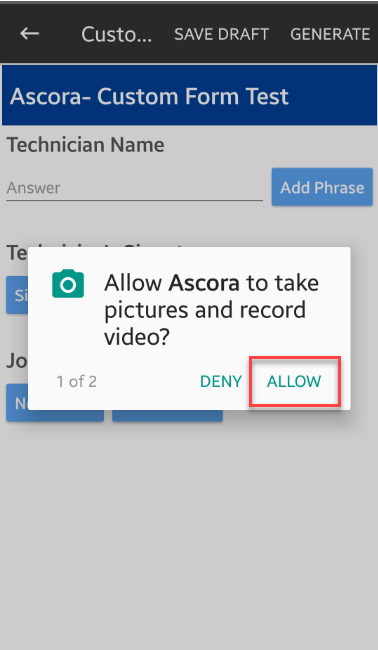
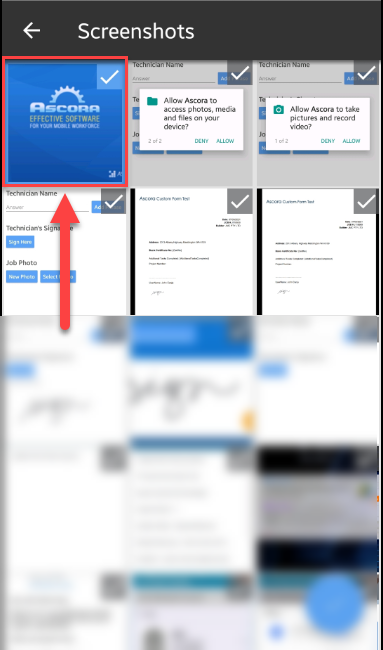
5. When you add photos for the first time, make sure to tap ALLOW when you see the following pop up box.
6. In this example, we tap Select Photo to select one that is already saved in photo gallery.
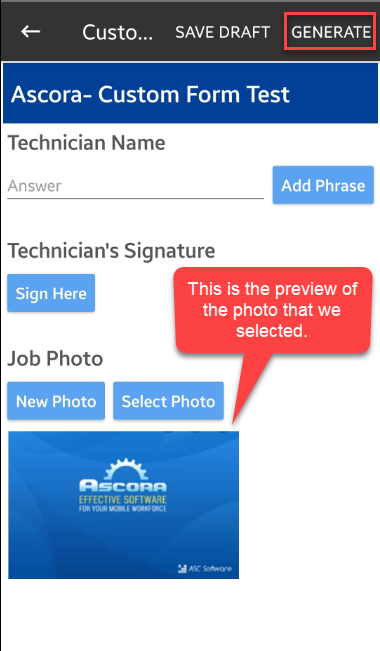
7. After selecting the photo or adding a new photo, a preview will be shown and to continue, click GENERATE.
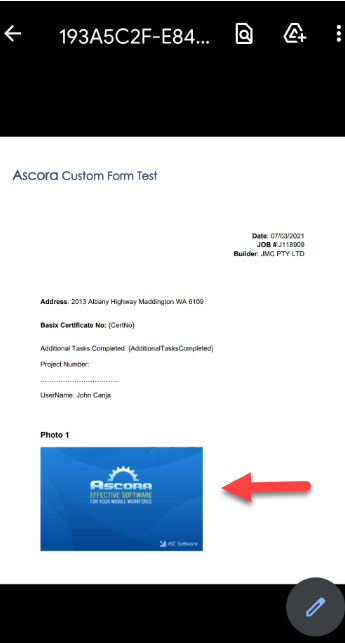
8. A PDF file is generated which now contains the photo that we've just added.
Testing your Custom Form on your iPad App
Make sure to synchronise your mobile app first before running the test.
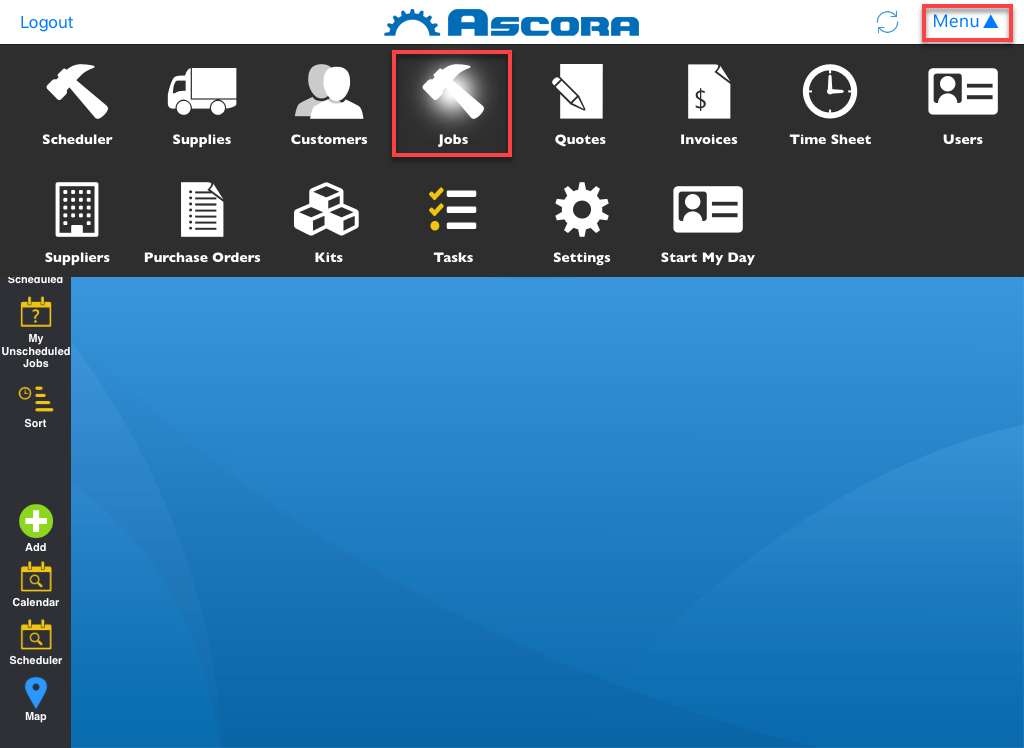
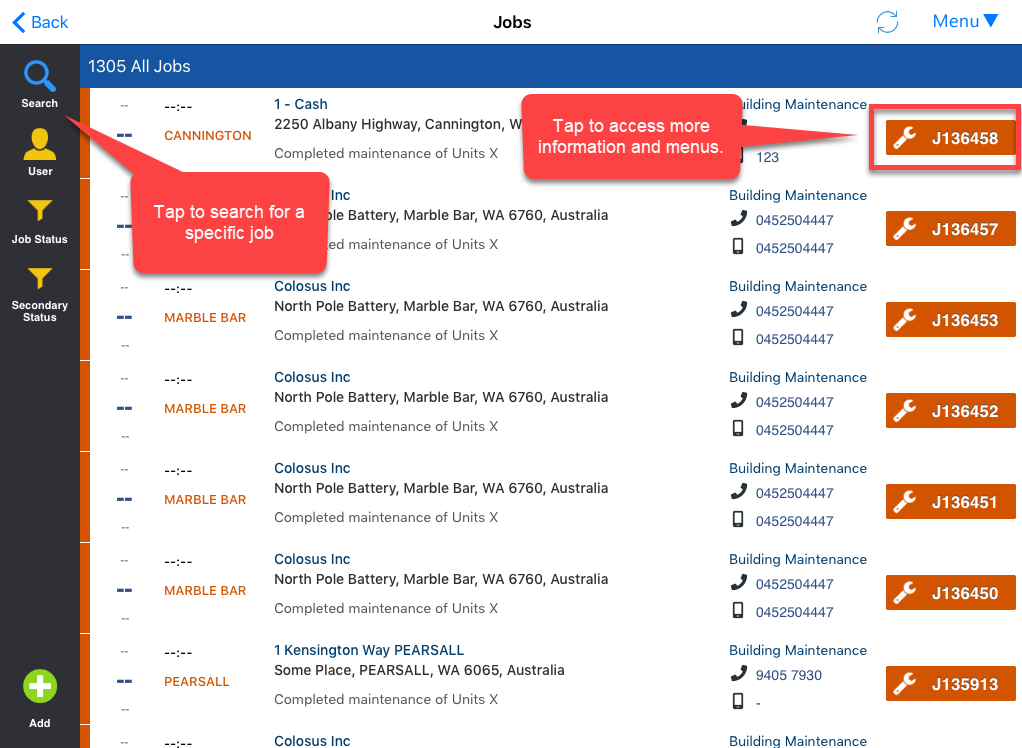
1. Access your job from the mobile app by tapping Menu → Jobs.
2. Tap one of the jobs to access more details and menus. Alternatively, you can use the search button to search for a specific job.
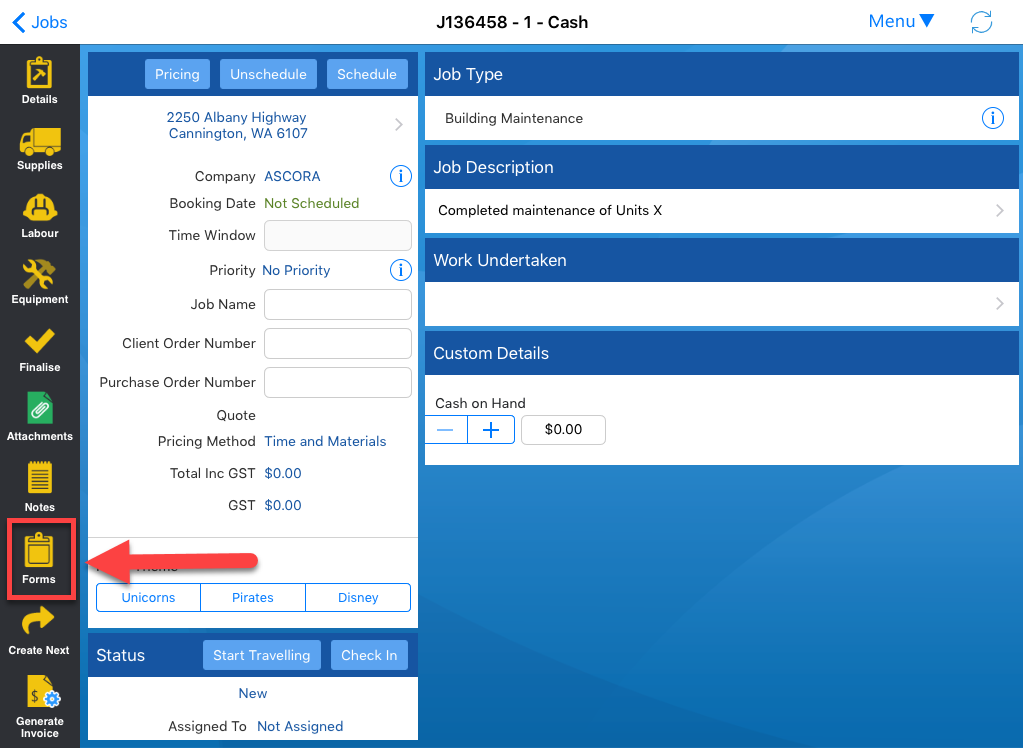
3. Tap Forms button which is located on the left side of the screen.
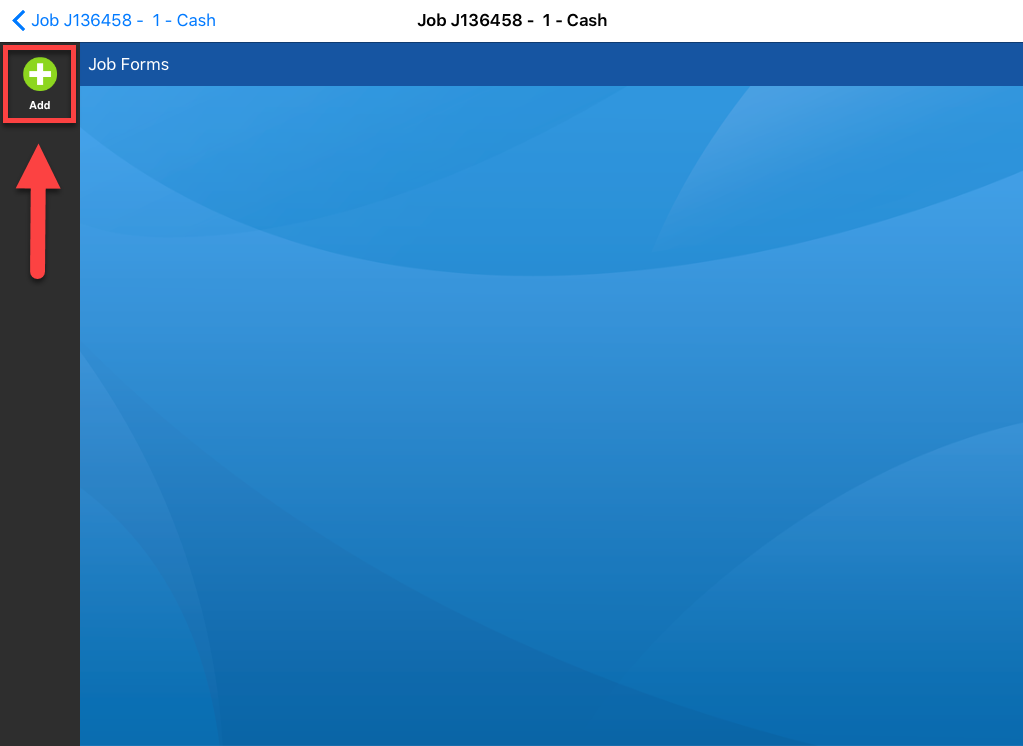
4. Tap Add button.
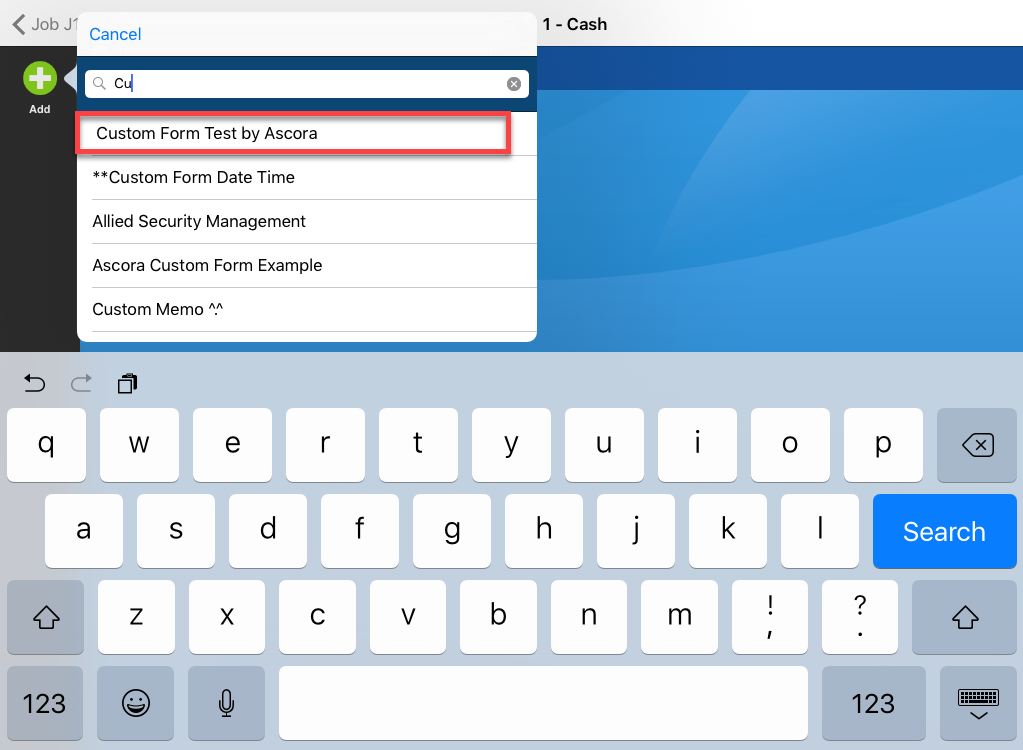
5. Search for the Custom Form by typing its name.
In this example, we are accessing the custom form called Custom Form Test by Ascora.
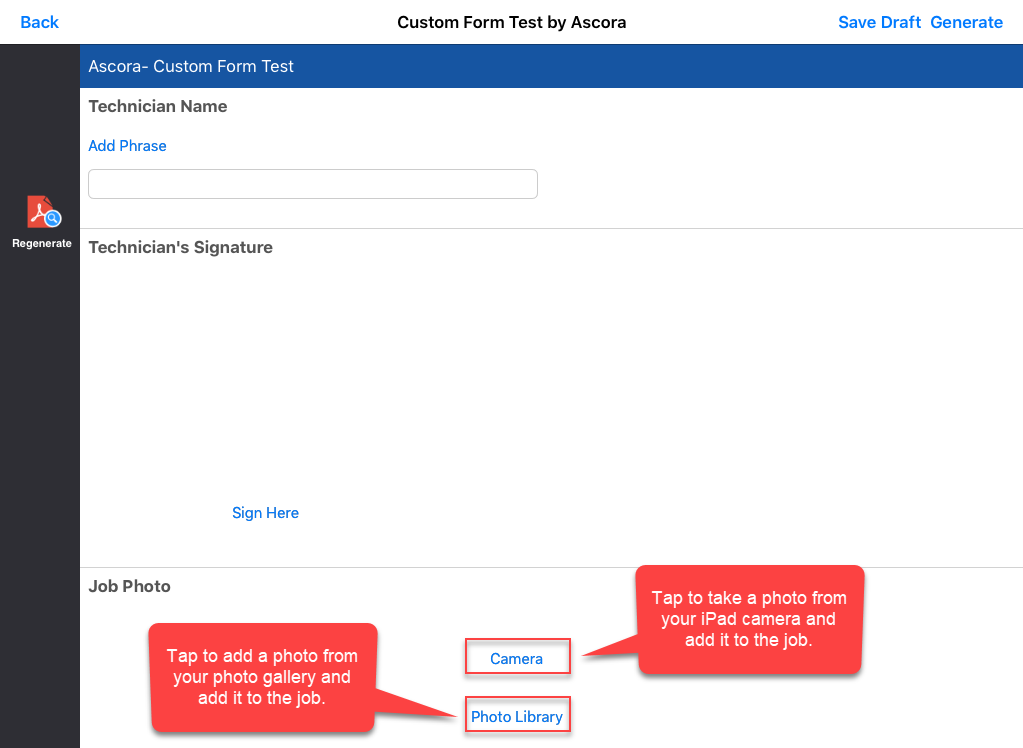
6. Once the custom form is displayed, you're able to add a photo by tapping either of the two options.
New Photo - allows you to take a photo from your phone camera and add it to the job.
Select Photo - allows you to select a photo that you may have previously saved in your phone library.
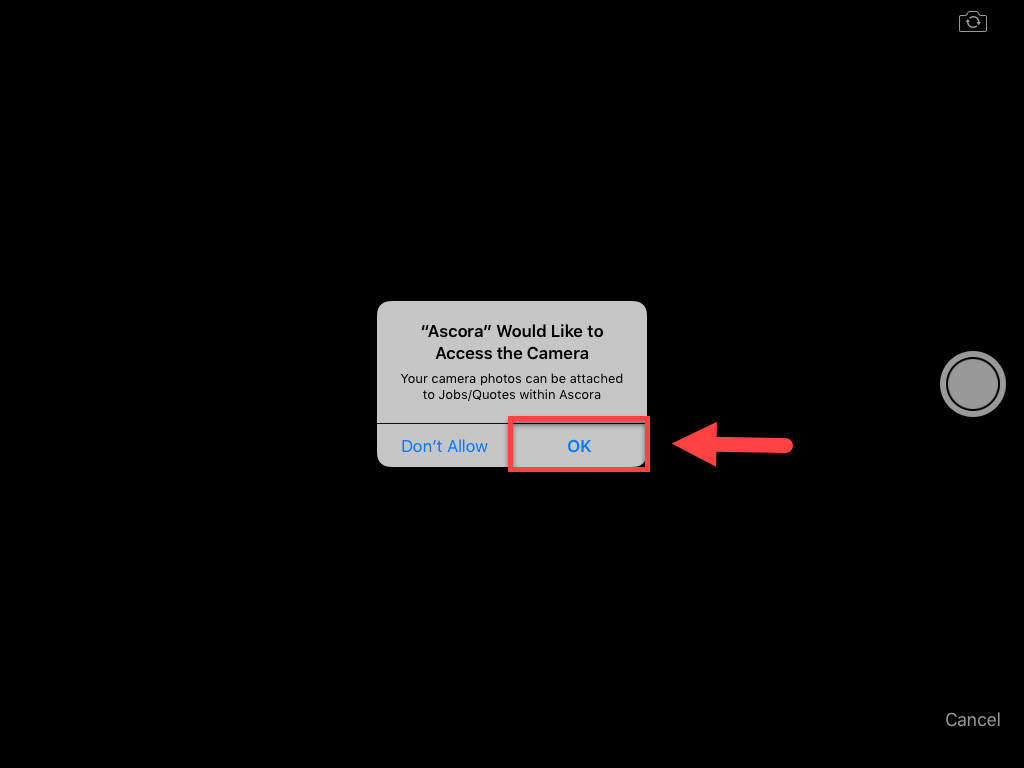
7. When you add photos for the first time, make sure to tap OK when you see the following pop up box.
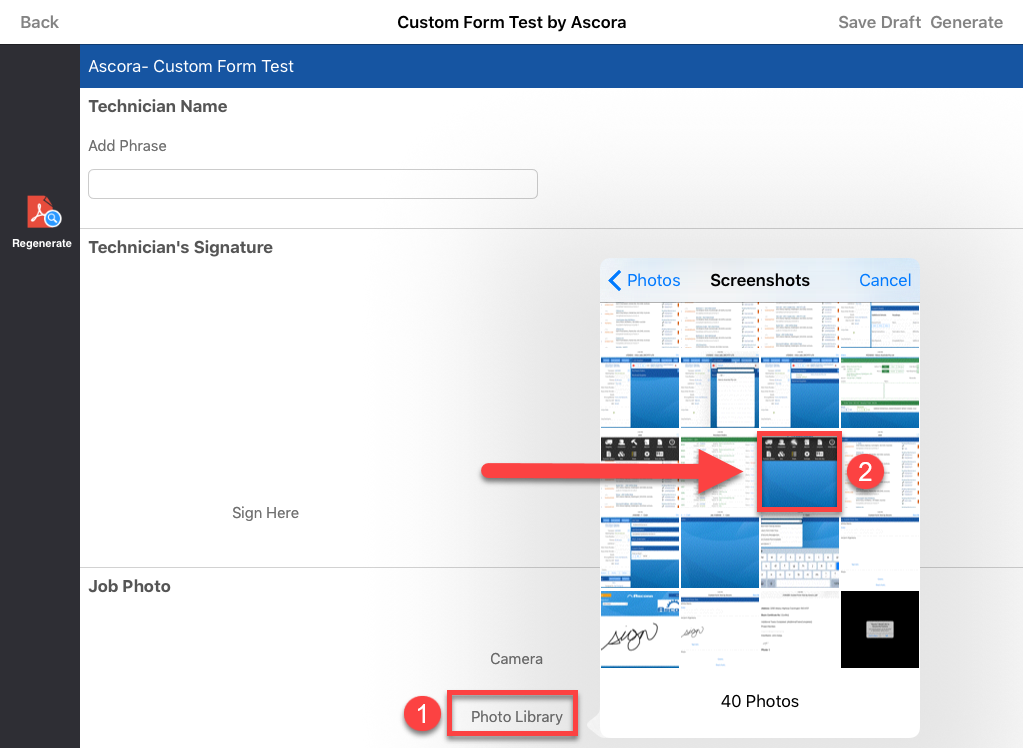
8. In this example, we tap Photo Library to select one of the photos that was already saved.
9. After selecting the photo or adding a new photo, a preview will be shown and to continue, click GENERATE.
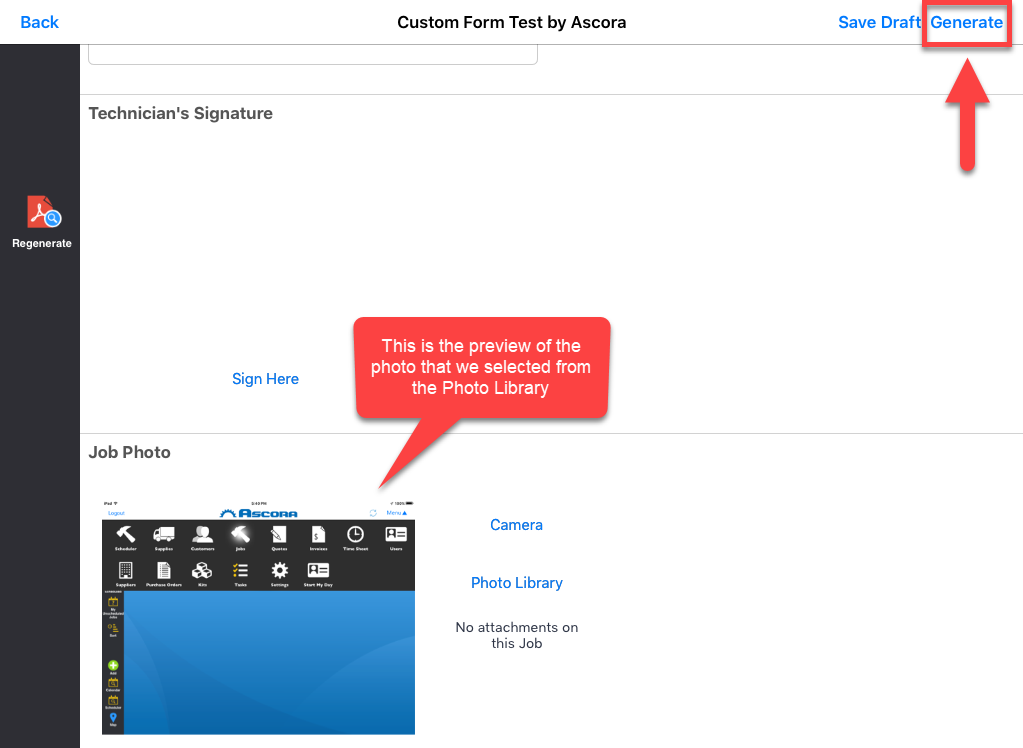
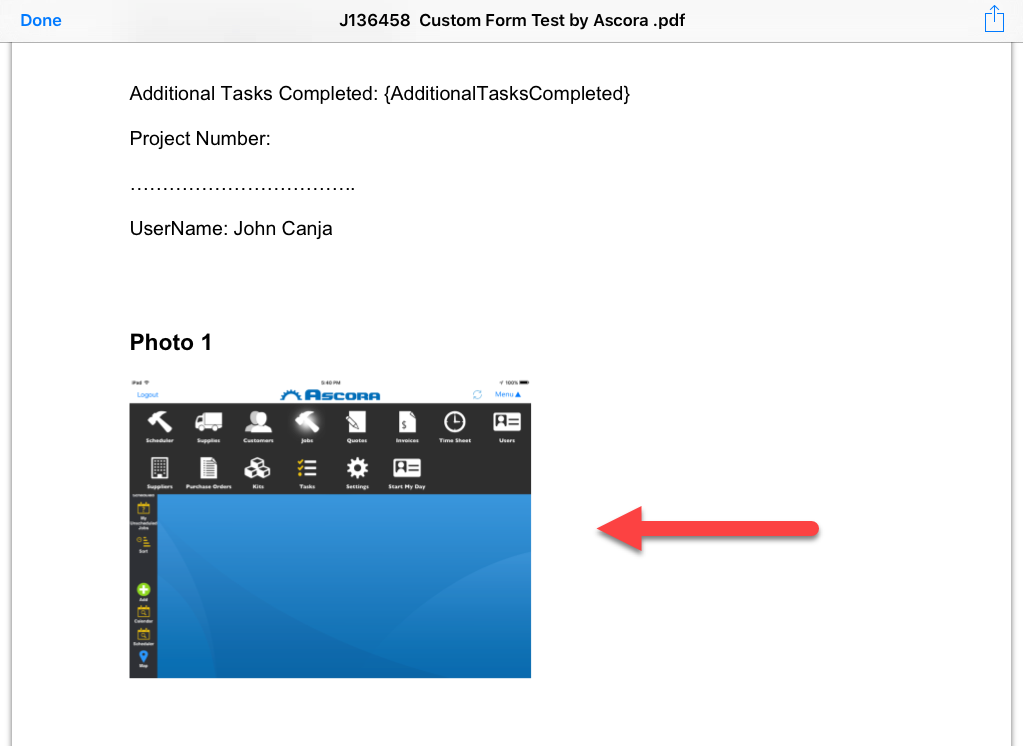
10. A PDF file is generated which now contains the photo that we've just added.
Got a question?
Submit an Idea 💡 Go to Ideas Portal