Effectively managing your Quote Bookings ensures your team stays organized and your clients receive timely service. Ascora makes it easy to schedule, update, and cancel Quote Bookings, seamlessly integrating with your Scheduler for real-time visibility. To begin, navigate to the Quotes List by selecting the Quotes Icon from the Top Menu, then choose the Quote you want to schedule.

You can now:
- Create a New Booking – Set date, time, assigned users, and notes
- Edit a Booking – Modify details like time, date, or assigned team members
- Cancel a Booking – Remove or reschedule bookings as needed
📽 Watch the video guides ⤵
Website Guide
Mobile Guide
Create a New Booking
1. Choose the Bookings Tab on the Quote Details and then click the +New button.

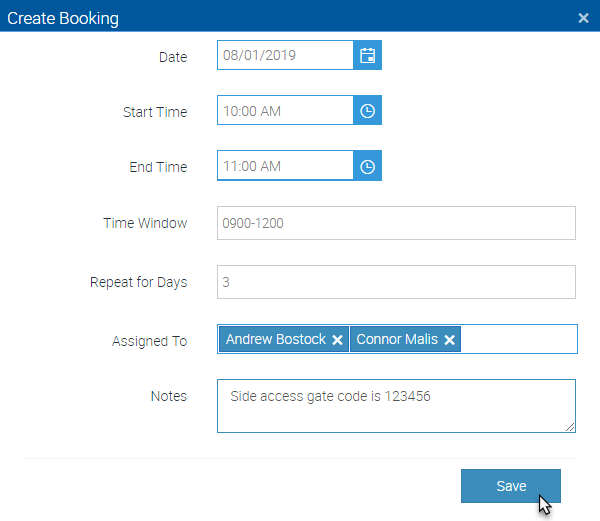
2. The Create Booking pop-up window will display. Create a booking by entering the applicable details into the Create Booking pop-up window.
- Chose a Date to book the Quote
- Select Start and End Times to set the duration of the Quote booking
- Include a Time Window if required
- The Repeat for Days field allows you to book the Quote to repeat over consecutive days. For example, by entering the value ‘3’, the Quote will be booked on the booking date as well as the following two days – with the same start and end times and assigned Users.
- Assign the Quote to one or more Users by clicking in the Assigned To box and choosing the desired User from the list. To assign more than one User, click the box again and repeat the process
- Add Booking Notes if required. These will be visible on the Mobile User App
When you are ready, click the Save button. The booking details will now show under the Bookings Tab on the Quote Details and the Quote will now show on the Scheduler as per the details you have entered for the Booking.
Edit a Quote Booking
1. Under the Bookings Tab on the Quote Details, click the Edit button for the Booking you wish to edit.

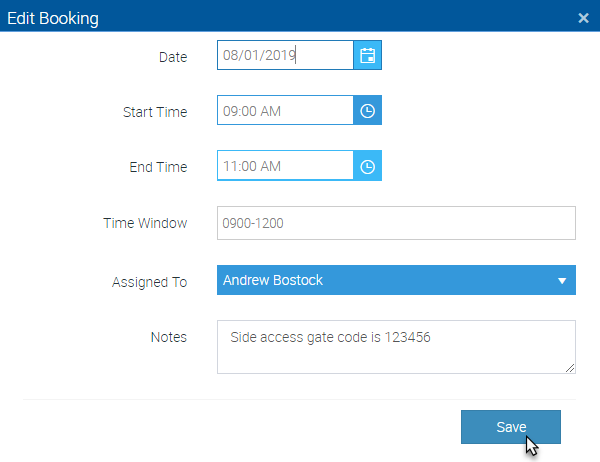
2. The Edit Booking pop-up window will display. Edit the Booking Details as required then click the Save button.
📽 Watch the video guide ⤵
Time Window and Booking Notes
Cancel a Quote Booking
Under the Bookings Tab on the Quote Details, click the Cancel button for the Booking you wish to cancel, then click the OK button to confirm the Booking cancellation.
