Efficiently tracking and managing labour costs is crucial for ensuring accurate job costing and billing. Ascora streamlines this process by allowing users to capture labour charges in real time, whether through check-ins/check-outs at job sites, manual entries, or mobile app inputs. This ensures that all labour activities are accurately recorded and appropriately charged (or not charged) to customers as needed.
Labour charges can be added, edited, and tracked directly from the Labour & Callout Tab on the Job Card, where all timesheet information is conveniently displayed. You can also customize labour roles, rates, and charge settings to align with your operational and financial requirements.
Ascora offers multiple ways to add labour charges:
- Web Application: Add or edit charges directly from the Job Card.
- Mobile App (Android & iPad): Quickly log labour details on-site, ensuring flexibility and accuracy for field staff.
With the ability to integrate with your accounting system, Ascora also automates the flow of labour costs into your financial records, reducing administrative effort and errors. By leveraging these tools, businesses can maintain transparency, improve efficiency, and enhance job profitability.
Follow the steps below to learn how to add, edit, and manage labour charges from both the web and mobile platforms.
▶ Adding Labour Charges via the Web
▶ Adding Labour Charges from the Mobile App (Android)
▶ Adding Labour Charges from the Mobile App (ipad)
Adding Labour Charges via the Web
Navigate to the Labour Section:
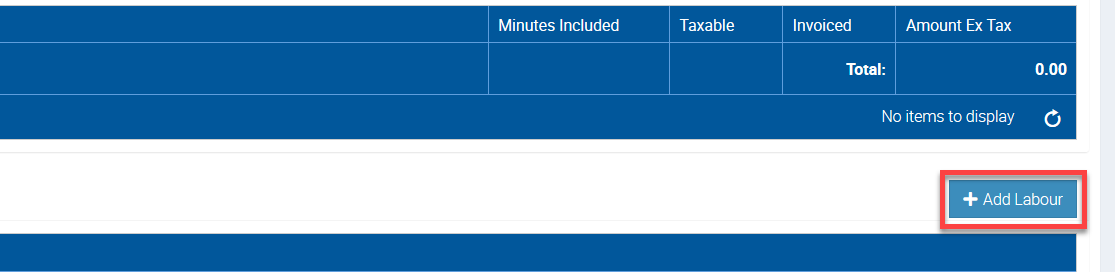
- Choose the Labour & Callout Tab on the Job Card and scroll down to the Labour section.
- Existing time-sheet information added by users will be displayed here for review.

Add Labour Charges:
- Click the +Add Labour button to open the Add Labour Item pop-up window.
Fill Out Labour Details:
- User: Select the relevant staff member from the dropdown menu.
- Role: Assign a labour role to determine the rate (e.g., Builder, Electrician).
- Date: Specify the date of the work.
- Description: Provide a brief description of the work performed.
- Labour Hours: Enter the number of hours worked.
- Chargeable Toggle: Check or uncheck the toggle to indicate whether the charge is billable to the customer.
- Click Save to finalize the entry.

Adding Labour Charges from the Mobile App (Android)
Locate the Job:
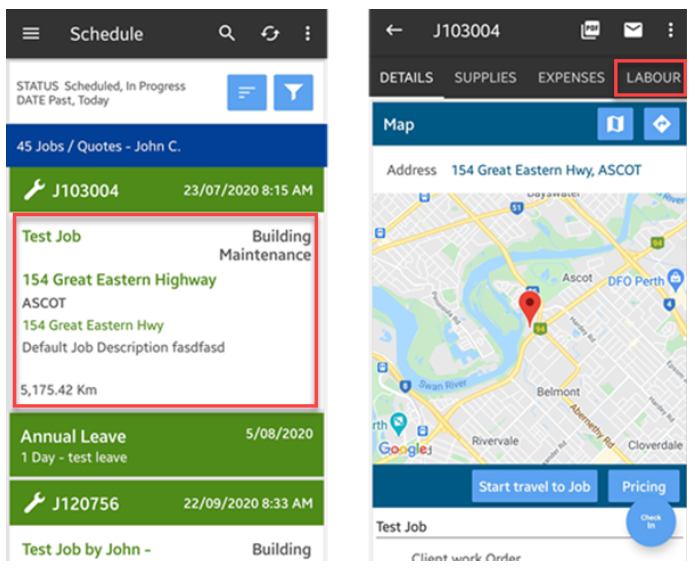
- On the main screen, search for the relevant job and tap it to access the Details screen.
- Tap the Labour section.
Add Labour Entry:
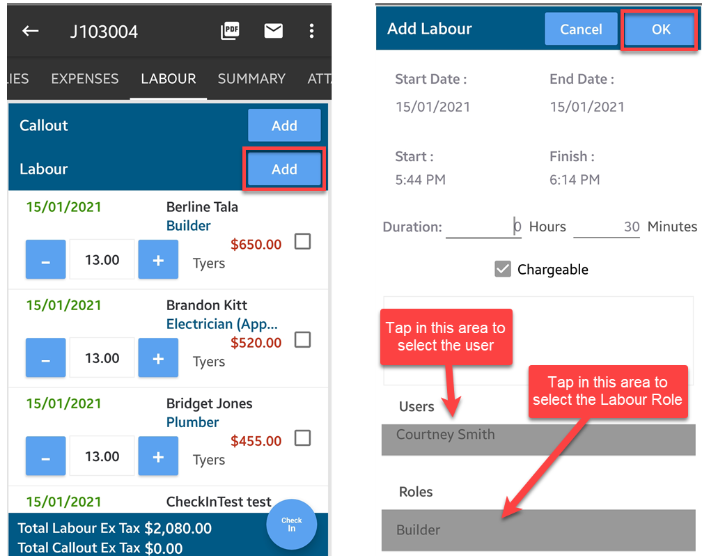
- Tap the Add button beside Labour.
- Select the user and assign the relevant Labour Role.
In this example, we've added Builder Role to user Courtney.
How to Add Labour Charges from the Mobile App (iPad)
Open the Job Details:
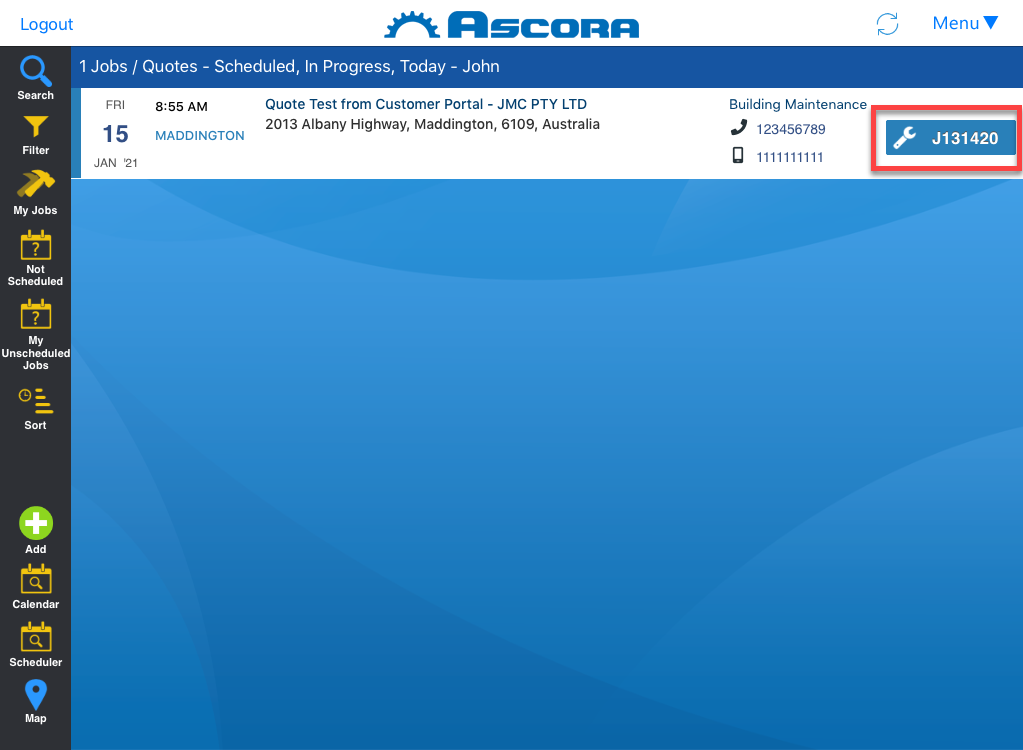
- From the main screen or job screen, tap the job number to display the details.
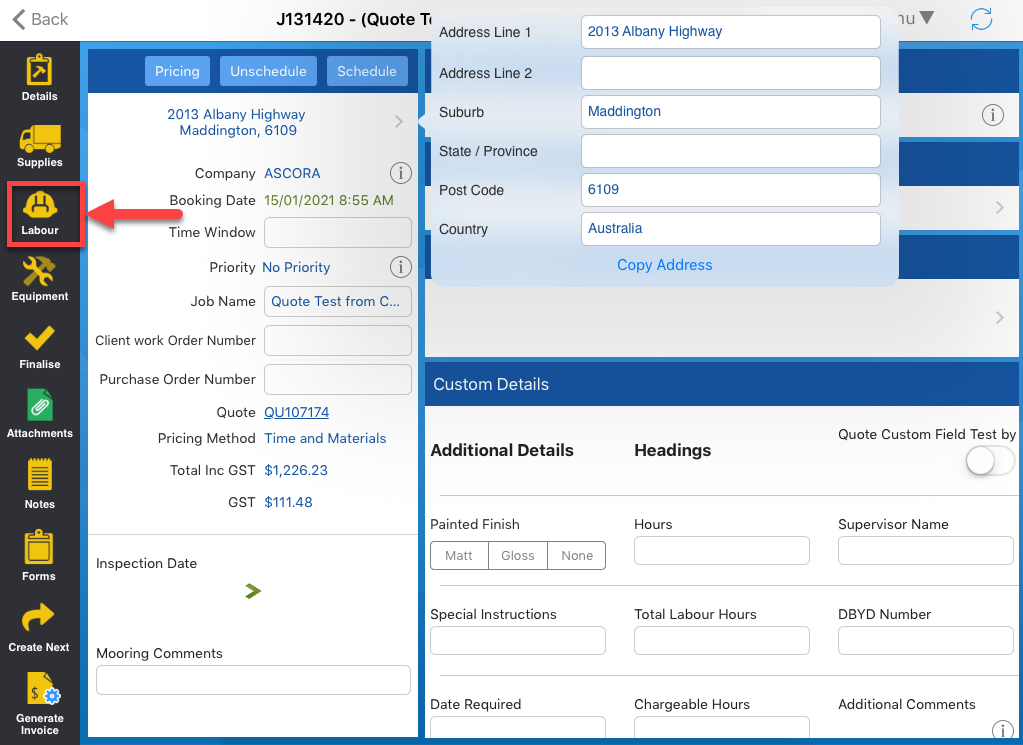
Access Labour Section:
- Tap the Labour tab located on the left side of the iPad screen.
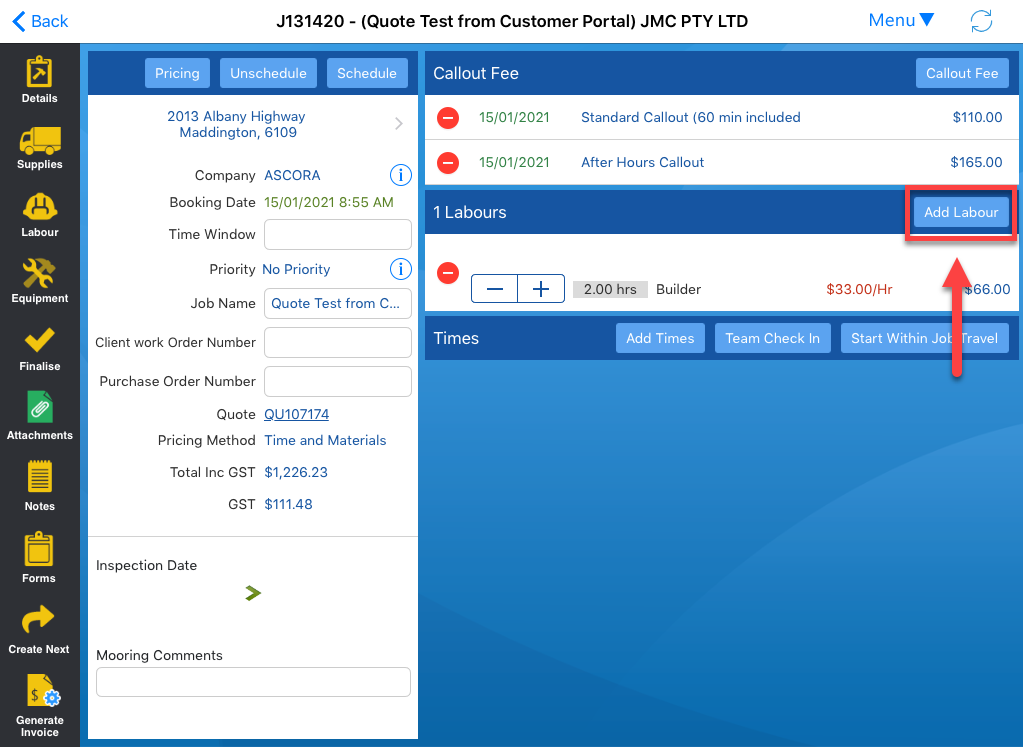
Add Labour:
- Tap the Add Labour button to open the entry form.
Complete Labour Details:
- Select the User and Labour Role.
- Manually adjust the duration or rates if needed.
- Tap Save to confirm the entry.

Got a question?
Submit an Idea 💡 Go to Ideas Portal