Custom Forms in Ascora allow businesses to digitize paperwork, standardize job documentation, and enhance field data collection. Whether you need site inspections, compliance checklists, safety assessments, or customer sign-offs, Custom Forms ensure accurate and efficient information gathering—all within the Ascora platform.
With fully customizable fields, integrated auto-fill data, and mobile accessibility, your team can capture job details, attach photos, collect signatures, and ensure compliance without the hassle of paper-based processes.
This guide walks you through creating, uploading, and managing Custom Forms in Ascora, so you can optimize workflows and improve job management.
If your company uses standard forms as part of its business process, you can create Custom Forms for Ascora and make these available to Users in the Ascora Mobile Apps. Examples of Custom Forms could include a Job Safety Analysis (JSA), Safe Work Method Statement (SWMS), Airconditioning Duct Audit, etc.
Contents
Creating the Form Template
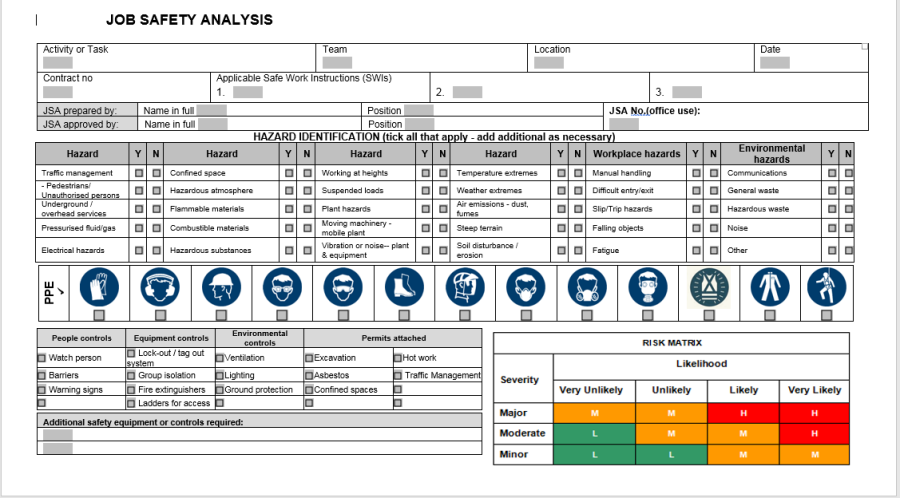
Use Microsoft Word to create the Form Template. Often the template is already an existing paper-based form or Microsoft Word-based document. Think of the Form Template in terms of a pre-printed form that is ready to be filled out by a User. The Template must include all static information, just as a pre-printed form would – for example, the document title, business details, headings, etc.
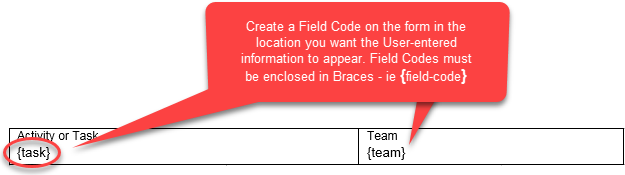
For each Field within the Form Template that the User is required to action, you must create a Field Code. A Field Code can consist of any alpha-numeric text combination that you wish, and must be enclosed in Braces. Braces, or Squiggly Brackets look like this: { }
Creating a Check-Box for Yes/No and Multiple-Choice Responses
Follow the instructions below, or alternatively view this quick video tutorial on how to create a check-box for yes/no and multiple-choice responses
If working with an existing Microsoft Word document, delete the existing Check-box (if applicable)

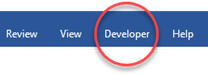
Place the cursor where you wish to create a Check-box and choose the Developer Tab in the Ribbon.
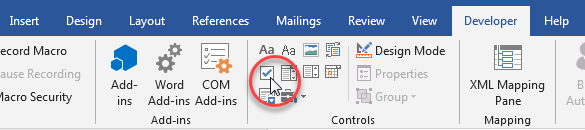
Click the Check Box Content Control
A new Check-box will appear in the location where you positioned the cursor.
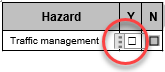
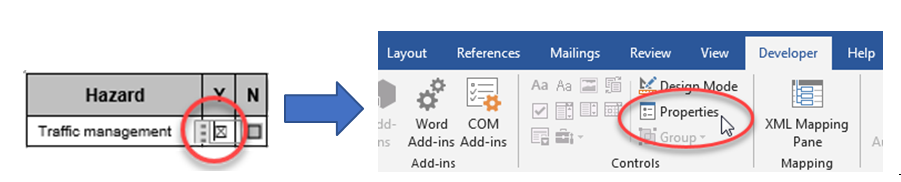
Click the Check-box and then choose Properties from the Developer Tab. The Content Control Properties pop-up window will display.
Enter the Field Code into the Tag text box (A). Note that for Check-boxes you do not need to include the enclosing Braces. When ready, click the OK button.
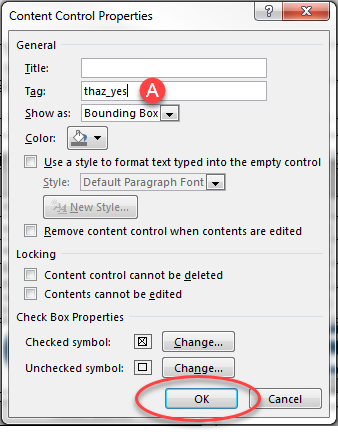
Field Codes for Yes/No and Multiple-Choice responses must be related to each other. In our example above, the main Code is thaz, with the options or Yes and No indicated as thaz_yes and thaz_no.
If our example was multiple-choice, our Field Codes could look something like:
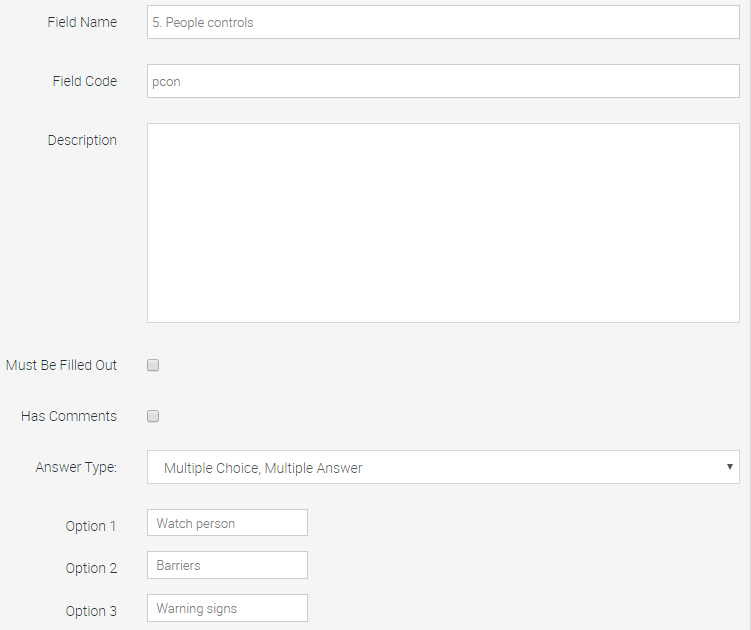
Main Code: pcon
Option A: pcon_Watch person
Option B: pcon_Barries
Option C: pcon_Warning signs
To enter a Signature or Capture/Attach a photo:
📽 Watch the video guide ⤵
Insert a sample picture in the Field where you want the Signature or Photo to display by placing the cursor in this Field and choosing the Insert Tab in the Ribbon.
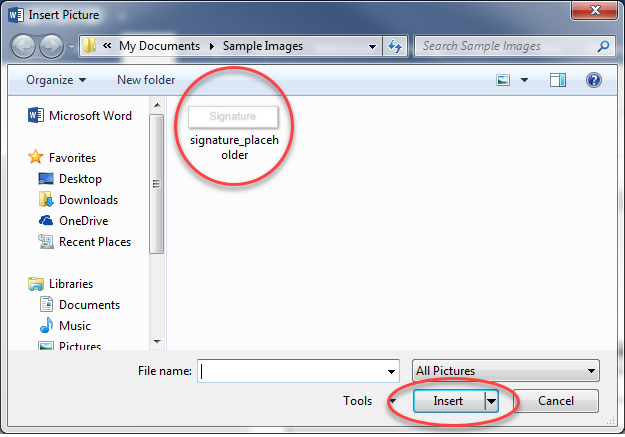
Click the Pictures icon. The Insert Picture pop-up window will display.

Locate your placeholder picture and click the Insert button. Your placeholder picture will now be inserted into the Form Template.
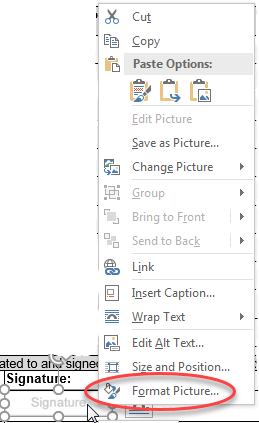
Right-click on the placeholder picture you just inserted and choose Format Picture from the pop-up menu. The Format Picture slide-out menu will appear at the side of the screen.
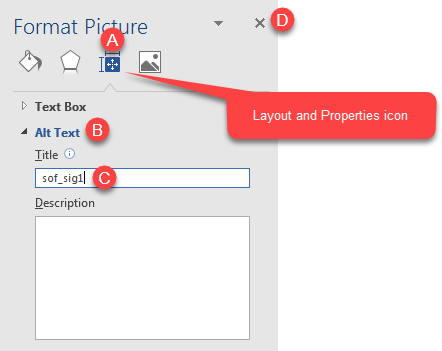
Select the Layout and Properties icon (A), click on Alt Text (B) to expand the Alt Text menu and then enter the Field Code into the Title text box (C). Note that for Signature and Photo Fields you do not need to include the enclosing Braces.
When ready, click the X (D).
Once you have completed creating all the required Field Codes for the Form Template, save the template. IMPORTANT – Form Templates must be saved as the .docx format.
Adding Standard Fields
Standard Fields include information such as Job Number, Customer Name, Customer Address, etc. When you include Standard Fields in a Form Template, they will automatically populate from the data in Ascora when the Form is generated. This increases efficiency by saving the User having to enter information which is already available in Ascora.
Standard Fields are inserted in the same manner as other Field Types, for example, {SiteCustomerName}. A list of available Standard Fields is available in Appendix A.

Uploading the Form Template into Ascora
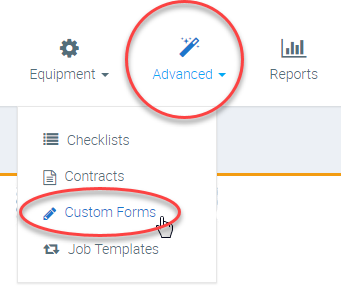
Log in to your Ascora Account. Select the Advanced icon from the Top Menu and choose the Custom Forms option. A list of all your Custom Forms will be displayed.
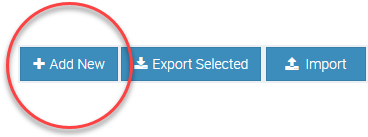
To create a new Custom Form, click the +Add New button. The Add New Custom Form pop-up window will display.
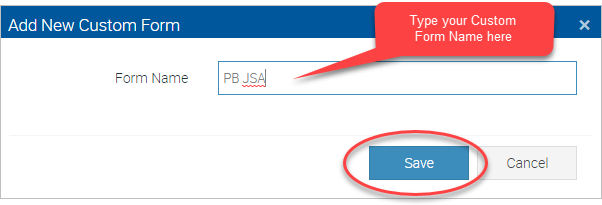
Enter a Name for your Custom From. When ready, click the Save button. The Custom Form details screen will display.
Click the Upload New Template button to upload the Form Template you just created by locating the Form Template on your computer and click the Open button.

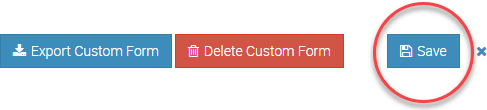
When ready, click the Save button at the far top-right of the screen.
The Form Template is now uploaded and is ready to configure in Ascora.
Now you need to work through the Form Template and create a Question in Ascora for every Field Code on the Template. You can also create Heading Questions to include fields such as company names, the document title, headings, etc. These will display on the Forms screen in the Ascora Mobile App.
Creating Form Questions
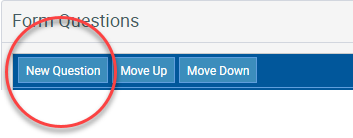
To create a new Question, click the New Question button.
In the Question Details section, enter the information for each Field Code you create on the Form Template. Create each Question in the same order they appear on the Form Template to ensure a logical flow of questions for the User.
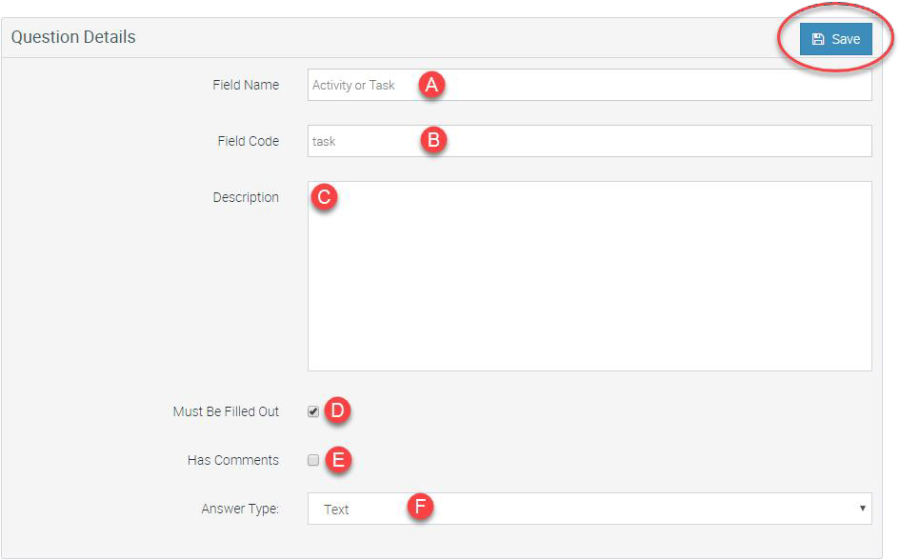
6.1 Field Name – a name you create in Ascora to identify the Question (A). Typically, this will correlate to the field name/heading that is on the actual Form
6.2 Field Code – the value you enter here must match the Field Code you entered on the Form Template for that particular field, however you do not include the enclosing Braces (B)
⚠ FIELD CODE NOTES
A. For fields such as company name, logo, document titles headings, etc, the Field Code value should be a dash symbol ➖. This will allow this information to display on the form input screen in the Mobile App without requiring any action from the User
B. For Fields with multiple answer options (such as Yes/No or multi-choice A/B/C/etc), enter the Field Code without the suffix extension. For example, in Step 3.5 we entered a Field Code in the Tag box as thaz_yes. In the Field Code for the corresponding Ascora Question, we will simply enter thaz
C. Description – will display as a subheading or instruction/information line on the form in the App to provide the User with additional information about the specific question
D. Must Be Filled Out Box – when this is Checked, the question is made mandatory for the User to complete. The User will not be able to finalise the Form without completing mandatory questions
E. Has Comments – typically used for multiple choice questions, when Checked this will create a comments box on the form that allows the User to provide additional information related to the question with free text entry
F. Choose an Answer Type from the drop-down menu . Some answer types will display additional options when selected.
After you have entered the information for a Question, click the Save button
Answer Types
NUMBER – restricts User input to numeric values only TEXT – use for short, alpha-numeric answers. For example, a Task Name or a short answer MEMO – use for questions which require longer answers DATE – use for date entry fields MULTIPLE CHOICE – use for Yes/No or multi-choice questions. When selected, an option list will display for you to enter the available options for te User to choose from (eg, Yes, No, etc) MULTIPLE CHOICE, MULTIPLE ANSWER – works in a similar fashion to Multiple Choice however the User is able to select more than one of the available options SIGNATURE – use to capture and insert a Signature HEADING – choose this Answer Type for all company names, logos, document titles, headings, etc PHOTO – used to capture and/or insert images. The user will have the option to take a photo using the mobile device, or attach a photo that already exists on the mobile device.
Creating a Question for a Checkbox or Multiple-Choice Response
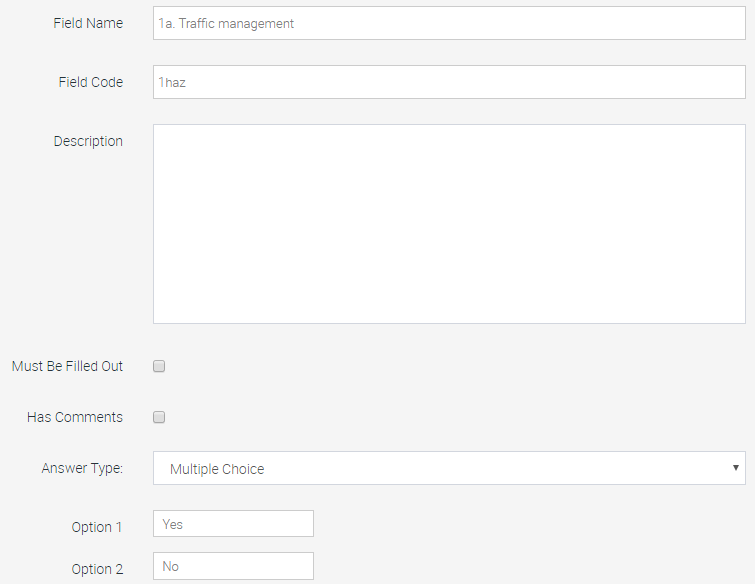
- Enter the Field Name and Description as before. Choose whether to mark this Question as Must Be Filled Out and/or Has Comments
- Enter the Field Code. Remember that for Checkbox or Multiple-Choice Questions, the Field Code must be the Main Code
- Select the Answer Type as Multiple Choice or Multiple Choice, Multiple Answer. A series of Options Boxes will appear
- Enter the choices available to the user in the Options boxes.
- In our Yes/No example before, the Main Code was thaz and the Option Codes were thaz_yes and thaz_no. So in the Option 1 box we would type yes and in the option 2 box we type no to match the suffix of the thaz codes
In our Multiple-Choice example before, our Main Code was pcon and our Option codes were pcon_Watch person, pcon_Barriers and pcon_Warning signs. Our Questions details would look like this:
Testing the Form Using the Ascora Mobile App
To test the Form, log in to the Ascora Mobile App on your phone or tablet. It is important to work through the form in its entirety to ensure every field is configured and working correctly and also to ensure the final outputted form is correctly formatted. The screenshots below are based on the iPad version of the Ascora Mobile App.
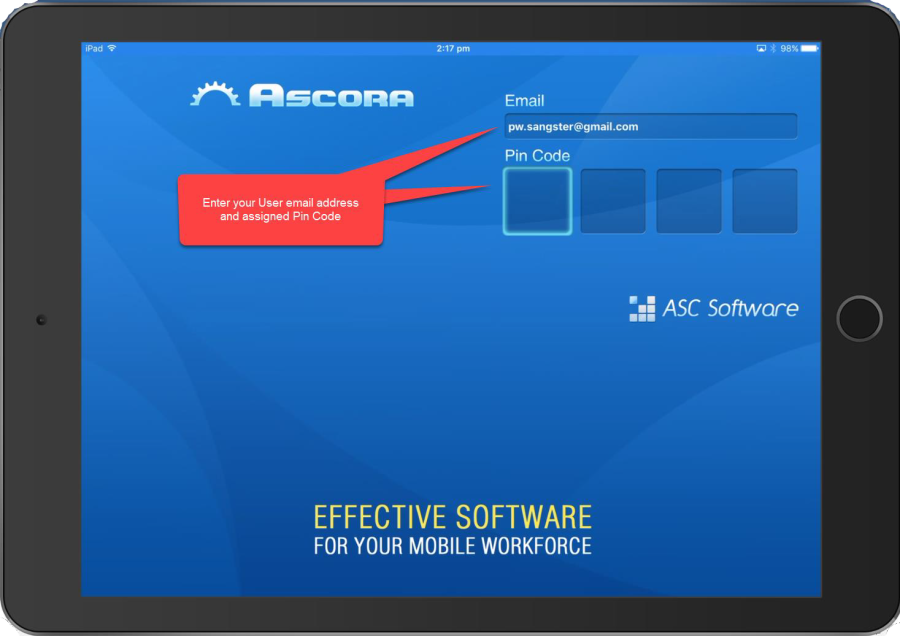
Log in to the Mobile App by entering your User email address and assigned Pin Code
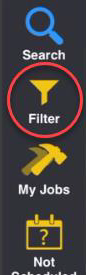
If no Jobs are showing in the list, tap the Filter icon on the Side Menu. The Filter options will display.
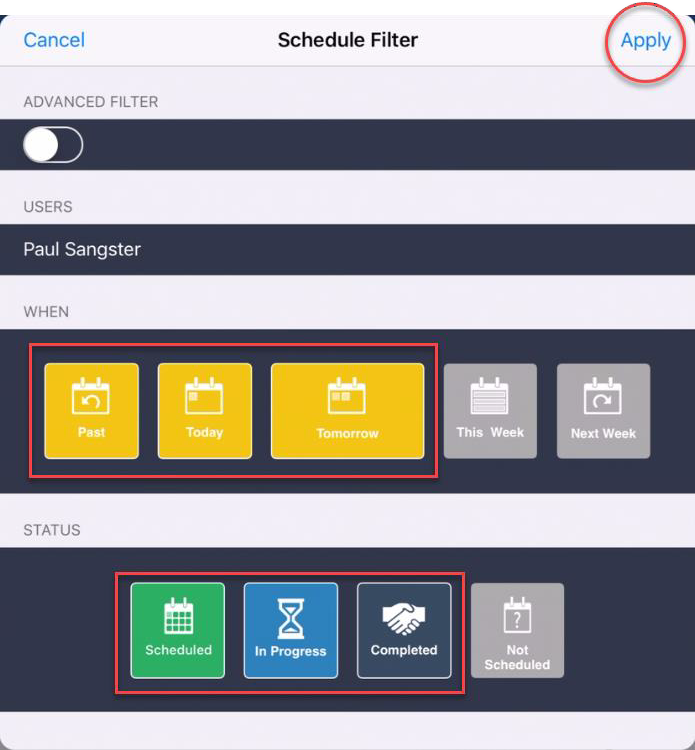
In the WHEN section, activate Past, Today and Tomorrow by tapping the respective icons. In the STATUS section, activate Scheduled, In Progress and Completed. When ready, tap Apply.
Select any Job that is displayed in the List by tapping it. This will display the Job Card.
Tap the Forms icon on the Side Menu. This will display the Job Forms screen.

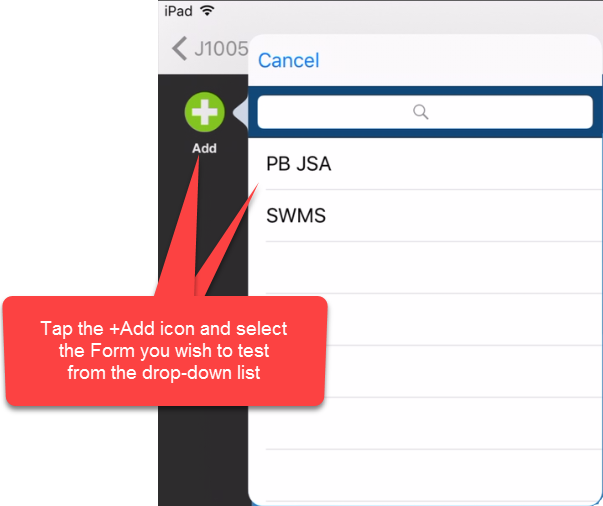
Tap the +Add icon. This will display a drop-down list of all available Custom Forms. Select the Custom Form you wish to test by tapping it.
Work through the form, answering all the questions to identify any configuration issues. Once you have completed all the answers, tap Save.
A PDF version of the Form will now generate. Check through the PDF to identify any issues with the final output
The Customer Form will not be available in the Ascora Mobile App unless:
- A Form Template has been uploaded into Ascora
- The Ascora Mobile App has been synchronised
APPENDIX A – Available Standard Fields
It is important that when you create the field code in the Form, it needs to be enclosed in squiggly brackets.
Example: If you need to add the field code SiteCustomerName then it has to be added as {SiteCustomerName} in the Form.
| Site Customer | Notes |
|---|---|
| SiteCustomerName | |
| SiteCustomerNumber | |
| SiteCustomerBN | |
| SiteCustomerFirstName | |
| SiteCustomerLastName | |
| SiteCustomerPhone | |
| SiteCustomerFax | |
| SiteCustomerMobile | |
| SiteCustomerAlternatePhone | |
| SiteCustomerEmail | |
| SiteCustomerNotes | |
| SiteCustomerSiteNotes | |
| SiteContactFirstName | |
| SiteContactLastName | |
| SiteContactFullName | |
| CareOfBillingName | |
| SiteContactMobile | |
| SiteContactPhone | |
| SiteContactEmail | |
| SiteContactFax | |
| SiteContactRole | |
| SiteAddressLine1 | |
| SiteAddressLine2 | if is not address line 2, will be replaced by a combination of site customer suburb, state and postcode |
| SiteAddressLine3 | if there is an address line 2, address line 3 will be a combination of site customer suburb, state and postcode |
| SiteAddressSuburb | |
| SiteAddressState | |
| SiteAddressPostcode | |
| SiteAddressCountry | |
| Billing Customer | |
| BillingCustomerName | |
| BillingCustomerFirstName | |
| BillingCustomerLastName | |
| BillingCustomerPhone | |
| BillingCustomerFax | |
| BillingCustomerMobile | |
| BillingCustomerAlternatePhone | |
| BillingCustomerEmail | |
| BillingCustomerNumber | |
| BillingCustomerBN | |
| BillingCustomerNotes | |
| BillingCustomerSiteNotes | |
| BillingContactFirstName | |
| BillingContactLastName | |
| BillingContactFullName | |
| BillingContactMobile | |
| BillingContactPhone | |
| BillingContactEmail | |
| BillingContactFax | |
| BillingContactRole | |
| BillingAddressLine1 | |
| BillingAddressLine2 | if is not address line 2, will be replace by a combination of site customer suburb, state and postcode |
| BillingAddressLine3 | if there is an address line 2, address line 3 will be a combination of site customer suburb, state and postcode |
| BillingAddressSuburb | |
| BillingAddressState | |
| BillingAddressPostcode | |
| BillingAddressCountry | |
| Job | |
| JobName | |
| JobAddressLine1 | |
| JobAddressLine2 | |
| JobSuburb | |
| JobPostcode | |
| JobState | |
| JobCountry | |
| JobCustomField1 | |
| JobCustomField2 | |
| JobSectionName | |
| JobNumber | |
| JobNo | |
| JobType | |
| JobSummary | |
| JobWorkUndertaken | |
| JobTotalExTax | |
| JobCompletedOn | |
| PurchaseOrderNumber | |
| ClientOrderNumber | |
| Priority | |
| CreatedOn | |
| CreatedBy | |
| Totaltax | |
| TotalAmountIncTax | |
| TotalSuppliesCharge | |
| TotalLabourCharge | |
| TimeLogged | |
| TimeResponded | |
| ReattendanceRequired | |
| Service Tech | |
| UserFirstName | |
| UserLastName | |
| UserFullName | |
| UserTeam | |
| UserJobTitle | |
| UserMobile | |
| UserEmail | |
| AssignedUserFirstName | |
| AssignedUserLastName | |
| AssignedUserName | |
| AssignedUserTeam | |
| AssignedUserJobTitle | |
| AssignedUserMobile | |
| AssignedUserEmail | |
| Custom Forms | |
| FormCompletionDate | |
| FormCompletedTime | |
| Company Details | |
| CompanyName | |
| CompanyLegalName | |
| CompanyPhone | |
| CompanyFax | |
| CompanyEmail | |
| CompanyWebsite | |
| CompanyStreetLine1 | |
| CompanyStreetLine2 | |
| CompanyStreetLine3 | |
| CompanyStreetSuburb | |
| CompanyStreetPostcode | |
| CompanyStreetState | |
| CompanyPostalLine1 | |
| CompanyPostalLine2 | |
| CompanyPostalLine3 | |
| CompanyPostalSuburb | |
| CompanyPostalPostcode | |
| CompanyPostalState | |
| CompanyReg1 | |
| CompanyReg1Name | |
| CompanyReg2 | |
| CompanyReg2Name | |
| CompanyReg3 | |
| CompanyReg3Name | |
| BankAccountName | |
| BankAccountBSB | |
| BankAccountNumber | |
| ExtraInvoiceText | |
| TaxName |
Got a question?
Submit an Idea 💡 Go to Ideas Portal