Synchronisation is important as it allows the changes or updates made on mobile app such as job photos or job notes that is newly added to appear in Ascora web. It also forces the changes made in Ascora web to appear in mobile app such as updates made on a custom form, job details, etc.
📽 Watch the video guide ⤵
How to Sychronise data using Android
1. Tap the icon located on the left of the three dots. This will do synchronisation and a notification appears on the lower part of the screen “synchronisation started” and waits for it to show “synchronisation finished.”
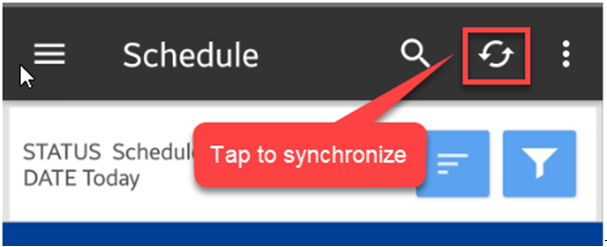
2. Alternatively, you can tap on the 3 dots and select “Settings” and you can choose from 3 options to manually synchronise, automatically synchronise, or customise the interval.

Please make sure that you are using the most updated version of the mobile app. Simply go to Play Store for Android and Apple Store for for iOS and update if necessary. Click here: 📱 How to check Mobile App Version to learn how to check check mobile app version for a certain user.
Got a question?
Submit an Idea 💡 Go to Ideas Portal