Callout fees in Ascora enable businesses to manage and charge for additional service-related costs, such as after-hours visits or emergency callouts, with ease. Configuring and applying callout fees ensures transparency in pricing and simplifies the billing process, giving customers clear details while maintaining accurate financial records.
Callout fees can be configured in advance within Administration → Labour & Callouts, making them readily available to apply to any job. They are versatile and can be added to a job directly from the web platform or via the mobile app, ensuring flexibility and seamless integration with your workflow. Whether you’re managing routine service calls or unique scenarios, Ascora empowers your team to provide efficient service without manual tracking.
This guide will walk you through:
- Adding predefined callout fees to jobs.
- Configuring new or custom callout fees to suit specific business needs.
- Applying callout fees directly from the Ascora mobile app, whether you’re using Android or iPad.
Add a Callout Fee to a Job
Navigate to the Job Card:
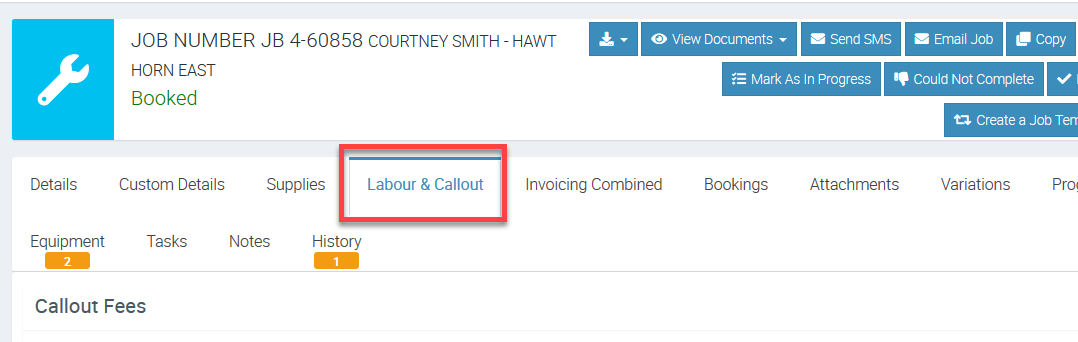
Choose the Labour & Callout Tab on the Job Card, then scroll down to the Callout Fees section.
Add a Callout Fee:
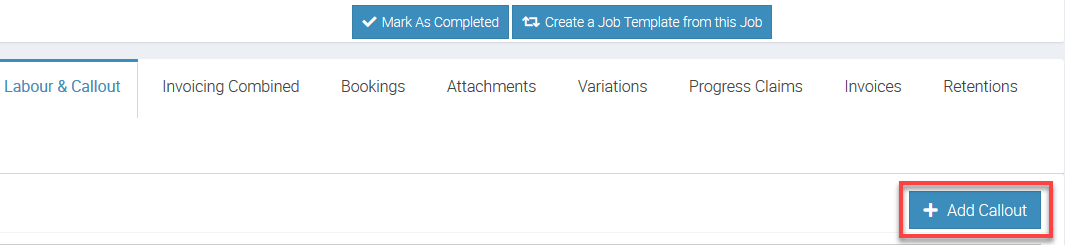
Click the +Add Callout button.
Select and Save:
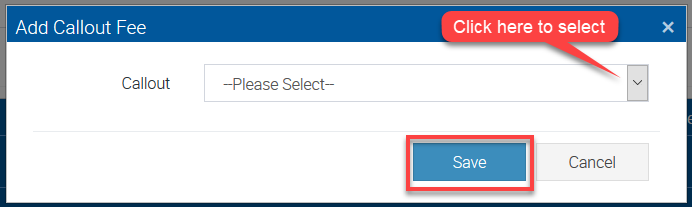
In the Add Callout Fee pop-up window, choose the relevant Callout type from the dropdown menu and click Save . The Callout Fee will now be applied to the Job and reflected in the summary.
Create or Configure a New Callout Fee
Access Labour & Callouts:
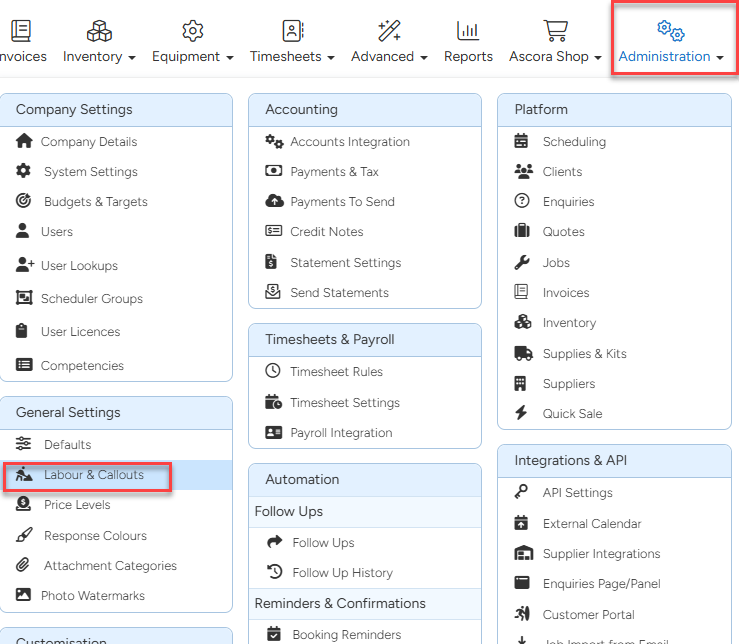
Go to Administration → Labour & Callouts to manage or create Callout Fees.
Add a New Callout Fee:
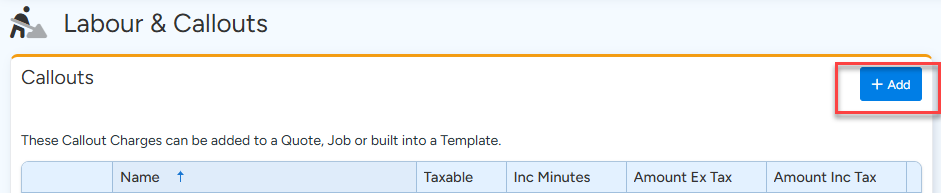
Click Add in the Callouts area.
Define Callout Details:
Input the Callout name, cost, duration (minutes), and amounts. If the fee is taxable, tick the Taxable box. Once completed, click Save to finalize your changes.

How to Add Callout Fee from the Mobile App (Android)
Access Job Details:
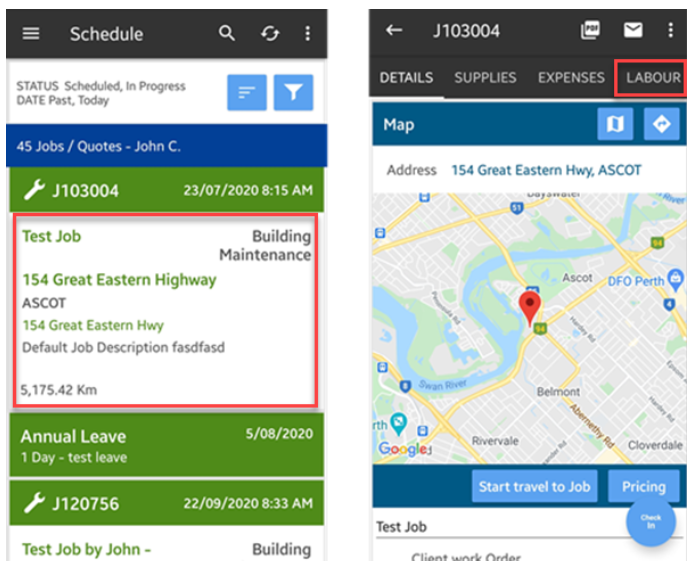
Search for the job on the main screen and tap it to open the Details screen. Tap on Labour.
Add Callout:
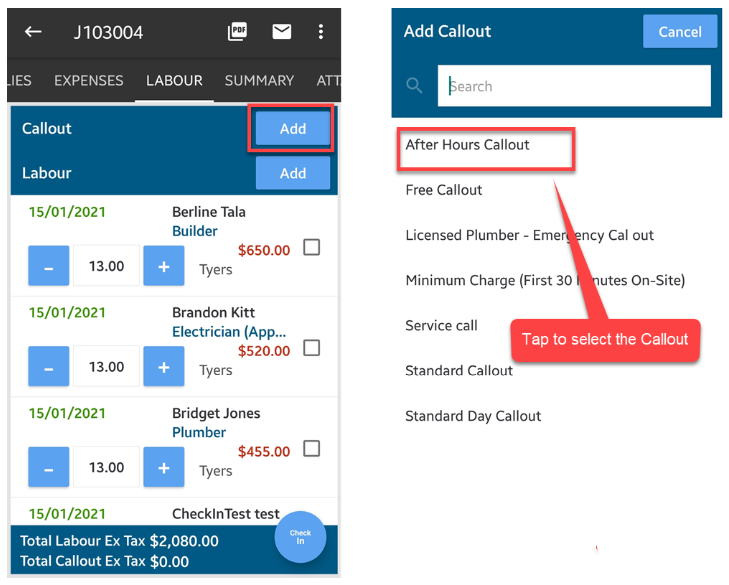
Tap Add beside Callout and select the desired Callout Fee from the list.
For example, select After Hours Callout.
How to Add Callout Fee from the Mobile App (iPad)
1. Access Job Details:
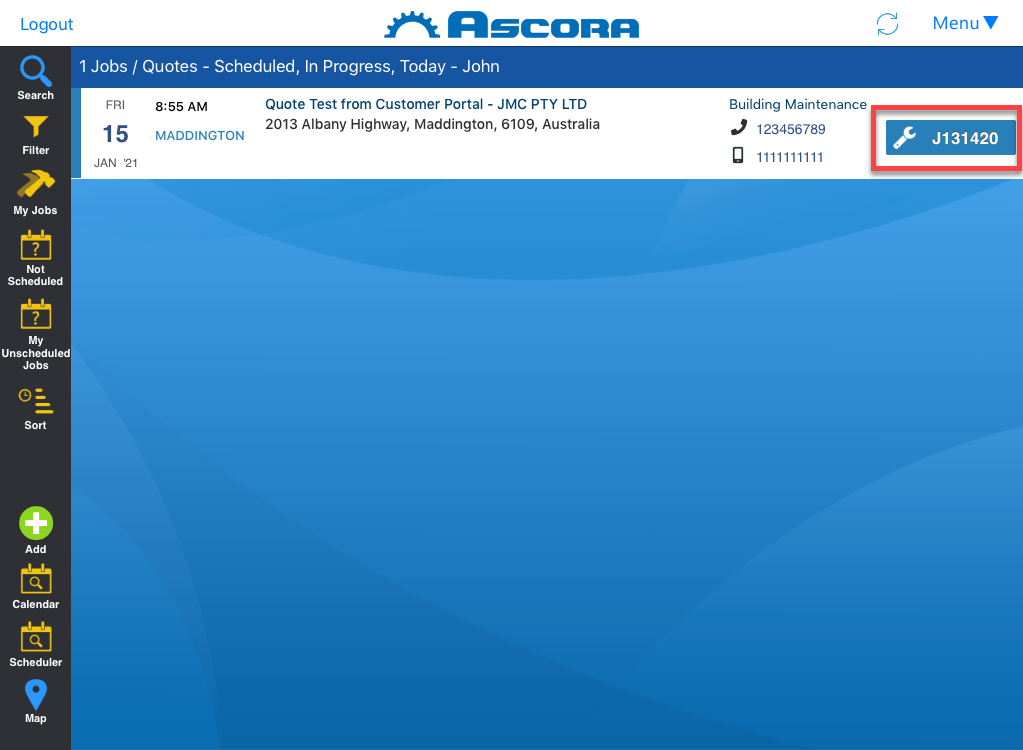
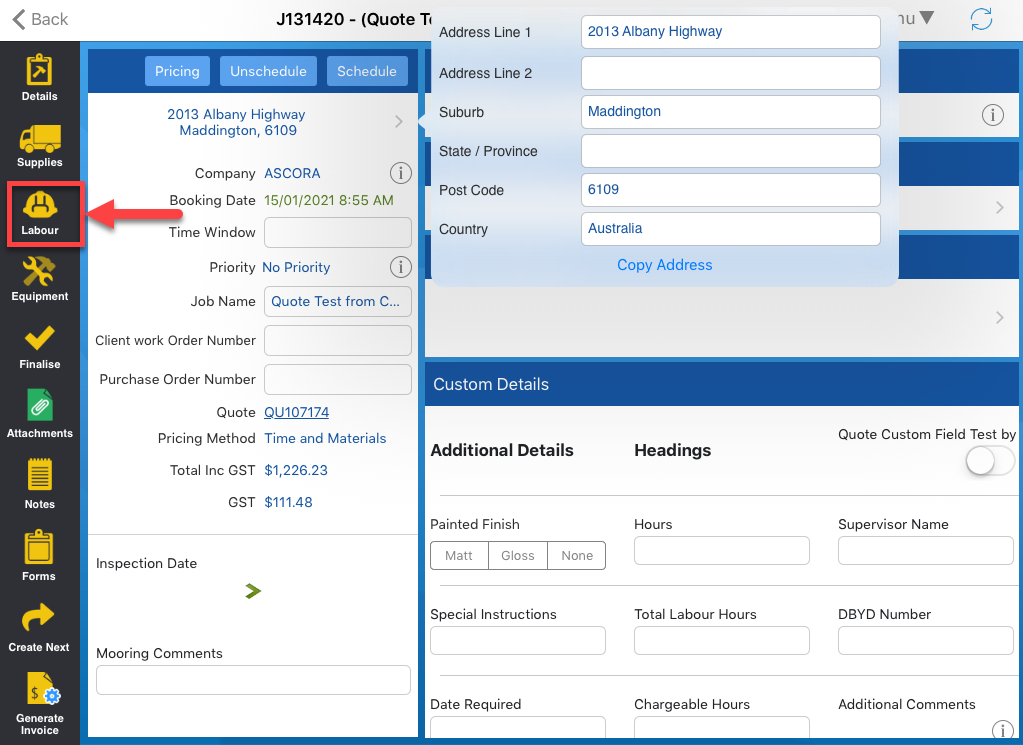
From the main or job screen, tap the job number to open the details.
Tap Labour:
Locate Labour on the left side of the iPad screen and tap on it.
Add Callout Fee:
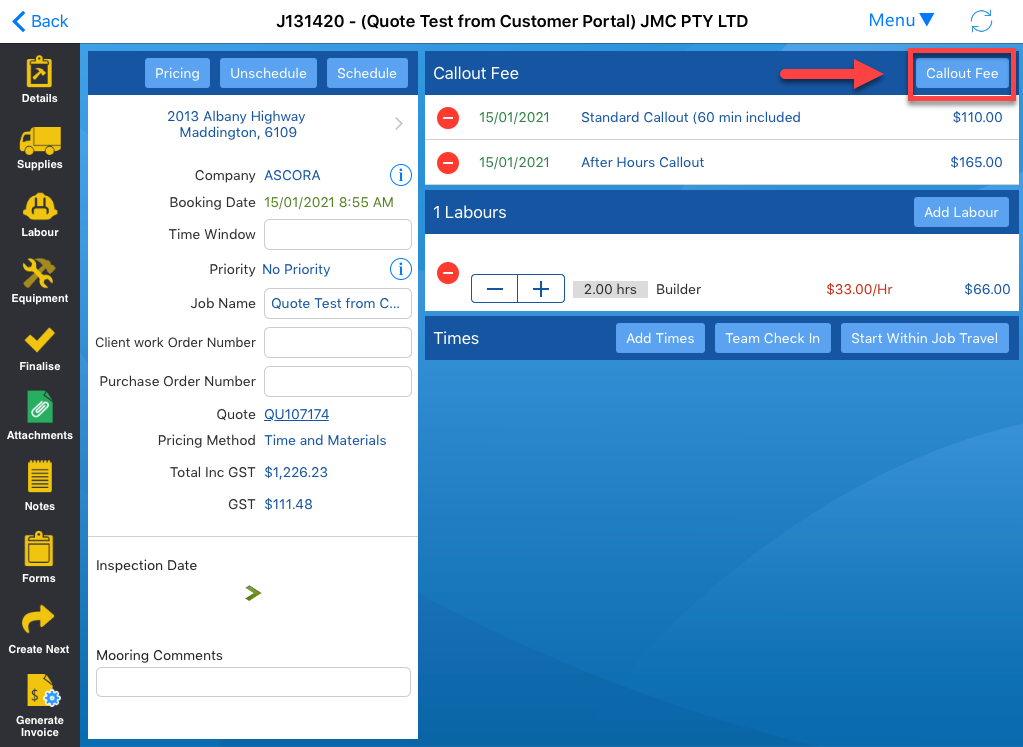
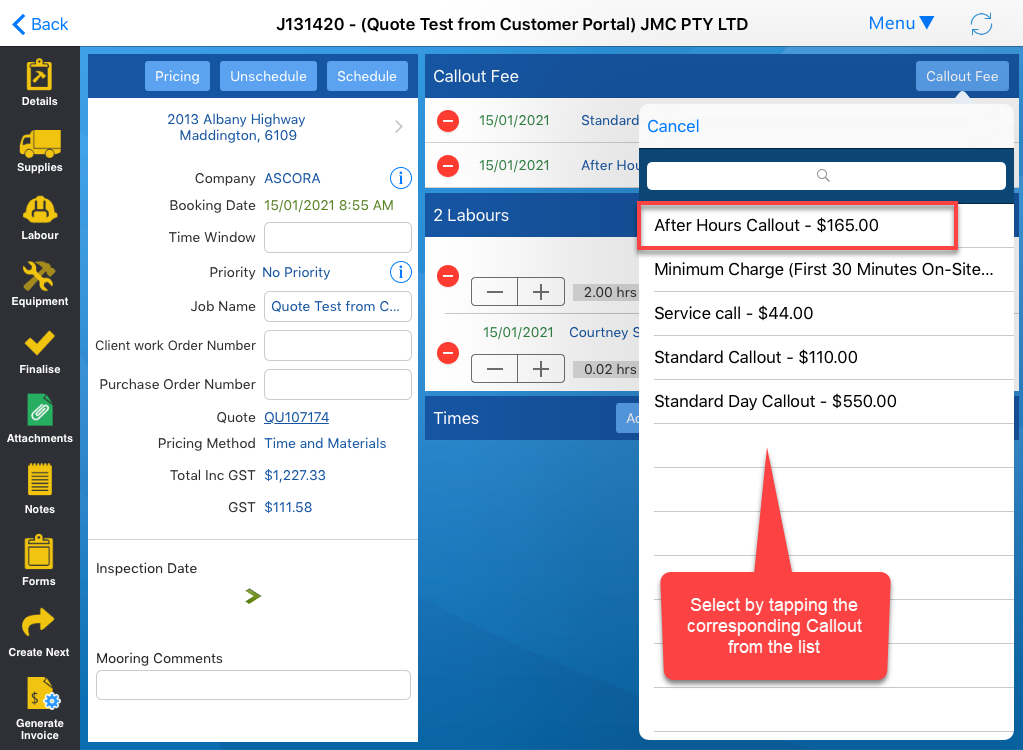
Tap Callout Fee, then select the required Callout Fee from the list.
For example, choose After Hours Callout.
Got a question?
Submit an Idea 💡 Go to Ideas Portal