Accurate timesheet reporting is essential for tracking work hours, managing labor costs, and ensuring payroll accuracy. Ascora provides a suite of timesheet reports that allow businesses to review, edit, and analyze work hours efficiently.
Users can access these reports via Reports → Timesheets and choose from:
- User Timesheet Report – View and export detailed timesheet entries for specific users or time periods.
- Timesheet Editing Report – Modify timesheet details, correct errors, and add allowances directly.
- Clock In/Out Report – Track check-in and check-out times, including GPS locations for mobile users.
These reports streamline workforce management, enhance payroll accuracy, and provide valuable insights into labor efficiency.
User Timesheet Report
This report gives details of user's timesheets for a specified date range.
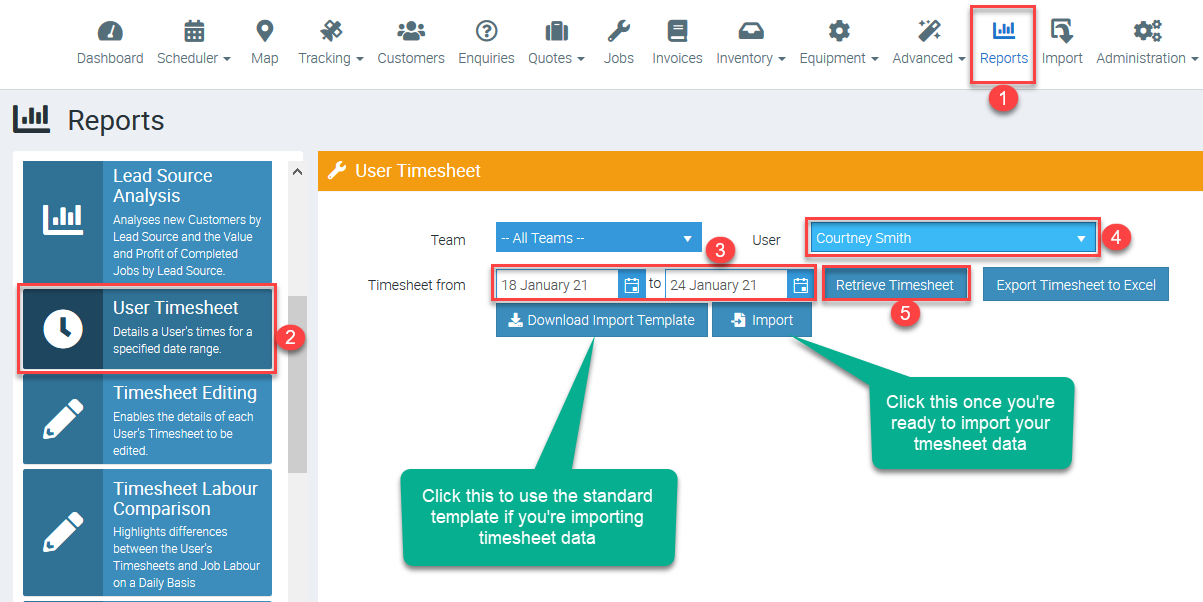
1. Go to Reports and select User Timesheet, enter the date range, select a user or all users, and click Retrieve Timesheet.
You also have an option to Export Timesheet to Excel if necessary.
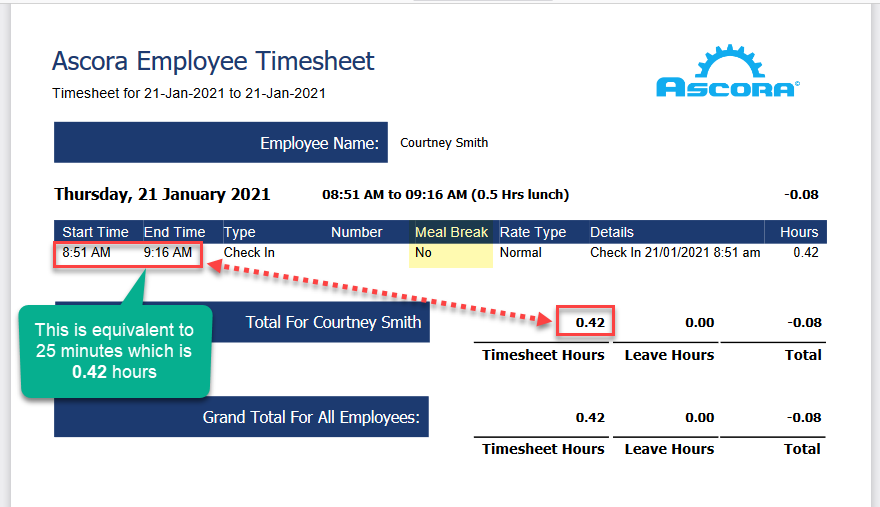
2. Timesheet Details of the user selected will be displayed.
In this example, we retrieved 21 January timesheet details for user Courtney Smith.
- This report shows check in and check out time which is 25 minutes total or 0.42 hours.
- The report also indicates if meal break was included or not.
Timesheet Editing Report
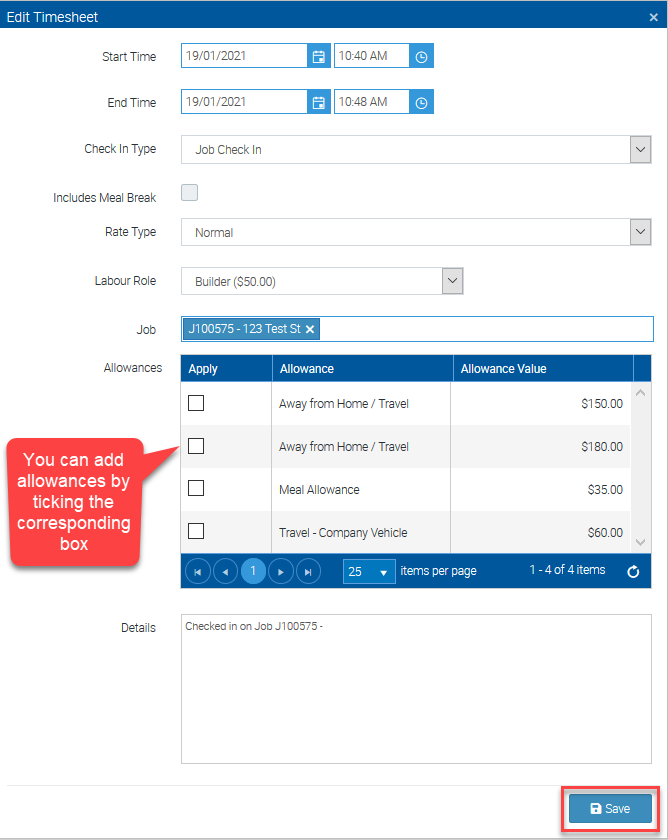
This report gives you the ability to edit timesheet details of a particular user whether it's to add allowances, make corrections on start time and end time, etc.
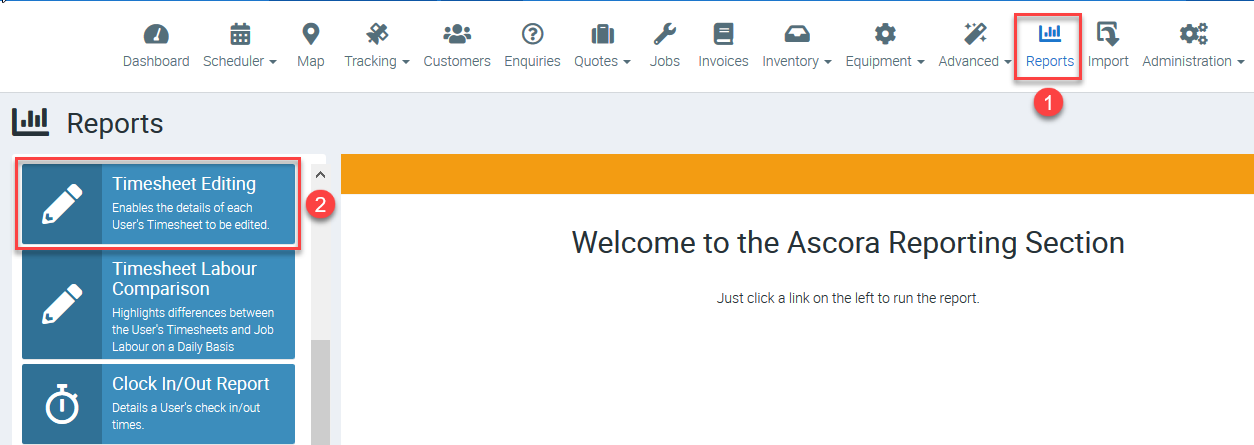
1. Go to Reports and select Timesheet Editing.
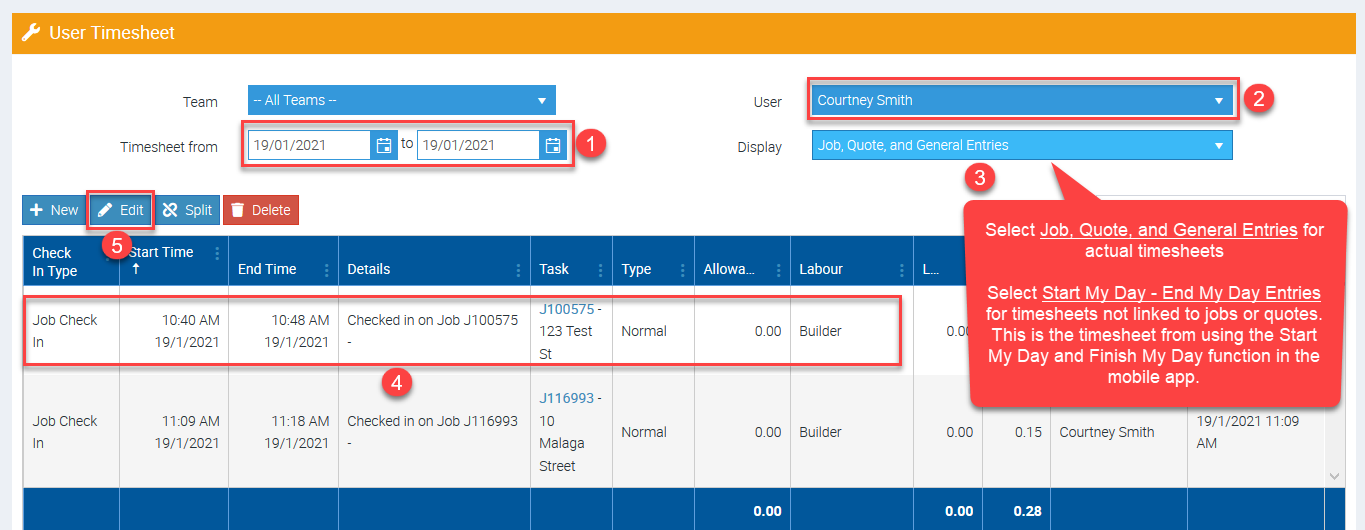
2. Enter the date range, select a user, and select the type of timesheet data.
Click on the timesheet line item that you'd like to modify, and cick Edit.
3. A new screen appears where you can see details such as Start Time and End Time that you can override or edit. After making the changes, click Save.
Clock In/Out Report
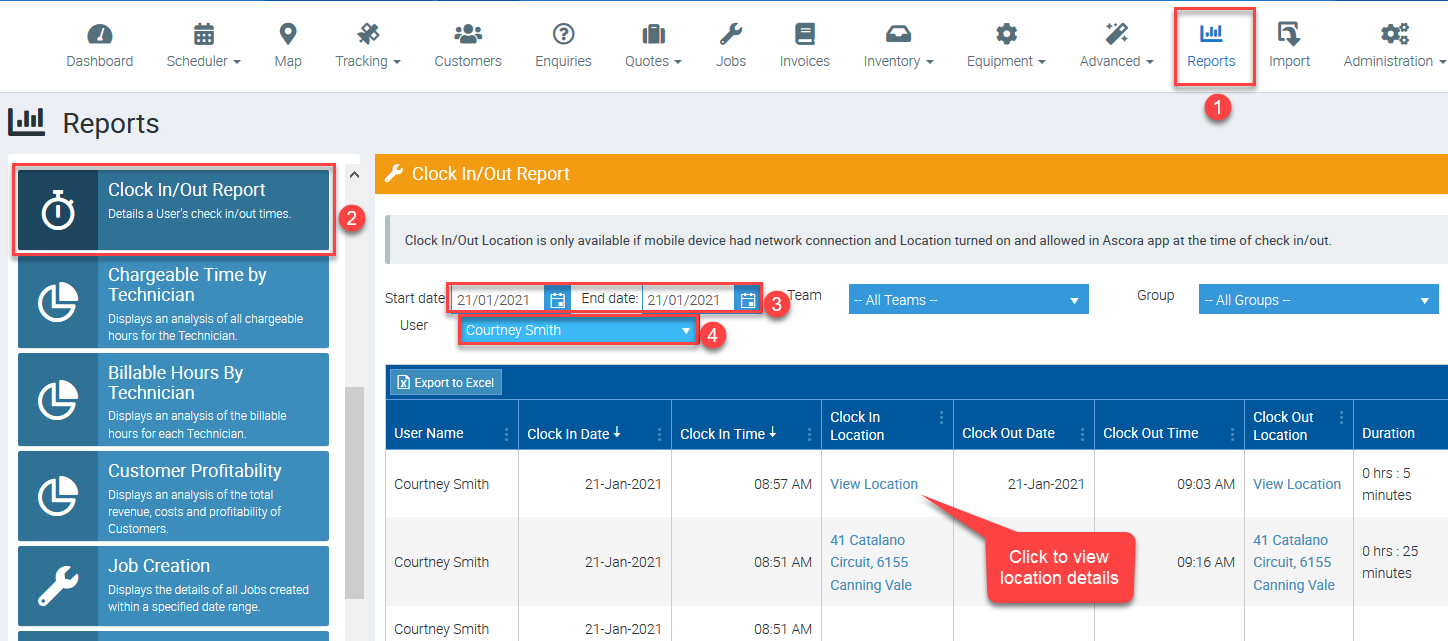
This report gives you the ability to see user timesheet details as well as locations on where the check in and check out occurred.
1. Go to Reports and select Clock In/Out Report.
Got a question?
Submit an Idea 💡 Go to Ideas Portal