For Client Admin role, you can check the mobile app version as this is helpful in a scenario when one mobile user keeps experiencing issues like app crashing, some information not populating or anything similar.
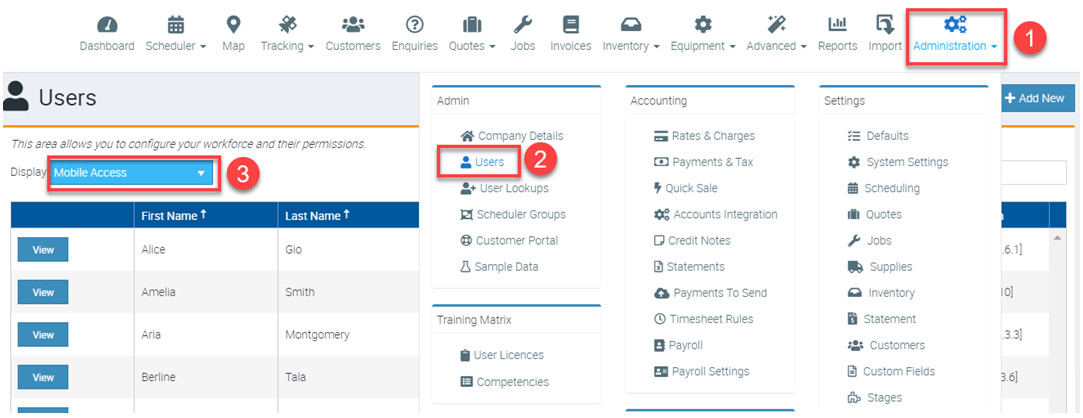
1. Start by clicking Administration → Users → and change the filter to Display Mobile Access.
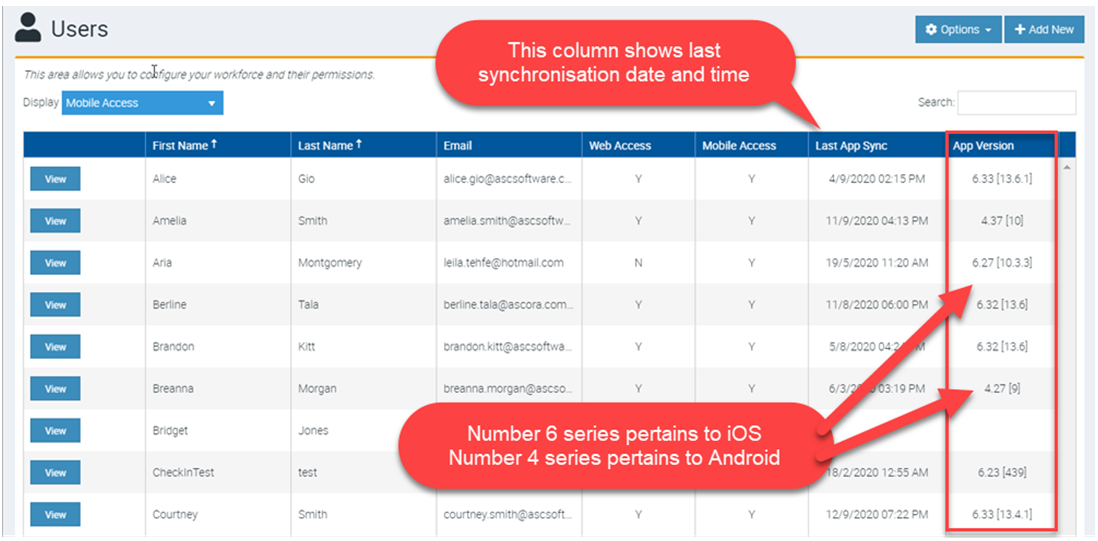
2. Check if the user is a few versions behind and you can tell by looking at the numbers. The 6 series pertains to iOS while 4 series pertains to Android.
For example, one user has app version 4.37 while other user has 4.27. This means the latter is using an older version which may explain why app is having an issue.
How to tell which version is the latest?
Newest versions are announced in the Release Notes section in Ascora.
1. Click the circle which is one of the icons on the left side of your email address and select Release Notes.

2. You'll be redirected to the Release Notes page where you can click on the title to display more information.
In this example we clicked 15 Jul 2021 - Android Release 4.45 where it displays more information about it.

When you access the Apple Store for iOS or Play Store for Android and search for Ascora App, you'll be able to see Update button to indicate that your App is not the most updated version.
Additionally, the log in screen in the Asocra App also displays the current App version.
When one user is using multiple devices perhaps iPhone and iPad or combination or Android phone and iPad, the information you'll see in Ascora web will refer to the device with the latest sync completed.
Got a question?
Submit an Idea 💡 Go to Ideas Portal