In Ascora, Common Phrases are a convenient way to quickly populate job descriptions and work undertakings without retyping the same content every time. Whether you’re working from the web interface or using Ascora’s mobile apps, these pre-defined phrases save valuable time and ensure consistency across multiple jobs or quotes. By simply selecting relevant phrases from a list, you can expedite the process of documenting your work, maintain standardized messaging, and reduce errors or omissions.
This guide walks you through setting up Common Phrases in Administration → Jobs, and shows how to access them from both Android and iOS devices for seamless, on-the-go updates.
📽 Watch the video guides ⤵
Website Guide
Mobile Guide
Setting Up Common Phrases in Ascora
Access the Common Phrases Settings
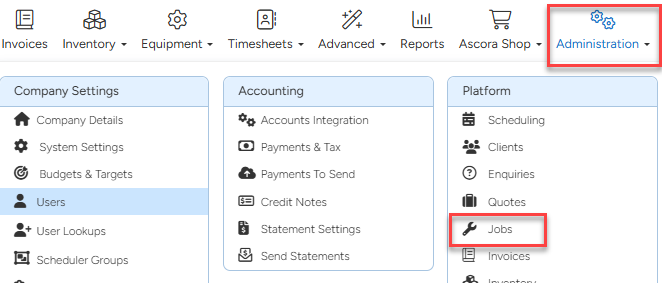
- Navigate to Administration → Jobs in Ascora’s main menu. This is where you can add, edit, or remove your standard phrases.
Add a New Phrase
- Click Add New to create a phrase you frequently use for job descriptions or work notes.
- Type the phrase in the provided field, then click Save.

You've now added your common phrases which can be accessed from the mobile app.
Using Common Phrases from your Mobile App (Android)
Open the Job
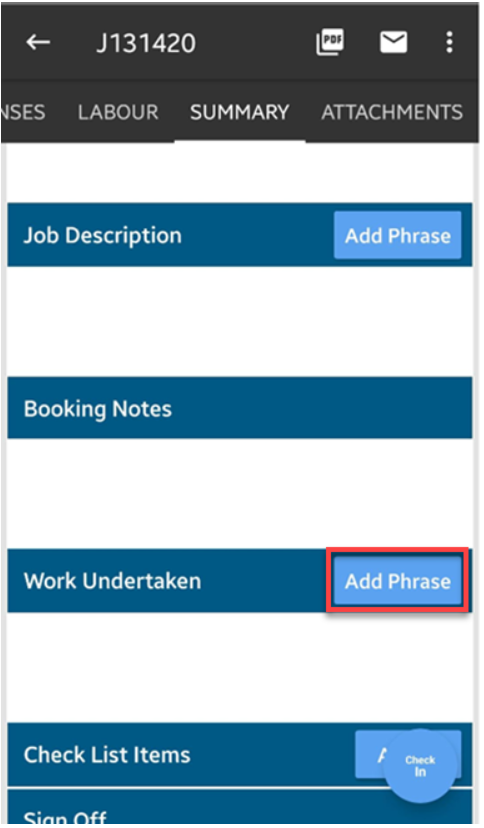
- From the main Jobs screen on your Android device, locate and tap the job you want to update.
- Select the Summary tab to access key job details.

Insert a Common Phrase
- Next to Job Description (or Work Undertaken), tap Add Phrase.
- Choose the relevant phrase from your predefined list; it will automatically populate the text box.
Using Common Phrases from your Mobile App (ipad)
Select the Job or Quote
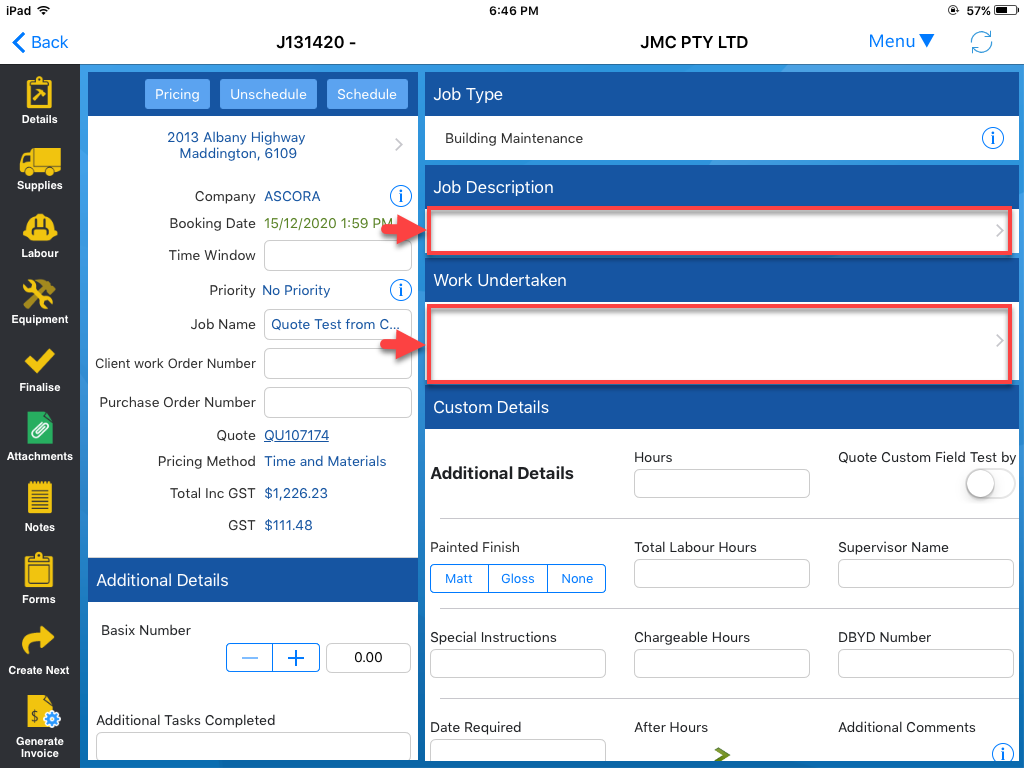
- Open Ascora on your iPad and choose the job or quote you wish to update.
- Scroll to the Job Description or Work Undertaken section.
Tap to Insert a Phrase
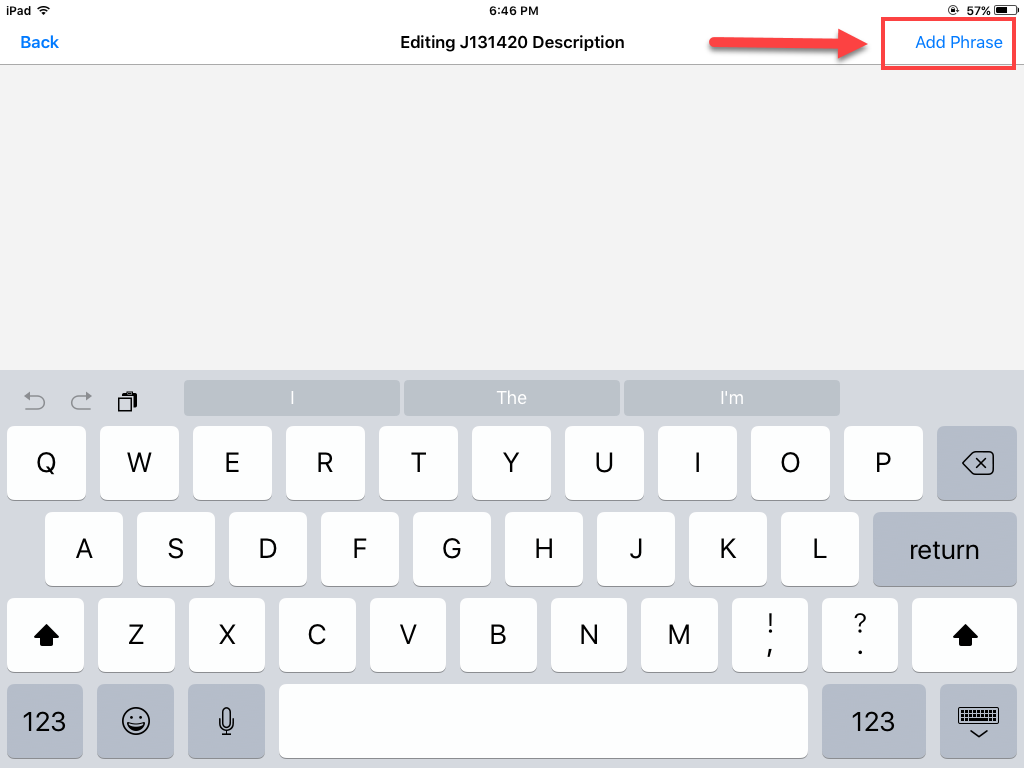
- Tap Add Phrase and pick from the list of available options.
- The phrase will populate immediately into your text field.
Got a question?
Submit an Idea 💡 Go to Ideas Portal