Custom Forms in Ascora allow you to standardize data collection, ensuring accuracy and consistency across your jobs. Whether you’re reviewing an existing form or testing a newly created one, it’s essential to verify that the fields, formatting, and responses work correctly before deploying them in the field.
This guide walks you through the steps to download, review, and test a Custom Form—both on the web and within the Ascora mobile app. Proper testing ensures that updates are applied, responses are captured correctly, and forms generate as expected in a PDF format.
1. Go to Advanced → Custom Forms.
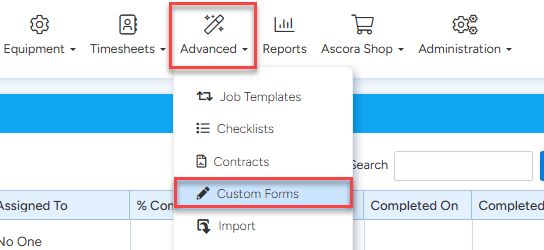
2. Search for the Custom Form name and then click View.

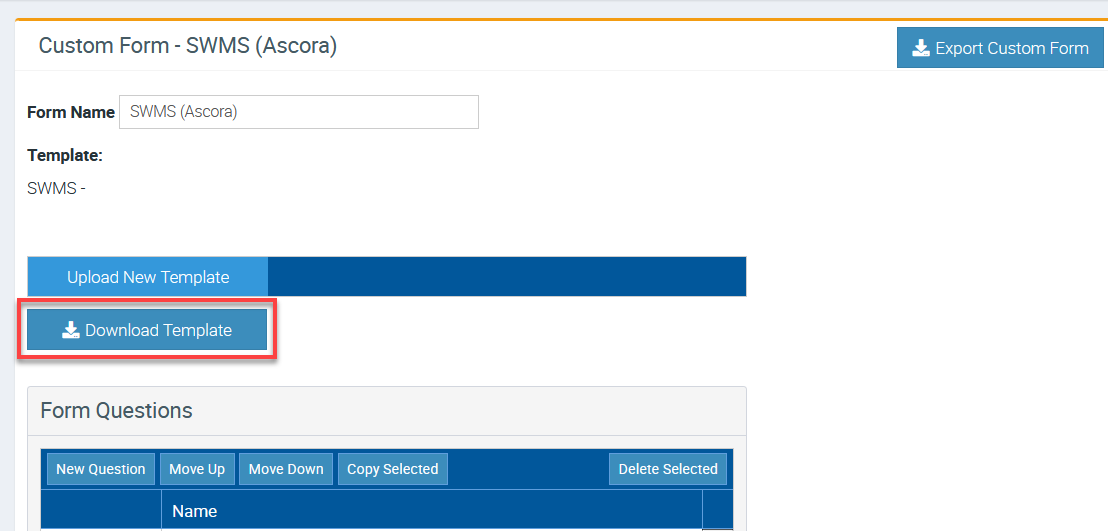
3. Click on Download Template and it will download the Word Document file.
Testing your Custom Form on your Mobile App
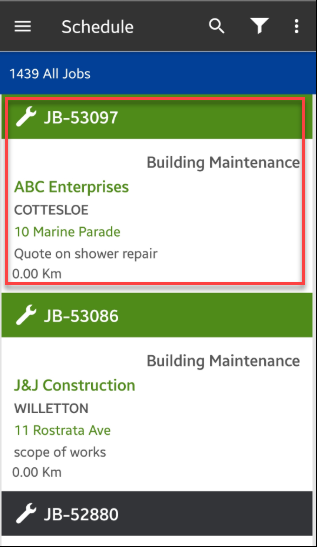
1. Access your job or a test job from the mobile app.
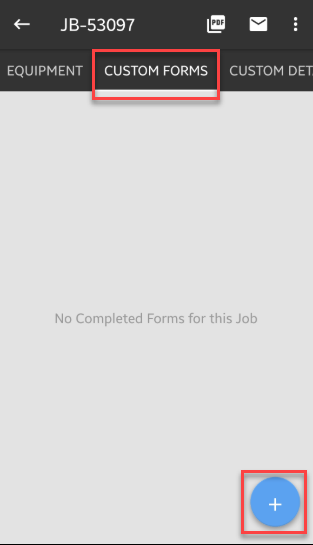
2. Navigate to Custom Forms tab and tap the + button.
Search for the form you are wanting to test or simply select from the list.
3. Scroll down to see the Custom Form details and questions and look for any adjustments that may be required.
Once ready to complete the test, click Generate and it should create a PDF version.

Got a question?
Submit an Idea 💡 Go to Ideas Portal