The Ascora Android app allows you to view and manage custom fields for equipment directly from the job screen. Custom fields can be configured in Ascora's administration area and assigned to either the Details or Custom Details sections, depending on how you prefer to organize equipment information.
This guide will show you how to access and edit equipment custom fields within the Android app, ensuring that your field teams have the necessary information at their fingertips.
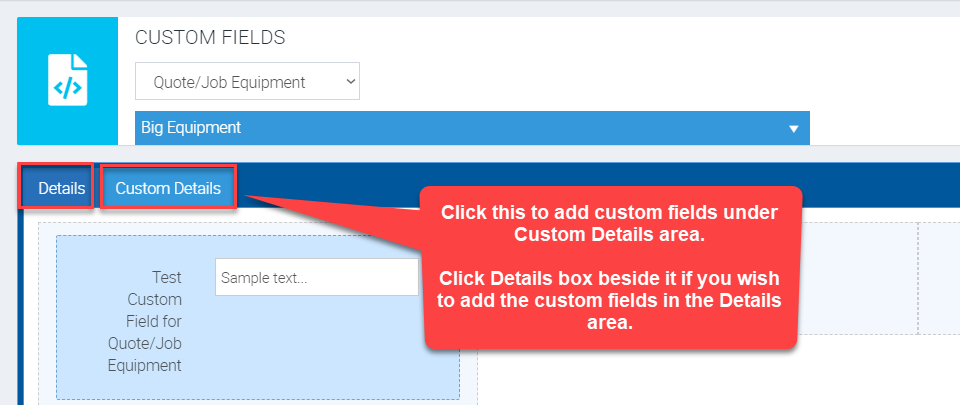
When we add Custom Fields in Administration → Custom Fields area, we have the option to either add them in the Details area or in Custom Details area.
If you don't have much information in the Details area then it's a good place to add your custom fields otherwise, you might want to add your custom fields in the Custom Details area.
Accessing Equipment Custom Fields in Android App
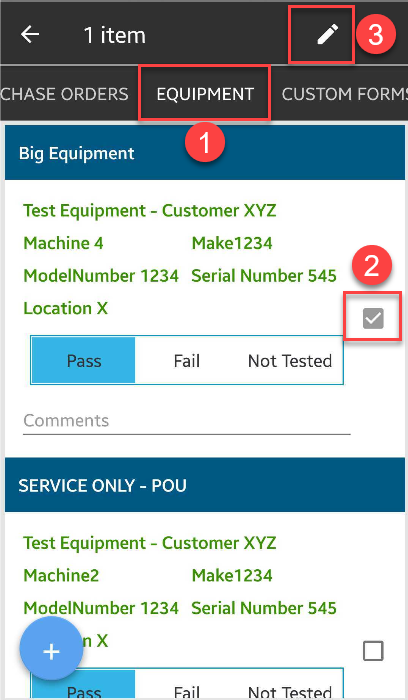
1. Tap Equipment tab from the Job screen and tap on the equipment name until the box is checked indicating you've selected the equipment and tap on the Pencil icon.
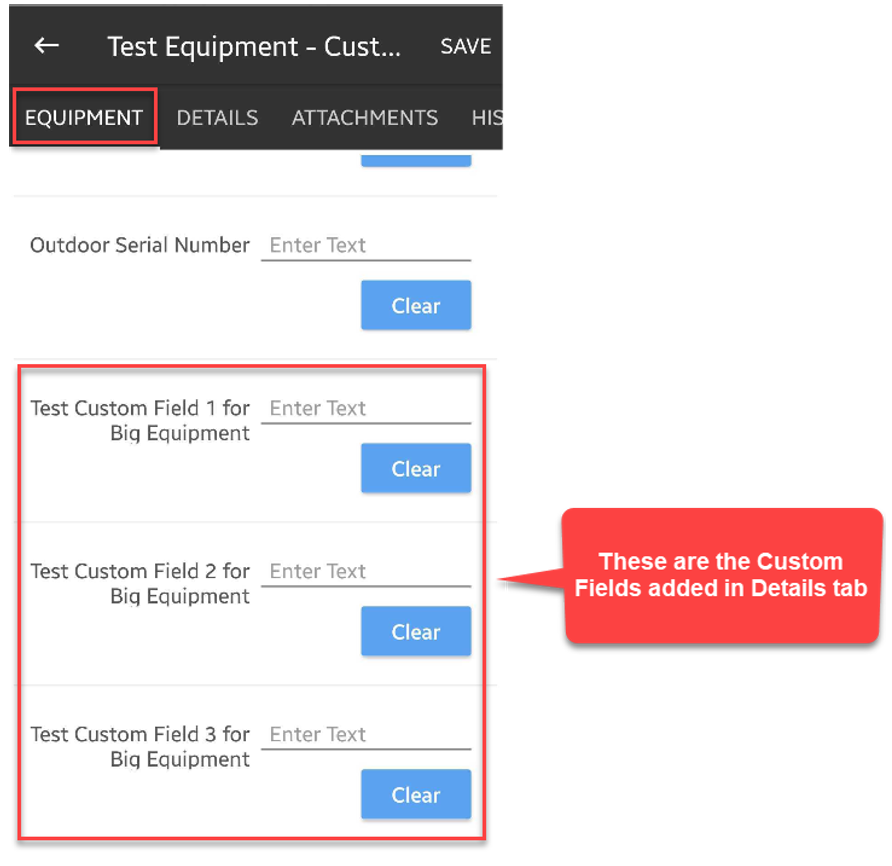
2. Equipment tab displays by default and it's where you'll see your Custom Fields added in Details area.
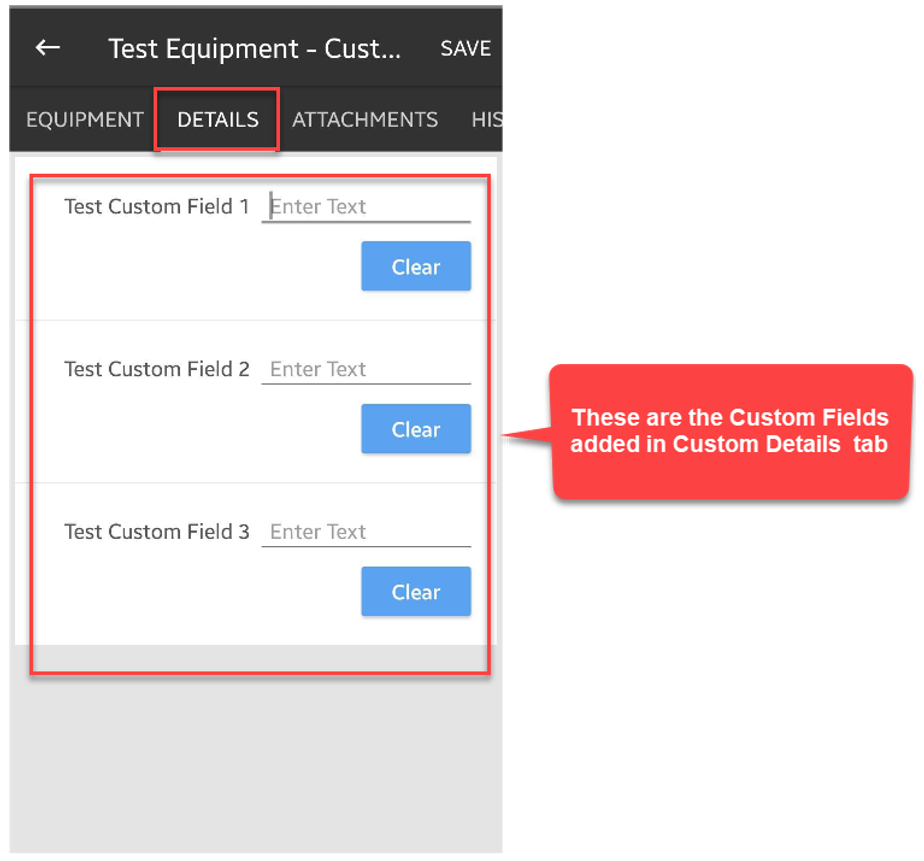
3. Tap on Details tab to see the Custom Fields added in Custom Details area.
Got a question?
Submit an Idea 💡 Go to Ideas Portal