Ascora allows you to attach files to numerous records including Quotes and Jobs – for example, before and after photos, plans, contracts, etc. As a guide, you can attach any file type that you could typically send in an email. This is helpful for keeping files associated with a Quote or Job in one place as well as giving you the ability to share selected files with customers via the Customer Portal. You can also choose to mark Attachments as confidential, which restricts access to authorised Mobile App Users only.
📽 Watch the video guide ⤵
Mobile Guide
Choose the Jobs Icon in the Top Menu to display the Jobs List then select the applicable Job from the list to view the Job Card.

1. Choose the Attachments Tab on the Job Card.

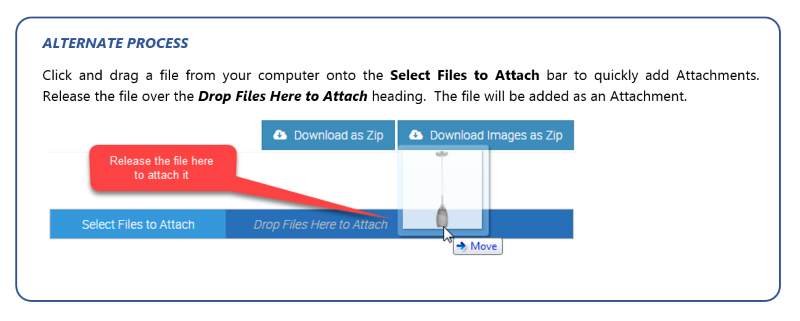
2. Click the Select Files to Attach button. Locate the file on your computer and click Open. The file will be added to your Attachments list.

View an Attachment
Under the Attachments Tab on the Job Card, click on the Attachment’s Name. If the attachment is an image (e.g., a JPEG or PNG) it will open and display in a pop-up window. Attachments such as PDF’s and Word documents will download to your computer. You can also click the download icon next any Attachment to download it to your computer.
Share an Attachment via the Customer Portal
You can choose whether to share Attachments via the Customer Portal by marking them as Viewable or Hidden. By default, Attachments are marked as Hidden. To mark an Attachment as Viewable, select the Attachment by clicking the check-box then click the Viewable in Customer Portal button. Note the ‘N’ in the Customer View column will change to a ‘Y’.

Restrict User’s Ability to View Attachments
By default, Attachments can be viewed by all Users via the Mobile App. To disable access to an Attachment for specific Users, you must (a) mark the Attachment as Confidential and (b) configure the Mobile User Access Permissions.
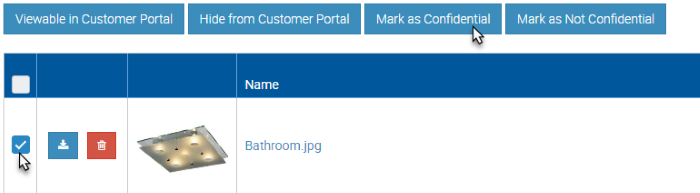
1. To mark an Attachment as Confidential, select the attachment by clicking the check-box then click the Mark as Confidential button. Note the ‘N’ in the Confidential column will change to a ‘Y’.
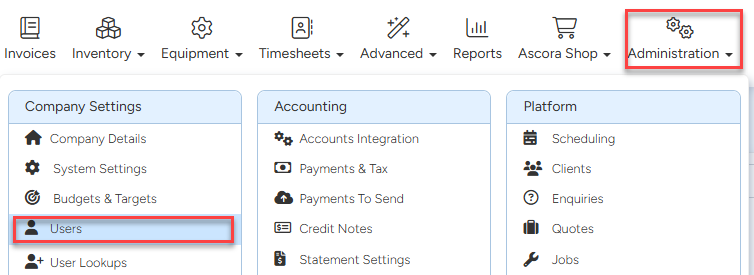
2. To grant or deny a Mobile User’s access to confidential Attachments, choose the Administration Icon from the Top Menu and select the Users option.
3. Locate the User you wish to edit mobile access permissions for and click the View button.

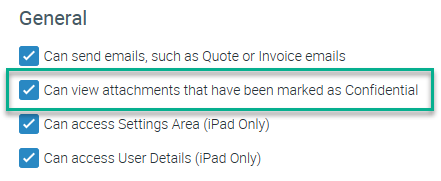
4. Under the Mobile Access Level Permissions (at the right-hand side of the screen), scroll down to the General section. Toggle the Can view attachments that have been marked as Confidential check-box to grant or deny this User access to confidential Attachments.
Got a question?
Submit an Idea 💡 Go to Ideas Portal