Managing multiple supplier options for a single supply item can give your business greater flexibility, cost savings, and improved stock availability. Ascora allows you to associate a supply item with multiple suppliers while keeping pricing, lead times, and availability in check. This ensures that you can efficiently source materials from alternative suppliers if your primary vendor is out of stock or has changed pricing.
By linking multiple suppliers to a supply item, you can:
✔ Ensure continuous supply availability – Easily switch suppliers when stock shortages occur.
✔ Compare costs – Track different supplier pricing to choose the most cost-effective option.
✔ Streamline ordering – Generate accurate Purchase Orders (POs) based on preferred suppliers.
✔ Standardize inventory tracking – Maintain a consistent part number (e.g., manufacturer code) across suppliers.
✔ Optimize bulk updates – Quickly update supplier details using import templates for bulk changes.
Methods for Adding Multiple Suppliers to a Supply Item
Ascora provides two ways to link multiple suppliers to a supply item:
1️⃣ Bulk Import Process – Best for adding or updating multiple items at once.
2️⃣ Manual Update in Supply Details – Best for updating a few individual items directly in Ascora.
Follow the steps below to ensure your supply items are correctly linked to multiple suppliers and can be efficiently ordered when needed.
Import Process for Bulk Changes
If you're doing bulk changes, you can use the standard import template and follow the steps below on how to enter the details.
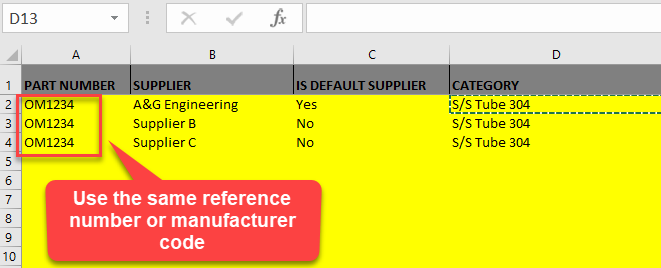
A. Enter the same Part Number in column A which could be a manufacturer code.
B. Indicate the supplier names in column B.
C. Put Yes for the Default Supplier and then put No for the other suppliers where you can possibly purchase the items.
D. Enter the rest of the details for the other columns such as D, H, I, J, K, L, and M.
If you're adjusting just one of a couple of items, you can do it directly by accessing Inventory → Supplies and open the supply details.
Click on the Suppliers tab and add the other suppliers from there.
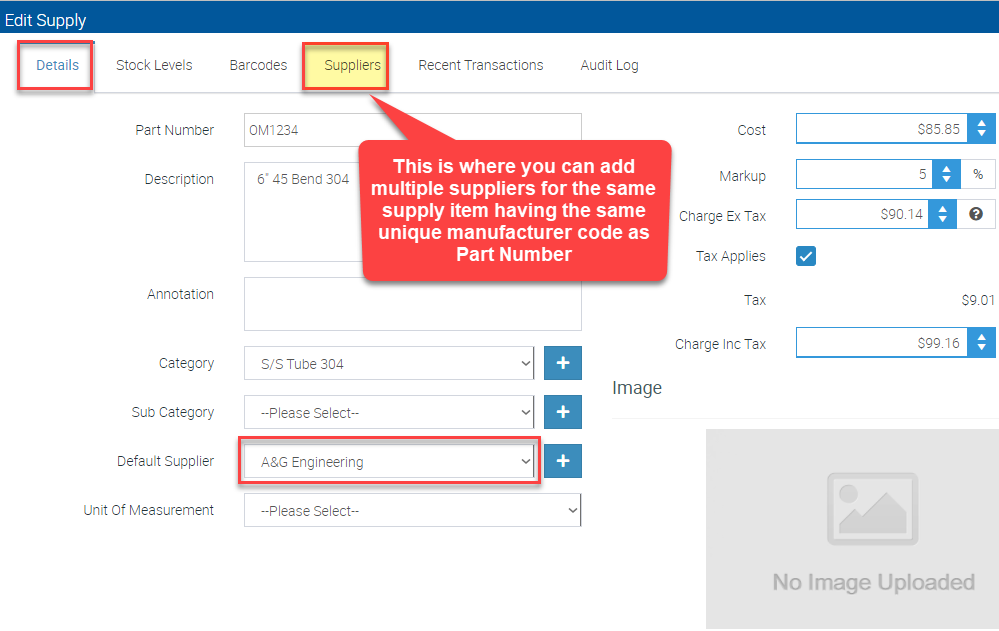
In the example below, our default supplier is A & G Engineering and we added two more suppliers for the same item.
