Custom Forms in Ascora offer flexibility to ensure your business processes are streamlined and efficient. Whether you need to adjust formatting, add new fields, incorporate additional signatures, or enhance photo capture capabilities, this guide walks you through the process step by step.
This guide covers:
- Formatting changes (e.g., font size, layout, colors)
- Adding new content such as fields for signatures, checklists, and additional images
- Ensuring updates are reflected in the Ascora Mobile App
By following these steps, you can tailor your Custom Forms to align with your workflow, improving accuracy and ease of use for your team.
📽 Watch the video guide ⤵
Contents
- 📽 Watch the video guide ⤵
- Downloading Custom Form Template
- Making Adjustments on your Custom Form Template
- Formatting Changes
- Testing your Custom Form on your Mobile App
- Content Changes
- Testing your Custom Form on your Mobile App
- List of Answer Types that you can select when creating or adding a Custom Form question
Downloading Custom Form Template
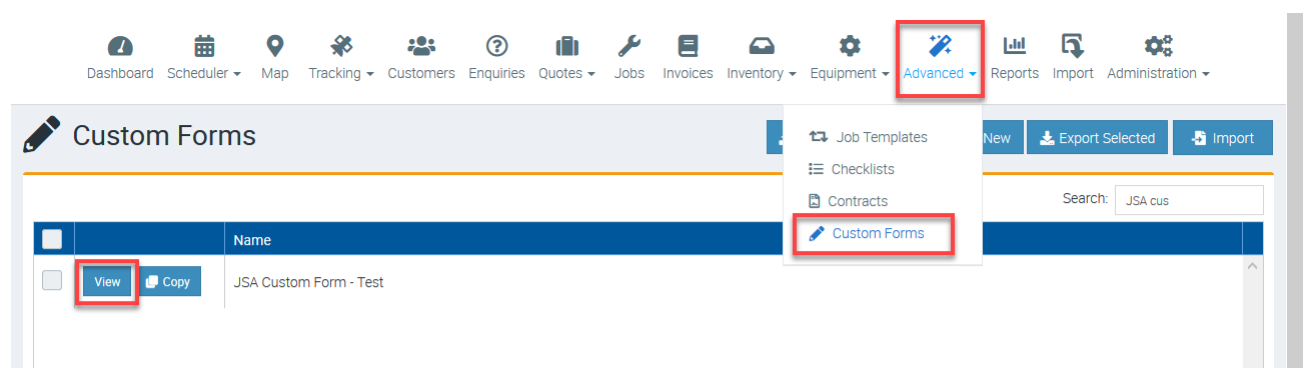
1. Download your custom form by going to Advanced → Custom Forms and click View beside the Custom Form Name which is basically the form that you need to update.
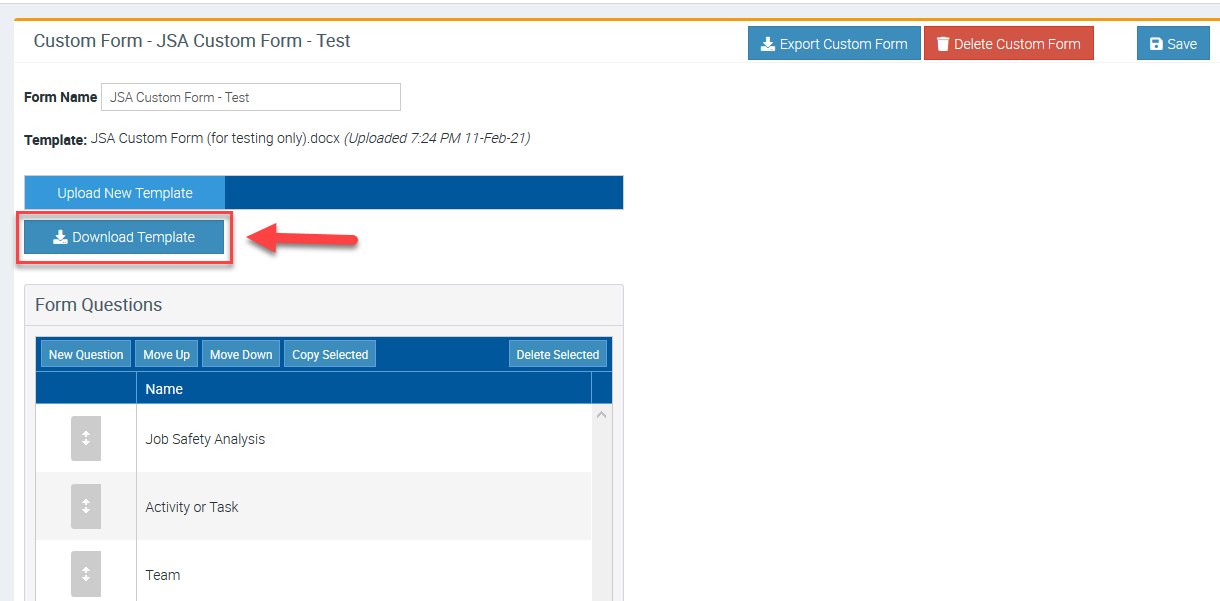
2. Click Download Template and it will download the Word Document file which you can edit or make formatting changes or content changes.
Making Adjustments on your Custom Form Template
Open the Word Document template that you've downloaded and make the necessary adjustments. Please note that there are two types of adjustments that you can make;
Formatting Changes - such as changing the look and appearance of the form, making the font size bigger or smaller, adding logos, or formatting some tables.
Content Changes - such as adding more details, adding another set of information in a table or in a form of checklist, or perhaps adding an area for more signatures or more photos.
Formatting Changes
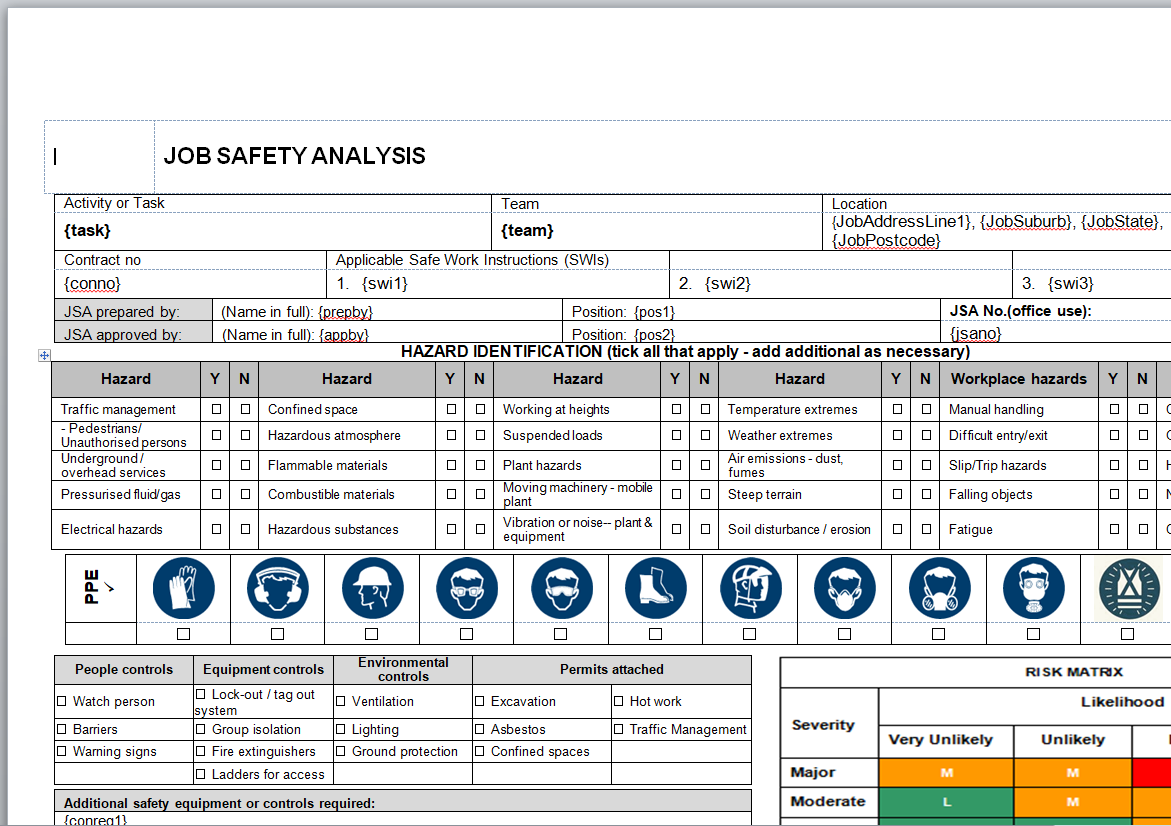
1. Access the Word Document file and make the necessary formatting changes.
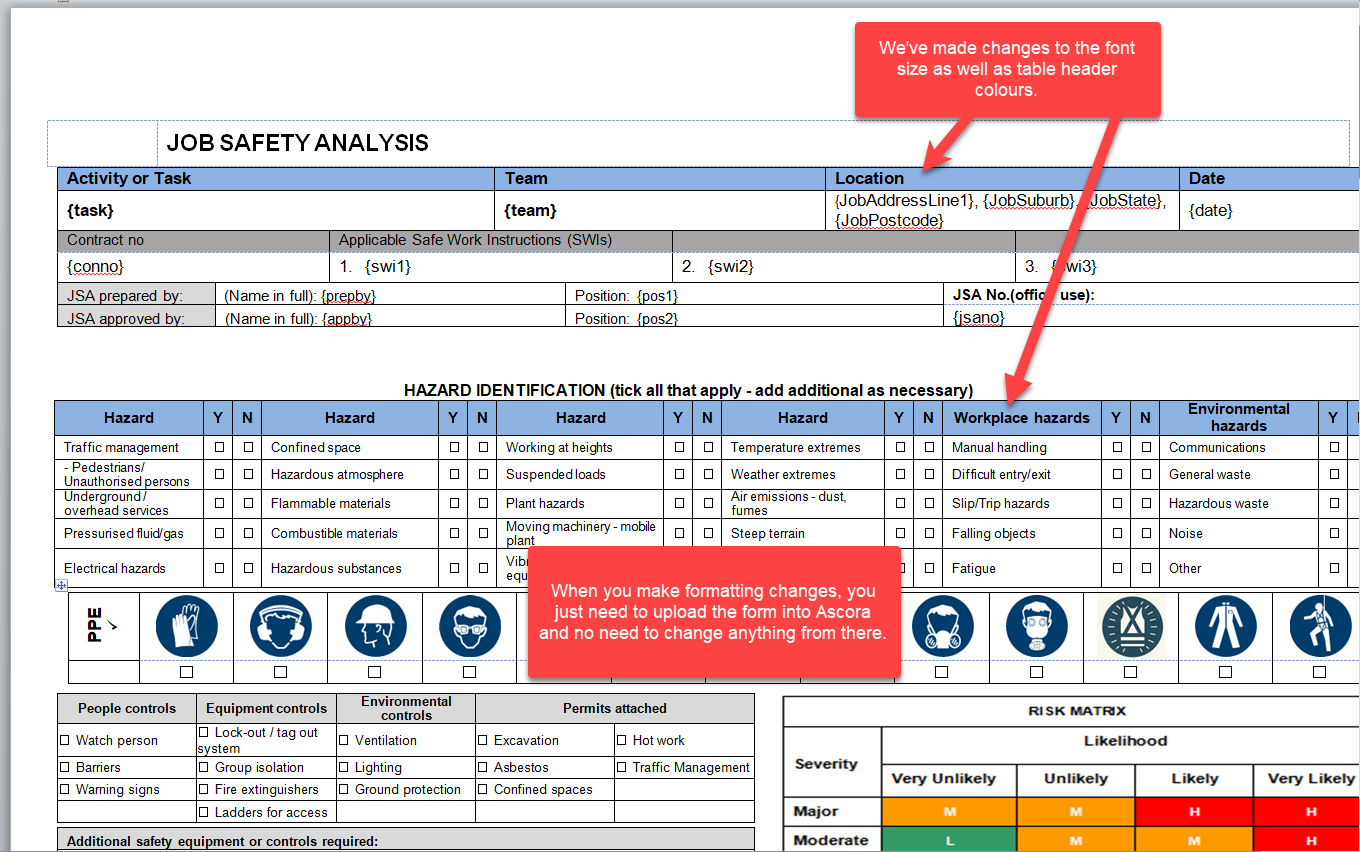
In this example, we will make formatting changes by increasing the font size and changing the table colours.
2. After making the formatting changes, save the document so you can upload it back to Ascora.
Image below shows the formatting adjustments that we've completed.
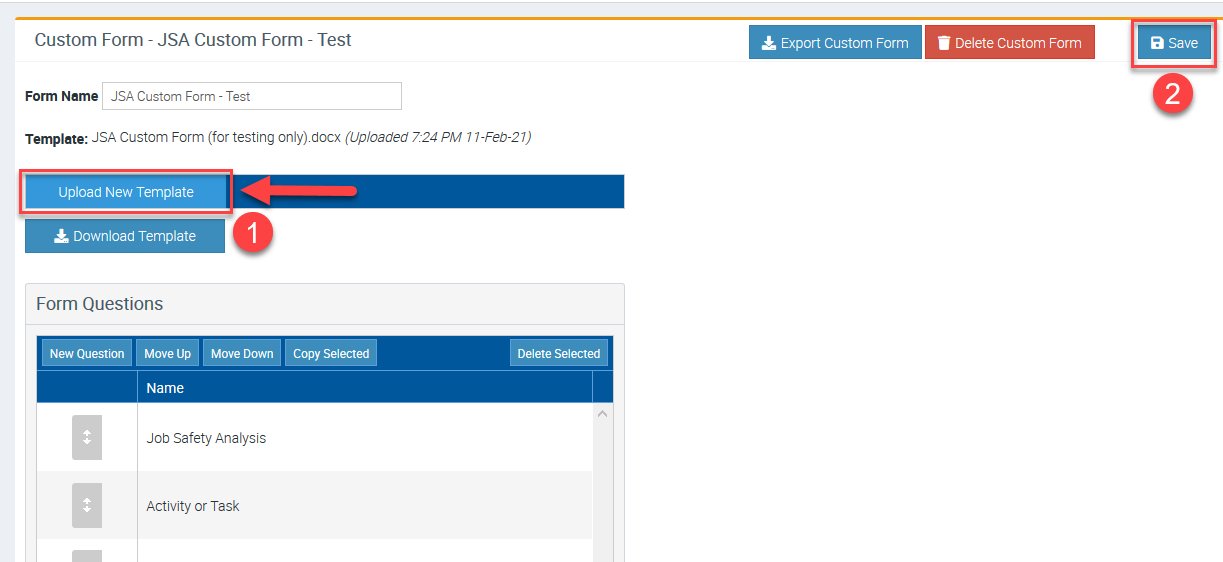
3. Go back to Ascora web Custom Form area and click Upload New Template then click Save.
Testing your Custom Form on your Mobile App
Make sure to do synchronisation first before running the testing.
1. Access your job from the mobile app.
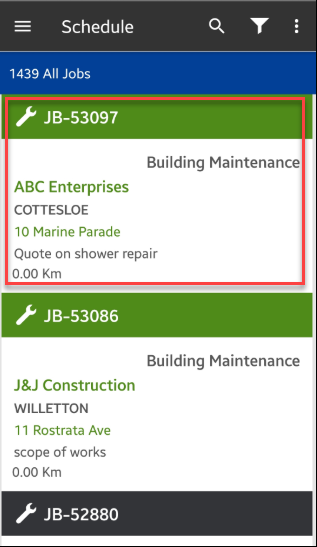
2. Navigate to Custom Forms tab and tap the + button.
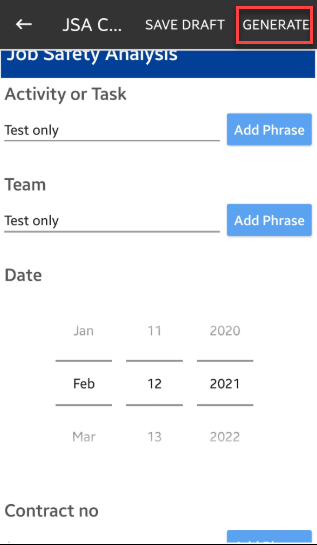
The form that appears should already be the updated version.

3. Click Generate and it should create a PDF version.
Remember not to use a draft or previously saved custom form to do the testing. Always tap the + button to test a new one.
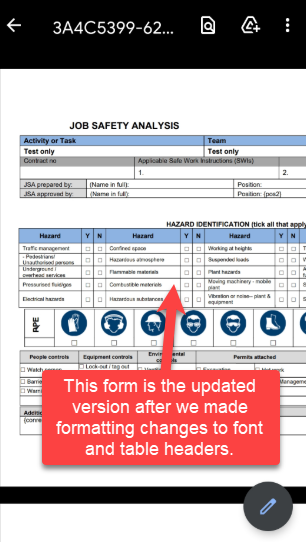
4. After generating the form, you should immediately see the changes or updates.
In this example, we can confirm the changes that we've made on the JSA form such as increasing font size and changing some of the table headers highlights.
Content Changes
Access the Word Document file and make the necessary content changes.
In this example, we will make a content change by adding a signature field. Other content changes that you can make are adding fields to add photos, creating a checklist or task list, etc.
1. To add a signature, you need to insert a Signature placeholder which could be an image file by going to Insert → Photos → then select your signature or image place holder.
You may download the sample below and use it instead.

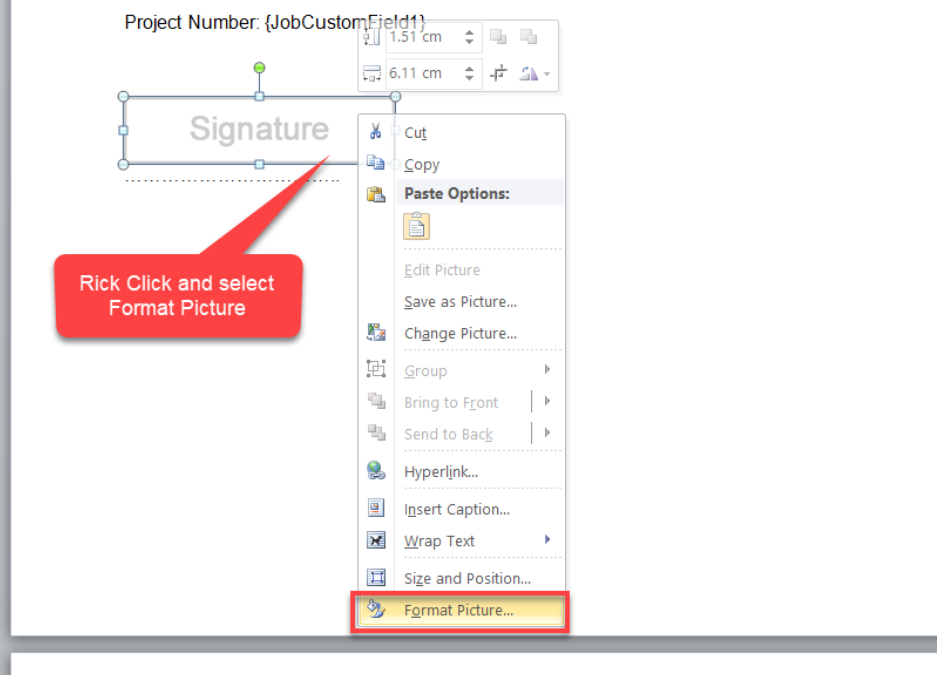
2. On your custom form, right click the image and select Format Picture.
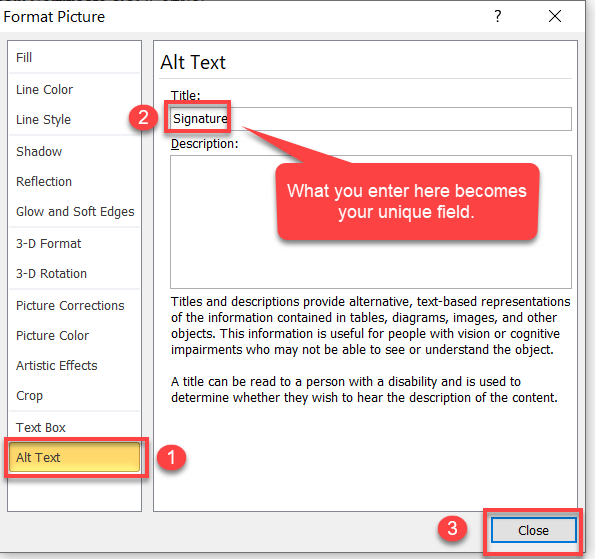
3. Select Alt Text and under Title, enter a name which basically becomes your unique field code and click Close.
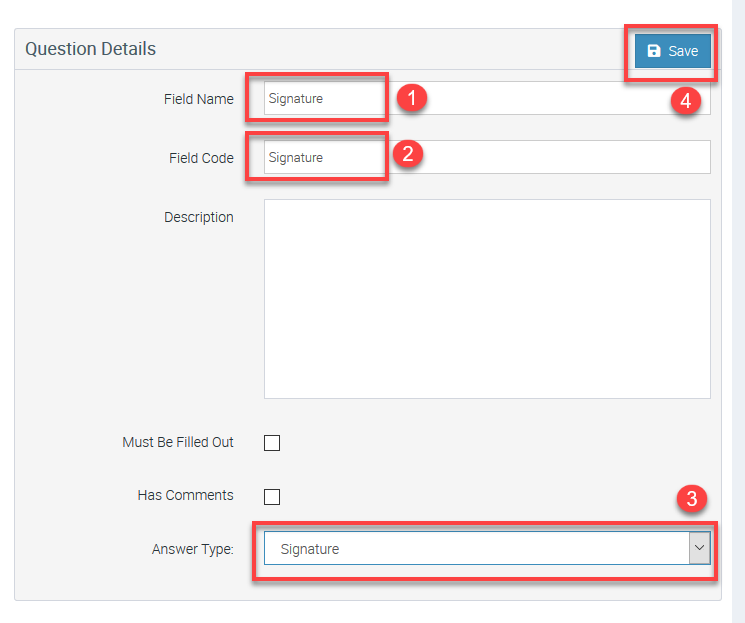
In this example, our field code is Signature and it must be exactly the same format when we enter this in Ascora Form Question later.
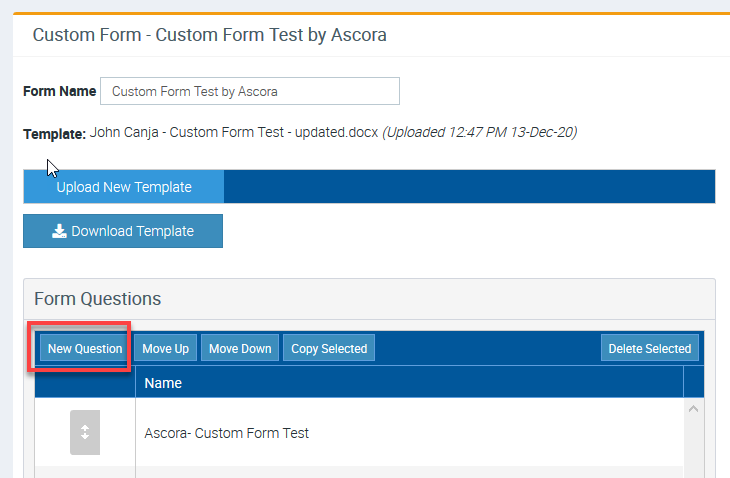
4. Go back to Ascora Custom Form page and Click New Question.
5. Enter the Field Name, Field Code, and select Signature as your Answer Type and click Save.
Testing your Custom Form on your Mobile App
Make sure to do synchronisation first before running the testing.
1. Access your job from the mobile app.
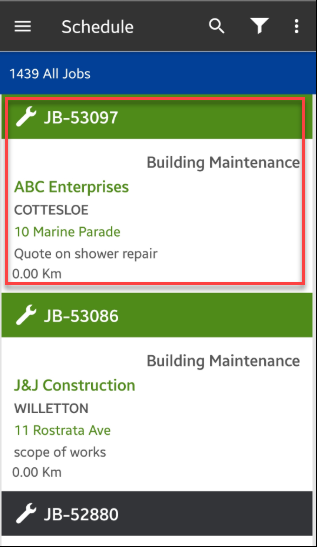
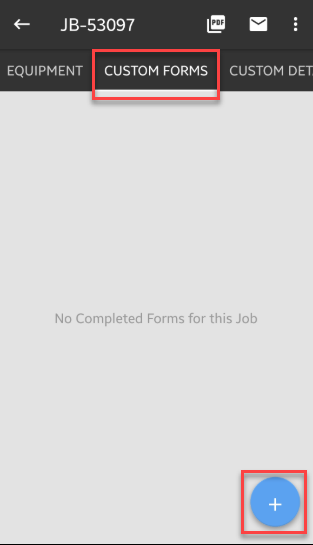
2. Navigate to Custom Forms tab and tap the + button.
The form that appears should already be the updated version.
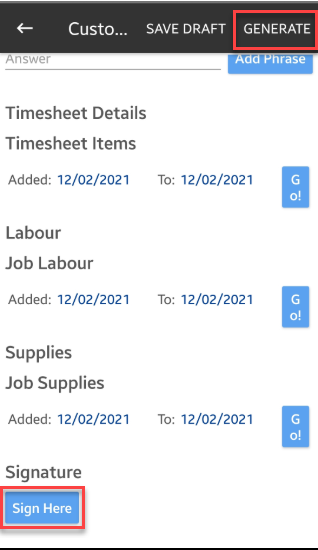
3. Once the custom form is displayed, you would be able to add your signature.
Click Generate to proceed and it should create a PDF version.
Remember not to use a draft or previously saved custom form to do the testing. Always tap the + button to test a new one.
List of Answer Types that you can select when creating or adding a Custom Form question
NUMBER – restricts User input to numeric values only TEXT – use for short, alpha-numeric answers. For example, a Task Name or a short answer MEMO – use for questions which require longer answers DATE – use for date entry fields MULTIPLE CHOICE – use for Yes/No or multi-choice questions. When selected, an option list will display for you to enter the available options for te User to choose from (eg, Yes, No, etc) MULTIPLE CHOICE, MULTIPLE ANSWER – works in a similar fashion to Multiple Choice however the User is able to select more than one of the available options SIGNATURE – use to capture and insert a Signature HEADING – choose this Answer Type for all company names, logos, document titles, headings, etc PHOTO – used to capture and/or insert images. The user will have the option to take a photo using the mobile device, or attach a photo that already exists on the mobile device.
Got a question?
Submit an Idea 💡 Go to Ideas Portal