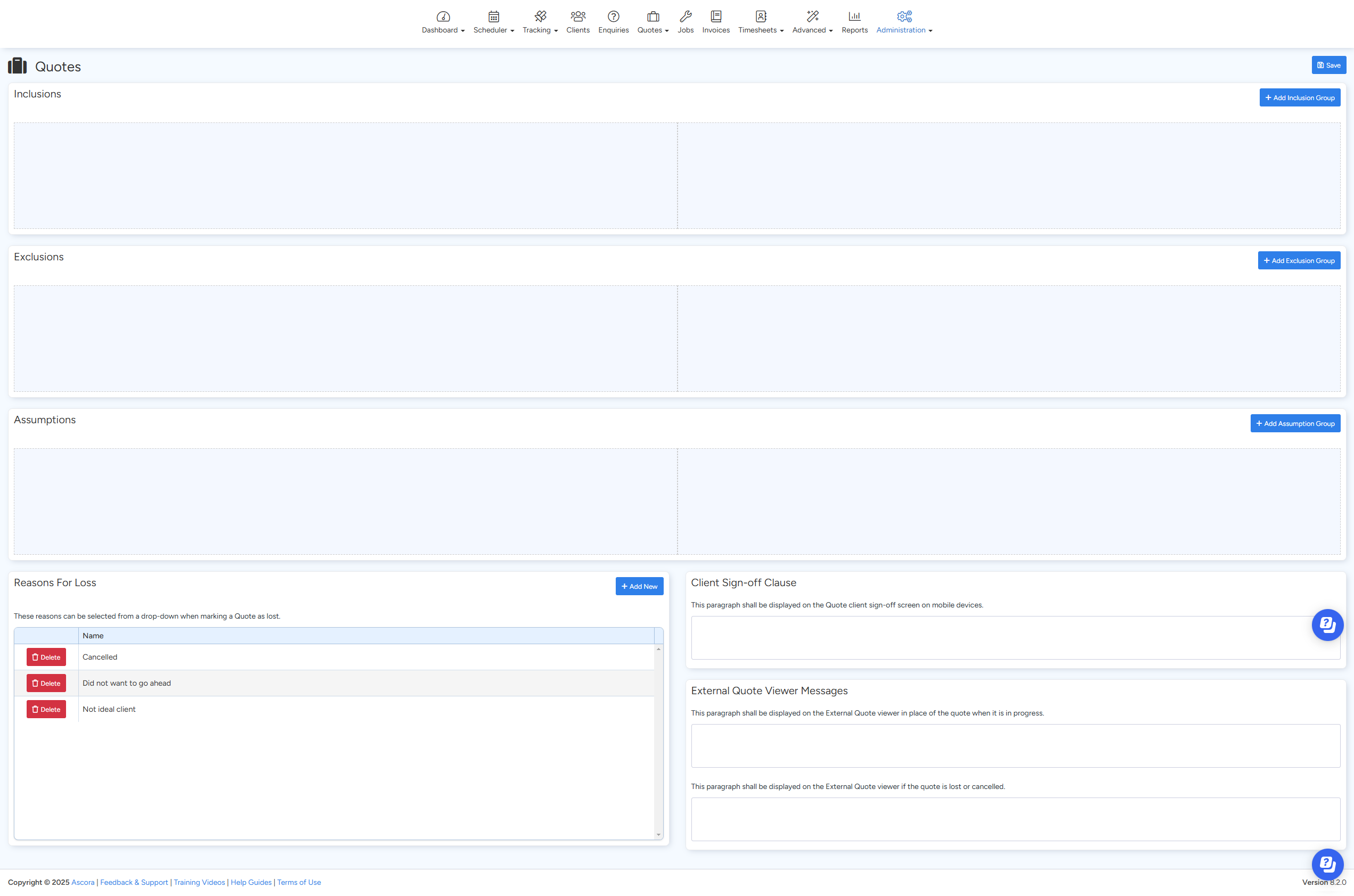
The Quotes Administration section in Ascora allows you to configure various settings related to your quoting process. This includes setting up inclusions, exclusions, assumptions, loss reasons, client sign-off clauses, and external quote messages. These settings help standardize quotes, improve clarity, and enhance client communication.
📽 Watch the video guide ⤵
Configuring Quote Settings in Ascora
To access and update these settings:
- Navigate to Administration → Quotes.
- Update or add details under the relevant sections below.
- Click Save to apply your changes.
Inclusions
Inclusions specify what is covered in your quotes. These can include specific services, materials, warranties, or any other details that help manage client expectations.
🛠 How to Add or Update Inclusions:
- Go to Administration → Quotes → Inclusions.
- Click + Add New to create a new inclusion.
- Enter the details and click Save.
📌 Example: "Includes all labor and materials required to complete the installation as per specifications."
Exclusions
Exclusions clarify what is not covered in the quoted price to avoid misunderstandings with clients.
🛠 How to Add or Update Exclusions:
- Go to Administration → Quotes → Exclusions.
- Click + Add New to create a new exclusion.
- Enter the details and click Save.
📌 Example: "Does not include additional excavation beyond the standard scope or unforeseen structural repairs."
Assumptions
Assumptions define any conditions or expectations that apply to the quote. These are important for setting realistic project expectations.
🛠 How to Add or Update Assumptions:
- Go to Administration → Quotes → Assumptions.
- Click + Add New to create a new assumption.
- Enter the details and click Save.
📌 Example: "Assumes site access is available during standard working hours."
Reasons for Loss
When marking a quote as lost, you can select a predefined reason. This helps track why opportunities are not converted and refine sales strategies.
🛠 How to Add or Update Reasons for Loss:
- Go to Administration → Quotes → Reasons for Loss.
- Click + Add New to create a new reason.
- Enter the reason and click Save.
📌 Example:
- "Client chose a competitor"
- "Budget constraints"
- "Project postponed"
Client Sign-Off Clauses
Client sign-off clauses appear when a client approves a quote using the mobile device sign-off screen. This clause acts as an acknowledgment of acceptance.
🛠 How to Add or Update Sign-Off Clauses:
- Go to Administration → Quotes → Client Sign-Off Clauses.
- Click + Add New to create a new clause.
- Enter the details and click Save.
📌 Example:
"By signing this quote, the client agrees to the terms and conditions outlined and acknowledges the work to be completed as per the provided details."
External Quote View Messages
These messages appear in the External Quote Viewer and provide status updates for clients viewing their quotes online.
📌 Types of External Quote Messages:
- In-Progress Message – Displays when a quote is still being prepared.
- Lost or Cancelled Message – Displays if the quote is not proceeding.
🛠 How to Add or Update External Quote Messages:
- Go to Administration → Quotes → External Quote View Messages.
- Click + Add New to create or update messages.
- Enter the message content and click Save.
📌 Example Messages:
- In-Progress: "This quote is currently under review and will be finalized soon."
- Lost/Cancelled: "This quote is no longer active. Please contact us for further assistance."
Finalizing Your Quote Settings
✅ Review your inclusions, exclusions, and assumptions to ensure clarity.
✅ Track lost quotes by updating reasons for loss.
✅ Customize client interactions with sign-off clauses and external quote messages.
✅ Save all changes to ensure they are applied to future quotes.
By configuring these settings, you ensure consistency, professionalism, and transparency in your quoting process, helping to streamline operations and improve client communication.
Got a question?
Submit an Idea 💡 Go to Ideas Portal