The Invoices List serves as your central hub for tracking, managing, and processing invoices with ease. Whether you need to review outstanding payments, track overdue invoices, or send invoices to customers, this section provides the tools to keep your invoicing workflow organized and efficient.
Quick Access & Search Tools
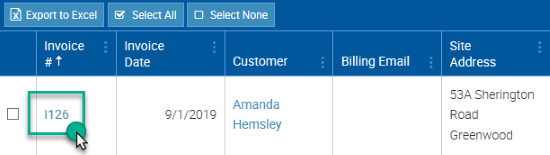
- Open any invoice instantly by clicking on its Invoice Number.
- Use filters to narrow down invoices based on status, due dates, or processing stage.
- Search by customer name, invoice number, or specific details using the global search box.
With these features, you can quickly locate invoices, ensure timely follow-ups, and maintain an accurate financial record—all in one streamlined interface.
Choose the Invoices Icon in the Top Menu to display the Invoices List.

To view the details for a specific Invoice, click the Invoice Number.
Filter by Invoice Status
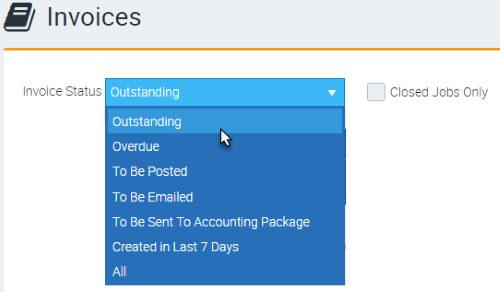
Narrow your search by filtering the Invoices List by the Invoice Status. You can also choose to display Invoices for Closed Jobs Only be checking the toggle box.
Outstanding – will list all Invoices that are unpaid but not overdue
Overdue – will list all Invoices that are unpaid and past their due date
To Be Posted – will list all Invoices that have been marked as To Be Posted but not yet Marked as Posted
To Be Emailed – will list all Invoices that have been marked as To Be Emailed but not yet emailed
To Be Sent to Accounting Package – will list all Invoices that have not been sent to your Accounting Package (if you have established Accounts Integration)
Created in Last 7 Days – will list all Invoices that have been generated within the last 7 days
All – will list all Invoices. This filter option will also allow you to set a Date range
Open by Invoice Number or Site Customer
If you know the Invoice Number, type it directly into the Open by Invoice Number or Site box. That Invoice will be listed in a dropdown menu – click on the Invoice number to view the Invoice details. If you know any part of the Site Customer name for who the Invoice is for, type the name into the Open by Invoice Number or Site box. As you type, a dropdown list of Invoices containing that Site Customer name will display. Click on the required Invoice when it appears in the list.

Search Using the Global Search Box
You can type any Invoice-related information into the Search Box and the Invoices List will refine as you type. For example, if you know the Customer is located in Fremantle, as you type “Fre” the Invoices List will refine to only show Invoices with details which include “Fre”.

Got a question?
Submit an Idea 💡 Go to Ideas Portal