Locating the right job in Ascora should be fast and hassle-free. Whether you remember the exact job number, the type of job, or just a keyword associated with it, Ascora’s flexible search tools let you narrow down and open the correct job in seconds.
By using filters for Job Type or Status, or by typing keywords into the global search box, you can keep your workflow moving without lengthy hunts through long job lists.
Explore the methods below to quickly find and manage your job details in Ascora.
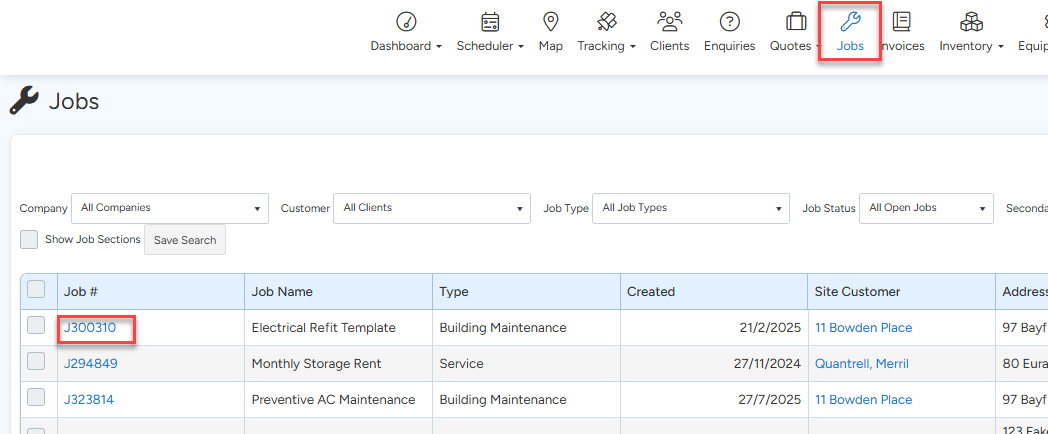
Choose the Jobs Icon in the Top Menu to display the Jobs List.
View a Job’s Details
To view the details for a specific Job, click the View button located beside the Job Number.
Filter by Job Type, Job Status or Secondary Status
Narrow your search by filtering the Job List by the Company, Customer, Job Type, Job Status, Secondary Status or Assigned to.

Search by Job Number or Name
If you know the Job Number, type it directly into the Open by Job Number or Name box. That Job will be listed in a dropdown menu – click on the Job to view the Job Card. If you know any part of the Job’s Name, type the words into the Open by Job Number or Name box. As you type, a dropdown list of Jobs containing that name will display. Click on the required Job when it appears in the list. You can also click the Toggle Advanced Search button to reveal addition search functionality if required.

Search Using the Global Search Box
You can type any Job-related information into the Search Box and the Jobs List will refine as you type. For example, if you know the Customer is located in Fremantle, as you type “Fre” the Jobs List will refine to only show Jobs with details which include “Fre”.

Got a question?
Submit an Idea 💡 Go to Ideas Portal