If you manage multiple Ascora accounts, you may need to transfer Custom Forms between them to maintain consistency and streamline setup. Ascora allows you to export a copy of a Custom Form from one account and import it into another, ensuring an exact match in formatting, structure, and fields.
This feature is particularly useful when:
- You have multiple Ascora accounts and want to replicate a form.
- You need to transfer forms from a trial account to a live account.
- You want to duplicate a form for modifications without starting from scratch.
Follow the steps below to export and import Custom Forms quickly and efficiently.
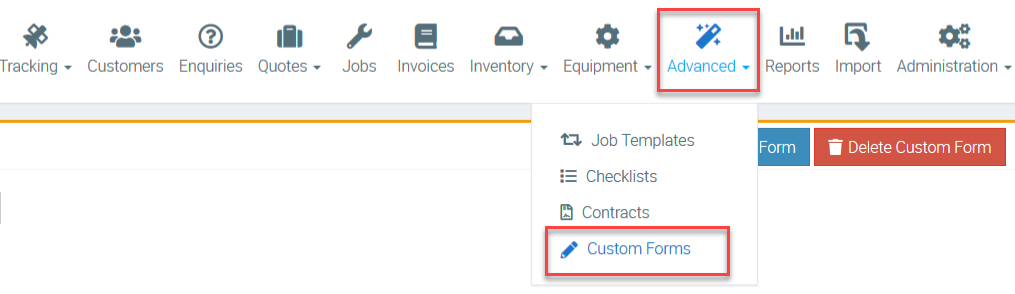
1. Go to Advanced → Custom Forms.
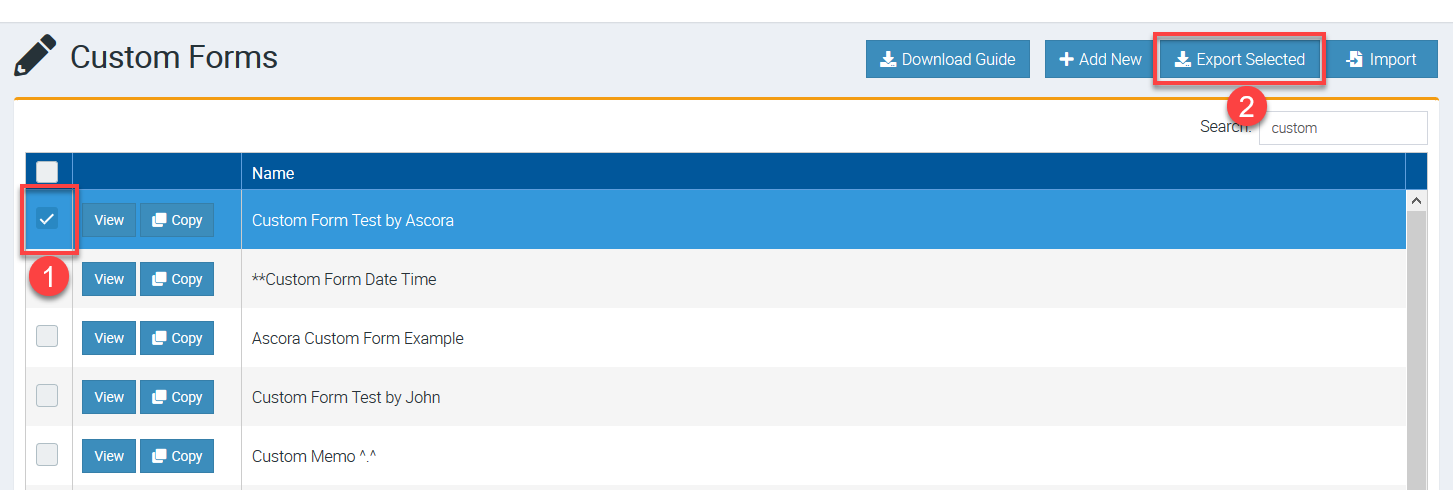
2. Look for the Custom Form that you want to move to another account and select it by ticking the box beside View button and then click Export Selected.
In this example, we are accessing the form called Custom Form Test by Ascora.
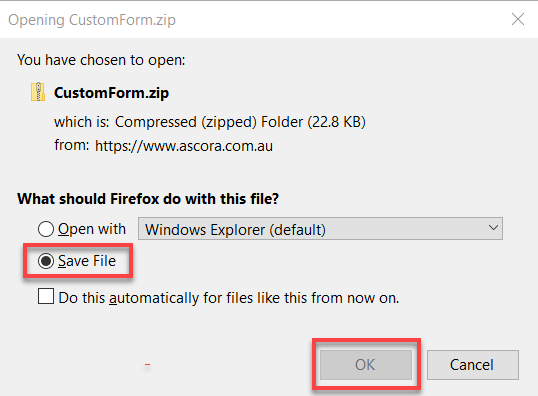
3. Depending on your computer settings, the file will be downloaded otherwise, click on Save File and click OK.
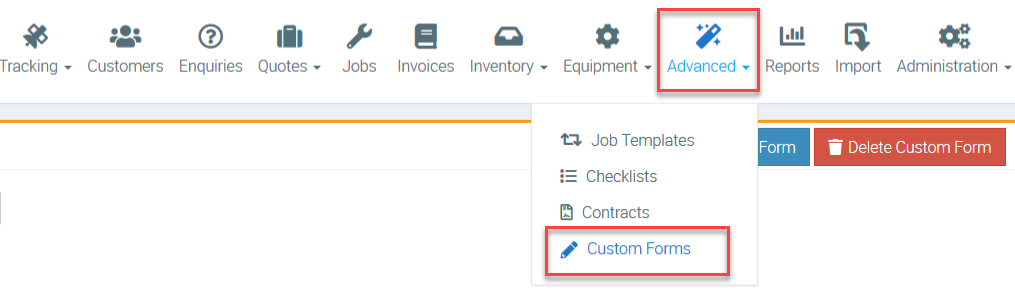
4. Log into your other account where you want to import the Custom Form and follow the same steps by going to Advanced → Custom Forms.
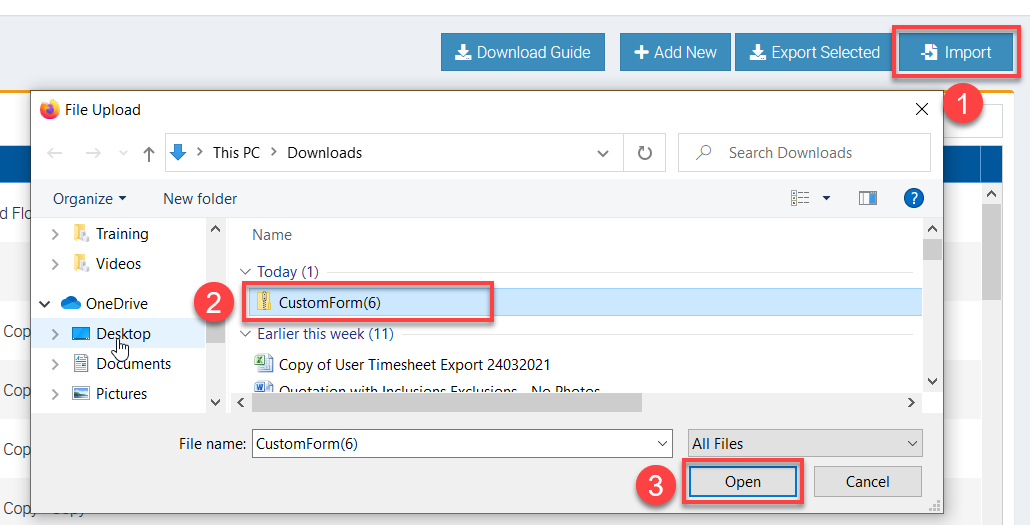
5. Click Import and select the downloaded file and click Open.
Repeat the above process when you need to import another form.
Got a question?
Submit an Idea 💡 Go to Ideas Portal