Stages in Ascora offer an alternative pricing method to Sections, enabling you to organize complex jobs under a single, consolidated view. In addition to simplifying how you manage multi-phase projects, Stages introduce the concept of Activities, which provide an extra layer of categorization—particularly useful for tracking labor and timesheets in greater detail.
With Stages, you can:
- Configure Standard Stages for quick setup of new Quotes/Jobs.
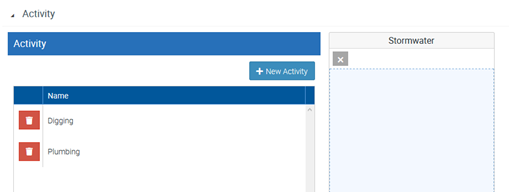
- Assign Activities to each Stage, facilitating more granular reporting and cost-tracking.
- Maintain a Unified View of all child items (Supplies, Labour, Timesheets) without needing separate job records for each phase.
Whether you’re planning a large-scale project broken into smaller tasks or simply seeking better visibility over labor assignments, Stages empower you to plan, execute, and monitor your jobs more efficiently. The following guide will walk you through setting up and managing Stages, Activities, and how they integrate into Ascora’s broader job management system.
📽 Watch the video guide ⤵
Set Up Standard Stages
Standard Stages help you quickly apply a pre-defined structure to new Quotes or Jobs.
- Go to Administration → Job Settings in Ascora.
- Click on the Projects Tab
- In the Stages section, click Add New to create a new stage or click into an existing stage to edit it.
- Provide a Stage Name and Display Order. This order determines how stages appear in your list.
- Click Save to finalize your changes.

Switch a Quote or Job to Stages
After creating a Quote or Job, you can change its Pricing Method to Stages:
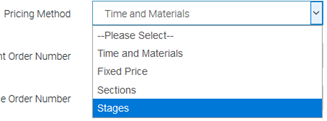
- In the Job Details or Quote Details, find the Pricing Method dropdown and select Stages.
- Ascora will enable the Stages Tab for this Quote/Job, letting you organize your work using the predefined or custom stages.

Add a New Quote/Job Stage
With the Stages Tab active:
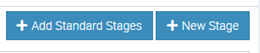
- Click Add New Stage.
- Choose between a Standard Stage (previously configured) or Custom Stage (unique to this Quote/Job).
- If selecting a Standard Stage, you can add multiple stages at once from your predefined list.
Edit Items Within a Stage
When you need to manage supplies, labour, timesheets, or other details for a specific stage:
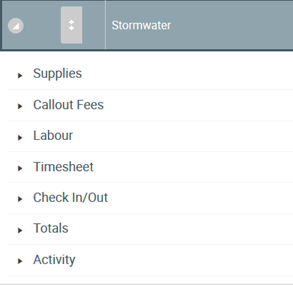
- Click the Arrow beside the Stage to expand it.
- Open the relevant section (e.g., Supplies, Labour, Timesheets) by clicking its arrow.
- Adjust items as you would in a regular Quote/Job (e.g., add new supplies or edit labour entries).
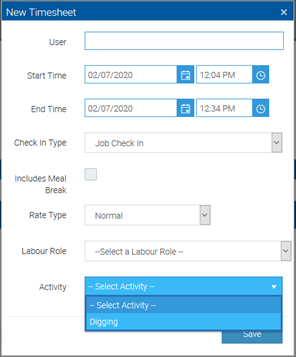
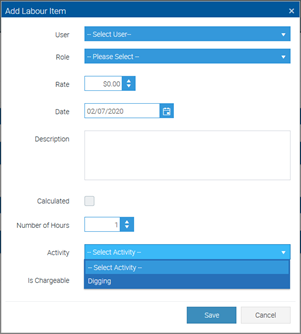
Assign Activities to Timesheets/Labour
To categorize labour entries and timesheets under specific Activities:
- Add or edit a Timesheet or Labour entry within a stage.
- Choose an Activity from the dropdown list (populated by your Stage’s assigned Activities).
- Save to finalize the labour entry with its associated Activity.
Got a question?
Submit an Idea 💡 Go to Ideas Portal